
Email Templates
TimelyChurch uses a template-based email system to send professional, consistently formatted notification emails -- schedule reminders, substitute requests, invitations, and more. Each system email has a template that sets its subject line and body. As an administrator, you can view and preview these templates, send yourself a test, and turn individual templates on or off for your church.
Not the same as campaign templates: This page is about the automatic emails TimelyChurch sends for you. The reusable templates you save for your own email blasts live under Email Campaigns > Templates -- see Email Campaigns.
Email Templates is included on the Pro plan and above.
Accessing Email Templates
The Email Templates page does not have its own item in the admin sidebar. To open it:
- Log in to the Admin panel and go to your admin dashboard.
- In your browser's address bar, add
/settings/email-templatesto the end of the admin address, so that it ends in/portal/admin/settings/email-templates, and press Enter.
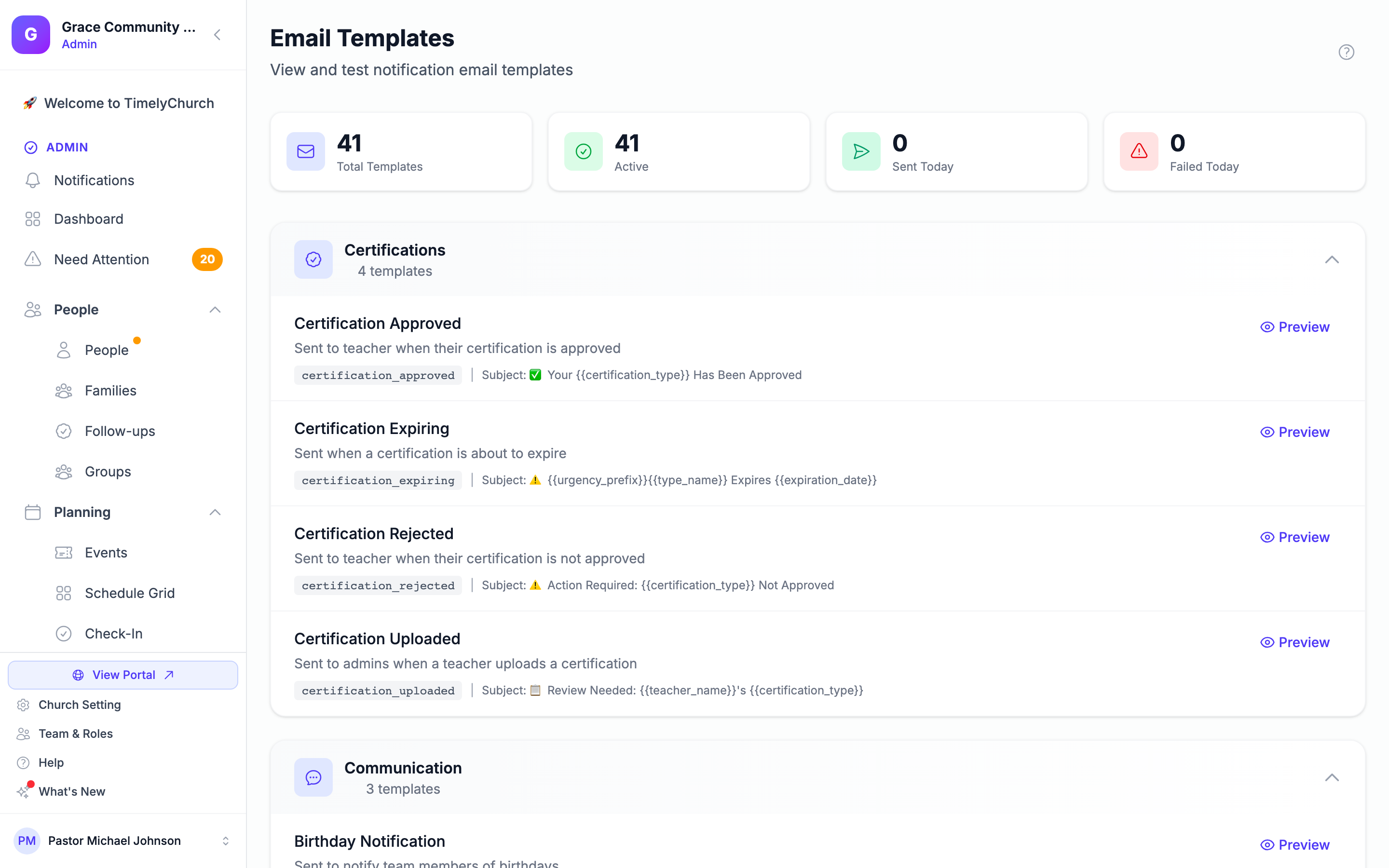
The Email Templates page displays summary statistics and your church's templates organized by category.
Dashboard Statistics
At the top of the page, four cards provide a quick overview:
| Stat | Description |
|---|---|
| Total Templates | The number of email templates you can manage |
| Active | How many of them are currently turned on for your church |
| Sent Today | Number of emails successfully sent today |
| Failed Today | Number of emails that failed to send today |
Template Categories
Templates are organized into the following categories:
Scheduling
- Schedule Assignment -- Sent when a teacher is assigned to teach a class
- Schedule Reminder -- Reminder sent before a teaching date
Substitute Requests
- Substitute Request -- Sent to teachers when someone needs a substitute
- Substitute Claimed -- Sent to the requester when someone claims their sub request
- Substitute Request Cancelled -- Sent when a substitute request is cancelled
Lessons
- Lesson Needed -- Sent when a schedule needs a lesson selected
- Lesson Proposed -- Sent to admins when a teacher proposes a lesson
- Lesson Approved -- Sent to a teacher when their lesson is approved
- Lesson Rejected -- Sent to a teacher when their lesson is not approved
Certifications
- Certification Uploaded -- Sent to admins when a teacher uploads a certification
- Certification Approved -- Sent to a teacher when their certification is approved
- Certification Rejected -- Sent when a certification is not approved
- Certification Expiring -- Sent when a certification is about to expire
Supply Requests
- Supply Request Submitted -- Sent to admins when a supply request is submitted
- Supply Request Approved -- Sent to a teacher when their request is approved
- Supply Request Denied -- Sent to a teacher when their request is denied
Communication
- Feedback Reply -- Sent when someone replies to feedback a user submitted
- Birthday Notification -- Sent to notify team members of birthdays
Invitations
- Team Invitation -- Sent when a church admin invites someone to join their team
- Invitation Accepted Notification -- Sent to admins when someone accepts an invitation
- Invitation Reminder -- Reminder sent for pending invitations
Family & Household
- Family Join Request -- Sent to family heads when someone requests to join their family
- Family Join Request Approved -- Sent when a join request is approved
- Family Join Request Declined -- Sent when a join request is declined
- New Family Member Added -- Sent to existing members when someone is added
- New Household Created -- Confirmation when a new household is created
Member Portal
- Magic Link Login -- Sent when a member requests a magic link to access the portal
- Portal Welcome -- Sent to welcome new members to the member portal
Groups & Teams
- Group Welcome -- Sent when a new member joins a group
- Group Invitation -- Sent when someone is invited to join a group
- Group Removal -- Sent when someone is removed from a group
- Leader Assignment -- Sent when someone is assigned as a group leader
- Group Announcement -- Sent for group-wide announcements from leaders
- New Join / Request Alert (Leader) -- Sent to a group's leaders and co-leaders when someone joins, requests to join, joins the waitlist, RSVPs, or submits the group sign-up form
Equipment & Resources
- Resource Booking Request -- Sent to admins when someone requests to book a resource
- Resource Booking Approved -- Sent when a booking request is approved
- Resource Booking Declined -- Sent when a booking request is declined
System
- General Notification -- Default template for general notifications
- Church Deletion Warning -- Sent to church admins when the church account is scheduled for deletion because of inactivity
- Church Deletion Final Warning -- Final warning before the church account is deleted
Note: Sign-in emails -- password resets, email verification and the new-account welcome email -- are not listed here. They are managed by TimelyChurch and can't be turned off by a church, so nobody is locked out of their account by accident.
Previewing a Template
- Click the Preview button next to any template in the list.
- The template detail page opens, showing:
Template Details
- Template Key -- The fixed name TimelyChurch uses for this template
- Category -- The category this template belongs to
- Status -- Whether the template is Active or Inactive for your church
Available Tokens
The list of details that are filled in automatically when the email is sent -- for example the recipient's name, your church name, a date, or a link to the relevant page.
Email Preview
A fully rendered preview of the email as it would appear to a recipient, using sample data. The preview includes:
- The church name header
- The email body with every detail filled in with sample values
- An action button (if the template has one)
- A footer with the church name and copyright
Raw Template
Click the expandable Raw Template section to see the subject and body exactly as stored, before any details are filled in.
The wording of system templates is set by TimelyChurch and can't be edited from this page.
Sending a Test Email
- On any template's detail page, find the Send Test Email card.
- Enter an email address (your own address is pre-filled).
- Click Send Test Email.
The test email is sent using sample data ("Test email will use sample data") so you can see exactly how the template looks in a real email client. Its subject starts with [TEST] and a TEST EMAIL banner sits at the top of the message. You'll see "Test email sent to …" when it has gone.
Tip: Sending a test email is a great way to verify that your email delivery is working correctly and that the template formatting looks good across different email clients.
Turning a Template On or Off
Each template can be turned on or off for your church:
- Click Preview on the template.
- Under Template Details, click Deactivate for this church (or Activate for this church to turn it back on).
When a template is off:
- TimelyChurch does not send that email to anyone in your church, even when the triggering event happens
- The template shows an Inactive badge in the listing
- If the email matches a notification type on people's Notification Settings page in the portal, it shows there as Off with the note "Your church has turned this off for everyone"
Turning a template on or off affects only your church. Sending a test and turning templates on or off need the Edit action for Email Templates (church administrators have it).
Template Updates
When you open the Email Templates page, any new templates TimelyChurch has added since your last visit are set up automatically with their default content.
How Templates Are Used
Email templates are used automatically. When an event occurs (such as a schedule assignment, substitute request, or certification expiration), TimelyChurch:
- Finds the matching template
- Checks that the template is turned on for your church
- Fills in the details from the event
- Wraps the content in a branded email layout with the church name header and footer
- Sends the email to the right recipient(s)
- Counts it in the Sent Today or Failed Today statistic