
Building an Email Automation: Triggers, Steps & Delivery Channels
Email Automations send the right message automatically when something happens in your church — a new person joins, someone submits a form, a first gift comes in. This article walks through building an automation from scratch: choosing a trigger, adding steps with delays, sending yourself a test, setting a delivery window, and — if your church has Telegram connected — sending a step as a direct message instead of email. For controlling exactly who gets enrolled and how safely you can edit an automation that's already running, see Email Automations: Enrollment, Conditions & Safe Editing.
Accessing Automations
- Log in to the Admin panel.
- Click Communications in the sidebar to expand it, then click Automations.
The list shows every automation your church has built, its trigger, and whether it's active. Click New Automation to start one (the form's save button reads Create Automation), or click View on an existing automation to open it.
Note: Automations is a separate, plan-gated feature from Email Campaigns. If it appears grayed out with a lock icon in the sidebar, it isn't included in your current plan.
Choosing a Trigger
Every automation starts with a trigger — the event that enrolls someone. Pick one from the Trigger dropdown:
| Trigger | Fires when… |
|---|---|
| New Member Added | Someone gets the membership status Member -- either added to your directory as a Member, or changed to Member later. They need an email address and must not have unsubscribed. |
| Person Joins a Group | Someone joins a specific group (or any group, if you leave the group picker blank). |
| Event Registration | Someone registers for a specific event, or any event. |
| Form Submitted | Someone submits a specific form, or any form. |
| First Donation | A person makes their very first donation. Won't fire again for later gifts from the same person. |
| First Check-in | A person checks in for the very first time. Won't fire again for later check-ins. |
| Manual Trigger | Never starts on its own — people are only added with the Enroll people button or a bulk enrollment from the People list. Use this for one-off journeys you want full control over, like a "New Family" series you add people to by hand. |
When you choose Person Joins a Group, Event Registration, or Form Submitted, a second dropdown appears letting you narrow the trigger to one specific group, event, or form — or leave it on "Any" to match all of them.
Building Your Steps
Each step is an action that fires a set amount of time after the previous one (or after enrollment, for step 1). Click Add Step to add another.
For each step, set:
- Action Type — what happens: Send Email, Create Follow-Up, Create Task, Add to Group, Remove from Group, Send Notification, Update Person Field, or (if your church has Telegram connected) Telegram Message.
- Delay Days / Delay Hours — how long to wait after the previous step (or after enrollment, for the first step) before this one fires. A step with 0/0 fires immediately.
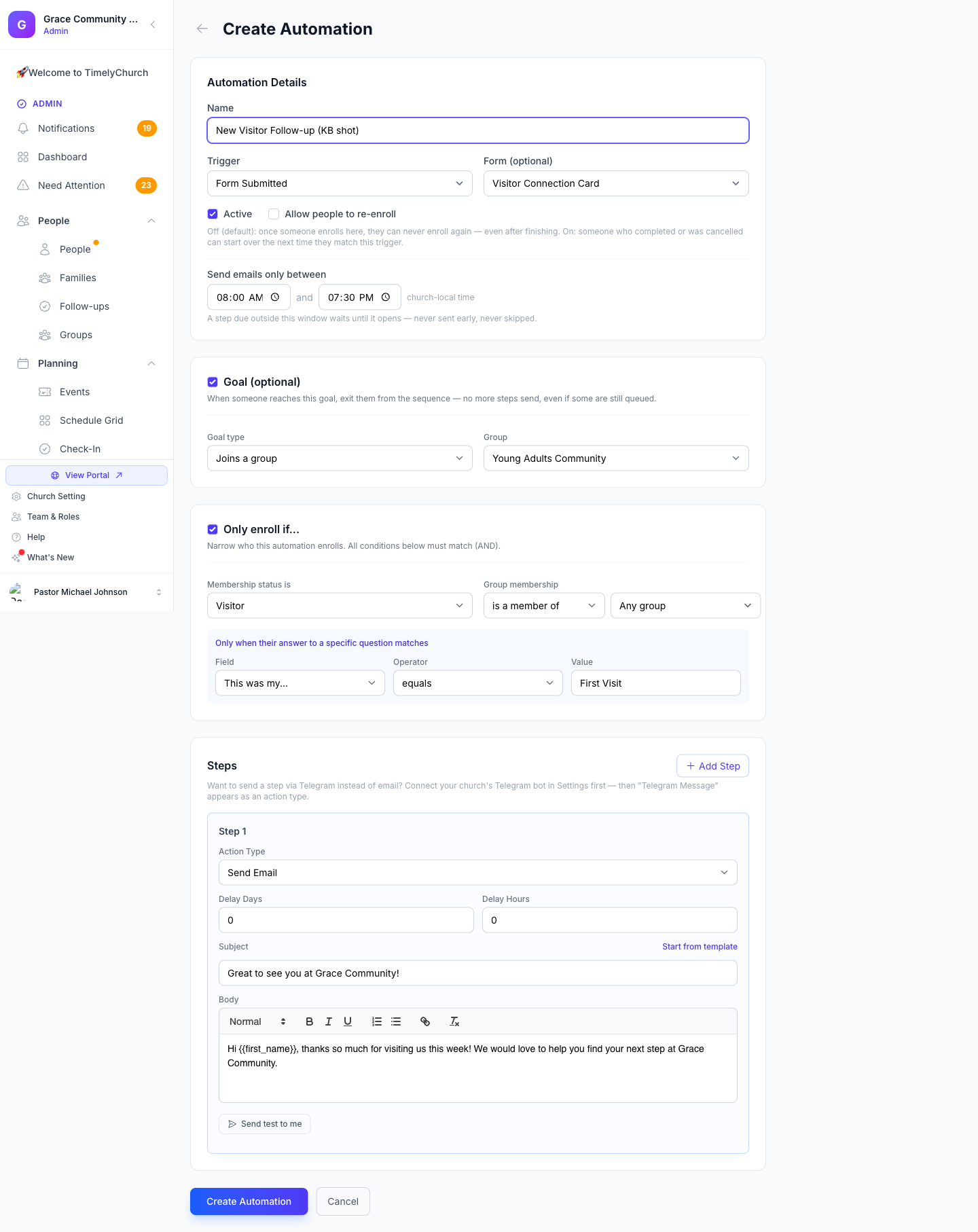
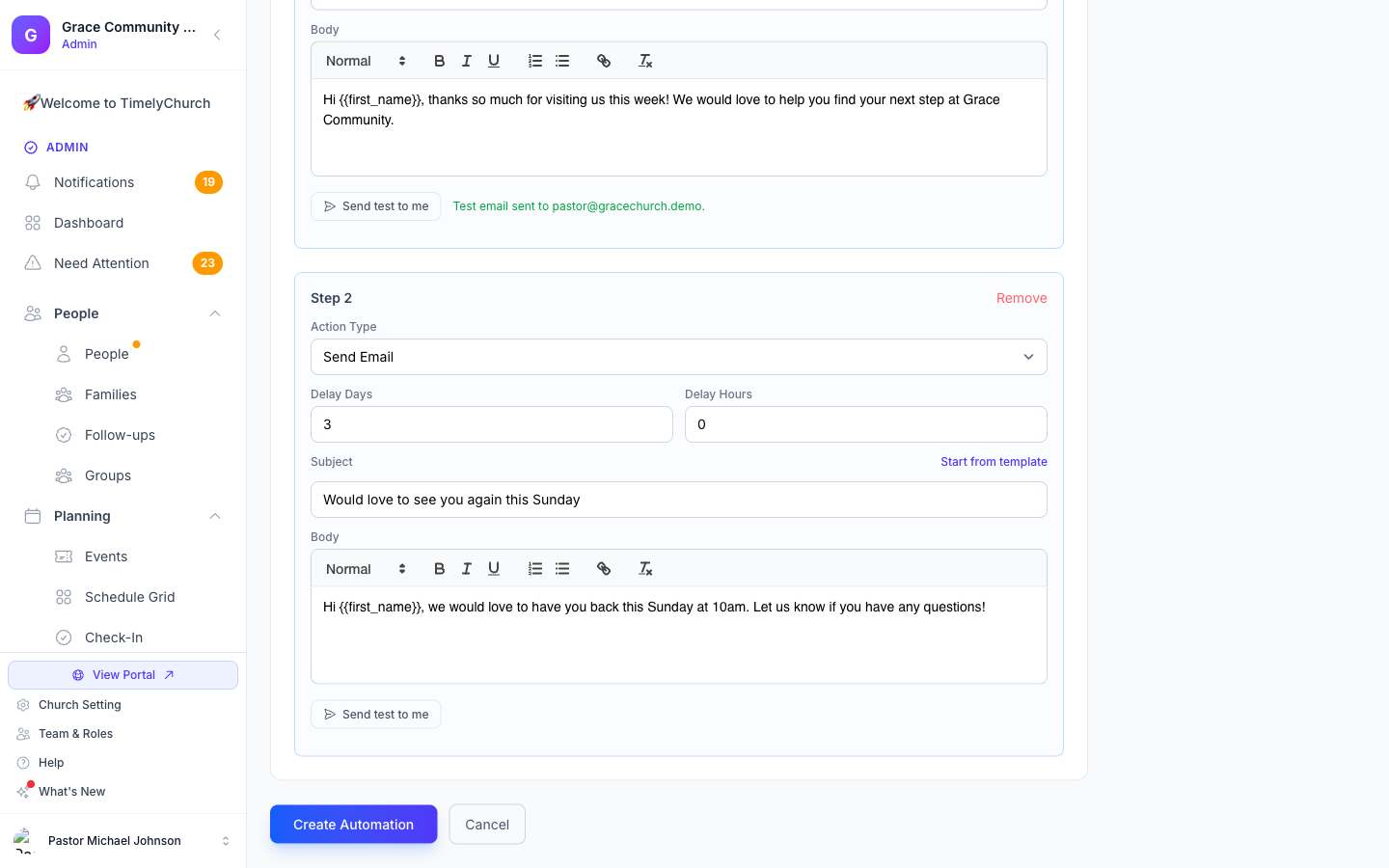
Building a multi-step journey is just a matter of stacking steps with delays between them — for example, a welcome email immediately, then a follow-up three days later:
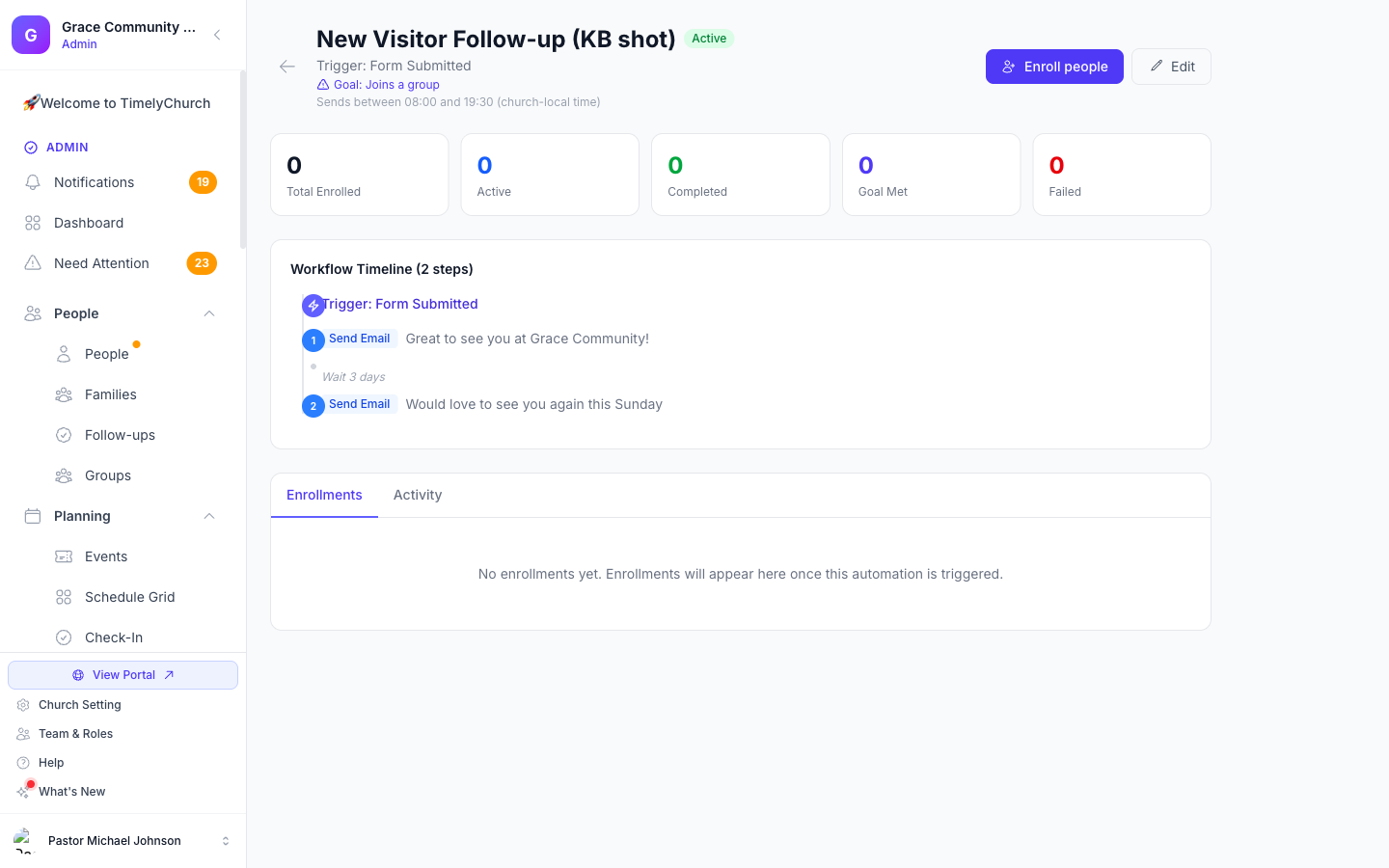
Once saved, the automation's page shows the whole sequence as a timeline — trigger, each step, and the wait between them — so you can see the journey at a glance.
Starting a Step From a Template
When building an email step, click Start from template to pick one of TimelyChurch's system email templates (the ones listed on the Email Templates page, such as Group Welcome) instead of writing from scratch. Use Search templates... to find one. Selecting a template fills in the step's subject and body immediately — you can still edit either one freely from there.
Templates are copied in at the moment you pick them. The step then shows "Started from a template — later edits to that template will not change this step." What a step sends is locked in the moment you chose the template, not tied to it going forward.
Sending Yourself a Test
Click Send test to me under any email step to send that step's current subject and body — including anything you've typed but haven't saved yet — to your own admin email address, rendered with sample data. This is throttled to a small number of sends per hour, so it's meant for previewing your wording, not for bulk testing.
Setting a Send Window
Every automation sends inside a window of hours you choose — Send emails only between — using your church's own timezone, not the recipient's or the server's. The default is 9:00 AM to 8:00 PM. A step that comes due outside that window simply waits until the window opens; it's never sent early, and it's never skipped. This keeps an automated welcome email from landing in someone's inbox at 3 AM just because that's when a delay happened to elapse.
Setting a Goal (Optional)
Turn on Goal to give the automation an exit condition. When someone enrolled in the automation reaches the goal — joins a group, submits a form, or makes a donation (pick one, and a specific group or form if relevant) — they exit the sequence immediately. Any steps still queued for them are cancelled; nothing further sends. This is useful for journeys where reaching the destination means the nudging should stop — for example, a "join a group" series that should stop emailing someone the moment they actually join one.
The Telegram Delivery Step
If your church has connected its Telegram bot (Settings > Integrations tab), a Telegram Message action type becomes available for any step. Unlike an email step, a Telegram step is a plain text message — there's no rich-text editor, just a message box, since Telegram doesn't render HTML formatting the way email does.
When a Telegram step fires:
- If the enrolled person has linked their own Telegram to their member portal profile, the message is sent directly to them as a private chat message — no email involved.
- If the person hasn't linked Telegram (or your church's connection has since been disconnected), the same message content is automatically sent as an email fallback instead, so nobody is silently skipped just because they never connected Telegram.
Because a Telegram send isn't an email, it has no open or click pixel to track — the automation's results honestly show "not tracked for Telegram" for that step's open/click rate rather than making up a number, alongside a simple breakdown of how many people actually received it by Telegram versus by the email fallback. See Telegram — Messages and Two-Tap Actions for how a member connects their own Telegram account.
Turning It On
Check Active to make the automation live — it won't enroll anyone or send anything while inactive. You can also check Allow people to re-enroll; see Email Automations: Enrollment, Conditions & Safe Editing for what that does.
Related Articles
- Email Automations: Enrollment, Conditions & Safe Editing
- Communication Overview
- Email Templates
- Email Campaigns
- Telegram — Messages and Two-Tap Actions
Last updated: September 30, 2026