
Custom Domain
Audience: This article is for church administrators.
The Domain tab lets you point a domain you own (like mychurch.org or www.mychurch.org) at your TimelyChurch public pages. This is the most common onboarding step that fails on the first try, so this guide walks through it carefully. For a longer, beginner-friendly walkthrough, see Custom Domain Walkthrough.
Plan Requirement
Custom Domain is a Pro plan feature. On Starter and Growth, the Domain tab appears greyed out with a lock; clicking it takes you to the Billing & Plans tab.
Accessing the Domain Tab
- At the bottom of the left sidebar, click Church Setting.
- Click the Domain tab.
The tab shows:
- The Custom Domain panel -- "Use your own domain for your church website" -- with the Domain Name field
- Your current custom domain (if set) and its status: Pending Verification or Verified & Active (with when it was verified)
- A DNS Configuration section with the records to add at your DNS provider, including your unique verification value
- About Custom Domains: SSL included, your TimelyChurch address always works as a backup
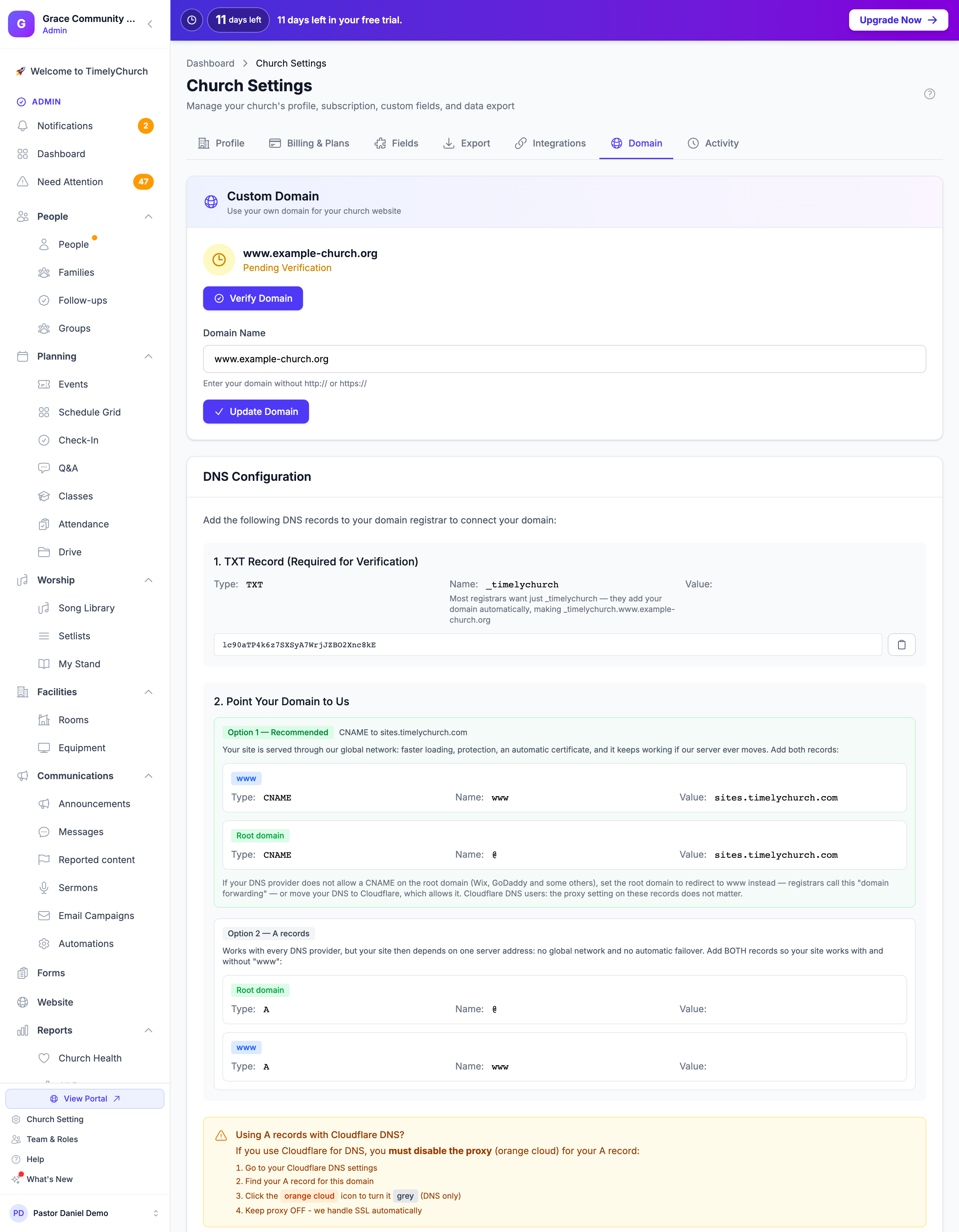
How Custom Domain Verification Works
TimelyChurch verifies that you control the domain by checking two things:
- A TXT record named
_timelychurch(that is,_timelychurch.<your-domain>) containing your unique verification value. This proves ownership. - Records that point your domain to TimelyChurch -- either a CNAME to
sites.timelychurch.com(recommended) or an A record to the server address shown on the Domain tab -- on your root domain or onwww. This routes visitor traffic to your church site.
Both must be in place before the domain becomes active. Once it is, TimelyChurch sets up a free SSL certificate for your domain automatically and renews it -- there is nothing to buy or upload.
Step-by-Step Walkthrough
1. Enter your domain in TimelyChurch
- On the Domain tab, type your domain into the Domain Name field, without
http://orhttps://. Examples:mychurch.orgwww.mychurch.org
- Click Add Domain. You'll see "Domain updated! Please add the DNS records to verify ownership."
Your site will work with and without www either way, as long as you add the DNS records for both (below).
Changing the domain later (the button then reads Update Domain) resets verification and generates a new verification value.
2. Add the TXT record at your DNS provider
Log in to your DNS provider and add:
| Field | Value |
|---|---|
| Type | TXT |
| Name / Host | _timelychurch (most providers add your domain automatically; if yours asks for the full name, use _timelychurch.mychurch.org) |
| Value / Content | The verification value shown in the Domain tab |
| TTL | Auto or default |
3. Point your domain to TimelyChurch
Choose one of the two options shown on the Domain tab.
Option 1 — Recommended: CNAME to sites.timelychurch.com
Your site is served through our global network: faster loading, protection, an automatic certificate, and it keeps working if our server ever moves. Add both records:
| For | Type | Name / Host | Value / Target |
|---|---|---|---|
www |
CNAME |
www |
sites.timelychurch.com |
| Root domain | CNAME |
@ |
sites.timelychurch.com |
If your DNS provider doesn't allow a CNAME on the root domain, set the root domain to redirect to www instead (often called "domain forwarding") and keep the www CNAME -- or move your DNS to a provider that allows it.
Option 2 — A records
Works with every DNS provider, but your site then depends on one server address: no global network and no automatic failover. Add both records so your site works with and without www:
| For | Type | Name / Host | Value / Address |
|---|---|---|---|
| Root domain | A |
@ |
The server address shown on the Domain tab |
www |
A |
www |
The same server address |
Using Cloudflare DNS with A records? You must disable the proxy (orange cloud) for your A records: click the orange cloud so it turns grey ("DNS only"). Keep proxy OFF -- we handle SSL automatically. With Option 1, the proxy setting on the CNAME records does not matter.
4. Wait for DNS propagation
DNS changes typically take 15 minutes to 48 hours to propagate worldwide. If verification fails, wait and try again later.
5. Click "Verify Domain"
Back in TimelyChurch:
- On the Domain tab, click Verify Domain.
- TimelyChurch looks up the TXT record and checks it matches your verification value, and checks that your root domain or
wwwpoints to TimelyChurch (CNAME or A record). - If both check out, you'll see "Domain verified successfully! Your custom domain is now active." and the status changes to Verified & Active.
If verification fails, you'll see a message such as "Domain verification failed: TXT record not found or incorrect. DNS changes may take up to 48 hours to propagate." or one mentioning "CNAME or A record not pointing to our servers". Re-check your DNS records and try again.
Common Pitfalls
| Symptom | Likely Cause |
|---|---|
| TXT record not found | The Name field has the domain added twice (e.g. _timelychurch.mychurch.org.mychurch.org). Use just _timelychurch if your provider adds the domain automatically. |
| TXT record found but incorrect | You copied the value with extra spaces or quotes, or you changed the domain (which creates a new verification value) after adding the record. |
| CNAME not pointing to our servers | The CNAME points somewhere other than sites.timelychurch.com, or your provider doesn't allow a CNAME on the root domain -- use the redirect-to-www approach or Option 2. |
| A record not pointing to our servers | The A record uses a different address than the Domain tab shows, or Cloudflare's proxy is on (orange cloud). Turn it off. |
| Verification failed but DNS lookups online show the records | DNS caches can take time. Wait 15-30 minutes and try again. |
| Site shows a certificate warning right after verifying | The certificate is set up automatically after verification; give it a few minutes. If it persists after an hour, contact support. |
Removing a Custom Domain
- On the Domain tab, clear the Domain Name field.
- Click Update Domain. You'll see "Custom domain removed."
Your custom domain is removed and your public pages are available only at your TimelyChurch address (timelychurch.com/c/your-church). You can safely delete the TXT and CNAME/A records from your DNS provider.
See Also
- Custom Domain Walkthrough
- Subscription & Billing — Pro plan requirement
- Settings Overview