
Member Portal Overview
The Member Portal is your personal hub for staying connected with your church. From here you can view upcoming events, read announcements, manage your family, send messages, share prayer requests, and much more -- all from any device.
You land on a single Home page that adapts to how you are involved -- if you serve on a team, Home becomes your serving hub with what needs your response, your next serving times, your teams, and your tasks; if you are a member, it highlights church life such as services, giving, family, and prayer. Phones have a bottom navigation bar for the pages you use most, and you can use the portal in your own language -- choose it under Language on your profile (see Managing Your Profile).
Logging In
Your church provides a dedicated login page. There are two ways to sign in:
Magic Link (Recommended)
- On the login page, make sure the Magic Link tab is selected.
- Enter the email address your church has on file for you.
- Click Send Magic Link.
- Check your inbox for an email from your church. Click the link inside to be signed in instantly.
Tip: Magic links are the easiest way to sign in because you do not need to remember a password. Each link can be used once and expires after a short time for security. See Magic Link Login for Members.
Email and Password
- Select the Password tab on the login page.
- Enter your email address and password.
- Click Sign In.
If you have forgotten your password, click Forgot password? beneath the sign-in form to receive a password reset email.
Creating an Account
Click Create account below the sign-in form and fill in your details to create a member account.
Can't Remember Your Church's Address?
Go to timelychurch.com/find. Under Let's find your church, enter your email address and click Send my sign-in link -- you'll get an email with a sign-in link for every church you belong to.
What You See After Logging In
Once you sign in, you land on Home. At the top is a greeting with your first name and today's date. What follows depends on how you are involved.
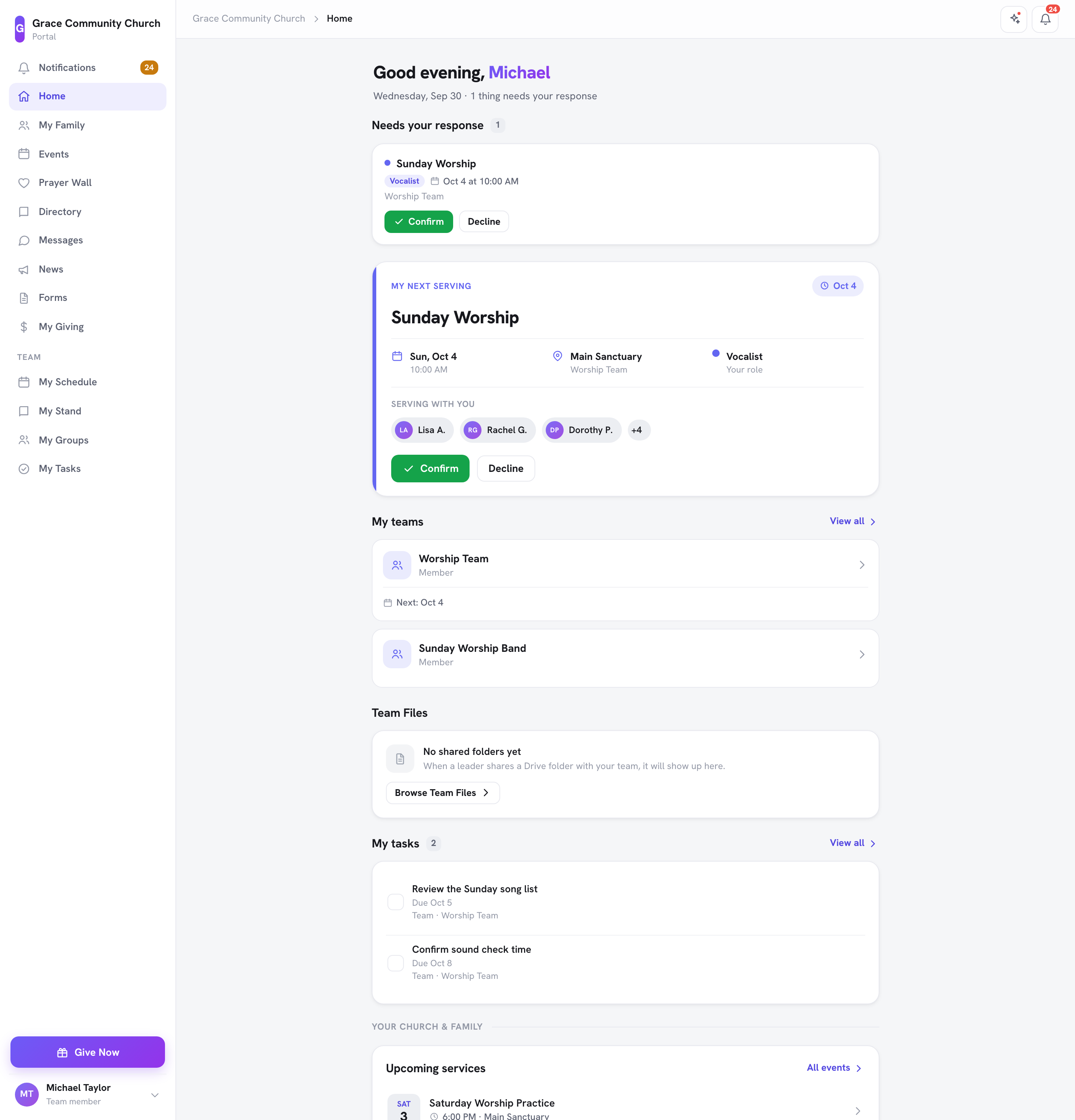
If You Serve on a Team
- Needs your response -- serving invitations to confirm or decline, swap requests, and requests to sub. The greeting line tells you how many things need your response, or "You're all caught up."
- My next serving -- your next serving date, your role, who is Serving with you, and buttons to Confirm, Decline, or Check in.
- My teams -- the teams you're on, each with its next date (View all opens My Groups).
- Pick up an open slot -- open spots on your teams you can volunteer for.
- Team Files -- Drive folders your leaders have shared with your team (see Share a Drive Folder with Your Team).
- My tasks -- your most pressing tasks (View all opens My Tasks).
Everyone
- Your church & family -- quick links to My Family, Directory (when your church has it turned on), Prayer Wall, Messages, News, and Forms.
- A reminder to finish your profile, when it isn't complete yet.
- Upcoming services -- the next events at your church (All events opens the full list).
- Give now -- your giving for this year, with a button to give.
- My family -- your household at a glance, or Connect to a household if you aren't part of one yet.
- Prayer Wall -- a recent prayer request; tap it to pray with the church.
- Shared with me -- when someone has shared a Drive file or folder with you personally (see Share a File or Folder with a Specific Person).
Navigating the Portal
On a computer, the portal has a sidebar on the left. On a phone, it has a bar at the top and a bottom navigation bar. The exact links you see depend on which features your church has turned on and whether you are on a serving team, so your sidebar may not show every item below.
Pages everyone may see
- Notifications -- Reminders, message alerts, and group updates. A badge shows how many are unread. See Notifications.
- Home -- Your personalized home page.
- My Family -- View and manage your household. See Family Management.
- My Groups -- The groups and classes you belong to. See Group Participation.
- Events -- Browse and register for upcoming church events. See Event Registration.
- Prayer Wall -- Share and pray for prayer requests. See Prayer Wall.
- Directory -- Search other members, when your church has turned it on. See Church Directory.
- Messages -- Send and receive direct messages with other church members and leaders, with file attachments. See Messages.
- News -- Read announcements and news from the church.
- Forms -- Fill out church forms and review past submissions. See Forms and Submissions.
- My Giving -- Your giving history, statements, and recurring gifts. See Viewing Giving History.
- My Tasks -- Your to-do list. See Tasks.
- Give Now -- A highlighted button near the bottom of the sidebar that opens your church's giving page.
Note: A member Directory is off by default to protect members' privacy. If your church has chosen to turn it on, you will see a Directory link in your navigation. If you do not see it, your church has not enabled the directory. Your own privacy choices -- whether you appear in the directory and which details are shown -- always remain in your control on the Profile tab of My Account.
For Volunteers and Team Members
If you serve on a team or teach a class, the sidebar has a Team section with:
- My Schedule -- Your upcoming serving and teaching dates, open slots, swaps, and sub requests, plus your availability. See Volunteer Scheduling and Lessons (for Teachers).
- My Stand -- For worship teams: your songs and charts.
- My Groups -- The teams and groups you belong to. See Group Participation.
- My Tasks -- Your personal to-dos plus tasks from your groups and events. See Tasks.
For Group Leaders
If you lead a group, its page in My Groups gives you extra tabs to approve join requests, manage the waitlist and members, and share prayer requests. See Group Participation.
Your Account Menu
Click your name at the bottom of the sidebar (on a phone, the person icon at the top) to open your account menu:
- My Profile -- Your My Account page, with four tabs: Profile, Family, Privacy, and Activity. See Managing Your Profile and Activity and Attendance.
- Notification Settings -- Choose which emails you receive. See Notifications.
- A church switcher, if you belong to more than one church.
- Sign out
Mobile-Friendly Design
The Member Portal works on phones, tablets, and desktop computers. On a phone:
- The top bar has a What's New icon, the notifications bell, a Give icon (when your church takes online gifts), and an Account menu with My Profile, Notification Settings, and Sign out.
- A bottom navigation bar gives quick access to the main pages. Members see Home, Events, Groups, Prayer, and Messages; people who serve on a team see Home, Schedule, My Stand, Tasks, and Messages. Giving is always reachable from the Give now card on Home.
- You can add the portal to your phone's home screen so it opens like an app. See Install TimelyChurch on Your Phone or Tablet.
The What's New icon (at the top of every page) opens a page with the latest improvements to TimelyChurch.
Two-Factor Authentication
For added security, you can turn on two-factor authentication (2FA) for your account. When it is on, you enter a code from your authenticator app in addition to your normal sign-in. See Managing Your Profile for the step-by-step.
Signing Out
Open your account menu (your name at the bottom of the sidebar, or the person icon at the top on a phone) and click Sign out. You are returned to the login page.
Need Help?
If you are having trouble logging in or accessing the portal, contact your church office. They can verify your email address is correct in the system and resend a magic link if needed.