
Your Worship Team on a Setlist
A setlist is more useful the moment it belongs to a specific team, not "everybody who can open Songs." This article covers assigning a worship team to a setlist, what that changes about who can see it, the leader/co-leader markers on the roster, and the two ways TimelyChurch keeps your team in the loop -- Notify team and Nudge.
Assigning a Team
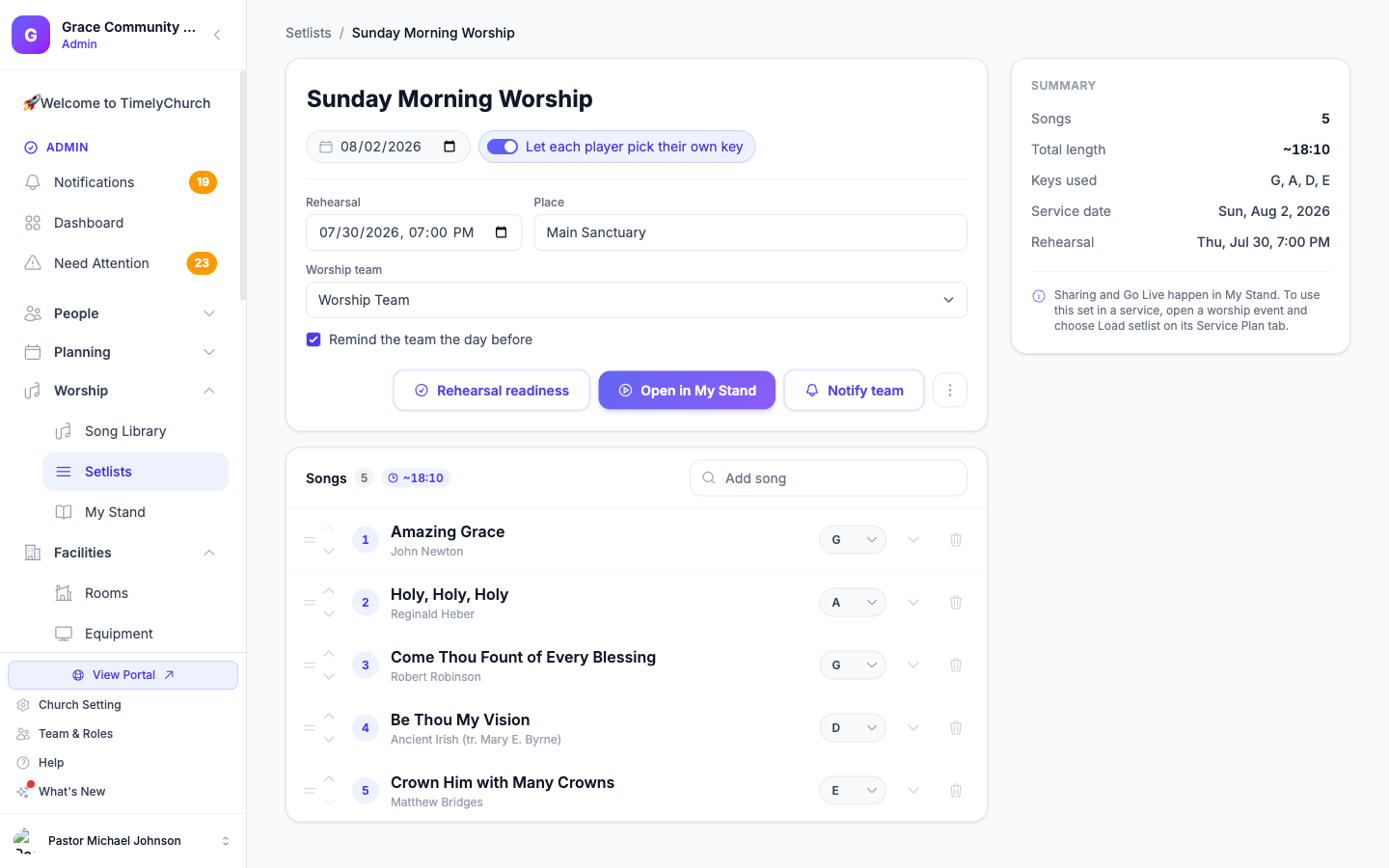
Open the setlist builder (Worship → Setlists) and, at the bottom of the Rehearsals block, pick a team from the Worship team menu. The menu lists your church's teams grouped by team type -- most churches use a single "Worship Team," but if yours has separate bands or campuses, each shows up as its own option. Not set — nobody is reminded leaves the setlist without a team.
Why This Matters: Visibility
Assigning a team is not just labeling -- it controls who can see the setlist at all:
| Who | Sees the setlist |
|---|---|
| A member of the assigned team | Yes -- on their My Stand |
| The assigned team's leader or co-leader | Yes, plus can edit it |
| A church/worship admin | Yes, always |
| Anyone else at the church | No -- it does not appear in their list, and opening the link directly behaves as if it does not exist |
| A setlist with no team assigned | Only admins see it (and the readiness page asks you to Assign a team) |
In other words: the drummer on Team B does not see Team A's setlist cluttering their My Stand, and a member who left the team loses access automatically the next time they open the app. This is deliberate -- a setlist is scoped to the people actually playing it.
Leader and Co-Leader on the Roster
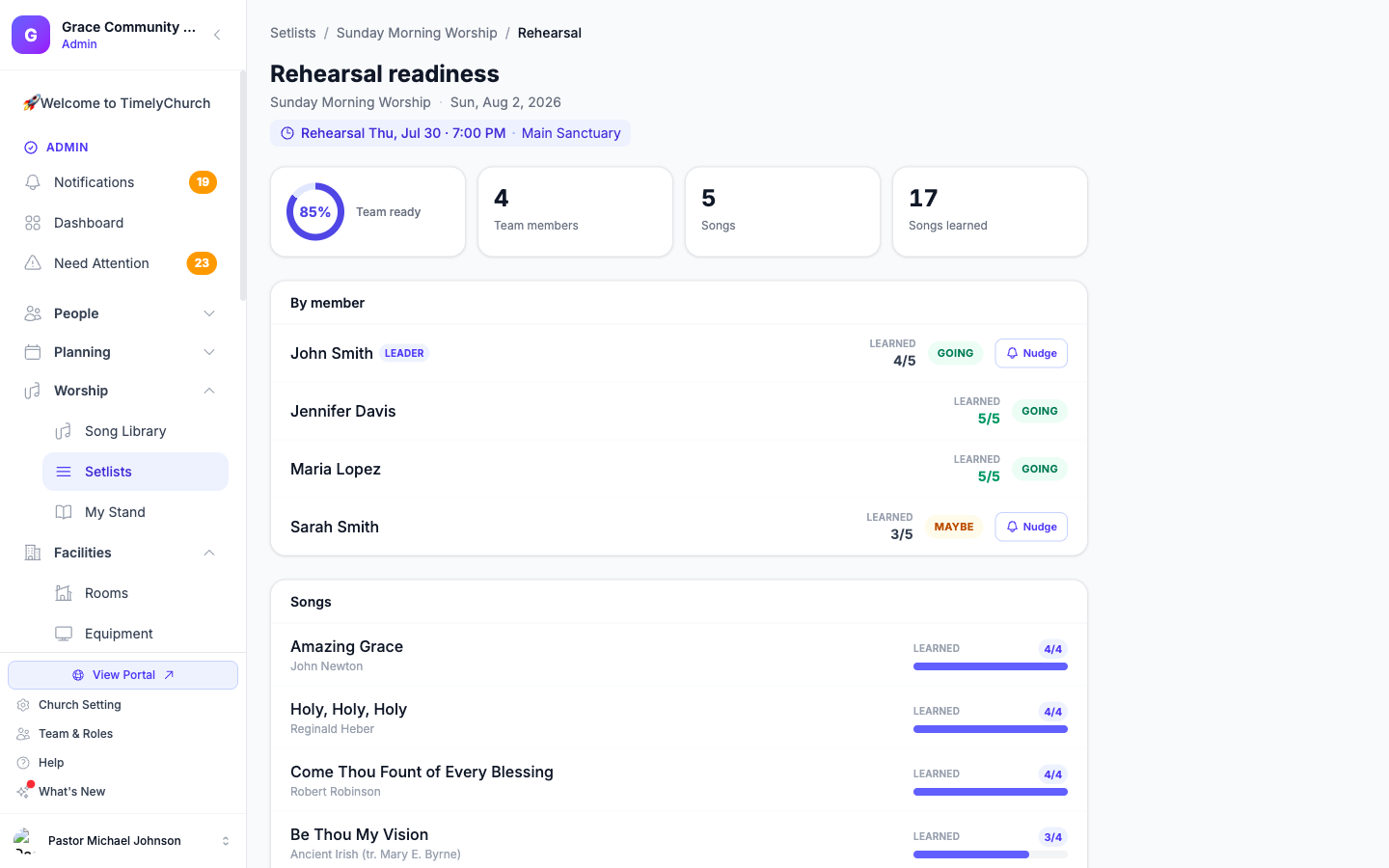
Open a setlist's Rehearsal readiness page and you will see the team roster with a small role marker next to each name -- Leader, Co-leader, or nothing (a regular member) -- sorted with leadership first. This comes straight from how your team is set up in Groups; it is read-only here, names and roles only, with no contact details shown on the roster.
Notify Team
Once a setlist has a team assigned, a Notify team button appears in the builder. Tap it and every member of the roster gets a single notification (you see "Team notified") -- delivered over Telegram if they have it connected, otherwise by email -- with the setlist's name, date, song count, and a direct link into their stand.
- The first tap always sends. After that, the button becomes Notify team of changes for a deliberate re-send if the set changes materially later.
- It will not spam your team. A re-send is rate-limited to roughly once an hour, so an accidental double-click (or a nervous double-tap before rehearsal) can never blast the roster twice.
- A teamless setlist has no Notify button -- assign a team first. If you tap it again too soon, you see "The team was already notified recently — try again in a bit."
Nudge: A One-Tap Reminder for One Person
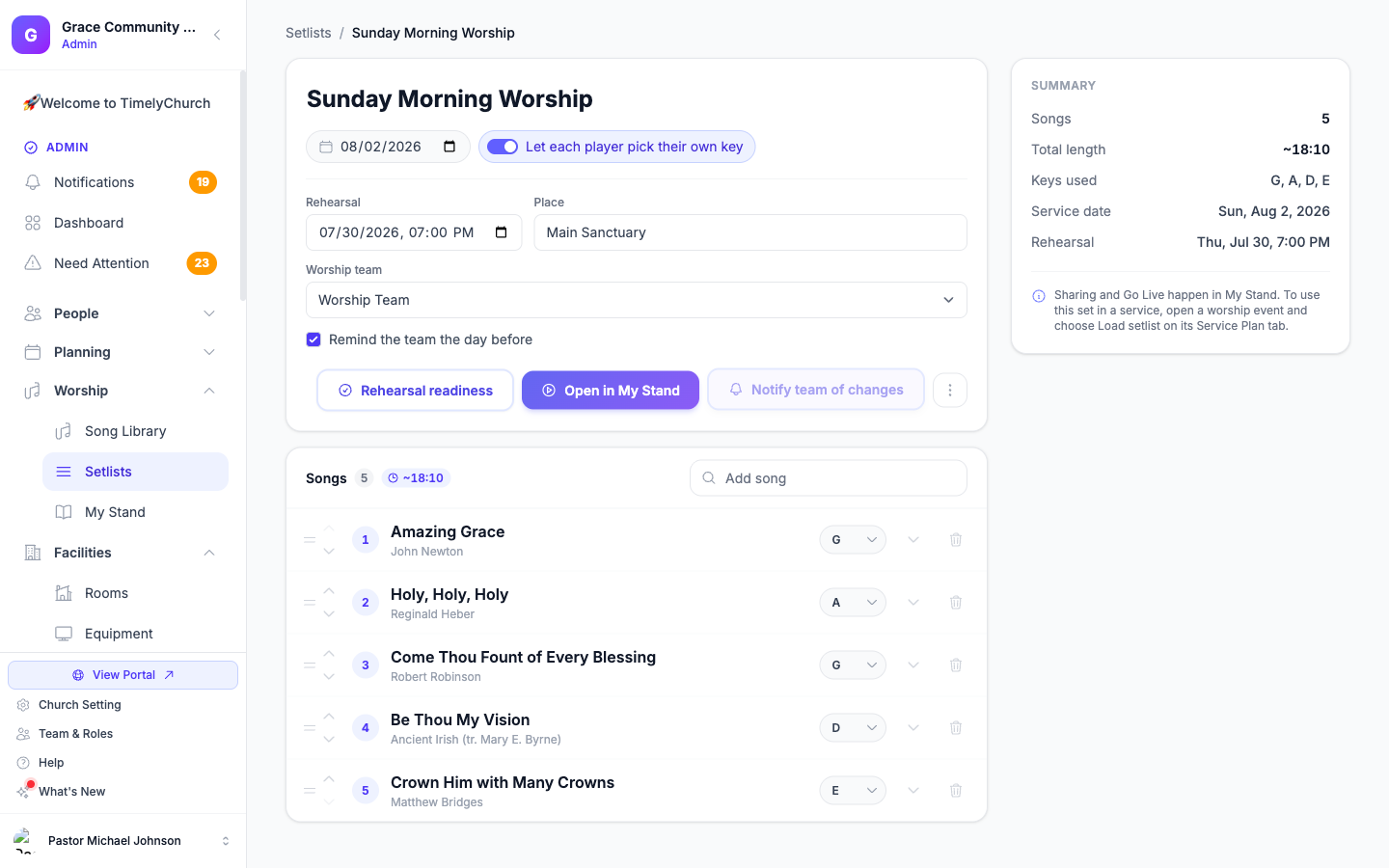
On the Rehearsal readiness page, anyone on the roster who has not finished learning the set, or has not RSVP'd at all, gets a small Nudge button next to their name. Tapping it sends them a short, fixed reminder (again, Telegram if connected, else email) pointing them to the set.
A few things are true about Nudge on purpose:
- There is no free-text box. The message is always the same system-composed reminder -- you cannot type something custom to a teammate from here. This keeps the roster from turning into a messaging inbox.
- It is rate-limited to once per person, per setlist, per day. Once you nudge someone, their row shows Nudged with how long ago, and the button will not fire again until the next day.
- Only the setlist's leadership can Nudge -- an admin, or the leader/co-leader of the assigned team.
If you find yourself wanting to say something more specific to a teammate than a reminder, that is intentionally a job for Telegram, email, or a phone call -- not this button.
Putting It Together
- Build the setlist and pick a Worship team.
- Tap Notify team so everyone hears about it the moment it is ready, not just at the day-before rehearsal reminder.
- As rehearsal approaches, check the readiness roster and Nudge anyone who is behind.
- On the day, only the assigned team's leader/co-leader, the setlist's creator, or an admin can tap Lead live for this set -- see Go Live on Sunday.
Related Articles
- Building Setlists
- Rehearsal Readiness and Reminders
- My Stand — The Big Picture
- Go Live on Sunday
- Swapping When You Can't Serve
Last updated: September 30, 2026