
AI Assistant Permissions, Privacy and Plans
A connected AI assistant is not a new user with its own access. It is the person who connected it, working through a chat. This article explains what that means for permissions, for donor privacy, for churches with more than one campus or account, and for your plan -- and which switches a church administrator controls.
The Short Version
- The assistant can do exactly what the connected person can do in TimelyChurch -- never more.
- Donor names are hidden from the assistant unless that person may see them.
- One connection reaches one church.
- The assistant is offered only the areas your plan includes.
- A church administrator can switch reading on or off, switch changes on or off, and remove any connection at any time.
Permissions: The Assistant Is You
Every question and every change is checked against the connected person's role, at the moment it is asked. Change someone's role under Administration → Roles & Permissions, and their assistant follows on its next request -- there is nothing to reconnect.
The same permission you need on the website is the one the assistant needs:
| The assistant can… | When the connected person's role has |
|---|---|
| Read the books, the review queue, bills, reconciliation status, reports and the audit log | View on Accounting |
| Record transactions and journal entries, accept bank-import rows, record a bill, refund an expense, set up a recurring transaction or post one, add a payee, category, fund or tracking class | Create on Accounting |
| Categorize, split, exclude or restore review rows, edit posted transactions, restore deleted ones, edit or pay a bill, attach or remove a receipt, edit, skip, pause or resume a recurring transaction | Edit on Accounting |
| Delete posted transactions | Delete on Accounting |
| Void a bill payment | Void on Accounting |
| Start a reconciliation, check items off, cancel it | Reconcile on Accounting |
| Complete a reconciliation; close a budget (with access to Budgets) | Close on Accounting |
| List budgets; create one; set lines and activate | View, Create, Edit on Budgets |
| See giving totals, failed donations, pledge progress and deposit batches | View on Giving & Donations |
| See giving by fund | View on Funds |
| Record a gift | The Counter Giving level or higher |
| Close a deposit batch, see donor names | The Bookkeeper Giving level or higher |
| Mark a deposit batch deposited | The Administrator Giving level |
| Check giving-statement readiness | View on Giving Statements and the Bookkeeper level |
| Read events, serving schedules and teams; create an event; assign a volunteer | The matching permission on Events, Schedules and Groups |
When the role does not allow something, the assistant is refused with a sentence such as "You do not have permission to pay vendor bills." and nothing happens.
If your church's Donation Privacy setting ("Restrict donation access to finance roles") is on, it applies here too: an administrator who is kept out of Finance on the website is kept out through an assistant.
Donor Privacy
The rule from Who Can See Giving and Donations carries over unchanged. Unless the connected person is at the Bookkeeper or Administrator Giving level, the assistant sees the word "Donor" wherever a name would be:
- A gift in your books reads "Donation from Donor", and a search for a giver's name does not find gifts.
- In the bank-import review queue the matched donor is left out.
- The contents of a payout deposit come as counts and totals, without the gift-by-gift lines.
- A Counter can record a gift for a person they looked up by name. The search returns names only -- no address, phone number, amounts or giving history -- and matches by e-mail address only at the Bookkeeper level. The preview of the gift shows the giver as a number, not a name.
- A Counter sees only the deposit batches they opened.
- Giving-statement readiness is numbers only -- never a name -- and is available at the Bookkeeper level.
This also protects the Pending approvals page: when a change proposed by someone who can see donors waits for approval, only an administrator who can see donors too can open and approve it. See Approving Changes an AI Assistant Proposes.
Good to know: The description your bank sends with a transaction is shown as the bank sent it, exactly as on the website -- including a sender's name if the bank put one there.
Whatever the assistant reads is delivered to that assistant, in the connected person's own account with its provider. Connect only an assistant your church is comfortable using for financial information, and only on a device and account that the person alone uses.
Team Reach
A role set to Their teams keeps that reach through an assistant: it sees events hosted by the teams the person leads (and church-wide events), and serving schedules and rosters for those teams only. A role set to Whole church sees everything its permissions allow. See Roles and Permissions.
One Connection, One Church
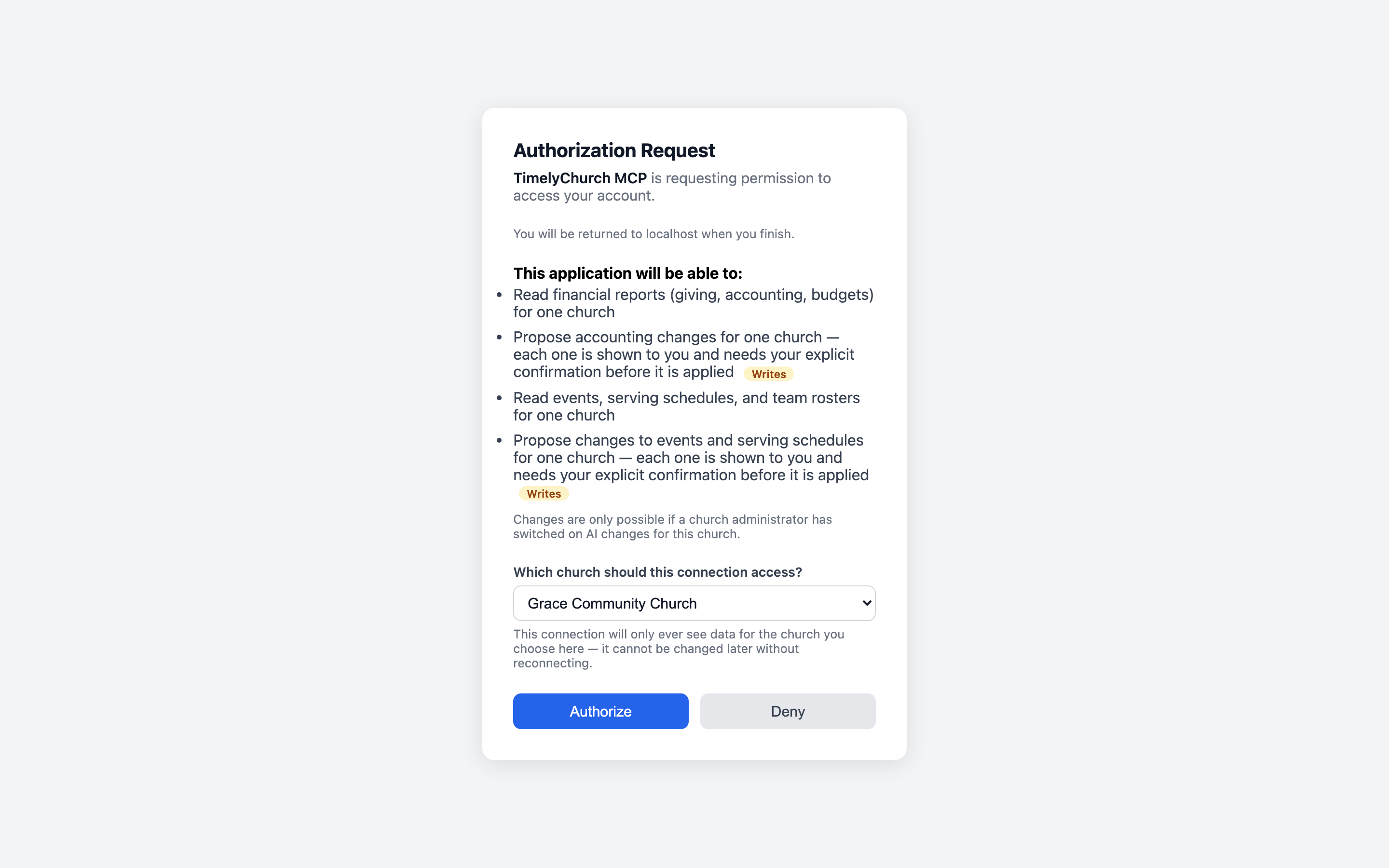
When you connect, TimelyChurch shows an Authorization Request screen listing what the assistant is asking for under This application will be able to:. Lines that allow changes carry a Writes label, with the note "Changes are only possible if a church administrator has switched on AI changes for this church."
If you belong to more than one church, the screen asks Which church should this connection access? The connection then works with that church only -- "it cannot be changed later without reconnecting." What you have open in your browser makes no difference: an assistant connected to one church never reads or changes another. To work with a second church, connect again and choose it.
Plan Features
The connector itself has no plan requirement, but an assistant is offered only the areas your church's plan includes -- the same areas that appear in your sidebar:
| Area | The assistant needs your plan to include |
|---|---|
| Giving totals, giving by fund, failed donations, deposit batches, recording a gift, statement readiness | Giving & Donations |
| The bank-import review queue, transactions, reconciliation, bills, recurring transactions, receipts, reports, accounting lists | Giving & Donations and Accounting |
| Budgets and budget vs. actual | Giving & Donations and Budgets |
| Pledge campaign progress | Giving & Donations and Pledges |
| Serving teams and rosters | Groups |
| Events and serving schedules | No plan feature -- always available |
If an area is not in your plan, the assistant does not offer it at all, and a direct request is refused with a sentence such as "Your church's plan does not include Accounting, so this connection cannot record vendor bills. A church admin can upgrade the plan in TimelyChurch under Settings → Billing & Plans." If your subscription is not active, the sentence says a church admin can renew it there.
The plan is checked again at the moment a change is applied, so a proposal made before a plan change cannot be applied afterwards.
To see or change your plan, see Subscription & Billing.
The Switches a Church Administrator Controls
All on the MCP Connector card (Church Setting → Integrations), for people who can edit Settings:
| Switch | Effect |
|---|---|
| Enable MCP for this church | Off by default. On: people can connect an assistant, and it can read. Off: every connected app is disconnected at once, and changes are switched off with it. |
| Allow AI tools to propose changes | Off by default. On: connected assistants can propose changes, each one with a preview and an approval. Off: the assistant is told "AI changes are switched off for this church." from its very next request, and proposals that were still open can no longer be applied. |
| Approval in the chat | When the chat reply is required -- see Approving Changes an AI Assistant Proposes. |
| Revoke (next to a connection) | Removes that one connection immediately. |
Two things to know about Allow AI tools to propose changes:
- It never widens anyone's permissions. A person who can only view Accounting still gets an assistant that can only read.
- A connection made before you switched it on stays read-only. The Connected apps list says "Connected before changes were allowed -- it can still only read." That person removes the connector in their assistant and adds it again.
A connection also stops working by itself when the person leaves your church or their account is deactivated.