
Worship Team View
TimelyChurch gives your worship team two ways to see the songs, keys, and chord charts they need for an upcoming service: My Stand for signed-in team members, and a shared service plan link that anyone can open without logging in. Both work on any device: phone, tablet, or laptop.
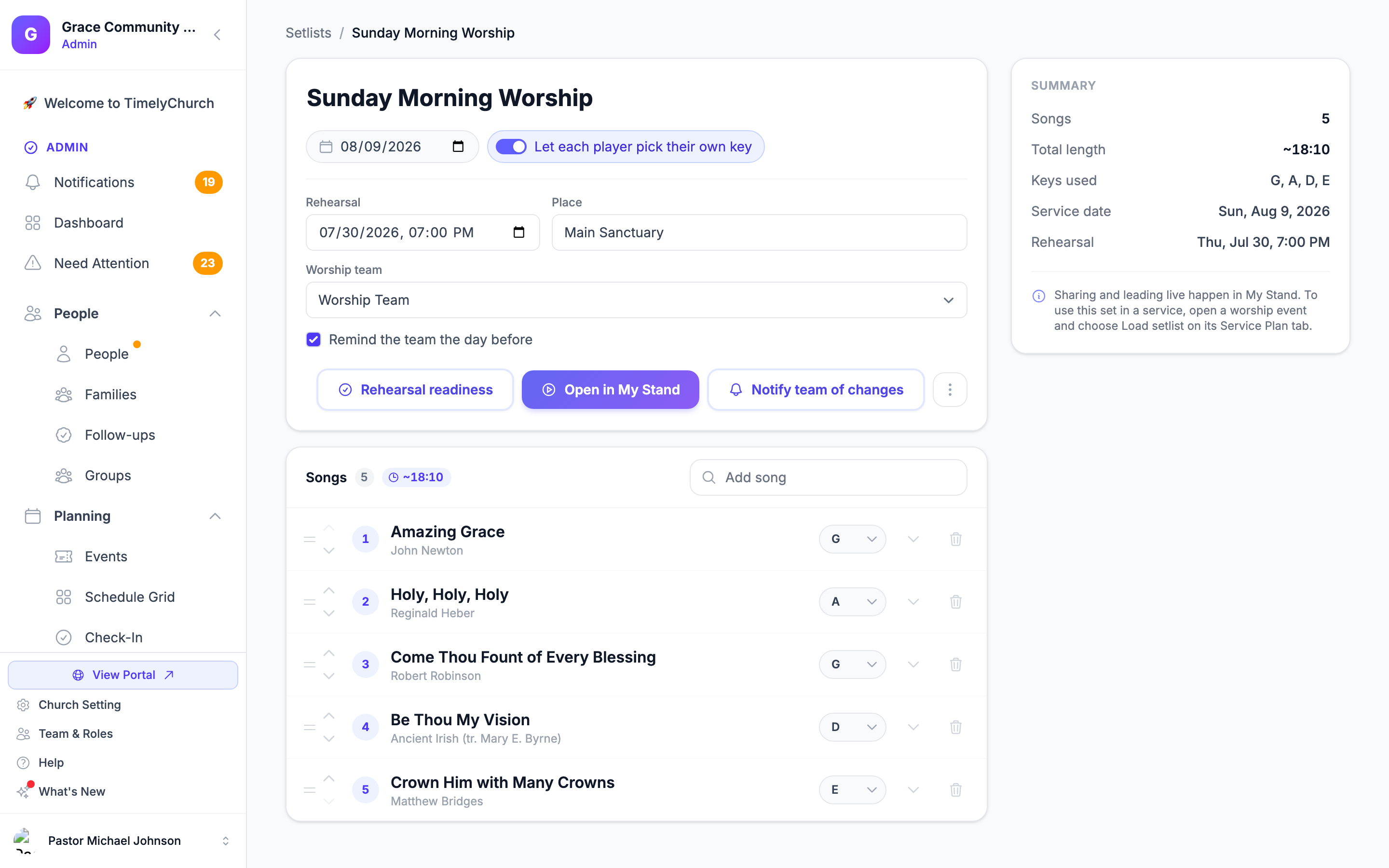
Signed-in musicians get more: My Stand. Team members who log in to the Member Portal open their sets in My Stand, a richer, live music stand with a personal key/capo/text-size, a metronome and autoscroll, foot-pedal page turns, following the leader when they tap Lead live, private annotations, and rehearsal tools. The public link described here is the no-login option; My Stand is the full experience. See My Stand — The Big Picture and Share a Service Plan with Your Band.
Shared Service Plans
A shared service plan is a read-only page showing the order of service and the songs from an event's service plan. It is the quickest way to get the plan in front of a guest musician, the sound desk, or anyone without a login.
Creating the Link
- Open the worship event in the Events Hub and go to its Service Plan tab.
- Click Share.
- The Share Service Plan window gives you:
- A Short link (best for text messages and social media) and a Full link, each with a copy button.
- View, to open the page yourself.
- A QR Code your team can scan.
- Buttons to share by Facebook, WhatsApp, or email.
Clicking Share again later gives you the same link, so a link you have already sent keeps working.
What the Team Sees
When someone opens the link, they see:
- Your church's name, the service name and date, the number of songs, and the total length.
- Two views: Service order (every item of the plan, with times) and Songs (just the songs, each with its key).
- Tapping a song opens it full screen with its chart. Each viewer can move the Key up or down and change the Text size on their own device without affecting anyone else, and sees the Capo where one is set. Prev and Next (or a swipe left/right) move between songs.
- Buttons to Refresh now, see Recent changes, switch between light and dark (Toggle theme), and Download PDF.
If the plan has worship spots, each spot is shown with its songs and keys, on the page and in the Download PDF.
Live Follow-Along and Live Sync
The page is a live follow-along view of the service plan. It checks for changes on its own every few seconds while open, and the header shows when it last updated.
- Live status pill shows Starts soon, Live, or Ended (and Reconnecting… or Offline if the connection drops during the service).
- Before the service it shows Upcoming service (or Starts soon) with the planned order, and a Notify me button. Once the start time passes it highlights the NOW item and Up next, following the church's time zone. Afterwards it shows Service complete with the full order for reference.
- Recent changes (clock icon in the header): if you add, remove, reorder, rename, re-key, or re-time items in the plan, those changes appear here automatically, so you do not need to reshare.
Everything syncs, including the song list. When you add, remove, or reorder songs (or change a song's key or arrangement) on the plan, those changes reach the shared page within seconds, on the same link. Your team never needs a new URL.
Tips for Worship Team Communication
- Share early. Send the link as soon as the service plan is taking shape, ideally several days before rehearsal. Later edits reach the same link on their own.
- Add notes to items. Use the notes field on service plan items (or on each song in a setlist) to communicate specific instructions (e.g., "Acoustic intro only" or "Key change to B on last chorus").
- Put your regular team in My Stand. For people who serve every week, assign the setlist to your worship team so they get it in My Stand with their own keys, marks, and practice tools. See Your Worship Team on a Setlist.
- Keep the link within your team. Anyone with the link can open the page, so share it with the people who need it rather than posting it publicly.
Device Compatibility
Shared service plans are fully responsive and work on:
- Mobile phones, optimized for small screens with touch-friendly controls.
- Tablets, which work well for music stands. For a tablet that lives on a stand, see Stand Link — The Tablet That Lives on the Music Stand.
- Desktop and laptop computers, with a full-width display and all features.
No app installation is required. Team members simply open the link in any web browser.
Related Articles
- Song Library
- Chord Charts and Key Transposition
- Service Orders (Service Plans)
- Share a Service Plan with Your Band
- Practice Tools: Metronome, Autoscroll & Foot Pedals
- Personal Marks and Sharing Them with Your Team
- My Stand — The Big Picture
- Worship Spots
Last updated: 2026-10-21 (8.205.306).