
Let Musicians Set Their Stand PINs from the Tablet
Your band is on stage, the tablet is on the stand, and half the team has no Stand PIN yet. You do not have to leave the stage to fix that. A team leader can open PIN setup right on the Stand Link tablet, for 5 or 15 minutes, and every musician sets their own PIN while you are standing there.
This applies to churches where musicians set their own PINs. If your church chose You set the PINs, only a leader or admin creates PINs, from Manage PINs on the Devices page (see Stand Link).
Before You Start
- You need to be a team leader of a team that has a set on the stand, and you need your own Stand PIN.
- If you have no PIN yet, open setup once from the Devices page (see the Stand Link article), set yours at the tablet, then come back to this.
- Open setup only while the team is with you. That supervision is the point of it.
Open PIN Setup from the Tablet
- On the Stand Link tablet, tap the set your team is playing.
- Tap your name and enter your PIN to take the stand.
- Below your name, under At this stand, you will see Let musicians set their PINs with two buttons: 5 minutes and 15 minutes. Tap the one you want.
- A box asks Enter your PIN to confirm. Type your own PIN and tap Open PIN setup.
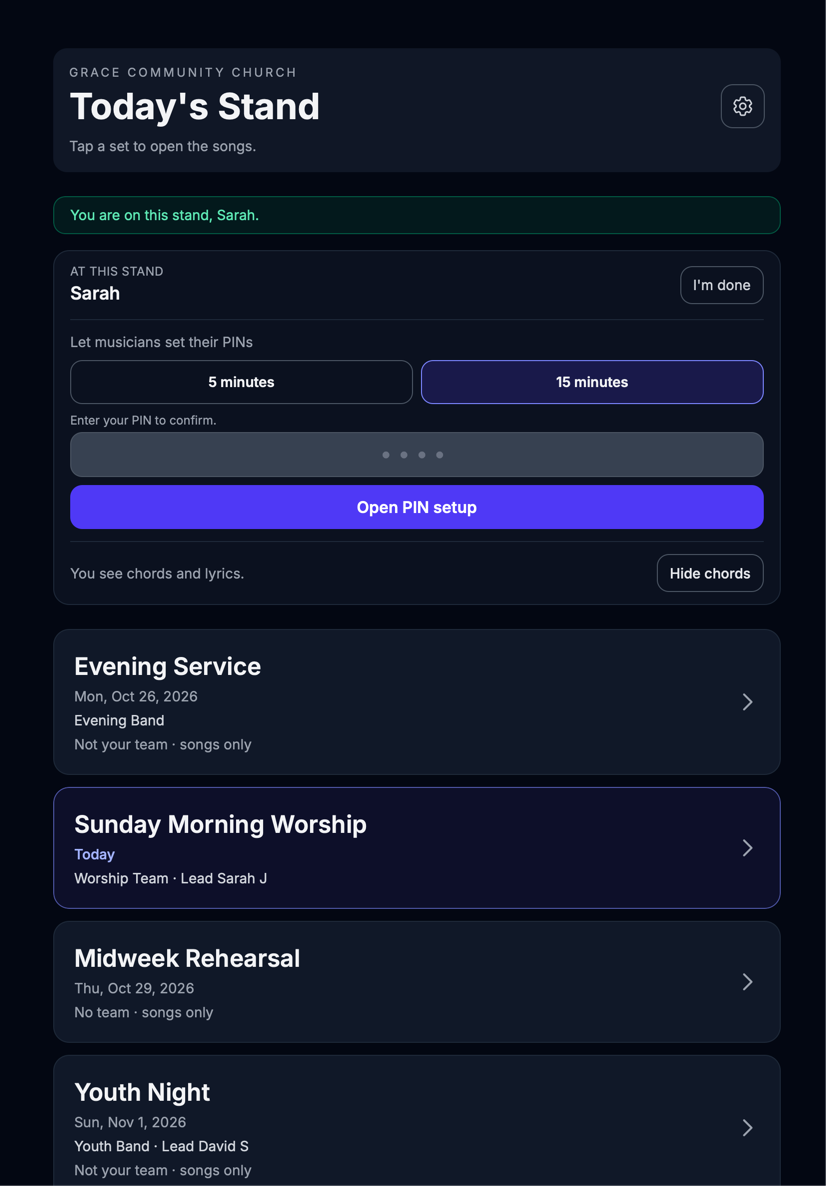
If your PIN doesn't match, you get That PIN didn't match. Try again, or ask your leader if you're stuck. and nothing opens.
Only a team leader sees Let musicians set their PINs. A regular member who takes the stand does not.
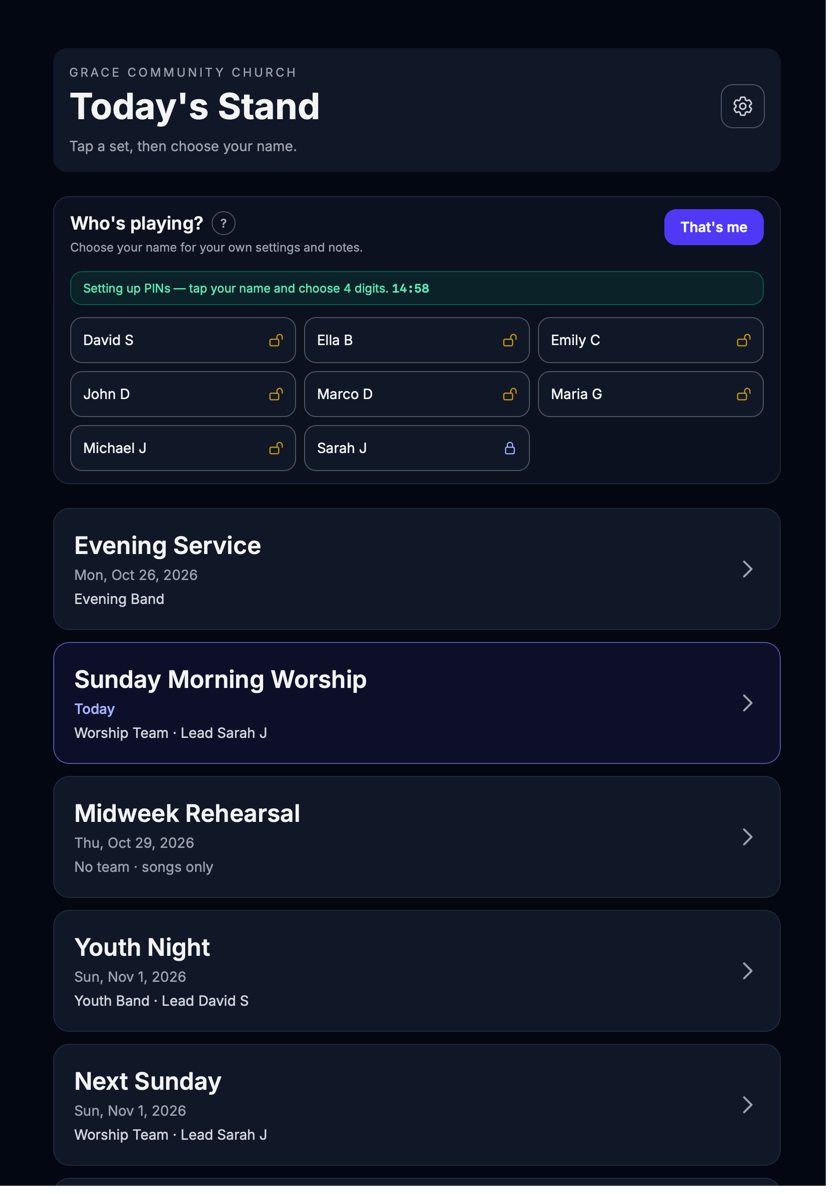
Once setup is open, a green bar reads Setting up PINs — tap your name and choose 4 digits. with a countdown beside it.
What Each Musician Does
Tell the team: "Tap your name and choose four digits."
- Tap your name in the team list.
- Under Choose 4 digits, type four digits, then type them again under Type it again.
- Tap Save my Stand PIN.
- The stand says PIN saved — you are on this stand, your name. and the stand is yours.
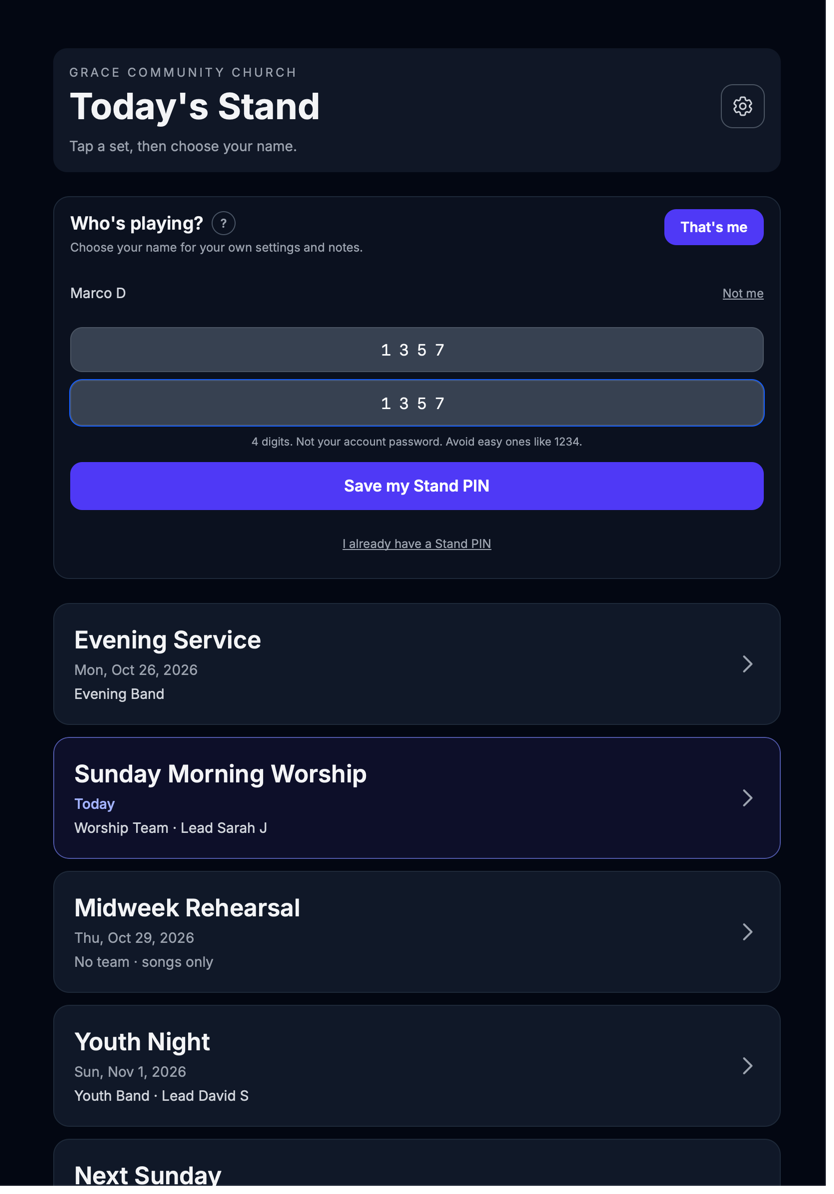
Musicians pick their own digits. You never see them, and you never set a PIN for someone else this way. Obvious choices such as 1234 or the same digit four times are turned down with Pick something less easy to guess.
When the musician is finished, they tap I'm done so the next person can take the stand.
Close Setup Early
Setup closes on its own when the time runs out. To end it sooner:
- In the green bar, tap Close now.
- Enter your PIN to confirm.
- Tap Close PIN setup.
The countdown disappears and names with no PIN can no longer set one.
When Setup Is Closed
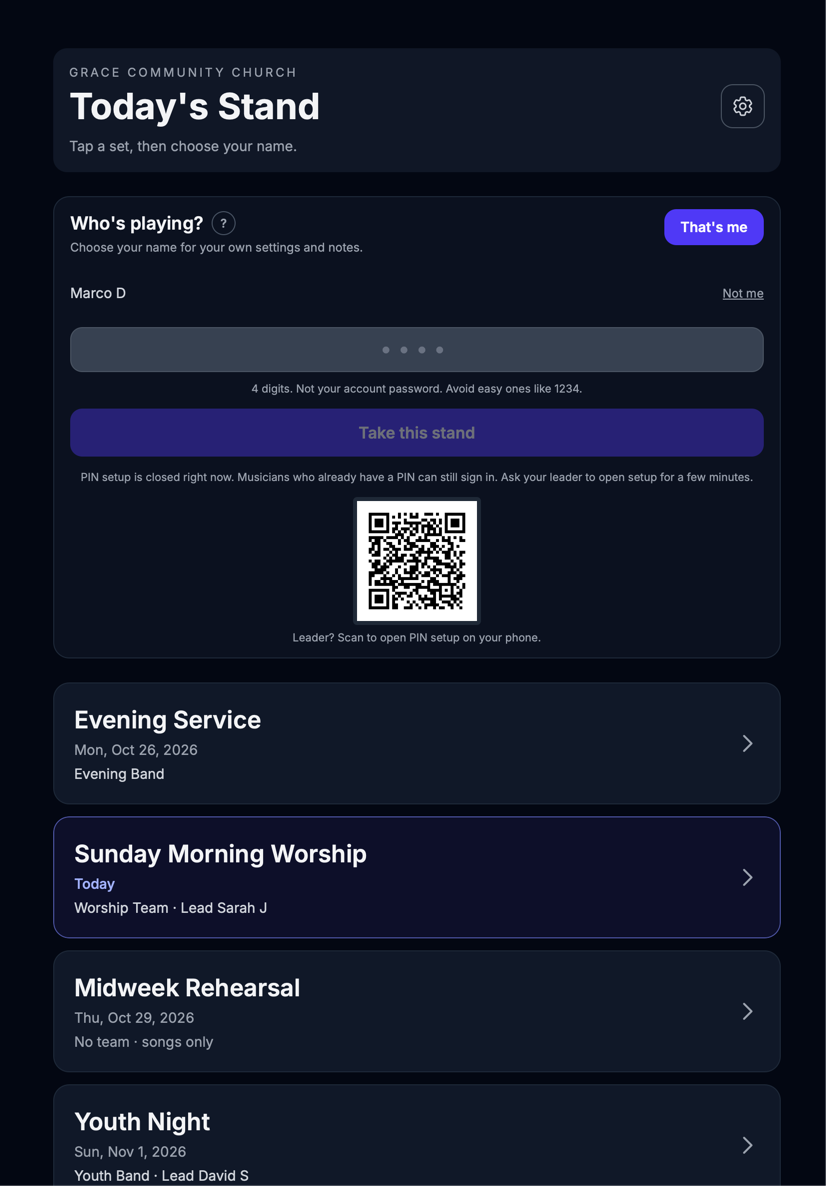
When setup is closed, a musician who already has a PIN signs in as usual. A musician who has no PIN yet sees PIN setup is closed right now. Musicians who already have a PIN can still sign in. Ask your leader to open setup for a few minutes. and Take this stand is dimmed.
Under that line the tablet shows a small QR code with Leader? Scan to open PIN setup on your phone. Scan it with your phone, and it opens the Devices page, where you can open PIN setup without touching the tablet.
Who Is Still Missing a PIN?
On the Devices page, Manage PINs lists every musician and shows who has no PIN yet, so you know who to catch next rehearsal.
Related Articles
- Stand Link — The Tablet That Lives on the Music Stand: turning it on, PINs and the PIN setup window
- My Stand — The Big Picture: the full personal music stand
- Your Worship Team on a Setlist: how teams are assigned to a set
Last updated: 2026-10-28 (8.205.315).