
Volunteer Management Overview
TimelyChurch provides a comprehensive volunteer management system that helps you recruit, organize, schedule, and communicate with your church's volunteers. Whether you need to staff a Sunday morning service or coordinate a special event, the volunteer tools let you manage it all around your events and your people.
Two Sides of Volunteer Management
TimelyChurch's volunteer system operates on two interconnected layers:
1. People and Teams (People-Centric)
Volunteer information lives with each person and with your serving teams, not on a separate "Volunteers" page:
- The Person record -- Open anyone from People in the sidebar and go to their Serving tab to see the teams they belong to, their ministry roles, upcoming and past event assignments, and their serving history.
- Serving Teams -- Under People > Groups, a group whose type is Team holds your serving roster. On a team you can rate each member's skill level (visible to leaders only) and record their serving preferences and availability.
For each person who serves, you can track:
- Ministry assignments -- Which ministry areas they serve in: Children's Ministry, Youth Ministry, Worship Team, Greeting / Hospitality, Parking Team, Tech / AV, Nursery, Security, Kitchen / Food Service, Cleaning / Facilities, Office / Admin, Outreach / Missions, Prayer Team, Small Group Leader, or Other
- Roles -- Their specific role on a team (e.g., Leader, Co-Leader, Host, or Member) and the position they fill on an event
- Skill level -- A leaders-only rating used to influence scheduling suggestions
- Status -- Whether assignments are pending, confirmed, or declined
- Serving history -- Past events they served and their attendance
2. Event Serving Positions (Event-Centric)
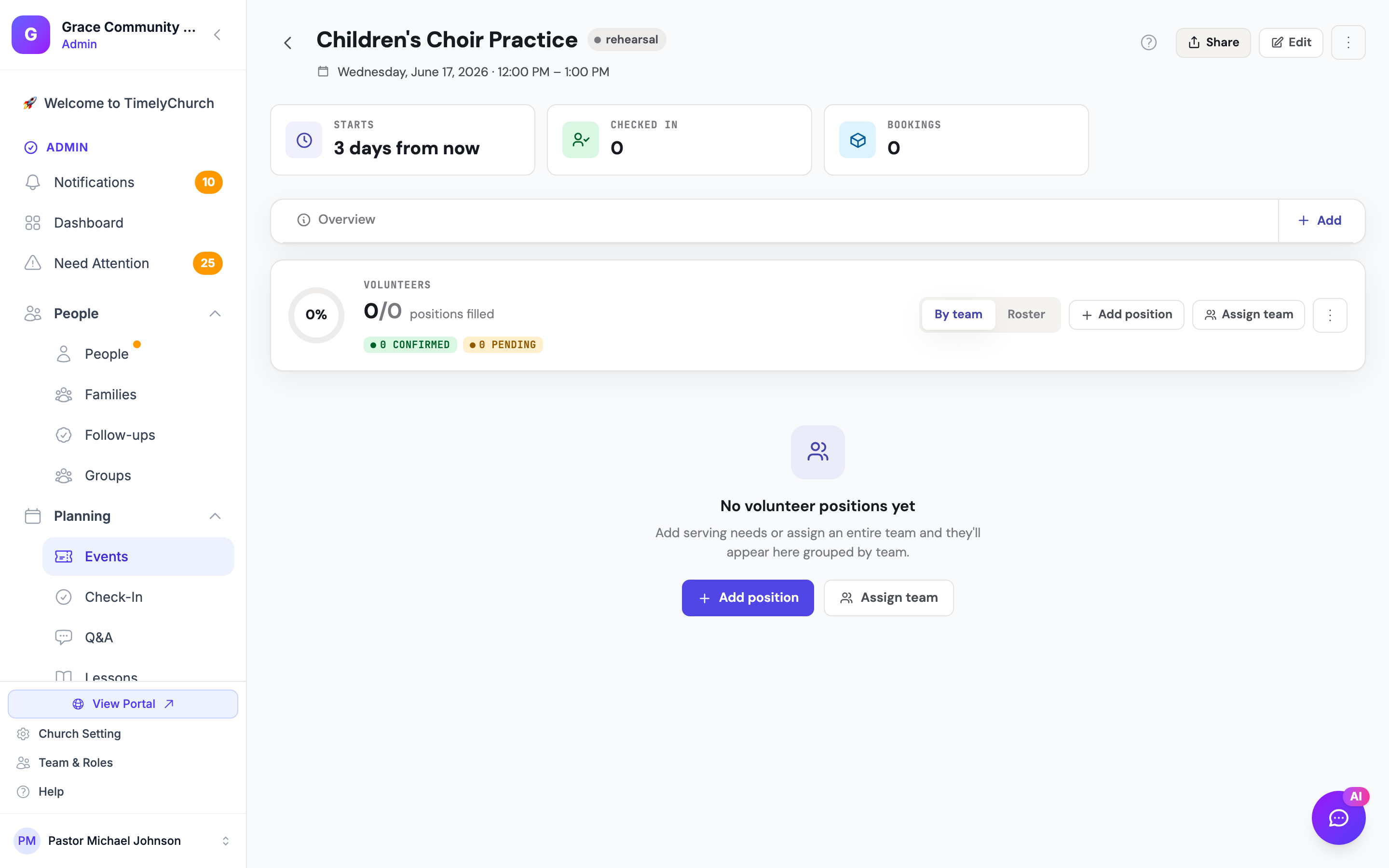
The Serving tab on each event (open an event to reach the Event Hub) lets you define specific positions that need to be filled, assign people to those positions, and track confirmation status. This is where the actual scheduling happens for each service or event.
Key Features at a Glance
| Feature | Description |
|---|---|
| Serving Teams | Group-based teams (Worship, Greeting, Tech, etc.) with defined positions and member rosters |
| Event Scheduling | Assign people to specific positions for each event from the event's Serving tab |
| Smart Suggestions | Scoring that recommends the best person for each open slot based on rotation fairness, availability, and preferences |
| Auto-Scheduling | One-click auto-fill that assigns the best available people to open positions |
| Schedule Grid | A cross-event grid showing who is serving when, with window-wide auto-fill and reminders |
| Self Sign-Up | Volunteers can sign themselves up for open positions through the member portal |
| Availability Management | Volunteers set their own availability and unavailability through the portal; admins see who is available |
| Accept/Decline Workflow | Volunteers answer from a Telegram message or an email with one-click Accept and Decline buttons, or from My Schedule in the portal |
| Invite Timing | Each team decides how far ahead its people are told they're scheduled (30 days by default), so you can plan a whole term without flooding inboxes |
| Decline Follow-Up | When a volunteer declines, leaders are alerted, and the next person in rotation can be invited automatically; fill requests offer an open spot to several people at once |
| Check-In | On the day, volunteers can tap I'm Here in My Schedule |
| Conflict Detection | The system helps prevent double-booking a volunteer across overlapping events |
| Copy Week Forward | Quickly replicate a week's assignments forward across a recurring series |
| Bulk Operations | Confirm pending assignments, assign whole teams, or send bulk communications |
| Volunteer Reminders | Automatic reminders before each date (by Telegram or email), plus a Send reminders button on each event |
| Skill Progression | The system tracks acceptance and suggests skill-level upgrades for team members over time |
How the Pieces Connect
- People are added to your church's database.
- You create Serving Teams (groups of type "Team") and add members to them.
- On a team you define the positions people can fill and, optionally, set up Schedule Templates that auto-apply positions to new events.
- When you create an Event, you add positions on its Serving tab (with Add position or Assign team), specifying which positions are needed and how many of each.
- You assign people to those positions -- manually, via smart suggestions, auto-fill, or by copying a week forward in a series.
- Volunteers are told they're scheduled (by Telegram or email) when the date comes within their team's notice window, and can accept or decline.
- If someone declines, leaders are alerted and a replacement can be invited automatically.
- On the day of the event, volunteers can check in with I'm Here in the member portal.
Where to Find Volunteer Information
There is no standalone "Volunteers" page in the sidebar. Volunteer data lives where it is used:
- People > [Person] > Serving tab -- everything one person is serving: teams, ministry roles, and upcoming/past assignments.
- People > Groups > [Team] -- the team roster, member skill levels, and serving preferences.
- Reports > Volunteers -- a church-wide report of who has served in a date range, with totals.
Navigating the Volunteer Module
The Event is the hub for volunteer scheduling. Each piece of the system lives where it makes sense:
- People (sidebar) > open a person > Serving tab — view that person's teams, ministry roles, and assignments.
- People > Groups > [Team] > Members tab — manage the team roster, member roles, skill levels, and serving preferences.
- People > Groups > [Team] > Templates tab — set up Schedule Templates that auto-apply positions to new events.
- People > Groups > [Team] > Details tab — Scheduling Settings: rotation, auto-fill, reminders, and when people are told they're scheduled.
- Planning > Events > open an event > Serving tab — add positions and assign people for that specific event.
- Planning > Schedule Grid (also a button on the Events page) — the cross-event grid of who is serving when.
- Planning > Events page > More (⋮) menu > Event Series — create or manage recurring events and run series-wide scheduling.
- Need Attention (sidebar) — the cross-event dashboard for items that need action. Its Scheduling tab lists event requests, classes missing a teacher or lesson, teacher sub requests, double bookings, prep tasks, and upcoming unavailability. (Open serving positions show on the Schedule Grid and each event's Serving tab.)
- Reports > Volunteers — a date-range report of who has served, with Total / Active / New counts.
- Member Portal > My Schedule — where volunteers view their assignments and set their availability. Serving, teaching, and availability now live together on one page with List, Calendar, and Availability tabs. (On phones a separate Serving shortcut also appears in the menu.)
For the full mental model, see How Volunteer Scheduling Is Organized.
Permissions
Access to volunteer scheduling is controlled by your church's permission settings. Managing people and teams requires the relevant People permissions, and managing serving positions on an event is available to users with event management permissions. Team leaders who aren't administrators can schedule only the teams they lead — other teams' buttons are greyed out for them.
Tip: Start by setting up your serving teams and their positions, then add people to those teams. This way, when you create events and add positions, you will have a pool of organized people ready to be assigned.