
Personal Marks and Sharing Them with Your Team
Every musician marks up their music differently -- a highlight on the key change, a note to watch the leader, a reminder about the tag. In My Stand you can add personal marks (highlights and notes) to any chart. They are private to you by default, they survive when the chart is transposed, and you can choose to share them with your team when a mark would help everyone.
Adding Marks
In the My Stand reader:
- Highlights -- Select a lyric, chord, or section and highlight it to make it stand out.
- Notes -- Attach a short note to a lyric line ("capo 3 here", "acoustic only", "key change to B") or to a section heading ("drop out for the bridge") -- see the next section.
Your marks appear every time you open that song in that set.
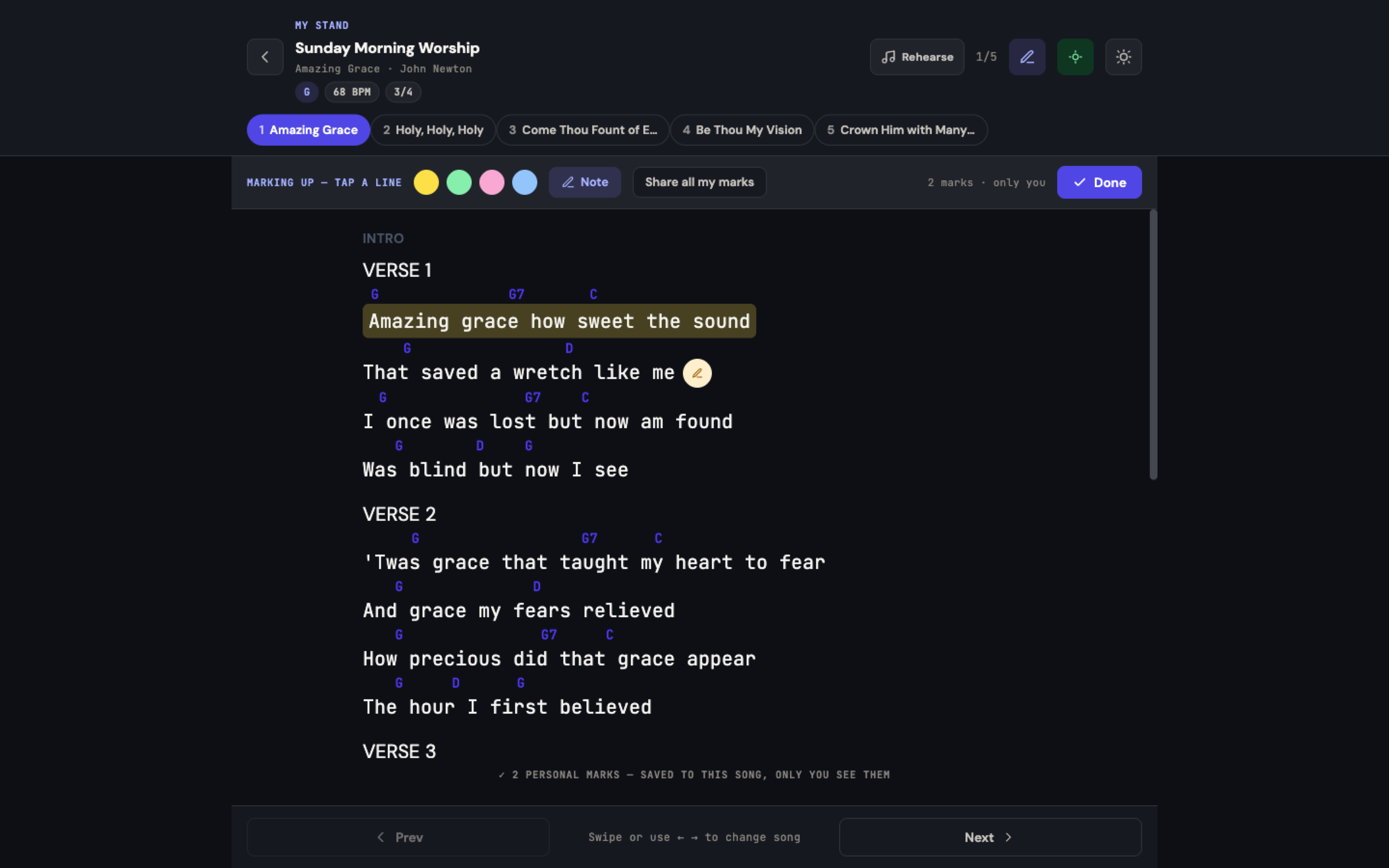
Pinning a Note to a Section Heading
Some of what you need to remember is not about a lyric at all -- "drop out for the bridge", "half time on the second chorus", "the intro is eight bars, not four". A reminder like that belongs to the whole section, so you can pin it to the section heading itself instead of hanging it off whichever lyric line happens to be nearest.
- Open the song in My Stand.
- Tap Mark up. The bar across the top reads Marking up -- tap a line or heading.
- Tap the Note tool.
- Tap the section heading -- Intro, Verse 1, Chorus, Bridge, or whatever your chord chart calls it -- instead of a lyric line.
- Type the note and save it.
- Tap Done when you have finished.
The note sits with the section name, which is where your eye already goes the moment the band arrives there.
Only headings written in the chart take a note. Lines before the chart's first heading have no heading above them, so pin a note to one of those lines instead -- or ask the leader to add an Intro heading in the chord chart editor.
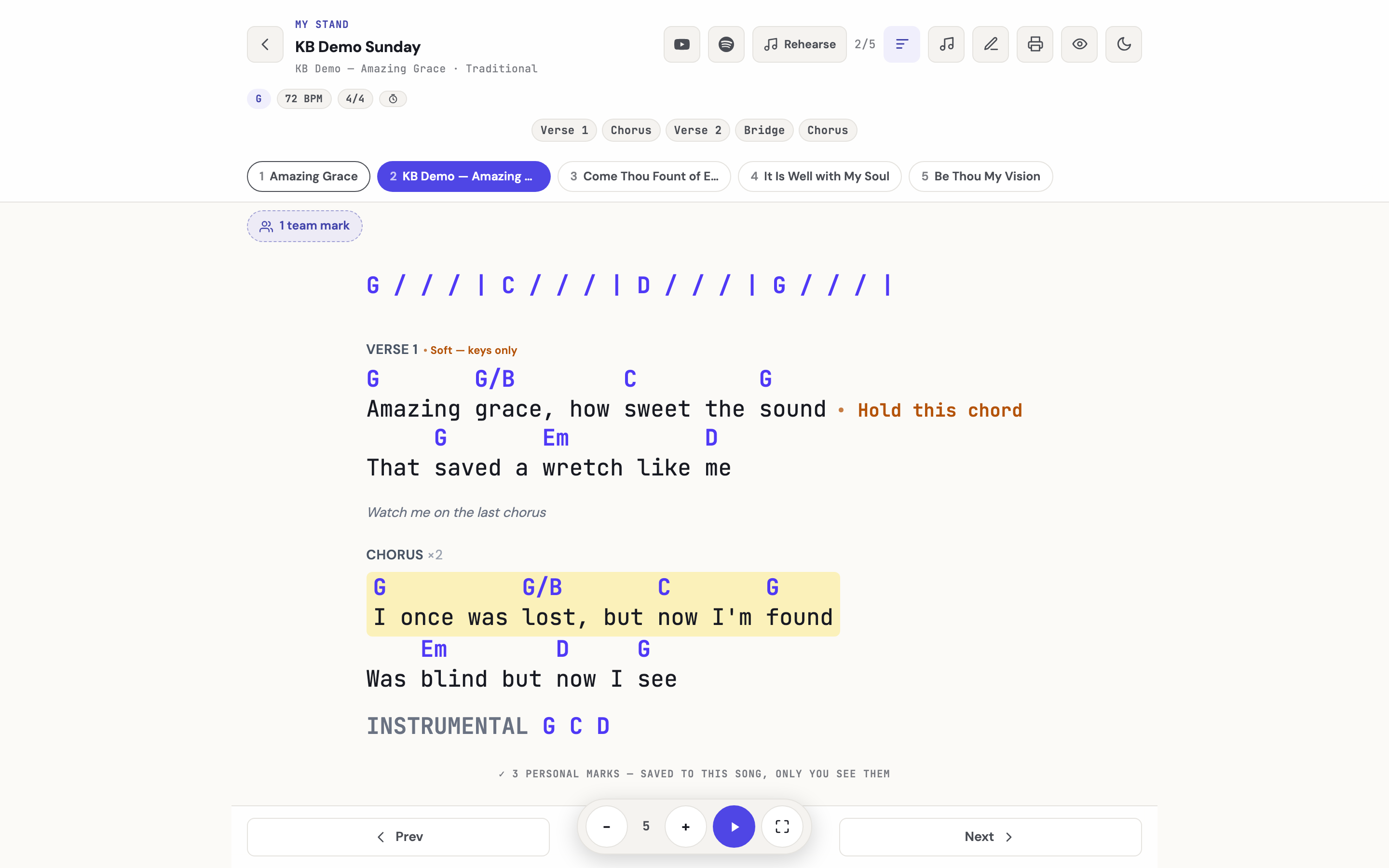
Headings take notes, not highlights. Highlighting still belongs to the words and the chords. If you want a whole section to stand out visually, highlight its lines; if you want to say something about the section, put a note on its heading.
A heading note follows every rule the rest of your markup follows:
- Private until you share it. Share one and it appears for your team under the Team marks overlay, labeled with your name, beside their own notes rather than over them -- so a leader's "watch me for the turnaround" can sit on Bridge where the whole band reads it at the right moment.
- It prints. Print whole set carries heading notes onto the page, under the same heading and in the same place they sit on screen.
- It survives a key change. Transpose the song, add a capo, or switch to Nashville numbers, and the note stays on its section.
- It works on a phone. The same taps, with a heading as easy to hit as a line.
Marks Survive Transpose
A highlight or note is anchored to the musical position it belongs to, not to a fixed spot on the screen. When you transpose the chart to a different key -- or switch to Nashville numbers -- your marks move with the music and stay attached to the right chord or lyric. You never lose your markup by changing key.
Your marks are safe. My Stand is built so that no change you make -- transpose, notation switch, text resize -- can drop or misplace your marks. This is a deliberate guarantee, because losing your annotations mid-service is exactly what a musician fears most.
Private by Default
Everything you mark is private to you. Other members of the team do not see your highlights or notes unless you explicitly choose to share them. Two people reading the same shared set keep completely separate markup.
Sharing Marks with the Team
Sometimes a mark is not just for you -- the whole band needs to know about that key change. My Stand lets you opt in to sharing, without ever overwriting anyone else's work:
- Share a single mark -- Choose to share an individual highlight or note.
- Share all my marks -- Turn on a per-set opt-in to share everything you have marked on that set.
- Private by default -- Sharing is always off until you turn it on; nothing you have marked leaks before you decide to share it.
Once you share, teammates can turn on a Team marks overlay in the reader to see shared marks laid over their own chart, each labeled with the owner's name so it is clear whose note it is. The overlay is read-only -- shared marks are shown alongside each person's private marks, never merged into them or allowed to change them.
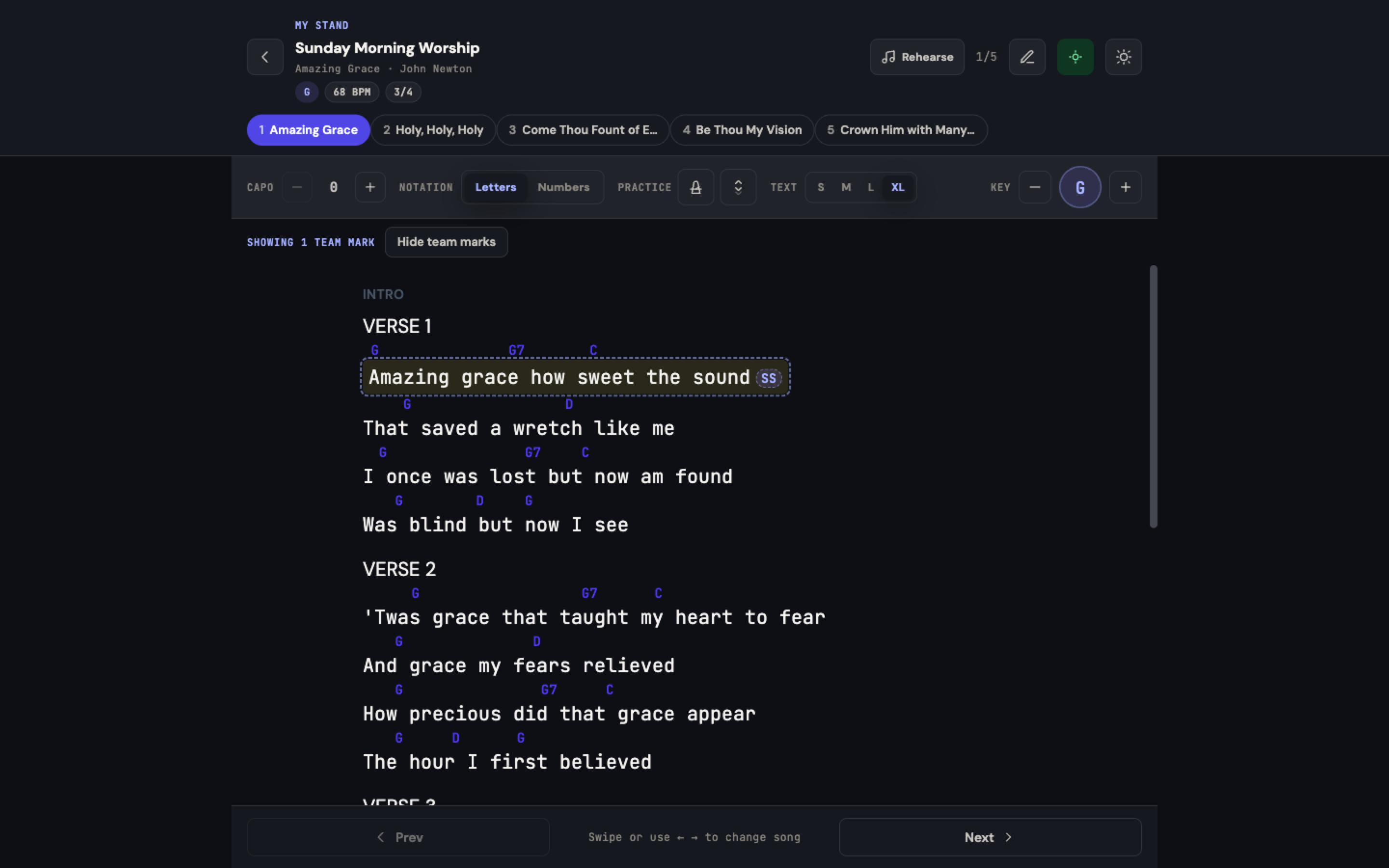
How Leaders Use Shared Marks
A worship leader can turn on the Team marks overlay to see what the band is flagging, and can share their own marks so a note ("watch me for the turnaround") reaches everyone. Because the overlay is discoverable right in the reader -- not buried in settings -- it is easy for the whole team to get on the same page.
Tips
- Keep private marks private. Use personal notes freely; only share the ones the whole team needs.
- Name the moment, not the screen. Since marks follow the music through transpose, a note like "key change" stays useful even after you change keys.
- Turn on Team marks at rehearsal. Reviewing shared marks together during rehearsal is the fastest way to align on arrangement details.
- Put section-wide reminders on the heading. If the note is about how a whole section is played, it belongs on the heading -- it is easier to spot there than tucked at the end of a line of lyrics.
Related Articles
- Share a Service Plan with Your Band
- Practice Tools: Metronome, Autoscroll & Foot Pedals
- Rehearsal Readiness and Reminders
- Chord Charts and Key Transposition
- My Stand — The Big Picture
Last updated: October 3, 2026