
Family Management
Families in TimelyChurch connect individual person records into household units. This makes it easy to see who lives together, share addresses, manage check-in permissions, and communicate with entire households. A person can belong to more than one family if needed.
Why Use Families?
- See the full picture -- View all members of a household together on one screen.
- Share addresses -- When a family member inherits the family address, you only need to update it in one place.
- Check-in safety -- Family roles determine who can pick up children and who is listed as a guardian or emergency contact.
- Communication -- Send mail or messages to entire households rather than individuals.
- Directory -- The Families page shows your congregation organized by household.
Viewing Families
There are two ways to see your families:
- The Families page -- In the left sidebar, open People and click Families. You will see a card for each family with its members and their roles. Use the Search... box to find a family by its name or by any member's first or last name, pick Active Only, All Families, or Inactive Only from the status menu, and click Search. The Create Family button is at the top right.
- The Families tab on the People page -- On the People & Families page, click the Families tab next to People. The same family cards appear, with a status menu and a Create Family button.
If your role includes People but not Families, the Families sidebar item opens the Families tab on the People page instead.
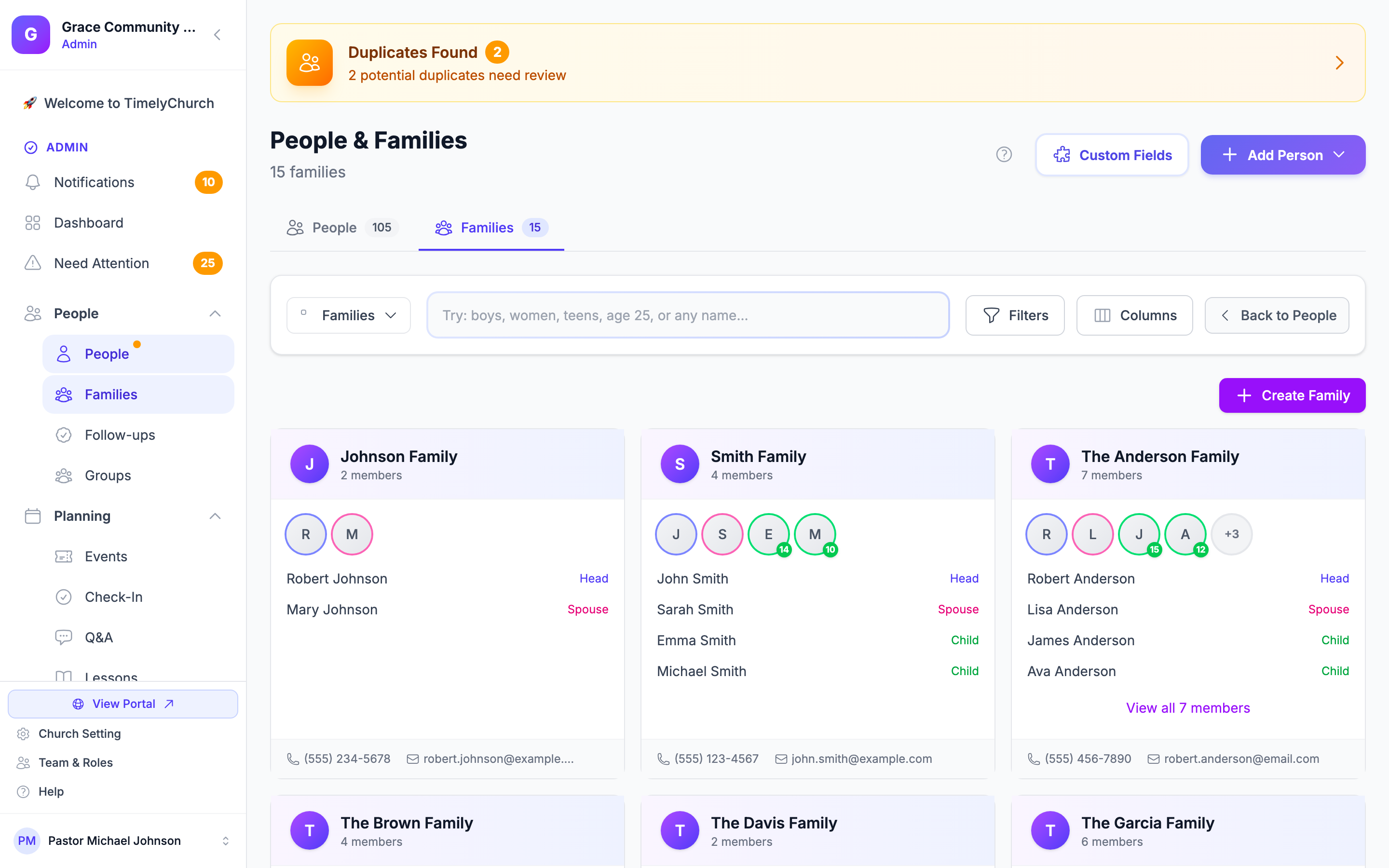
Creating a New Family
From a Person's Profile
- Open the person's profile and go to the Family tab.
- Click Create Family (or Add to Family to put them into a family that already exists).
- Enter the Family name (for example, "The Johnson Family").
- Assign a Role for this person (see role options below).
- Optionally, search for and add other existing people as additional members, assigning each a role.
- Click Create Family.
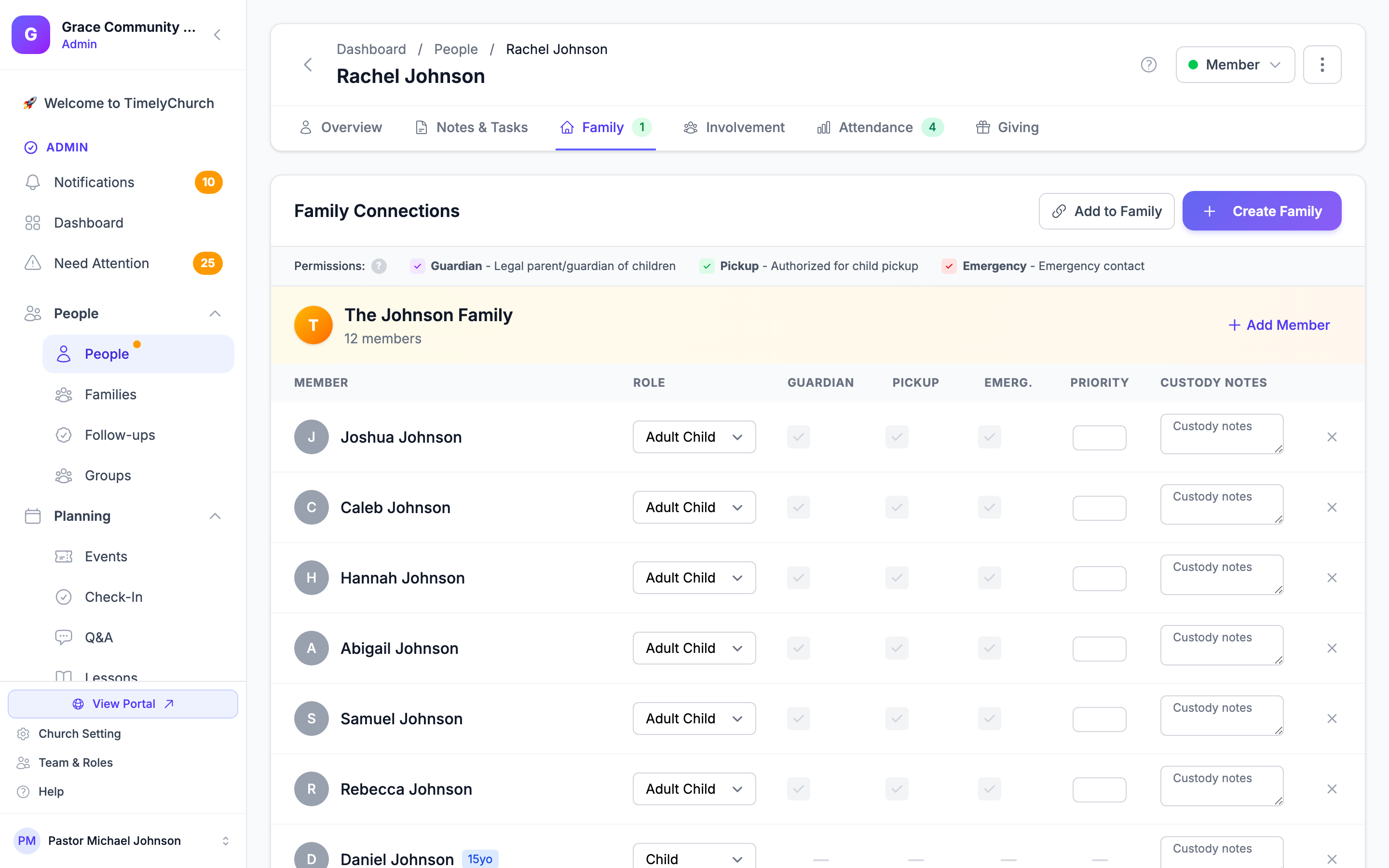
From the People Page or the Families Page
- On the People page, open the Add Person ▾ menu and choose Create Family -- or click Create Family on the Families page or the Families tab.
- Enter the Family name.
- On the People page you can also search for people to add under Add family members, assigning each person a role. (You can also create an empty family first and add members afterwards.)
- Click Create Family.
Family Roles
When you add someone to a family, you assign them a role that describes their relationship within the household:
| Role | Description |
|---|---|
| Head of Household | The primary adult in the family |
| Spouse | The partner of the Head of Household |
| Parent | A parent in the household |
| Step Parent | A step parent in the household |
| Guardian | A legal guardian |
| Grandparent | A grandparent in the household |
| Child | A child (typically a minor) |
| Adult Child | An adult child still part of the household |
| Other Relative | Another family member (cousin, sibling, etc.) |
| Non-Relative | Someone who shares the household but is not related |
Tip: Adding someone to a family does not give them any child-safety permissions -- Legal Guardian, Authorized Pickup, and Emergency Contact all start off. Turn them on for each adult (see Guardian and Check-in Permissions). One shortcut: when you change an adult's role on their profile's Family tab to Head of Household, Spouse, Parent, Step Parent, or Guardian, TimelyChurch turns on Guardian, Pickup, and Emergency for them.
Adding Members to an Existing Family
Add an Existing Person
- Open the family (either from a member's profile Family tab, or from the Families page by clicking the family name).
- Click Add Member. The Add Family Member dialog opens on Select Existing.
- Under Select Person, search for the person.
- Select them from the search results.
- Choose their Role in the family, and tick Primary Contact, Receives Family Mail, or Inherit Family Address as needed.
- Click Add Member.
Create a New Person and Add to Family
If the person does not exist in your directory yet:
- Open the family.
- Click Add Member, then switch to Create New.
- Fill in the new person's details:
- First Name and Last Name (required; the last name is pre-filled from the family name)
- Email, Mobile Phone, Date of Birth, Gender (optional)
- Role in Family (required)
- Optionally check Inherit Family Address to copy the family's address to the new person.
- Click Create & Add.
The new person will be created in your directory and immediately linked to the family.
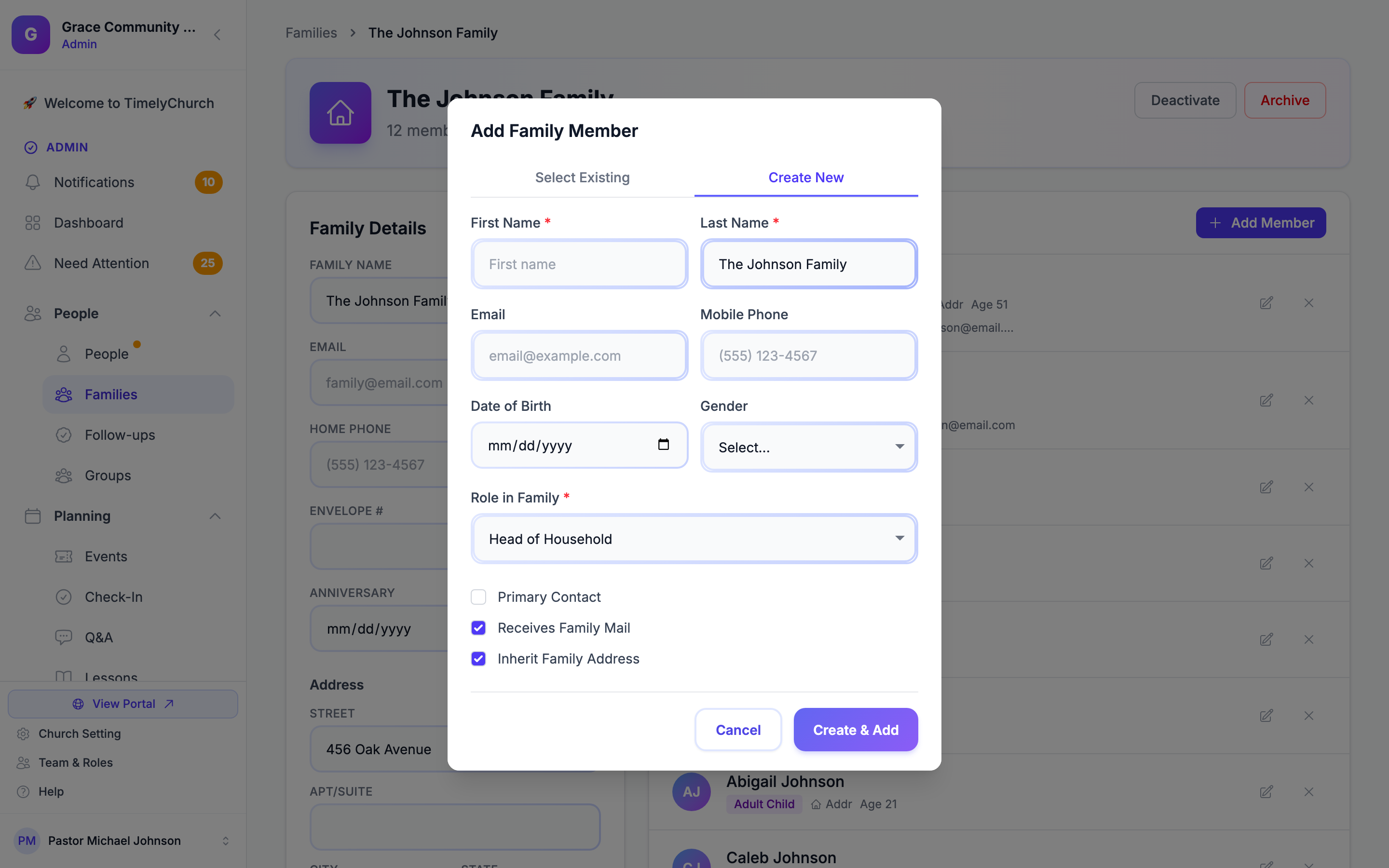
Tip: When "Inherit Family Address" is checked, the family's address is automatically copied to the new person's profile. This saves you from entering the same address multiple times for each family member.
Managing Family Members
Updating a Member's Role
- Open the family.
- Find the member you want to update.
- Click the Edit button next to their name. The Edit Member dialog opens.
- Change their Role, Primary Contact, Receives Family Mail, or Inherit Family Address settings.
- Click Save Changes.
You can also change a member's role from the drop-down on their profile's Family tab.
Guardian and Check-in Permissions
For families with children, the Child Safety section of the Edit Member dialog holds these settings for each adult member:
- Legal Guardian -- Is this person a legal guardian of the children?
- Authorized Pickup -- "Controls who may collect the child at checkout. Check this for legal guardians too — a guardian is only allowed to pick up when this is on."
- Emergency Contact -- Should this person be listed as an emergency contact?
- Check-in notices -- When on, this guardian is notified when a child in the family is checked in or out (if your church has turned parent notifications on).
- Emergency Priority (1–10) -- If there are multiple emergency contacts, what is the priority order? (1 = first to call)
- Custody Notes -- Any important custody or safety information
Click Save Changes to keep them. You can also switch Guardian, Pickup, Emerg., and Check-in notices on and off with one click on the person's profile Family tab.
Tip: Only adults (age 18+) can have guardian, pick-up, and emergency contact permissions. For a child the dialog says "Minors cannot have guardian, pickup, or emergency permissions."
Removing a Member from a Family
- Open the family (or the person's profile Family tab).
- Find the member you want to remove.
- Click the remove button next to them (on the profile it reads Remove from family).
- Confirm the action.
Removing someone from a family does not delete their person record. It only removes the family connection. Their individual profile and all other data remain intact.
Updating Family Details
- Open the family (from the Families page or a member's Family tab).
- Edit the Family Details:
- Family Name
- Home Phone
- Envelope # (for giving tracking)
- Anniversary
- Address -- Street, Apt/Suite, City, State, ZIP Code
- A "You have unsaved changes" bar appears. Click Save Changes.
Deactivating or Deleting a Family
Deactivating a Family
- Open the family.
- Click Deactivate, next to the family name.
- The family is marked as inactive. It drops out of the default Families list (and the active family count) but the record and all of its member links are preserved. To find it again, set the Families status menu to Inactive Only, open the family, and click Activate.
Deleting a Family
- Open the family.
- Click Delete, next to the family name.
- Confirm by clicking Delete Family in the dialog.
The dialog explains: "This deletes the family grouping only. The people stay in your directory — they are just no longer linked to this family." Every member is unlinked and the family is removed immediately -- nobody's person record is deleted or removed from your directory. Everyone who was in the family stays in People; they are just no longer grouped into that household.
Deleting a family needs the Families Delete permission. A deleted family does not appear in the Families list, so if you might need the household again, deactivate it instead.
Family Join Requests (Member Portal)
Members without a family can ask to join an existing household from the member portal: they search by name and click Join. There is no staff-side queue for this -- only the target family's own head of household or spouse can see the request and approve or decline it, from their own My Family page.
For the full member-side and family-side walkthrough, see Family Join Requests.
How Families Work with Other Features
- People Directory -- Use the Families page or the Families tab to browse your directory by household.
- Check-In -- Family roles determine pick-up authorization and guardian status for children's check-in.
- Import -- When importing from another church app, TimelyChurch can automatically create families and link members based on household data in your CSV file.
- Merge -- When merging duplicate person records, family memberships from both records are combined.
- Member Portal -- Members can submit Family Join Requests to be added to an existing family; the family's own head of household or spouse approves or declines these, not staff.