
Security Settings
Audience: This article is for church administrators.
TimelyChurch takes the security of your church's data seriously. This guide covers the security features available to protect your account, your team members' accounts, and your congregation's information.
Two-Factor Authentication (2FA)
Two-factor authentication adds an extra layer of security to user accounts by requiring a time-based verification code in addition to the password when logging in.
How 2FA Works
TimelyChurch uses TOTP (Time-based One-Time Password) two-factor authentication, which is compatible with popular authenticator apps:
- Google Authenticator
- Microsoft Authenticator
- Authy
- 1Password
- Any TOTP-compatible app
When 2FA is enabled, after entering your password you will also need to enter a 6-digit code from your authenticator app.
Enabling 2FA
Each user enables 2FA for their own account from their profile.
- Open your account menu (your name or photo at the bottom of the sidebar) and choose My Profile.
- Scroll to the Two-Factor Authentication section and click Enable Two-Factor Authentication.
- Follow the three steps shown: Step 1: Install an authenticator app, Step 2: Scan this QR code (or enter the code shown manually), and Step 3: Enter the 6-digit code.
- Click Verify & Enable.
- Save these recovery codes! -- use Download or Copy to keep them somewhere safe. They let you sign in if you lose access to your authenticator app. You can create a fresh set later with Regenerate Recovery Codes.
When it's on, the section shows Two-factor authentication is enabled.
Important: Store your recovery codes in a safe place (such as a password manager or a printed copy in a secure location). Each recovery code can only be used once.
Requiring Two-Factor Authentication for Church Admins
You can make two-factor authentication mandatory for every church administrator in your church:
- At the bottom of the sidebar, click Church Setting and stay on the Profile tab.
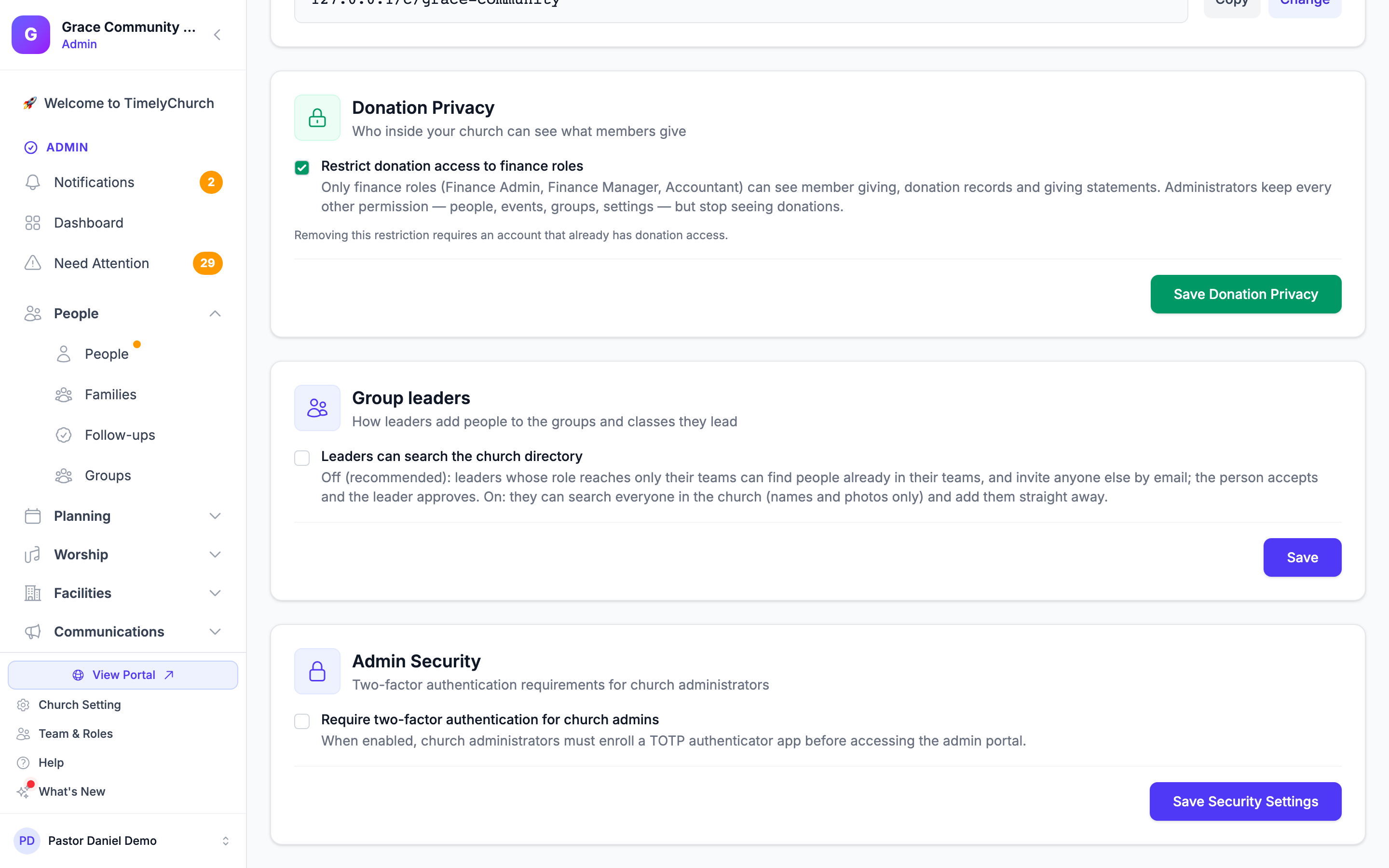
- Find the Admin Security card -- "Two-factor authentication requirements for church administrators".
- Tick Require two-factor authentication for church admins -- "When enabled, church administrators must enroll a TOTP authenticator app before accessing the admin portal."
- Click Save Security Settings. You'll see "Security settings updated successfully!"
From then on, a church administrator who hasn't set up two-factor authentication is taken to an Enable Two-Factor Authentication page -- "Required for admin access." -- the next time they open the admin area, with the message "Two-factor authentication is required to access the church admin portal. Please enroll a device below." To finish:
- Enter your Current Password and click Generate QR Code.
- Scan the QR code with your authenticator app (or enter the code shown manually).
- Enter the 6-digit Verification Code and click Confirm.
- Save these recovery codes now. -- they are not shown again. Use Copy Recovery Codes, then click Continue to Admin Portal.
Team members who are not church administrators are not affected by this setting.
Tip: Set up two-factor authentication on your own account first, then turn on the requirement -- so you aren't interrupted mid-task.
Using 2FA to Log In
- Enter your email and password as usual.
- On the Two-Factor Authentication screen, open your authenticator app.
- Enter the current 6-digit code displayed in the app.
- Click Verify to complete login.
Using a Recovery Code
If you lose access to your authenticator app (e.g., lost phone, new device):
- On the 2FA verification screen, click Lost your device? Use a recovery code.
- Enter one of your saved recovery codes and click Verify.
- The code will be used up (each code works only once).
After logging in with a recovery code, set up 2FA again with your new device as soon as possible.
Disabling 2FA
If you need to disable two-factor authentication:
- Open My Profile and scroll to Two-Factor Authentication.
- Click Disable Two-Factor Authentication.
- Confirm the action.
If your church requires two-factor authentication for church admins, an administrator who turns it off is asked to set it up again the next time they open the admin area.
Tip: We strongly recommend keeping 2FA enabled, especially for users with Administrator roles who have access to sensitive church data and configuration.
Support PIN Verification
Every church in TimelyChurch has a unique Support PIN -- a 6-digit code used to verify your identity when contacting customer support.
Where to Find Your Support PIN
- At the bottom of the sidebar, click Church Setting.
- On the Profile tab, find the Support Verification section.
- Your Church ID and Support PIN are displayed.
- Use the copy button to copy either value to your clipboard.
When to Use Your Support PIN
You will be asked for your Support PIN when:
- Contacting TimelyChurch support via email or chat
- Requesting account changes that require identity verification
- Requesting data exports or account-level modifications through support
Regenerating Your Support PIN
If you believe your Support PIN has been compromised:
- Go to Church Settings → Profile.
- In the Support Verification section, click the Regenerate PIN (circular arrows) icon next to the PIN.
- Confirm with Regenerate PIN.
- A new 6-digit PIN will be generated and the old one immediately invalidated.
Security Warning: Never share your Support PIN publicly -- in forums, on social media, or in unsolicited communications. Only provide it to verified TimelyChurch support staff.
Account Security Best Practices
For Administrators
-
Enable 2FA on all administrator accounts -- or require it for every church admin with Admin Security. Administrators have full access to church data and settings. Protecting these accounts with 2FA is critical.
-
Have at least two administrators. If one administrator loses access, the other can help recover the account. The system prevents you from removing the last administrator.
-
Review team member access regularly. Periodically visit the Team Management page to verify that team members have appropriate roles. Remove access for anyone who has left the church or no longer needs it.
-
Use the principle of least privilege. Assign the most restrictive role that still allows someone to do their job. A Sunday School teacher does not need access to financial data.
-
Deactivate accounts for temporary absences. If someone is on sabbatical or leave, deactivate their account rather than leaving it active.
-
Check the Activity tab. It shows who changed what, and when -- see Activity Log below.
For All Team Members
-
Use a strong, unique password. Do not reuse passwords from other services.
-
Enable two-factor authentication. This is the single most effective step you can take to secure your account.
-
Do not share your login credentials. Each person should have their own account with appropriate permissions.
-
Log out when using shared devices. If you access TimelyChurch from a shared computer, always log out when finished.
Data Privacy and Protection
Your Church's Data Stays Yours
Every church's data in TimelyChurch is kept separate. This means:
- One church cannot see another church's people, events, or financial data
- Everything you see is limited to your own church's records
- Team members can only access data for churches they are explicitly invited to
Sensitive Information
- Two-factor authentication secrets are stored encrypted
- Payment card information is handled by Stripe and never stored on TimelyChurch servers
Role-Based Access Control
As described in the Roles & Permissions guide, every action in TimelyChurch is checked against the user's assigned role. This ensures that:
- A team member can only access modules their role permits
- Scope restrictions (own records, team, or all) limit the data they can view
- Administrative actions (like managing settings or inviting team members) are reserved for appropriate roles
Donation Privacy
If only your finance team should see what members give, turn on Restrict donation access to finance roles in the Donation Privacy card on the Profile tab. See Setting Up Your Church Profile.
Activity Log
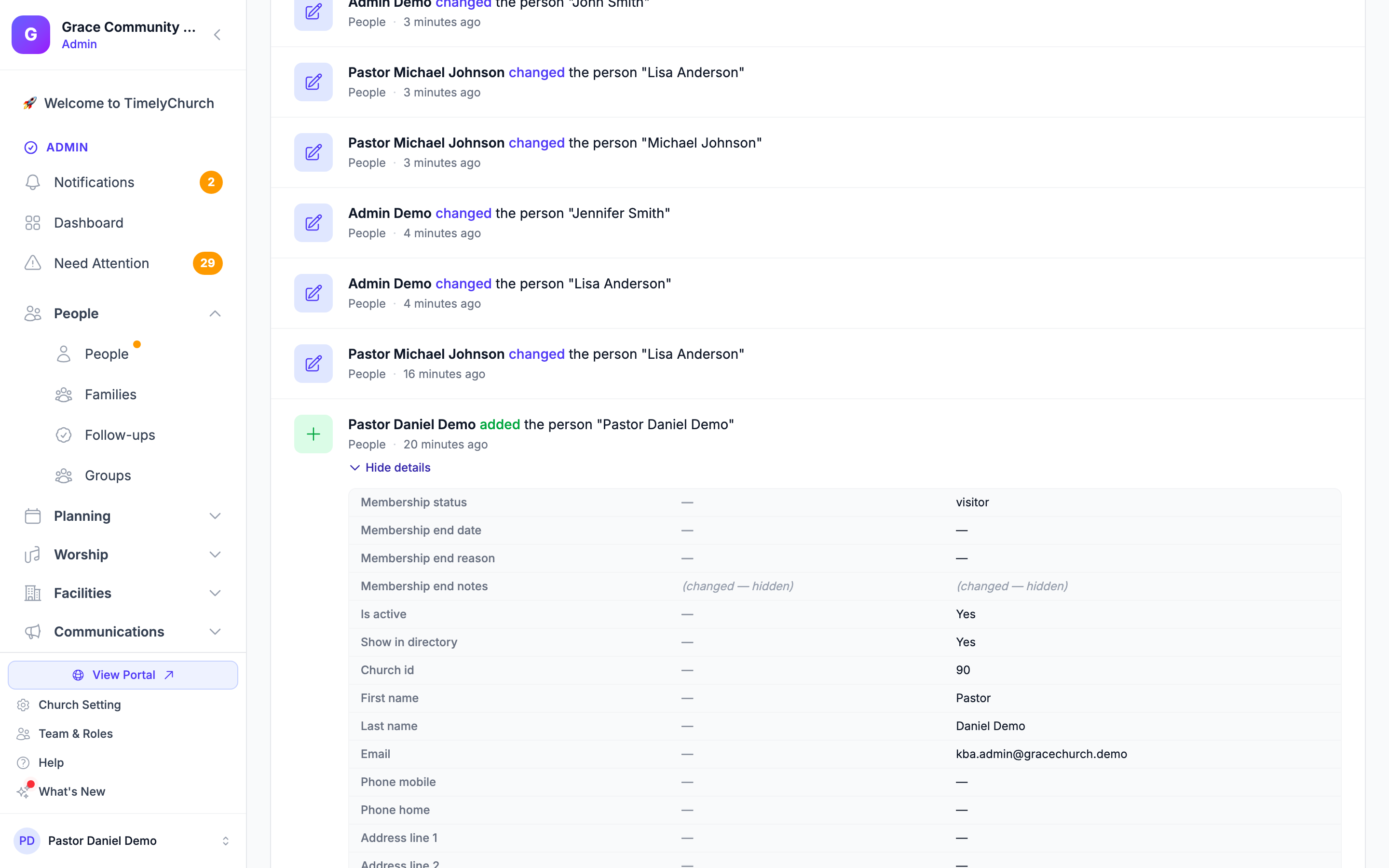
The Activity tab of Church Settings shows everything your team changes -- who, what, and when. Nothing here can be edited or deleted. Only church administrators see this tab.
- At the bottom of the sidebar, click Church Setting, then the Activity tab.
- Use the filters to narrow the list:
- Search -- find text in the activity.
- Person -- Everyone, or one person.
- Module -- All modules, or one area: Events, People, Groups, Worship, Giving, Roles & Team, Forms, Check-In, or Other.
- When -- All time, Today, Last 7 days, Last 30 days, or Last 90 days.
- Click Apply filters. Clear filters resets them.
- Click Details on an entry to see exactly what changed. Sensitive values -- such as medical and allergy information, notes, and security codes -- are masked. Use Load more at the bottom for older entries.
If nothing matches, you'll see "No activity found for these filters yet."
Custom Domain Security (Pro Plan)
If your church uses a custom domain for public-facing pages, the domain verification process includes security checks:
- TXT Record Verification -- You must add a unique verification value as a DNS TXT record to prove domain ownership.
- CNAME/A Record Verification -- You must point your domain to TimelyChurch.
- Both records must be verified before the custom domain becomes active.
This prevents anyone from claiming a domain they do not control. See Custom Domain.
Frequently Asked Questions
Q: Is 2FA required for all users? A: Each user can turn on two-factor authentication for their own account. Your church can also require it for every church administrator with the Admin Security card on the Profile tab. We strongly recommend it for all accounts.
Q: What if I lose my phone and my recovery codes? A: Contact TimelyChurch support with your Church ID and have another administrator on your team verify your identity. Support can help reset your 2FA so you can set it up again.
Q: How do I keep my own copy of our church's data? A: You can export your people and family data at any time from the Export tab of Church Settings.
Q: Can I see who changed things in my church's account? A: Yes -- church administrators can open the Activity tab of Church Settings. See Activity Log.
Q: How does TimelyChurch protect our data? A: TimelyChurch keeps each church's data separate, checks every action against the person's role, supports two-factor authentication (and lets you require it for admins), and uses Stripe for payment processing so card details never reach TimelyChurch's servers.