
Form Notifications
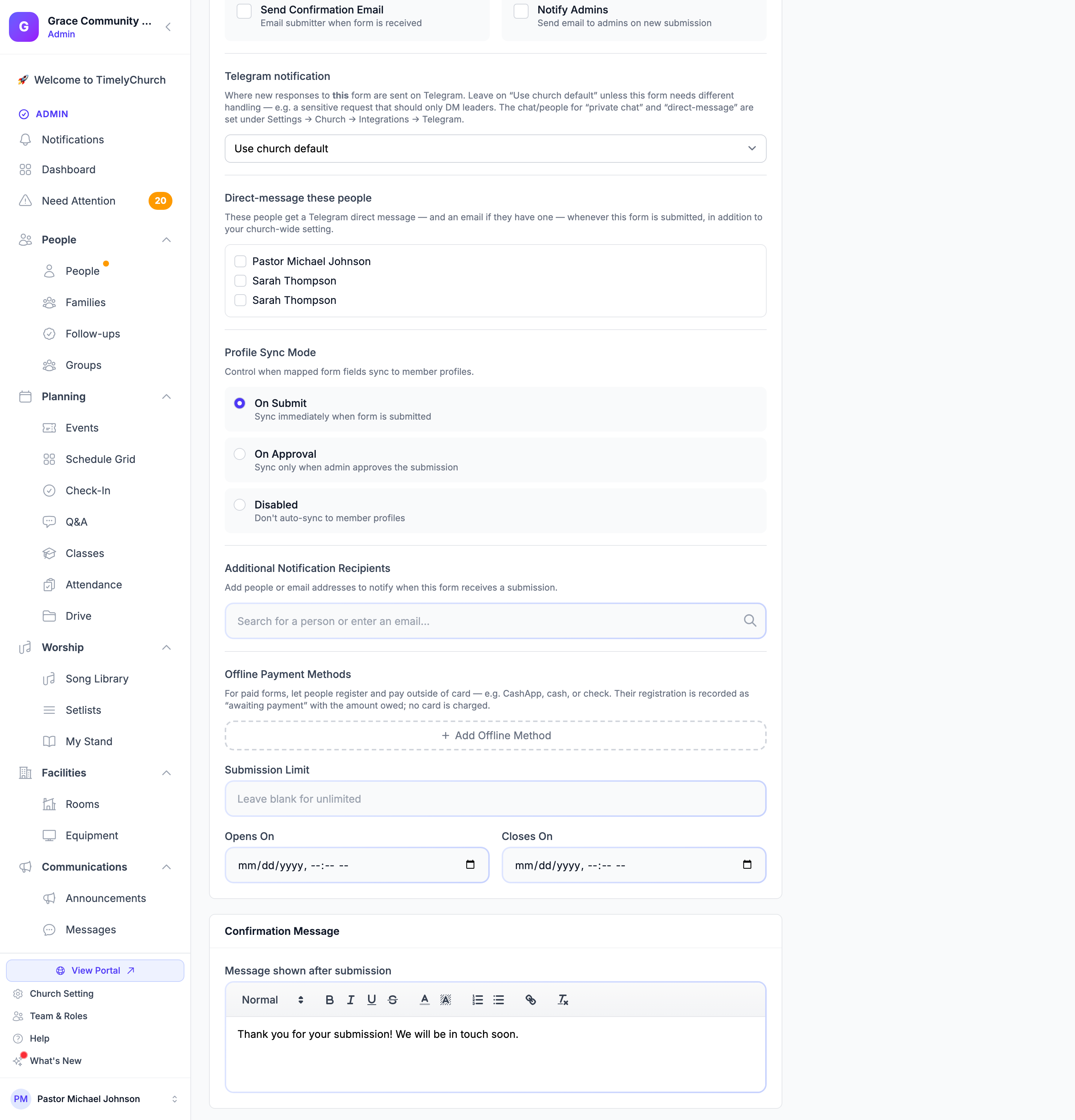
TimelyChurch Forms can send email notifications when new submissions arrive. You can notify church administrators, specific staff members, or any email address you choose. If your church has connected Telegram, you can also send each form's new responses to Telegram.
Notification Types
Admin Notifications
When the Notify Admins setting is enabled on a form, an email is sent to all church administrators and the church's contact email address each time a new submission is received.
Who receives admin notifications:
- All users with admin-level access for your church
- The church's primary contact email (if configured)
Custom Notification Recipients
In addition to (or instead of) admin notifications, you can add specific people or email addresses to receive notifications for a particular form. This is useful when a form is managed by someone who is not a church admin.
Configuring Notifications
Enable Admin Notifications
- Open the form editor.
- Go to the Settings tab.
- Check the Notify Admins checkbox.
- Click Save Settings.
Add Custom Recipients
- Open the form editor.
- Go to the Settings tab.
- Scroll to the Additional Notification Recipients section.
- To add a recipient, you can:
- Search for a person by name. Type their name in the search box, then click the person in the dropdown results.
- Enter an email address. Type an email address in the search box. When a valid email is detected, an "Add Email" button appears. Click it to add that address directly.
- Added recipients appear in a list below the search box, showing their name and email.
- To remove a recipient, hover over their entry and click the X button.
- Click Save Settings when done.
Tip: You can add both Person-based recipients (linked to your People database) and standalone email addresses. Person-based recipients will use the email stored in their profile.
What the Notification Email Contains
Each notification email includes:
- The name of the form that received a submission
- The church name
- A formatted summary of all submitted field values (labels and responses)
- The submitter's information (if available)
The email lets recipients decide whether they need to act without logging in to the admin dashboard.
Notification Behavior
- Notifications are sent asynchronously (queued) so they do not slow down the form submission experience for the respondent.
- If both Notify Admins and custom recipients are configured, all recipients receive the notification. Duplicate email addresses are automatically filtered out.
- Notifications are sent for every new submission, regardless of the submission's approval status.
- If sending fails for any reason, the error is logged but the form submission itself is not affected. The respondent still sees the confirmation page.
Confirmation Emails for Respondents
Separately from admin notifications, you can configure a confirmation email for the person who submitted the form:
- Open the form editor.
- Go to the Settings tab.
- Check the Send Confirmation Email checkbox.
- Click Save Settings.
When enabled, the submitter receives an email confirming their form was received.
Confirmation Message
The confirmation message is what the respondent sees on-screen after submitting the form (not the email). To customize it:
- Open the form editor.
- Go to the Settings tab.
- Scroll to the Confirmation Message section.
- Edit the message using the rich text editor. New forms start with "Thank you for your submission! We will review it and get back to you soon." If you clear the message, people see "Thank you for your submission!"
- Click Save Settings.
Telegram Notifications
If your church has connected its Telegram bot, each form's Settings tab has a Telegram notification setting that decides where new responses to this form are sent on Telegram:
- Use church default: Follow your church-wide Telegram setting for forms (recommended unless this form needs different handling).
- Post to group chat(s)
- Send to a private chat
- Direct-message people
- Don’t notify on Telegram
The chats and people used for the private-chat and direct-message options are set up in Church Settings on the Integrations tab, in the Telegram area. Use a different option for a sensitive form, such as a request that should only go to your leaders by direct message.
Below it, Direct-message these people lists the people who have linked their Telegram. Anyone you tick gets a Telegram direct message, and an email if they have one, whenever this form is submitted, in addition to your church-wide setting. If nobody has linked Telegram yet, you'll see "No one has linked Telegram yet. People link Telegram from their member portal."
See Telegram — Messages and Two-Tap Actions for connecting Telegram.
Frequently Asked Questions
Q: Can I send notifications to different people for different forms? A: Yes. Each form has its own notification settings and custom recipient list. Configure them independently on each form's Settings tab.
Q: Do custom recipients need an account on TimelyChurch? A: No. You can add any valid email address as a custom recipient. They do not need to be a registered user or admin.
Q: Will I get duplicate emails if I am both an admin and a custom recipient? A: No. The system automatically de-duplicates email addresses before sending notifications.