
Messaging
TimelyChurch includes a direct messaging system within the Member Portal that allows members to communicate with one another privately. Messaging supports one-on-one conversations, group conversations, messages to a whole team, and file attachments, all without sharing phone numbers.
Accessing Messages
Members access the messaging system through the Member Portal:
- Log in to the Member Portal using a magic link or linked account.
- Click Messages in the portal navigation.
Administrators can open the same inbox from the admin sidebar under Communications > Messages.
The Messages inbox shows all active conversations, with the most recently active conversations appearing first.
Note: If your portal profile isn't linked to a login yet, the inbox shows "Messaging not available yet". Ask your church admin to link it.
Inbox Overview
The inbox displays a list of conversations with the following information for each:
- Conversation title: The name of the other person, or the participants' names for a group conversation
- Latest message preview: A snippet of the most recent message, with the sender's name (or "You:" if you sent it)
- Timestamp: When the last message was sent
- Unread indicator: A dot marks conversations with messages you haven't read
When you have no conversations yet, the inbox shows Start a Conversation with a New message button. A Blocked members link sits below the inbox.
Composing a New Message
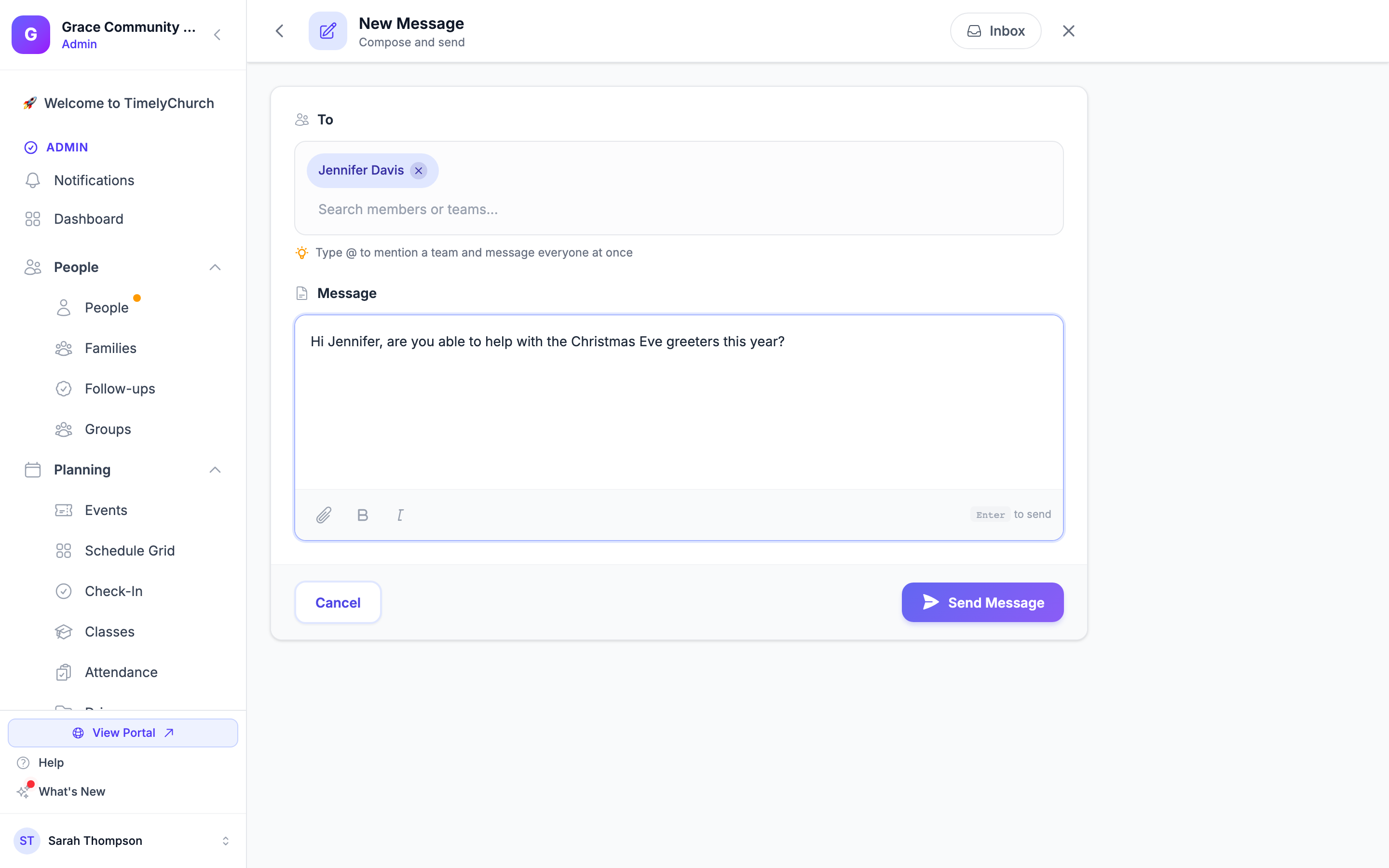
- Click New message from the inbox.
- Fill in the message form:
To
Start typing in Search members or teams... and pick one or more recipients from the list.
- Members: You can message people who are active in your church directory, have "Show in Directory" turned on, and have an email address on file. Children are never listed. Members only appear when your church's member directory is turned on.
- Teams: Type a team's name (or type @ to mention a team) to message everyone on that team at once.
Tip: If you have been given a direct link to message someone (e.g., from a member's directory profile), the recipient will be pre-filled when you open the form.
Message
Type your message in Write your message.... You can use Bold and Italic, and press Enter to send.
Attachments (Optional)
Click Attach file to add images, PDFs, Word or Excel documents, or text files. Each file must be under the maximum upload size.
- Click Send Message to create the conversation and deliver the message.
When a new message is sent, the recipients receive a notification alerting them to the new conversation.
Who the search finds. Members find directory-listed adults and people they share a group with. Admins find any active adult member. Children and blocked people never appear, and a minor can always reach their own guardians, and nobody else.
Viewing a Conversation
Click on any conversation in the inbox to open it. The conversation shows:
- Header: The conversation's title, with buttons to start a New Message, Block or Unblock the other person (in a one-on-one conversation), and Archive the conversation
- Message thread: All messages in chronological order, oldest first, grouped under day headings such as Today and Yesterday
- Sender information: Each message from someone else shows the sender's name and avatar
- Timestamps: When each message was sent
- Attachments: Images are shown in the thread; other files appear as download links with their size
- Edited label: A message that was changed after sending shows Edited next to its time
- Report this: A link on messages from other people, for reporting a message that crosses a line
Replying to Messages
At the bottom of any conversation, type your reply in the message box, attach files with the + button if you like (images, PDFs, Word, Excel or PowerPoint documents, text or CSV files), and click Send.
Replies are added to the bottom of the conversation thread and all participants are notified.
Archiving Conversations
To tidy your inbox, open a conversation and click Archive, then confirm "Archive this conversation?".
- The conversation leaves your inbox. You'll see "Conversation archived."
- Archiving does not delete the conversation. Other participants can still see it.
Group Conversations
Messaging supports conversations with multiple participants:
- When composing a new message, select several recipients, or a team, to create a group conversation
- All participants can see all messages in the conversation
- The conversation title shows the participants' names
Notifications for New Messages
When a new message is received, the system:
- Creates an in-app notification for the recipient
- Sends a push notification (if the recipient has push notifications enabled)
- Sends an email notification (if the recipient has email notifications enabled)
The notification includes the sender's name and a preview of the message, with a link to open the conversation directly. Members who have connected Telegram can also get a new-message nudge there (see Telegram — Messages and Two-Tap Actions).
Blocking and Reporting
- Block: In a one-on-one conversation, click Block and confirm "Block this member? They will no longer be able to message you, and this conversation will be hidden." Blocked members cannot message you, and your conversations with them are hidden.
- Blocked members: The link below the inbox lists everyone you have blocked, with an Unblock button for each.
- Report this: Report a message that crosses a line. It is hidden for you right away, and the report goes to your church administrators on the Reported content page.
See Reporting Content and Blocking Members and Reviewing Reported Content.
Privacy and Security
- Messages are scoped to the church. Members can only message other members within the same church
- Only members who appear in the church directory (with "Show in Directory" enabled) can be picked as recipients, and a member's email address is only shown if they chose to show it in the directory
- Conversations verify participant membership. Users cannot open conversations they are not part of
- No phone numbers are shared through messaging
Related Articles
Last updated: 2026-10-21 (8.205.306).