
Install TimelyChurch on Your Phone or Tablet (Add to Home Screen)
This guide is written for church admins to share with their congregation -- or to read yourself so you can walk a member through it. It explains how to add TimelyChurch to a phone or tablet so it opens like a regular app.
TimelyChurch is an installable app. You don't need an app store: you add it straight from your web browser, and it lands on your home screen with the TimelyChurch icon.
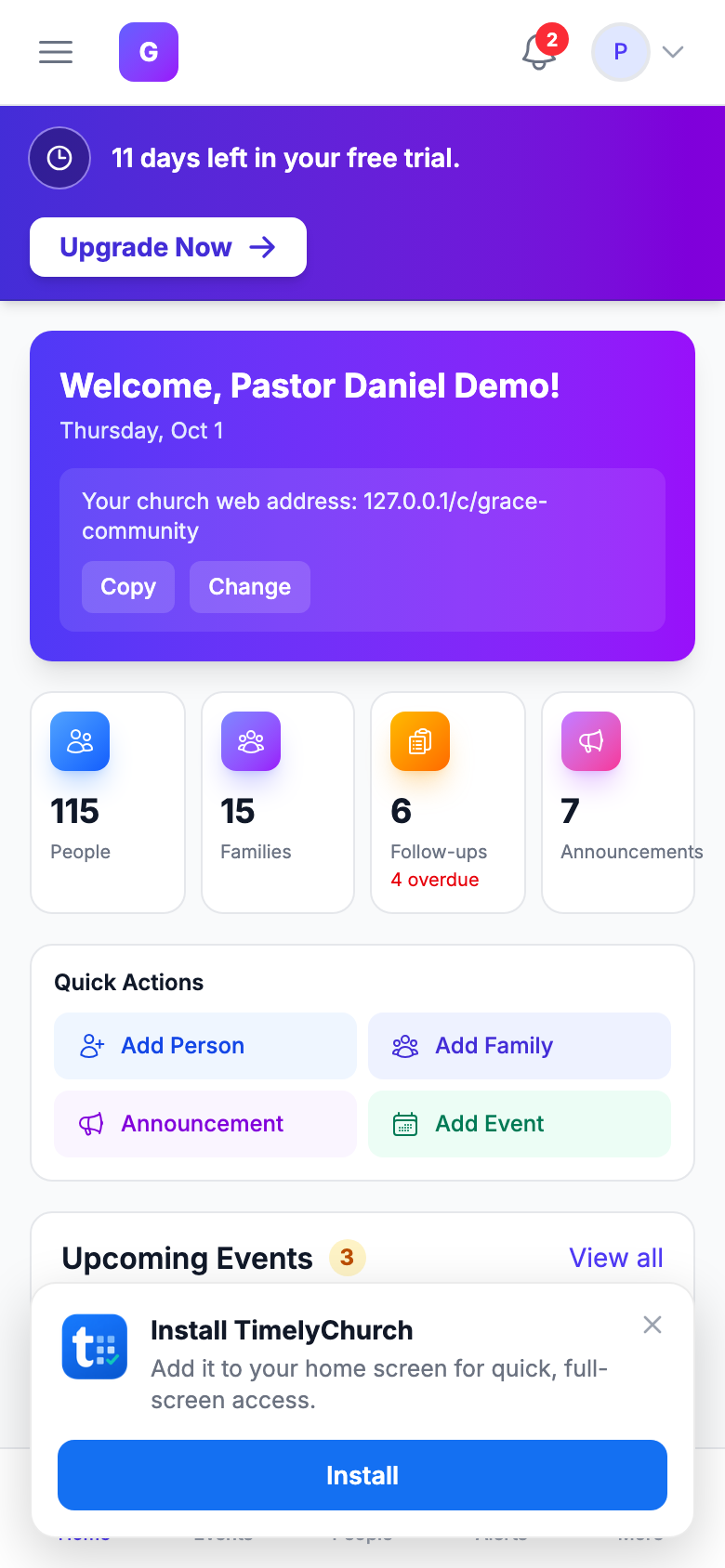
The Install Banner
The easiest way in is the banner TimelyChurch shows you the first time you visit on a device -- in the member portal, the admin panel, or a public church page:
- On Android and in desktop browsers: an Install TimelyChurch banner -- "Add it to your home screen for quick, full-screen access." -- with an Install button. Tap Install and confirm.
- On iPhone and iPad: an Add to Home Screen banner with the hint "Tap Share, then Add to Home Screen." and a Got it button. (iPhones and iPads don't allow a one-tap install, so follow the Safari steps below.)
Close the banner with Dismiss (or Got it) and it won't come back on that device. You can still install at any time with the steps below. The check-in kiosk and the music stand's chart view never show the banner, so they stay distraction-free.
What "Installing" Actually Does
When you add TimelyChurch to your home screen, three things change:
- It opens full-screen. No browser address bar, no tabs -- just TimelyChurch, edge to edge, the way a native app looks.
- It gets its own icon. The TimelyChurch logo sits on your home screen next to your other apps. One tap and you're in.
- It can send you notifications. Where your device supports it, TimelyChurch can send push notifications for reminders and updates, even when the browser isn't open.
It's still the same TimelyChurch you use in your browser -- same login, same information. So it's always up to date: there's never an app-store update to download, and everything stays in sync across your phone, tablet, and computer.
It's one app for everyone. TimelyChurch shows each person exactly what their account should see. A member lands in the Member Portal, someone who serves on a team gets their serving hub, and an admin gets the admin console. There's nothing to choose -- the app adapts to who's signed in.
Before You Start
- Open TimelyChurch in your phone's browser first and sign in, so you're adding the real app (not a login page).
- On iPhone and iPad, use Safari to add to the home screen. (Other browsers on iOS don't offer the option.)
- On Android, use Chrome.
iPhone and iPad (Safari)
- Open Safari and go to your church's TimelyChurch address (for example,
timelychurch.com/c/your-slug/portal, or your custom domain). - Tap the Share button -- the square with an arrow pointing up, at the bottom of the screen (or top on some iPads).
- Scroll down the share menu and tap Add to Home Screen.
- You'll see the name TimelyChurch and the app icon. Tap Add in the top-right corner.
- The TimelyChurch icon now appears on your home screen. Tap it to open the app full-screen.
Tip: If you don't see Add to Home Screen in the share menu, scroll down -- it's below the row of app icons. Make sure you're in Safari, not another browser.
Android (Chrome)
- Open Chrome and go to your church's TimelyChurch address.
- Many phones show an Install banner or prompt at the bottom of the screen -- if you see it, just tap Install.
- If you don't see the banner, tap the ⋮ menu (three dots) in the top-right corner.
- Tap Install app (on some phones it's labeled Add to Home screen).
- Confirm by tapping Install (or Add).
- The TimelyChurch icon now appears on your home screen and in your app drawer. Tap it to open the app full-screen.
Tip: On Android, the installed app also uses an adaptive icon, so it matches the shape of your other app icons.
What to Tell Your Congregation
When you announce this, the message can be as simple as:
You can now add [Church Name] to your phone's home screen and open it like an app! On an iPhone, open us in Safari, tap Share, then Add to Home Screen. On Android, open us in Chrome, tap the ⋮ menu, then Install app. The TimelyChurch icon appears on your home screen -- tap it any time to see events, give, check your schedule, and more.
Things worth mentioning:
- "No app store needed -- you add it right from your browser."
- "It opens full-screen like a normal app."
- "It's always up to date -- no updates to install."
Troubleshooting
The icon looks like a screenshot of a page instead of the TimelyChurch logo (iPhone). Remove it from your home screen and add it again from Safari. Make sure you're signed in to TimelyChurch when you add it, so the app icon loads correctly.
I don't see "Add to Home Screen" on my iPhone. This option only appears in Safari. If you opened TimelyChurch in Chrome or another browser on iOS, switch to Safari and try again.
Android didn't show an Install banner. That's normal -- the banner doesn't appear on every visit, and it stays hidden once you've dismissed it. Use the ⋮ menu and tap Install app instead.
The installed app opens with a browser bar / doesn't look full-screen. Delete it and reinstall from the home-screen steps above. If it persists, make sure your browser is up to date.
Do I need to reinstall when TimelyChurch updates? No. The app always shows the current version of TimelyChurch automatically -- there's nothing to update.