
Connect an AI Assistant (MCP Connector)
The MCP Connector lets you use an AI assistant you already have -- such as Claude or ChatGPT -- with your church's TimelyChurch data. You ask your question in your own assistant ("How is giving to the building fund this quarter?", "Which bank rows still need a category?", "Who is serving on Sunday?"), and it looks the answer up in TimelyChurch through a secure connection. If your church allows it, the assistant can also do bookkeeping work for you -- always as a proposal that you approve first.
The connection always has exactly the same permissions as the person who connects it, nothing more. If you cannot open something in TimelyChurch, your assistant cannot see it either.
The assistant lives outside TimelyChurch, in your own account with that assistant's provider. Each person connects their own.
This article covers turning the connector on and connecting. The rest of the AI Features category goes deeper:
- What Your AI Assistant Can Read and Change
- Approving Changes an AI Assistant Proposes
- AI Assistant Permissions, Privacy and Plans
- Recurring Transactions and Auto-Post Through an AI Assistant
- AI Activity, Connected Apps and Troubleshooting
Turn It On for Your Church
The connector is off until someone at your church turns it on. There is no plan requirement for the connector itself; what an assistant can work with follows your church's plan (see AI Assistant Permissions, Privacy and Plans).
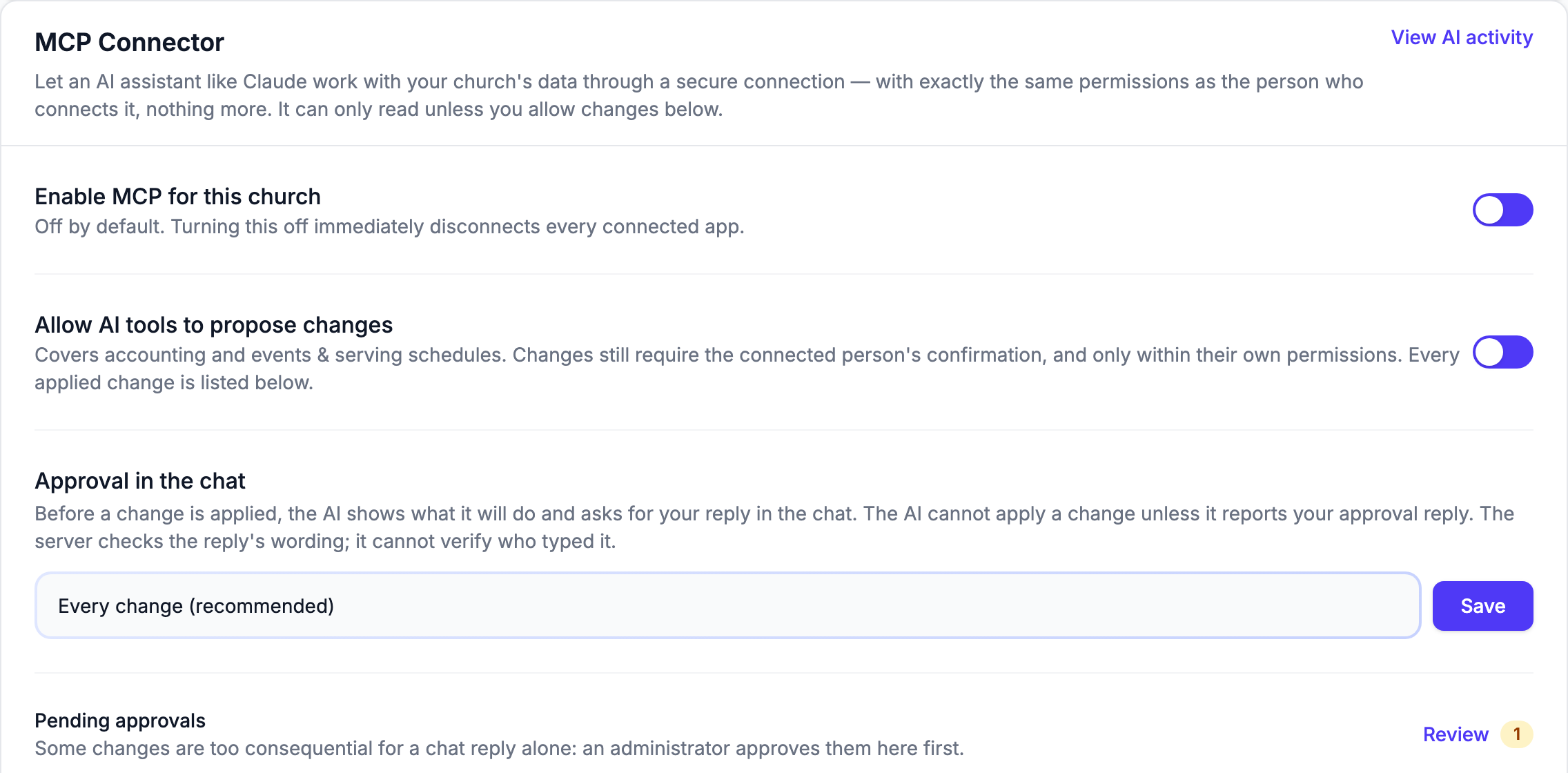
- At the bottom of the left sidebar, click Church Setting and open the Integrations tab.
- Find the MCP Connector card.
- Switch on Enable MCP for this church.
You need permission to edit Settings to change anything on this card. Others who can open Church Settings see it read-only.
When it is on, the assistant can only read. To let it suggest changes as well, see Allowing changes below.
Turning it off immediately disconnects every connected app. Anyone who wants to use it again has to reconnect after you switch it back on.
Connect Your Assistant
Once the connector is on, the card shows a Connect an AI assistant section with everything you need. Each person does this in their own assistant:
- Copy the address shown under Connect an AI assistant with its Copy button. If an OAuth client ID is shown, copy that too. There is no client secret -- leave the secret field empty.
- In Claude, ChatGPT or another assistant that supports MCP connectors, open its settings and add a custom connector (the card describes it as Settings → Connectors → Add custom connector; the exact menu names belong to that app and can change).
- Name it TimelyChurch, paste the address as the server URL, and paste the client ID if the form asks for one.
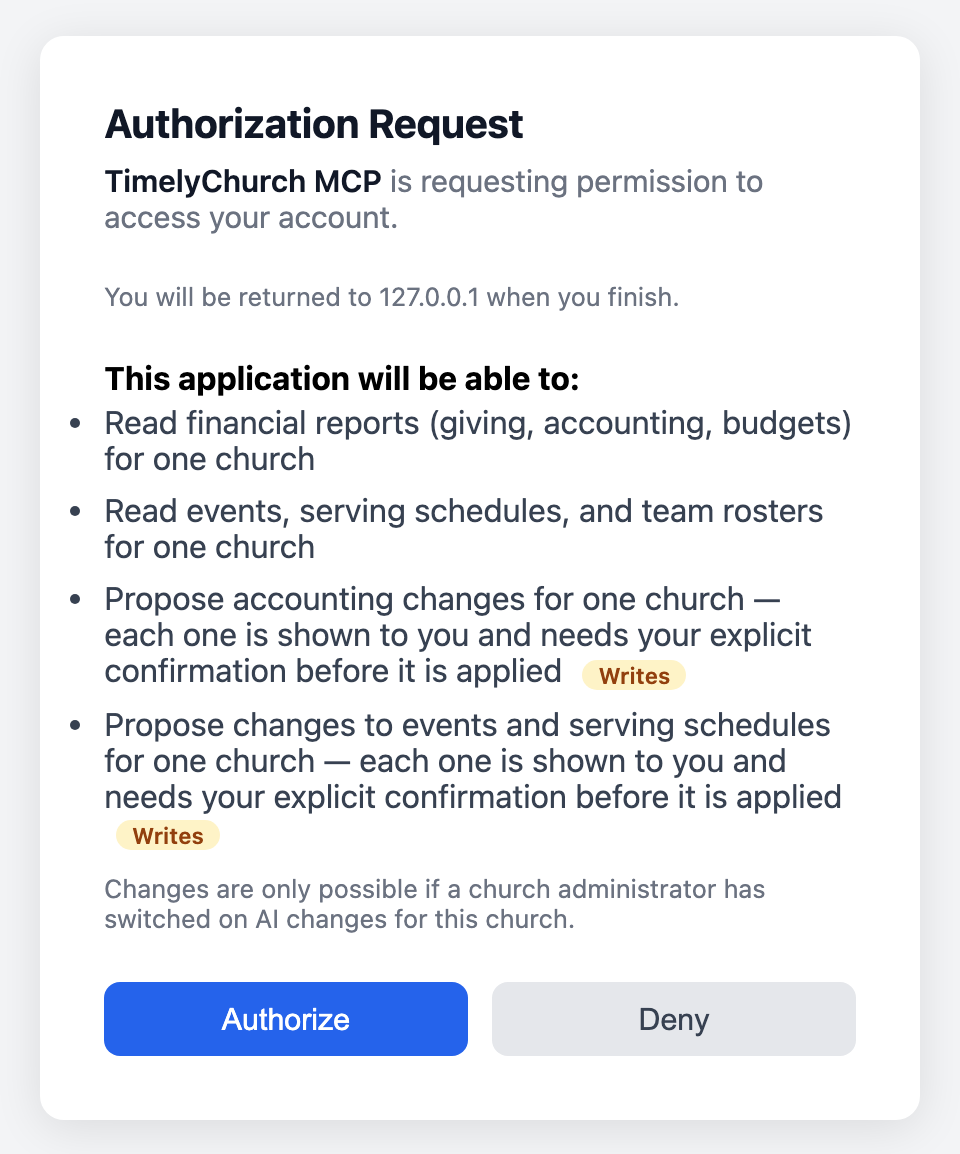
- Click Connect. You are sent to TimelyChurch to approve the connection. Sign in if asked, check what the assistant is asking for, and click Authorize. If you belong to more than one church, choose the church under Which church should this connection access? -- a connection only ever sees that one church; to use another church, connect again.
- Ask your first question. Your connection then appears under Connected apps on the card.
No token or secret is shown on the card: access is granted on the approval screen, and it can be removed at any time.
What the Assistant Can Read
Always within the connected person's own permissions, the assistant can read:
- Giving and finance reports -- giving totals and giving by fund, pledge campaign progress, failed and retrying donations, your financial position, budget vs. actual, the treasurer report, the 1099 vendor report, and whether a year is ready to close.
- The bank-import review queue -- the rows waiting for review, with filters and grouped totals, and what a payout deposit from your payment processor contains.
- Your books -- posted transactions and their details, bills, budgets, reconciliation status, recurring transactions, deposit batches, the receipts attached to a transaction (their names, never the files) and the finance audit log.
- Your accounting lists -- accounts with their balances, payees, categories, funds and tracking classes, so it can use the right names.
- Events and serving -- upcoming events and their details, who is serving, open serving needs, and your serving teams and their rosters.
Donor names follow the same rule as everywhere else. Unless the connected person's Giving level lets them see donors (Bookkeeper or Administrator), the assistant sees the word "Donor" instead of a name. See Who Can See Giving and Donations.
The full list, area by area, is in What Your AI Assistant Can Read and Change.
Allowing Changes
If you want the assistant to help with the work, not just answer questions, switch on Allow AI tools to propose changes (it appears once the connector is on). This covers accounting, giving and events & serving schedules:
- Bank-import review -- categorize rows, change their type, split them, change a row's notes, payment method or whether a gift is anonymous, exclude or restore rows, and accept reviewed rows into your books.
- Transactions -- record income, expenses and transfers, edit or delete posted transactions, restore deleted ones, create journal entries, record a refund on an expense, and attach or remove receipts.
- Reconciliation, bills and budgets -- start a bank reconciliation and check items off, record, edit and pay bills, and build, activate or close a budget.
- Recurring transactions -- set up, edit, post, skip, pause and resume them.
- Giving -- record a cash or check gift, close a deposit batch, and mark a closed batch deposited.
- Your accounting lists -- add a payee, category, fund or tracking class.
- Events and serving -- create an event and assign a volunteer to a serving position.
The assistant never changes anything by itself. It first shows what it plans to do, and each change stays within the connected person's own permissions. Some things stay on the website altogether -- refunding a gift, closing the fiscal year and sending giving statements, for example. See What Your AI Assistant Can Read and Change.
The "Approve" step
Choose how the approval works under Approval in the chat:
| Option | What happens |
|---|---|
| Every change (recommended) | Every change waits for your reply in the chat. This is the default. |
| Only changes that post to the ledger | Your reply is required for changes that post to your books -- for example accepting bank-import rows, recording, editing, deleting or restoring transactions, journal entries, recording a gift, paying a bill and posting a recurring transaction. Preparation steps, such as categorizing review rows or recording an unpaid bill, apply without it. |
| Do not require it | TimelyChurch does not wait for your reply before applying a change. |
When a reply is required, the assistant shows something like "Here is what I will do: … Reply 'Approve' to proceed, or tell me what to change." Nothing changes until you answer "Approve" in the chat. A clear "Yes", "Confirm" or "Go ahead" also counts, and so does the same word in Spanish, Russian, Portuguese, German or Lithuanian. A question, or something vague like "ok", does not count.
Answering "No", "Cancel" or "Stop" rejects the change for good -- ask the assistant for a new proposal if you want something different. A proposal also expires after 30 minutes.
A few changes need more than a chat reply. Completing a bank reconciliation and correcting the amount or date of a posted transaction also need a church administrator's approval on the TimelyChurch website, whichever option you chose above. See Approving Changes an AI Assistant Proposes.
Good to know: TimelyChurch checks the wording of the reply; it cannot tell who typed it. Only connect an assistant on a device and account that you alone use.
A connection that was made before changes were allowed can still only read. Its row under Connected apps says so; that person removes the connector in their assistant and adds it again.
Keeping an Eye on It
The MCP Connector card shows:
- Pending approvals -- changes waiting for an administrator's approval on the website. Click Review to open the page; a number next to it shows how many are waiting for you.
- Recent AI changes -- the latest changes applied through the connector, who made them, and Approved in chat when the person approved in the chat.
- Connected apps -- who connected, when, when it was last used, and whether the connection is Read only or Can read and propose changes. Click Revoke to cut off a connection immediately.
- View AI activity -- opens the AI Activity page: every call an AI assistant made through your connection -- who, when, what and whether it was allowed -- with filters and Export CSV. Opening it needs permission to edit Settings. The link stays on the card even after the connector is turned off, so your history is never lost.
If someone leaves your church or their account is deactivated, their connection stops working.
Changing your password disconnects your assistants. When you change or reset your TimelyChurch password, you are signed out on every other device, and every AI assistant connected to your account is disconnected -- including a connection you had started but not yet finished. Changes still waiting for your approval in the chat expire too. To keep using an assistant, connect it again the same way you did the first time; you approve the access once more.
More on these lists: AI Activity, Connected Apps and Troubleshooting.
Troubleshooting
The assistant says it does not have permission. The connected person's role does not include that area. A church admin can change the role under Administration → Roles & Permissions; the assistant picks up the new permissions on its next question.
"Not applied: the person has not approved this change." Reply Approve to the assistant's proposal (see The "Approve" step).
"Not applied: this change first needs approval by a church administrator in TimelyChurch." An administrator approves it on the Pending approvals page first; then reply Approve in the chat. See Approving Changes an AI Assistant Proposes.
"Proposal not found or no longer valid." or "Records changed since proposed. Propose again." The proposal expired or the records changed in the meantime. Ask the assistant to propose the change again.
"Daily limit for AI changes reached." Your church has reached the daily limit for changes made through AI assistants. Try again tomorrow, or make the change in TimelyChurch directly.
The assistant stopped working after I changed my password. This is expected. Changing or resetting your password disconnects every assistant connected to your account, to keep your account safe, and its connection disappears from Connected apps. Connect the assistant again the same way you did the first time.
Every other message is explained in AI Activity, Connected Apps and Troubleshooting.