
Share a File or Folder with a Link
Sometimes you don't need to add a specific person or team at all — you just need a link. Get link in Drive creates a shareable page for a file or folder that works for anyone who has the address, no TimelyChurch account required. It's the right tool for a visiting speaker's handout, a resource you're printing in the bulletin, or a link you're texting to your whole class list at once.
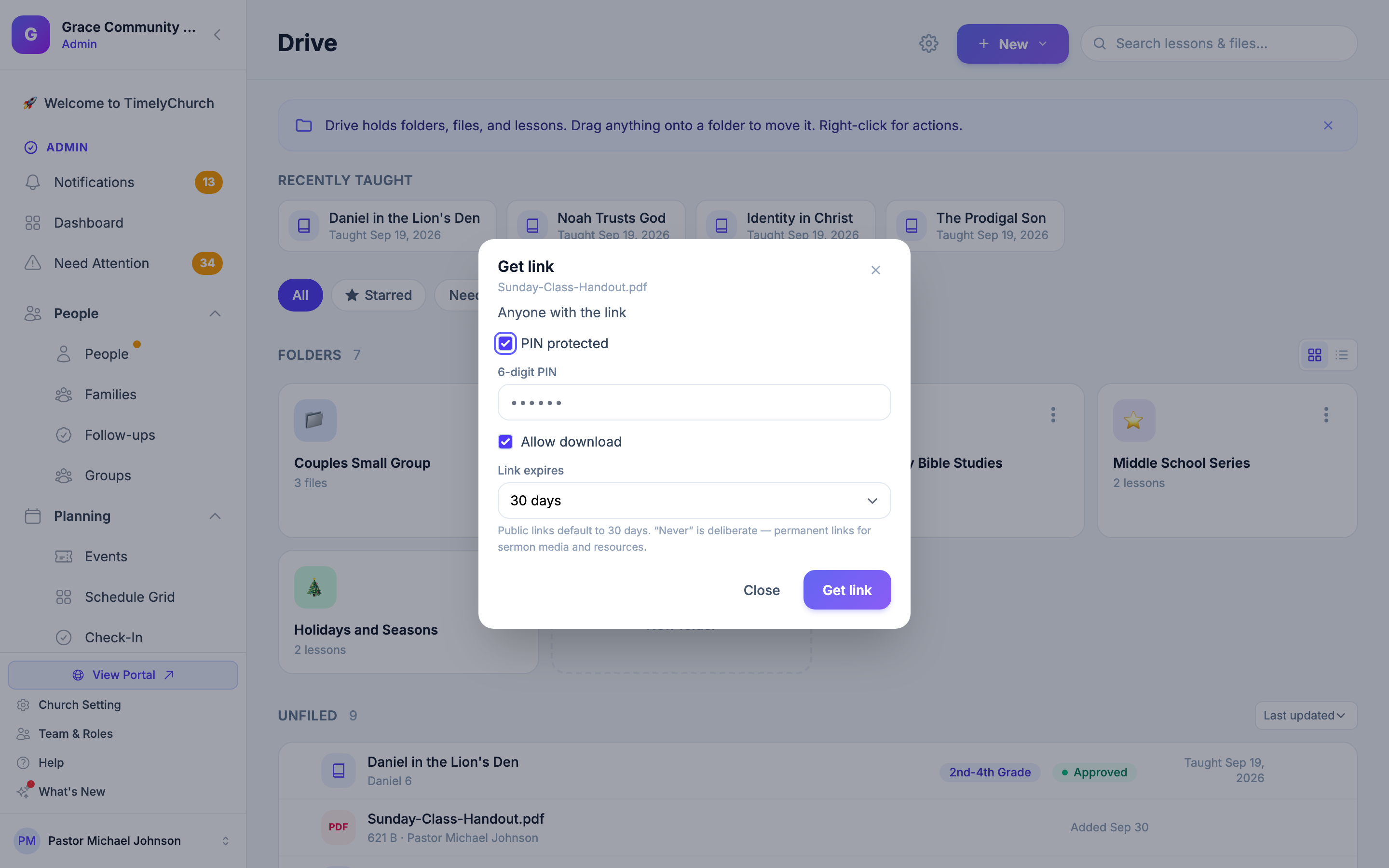
Creating a Link
- Open Drive from the Planning section of the admin sidebar.
- Find the file or folder you want to share:
- For a file, click Get link on that file's row.
- For a folder, open the folder's menu and choose Get link (or click Get link at the top when the folder is open).
- The Get link window opens -- "Anyone with the link" -- with three settings:
- PIN protected — require a 6-digit PIN before anything is shown.
- Allow download — on by default; turn it off to let people see the item without downloading it.
- Link expires — 24 hours, 7 days, 30 days, or Never. See "Expiry" below.
- Click Get link. The link is created immediately.
Opening Get link again for the same item shows the link you already made -- it never quietly creates a second one.
Getting the Short Link and QR Code
After you create a link, click View link, QR & share. The Share link window gives you:
- A Short link — easier to text, print, or read aloud than the full address.
- The Full link, if you'd rather copy that directly.
- View to open the page yourself.
- A QR Code you can download and print on a handout.
- One-tap buttons to share to Facebook, X (Twitter), WhatsApp, or email.
What the Recipient Sees
Anyone who opens the link lands on a simple page with your church's name, the item's name, and -- if downloads are allowed -- a Download button. No login is needed, and the page is kept out of search engines, so only people with the address can reach it.
If PIN protected is on, they first see "This link is protected." and must enter the PIN ("Enter the PIN to unlock this share.") and click Unlock before anything about the item is shown.
When a link has expired, visitors see "This link is no longer available" instead of an error page.
Allow Download — View-Only Sharing
Turn Allow download off and the recipient's page shows the item without a Download button. The download is blocked on the server too, so there's no way around it by guessing a download address.
Expiry — 30 Days by Default
Public "anyone with the link" shares are time-limited on purpose — a link you handed out for one event shouldn't quietly work forever.
- New links default to 30 days. You can pick 24 hours, 7 days, 30 days, or Never when you create the link. "Public links default to 30 days. “Never” is deliberate — permanent links for sermon media and resources."
- Extend in one click. Open Get link on the item again and click Extend 30 days. This keeps the same link, so every copy you already handed out keeps working.
- An expired link isn't deleted. It shows "This link is no longer available". Extend it and it works again.
Setting Your Church's Default
To start every new link with a different expiry -- say, 7 days -- go to Lesson settings → General Settings → Drive share links and choose Link expires. "Each share link can still override this when it is created."
Links shared with a specific person or team (see Share a Drive Folder with Your Team and Share a File or Folder with a Specific Person) work differently — they don't expire, because you remove someone's access directly instead. Expiry only applies to "anyone with the link" shares.
Get Link vs. Sharing with People or Teams
| Get link | Share with a person | Share with a team | |
|---|---|---|---|
| Who can open it | Anyone with the address | Only that person, signed in | Anyone active on that team |
| Notifies the recipient | No | Yes | Yes |
| Expires | Yes, 30 days by default | No | No |
| Good for | A handout, a bulletin link, a visiting speaker | One specific person you want to track | A whole team's shared resources |
Use Get link when you don't know exactly who will open it, or when a portal login isn't the point. Use a person or team share when you want to know exactly who has access.
Tip: Only need a link for one event? Choose 24 hours or 7 days so it closes on its own afterwards.
Who Can Do This
- Church admins, and anyone whose role can edit lessons, can create and extend a link on any file or folder.
- Anyone with Manage on a folder — including a team leader or co-leader whose team the folder is shared with — can create a link for that folder or its files.
- The person who uploaded a file can create a link for that file.