
Putting Sections Side by Side (Columns)
By default every section on a page takes the full width and sits below the one before it. The Columns section changes that: it splits a band of your page into 2, 3, or 4 columns, and you decide what goes in each one.
You can put two kinds of thing in a column:
- Small blocks — a title, a paragraph, an image, a button, or an icon with text. Quick to add, edited right inside the Columns section.
- Whole sections — any section type at all: Latest Sermon, Events, a contact form, a gallery, Service Times. Dragged in from your page.
On a phone, columns always stack one under another so nothing gets squeezed.
Adding a Columns section
- Go to Website Studio > Pages and open the page you want to edit.
- Click Add Section.
- Choose Columns (in the Layout group).
It arrives with three columns already filled in with an example, so you can see the shape straight away. Replace or delete those as you like.
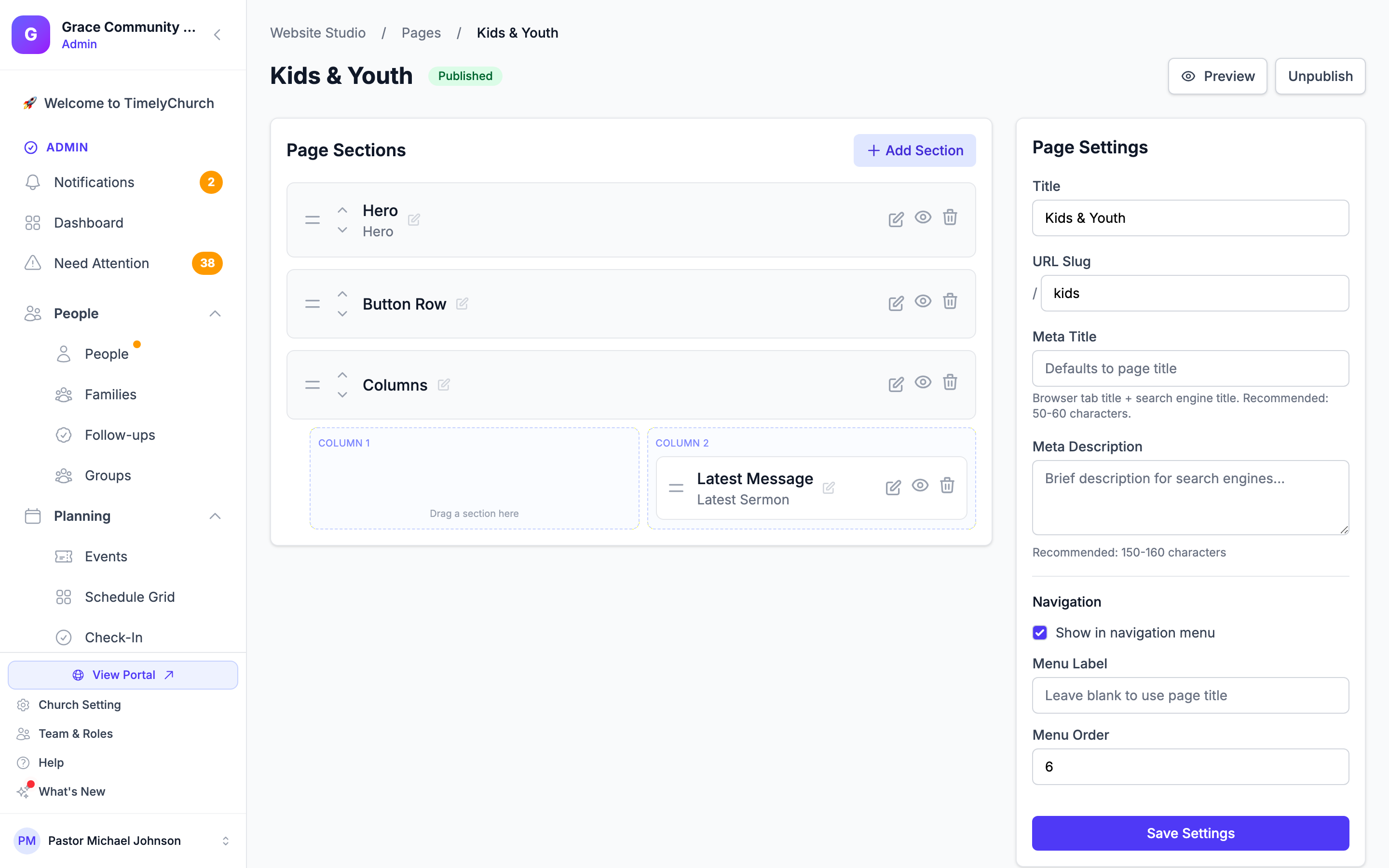
Choosing the layout
Click the edit (pencil) icon on the Columns section to open its settings.
| Setting | What it does |
|---|---|
| Columns | 2, 3, or 4 columns. |
| Column widths | Equal, or make one column wider — Wide first column, Wide last column, or Wide middle column (3 columns only). |
| Space between | How much gap sits between the columns: Small, Normal, or Large. |
| Align text | Left or Center, applied to everything in the columns. |
| Align columns | Top lines the columns up at the top (best when they hold different amounts of content). Center centres them against each other. |
Wide first column is the classic "main content with a narrow sidebar" layout — good for an article with a giving box or service times beside it.
Adding small blocks to a column
In the Columns settings you will see a card for each column. Use the small buttons at the top right of a card to add a block:
| Button | Adds |
|---|---|
| Title | A heading. |
| Paragraph | A paragraph of text. |
| Image | A picture, with a description for screen readers. |
| Button | A link styled as a button, with an optional icon. |
| Icon | An icon with a title and a short line of text. |
Each block has arrows to move it up or down inside its column, and an x to remove it. A column can hold up to ten blocks.
Putting a whole section into a column
This is how you get a sermon, an events list, or a form to sit beside something else.
- In the page editor, look at the Columns section. Under it you will see a drop area for each column, labelled Column 1, Column 2, and so on.
- Drag any section from your page list into the column you want, using the drag handle (the horizontal lines icon on the left of the section card).
- Release. The move saves by itself.
To take a section back out, drag it from the column up into the main page list.
You can also add a new section straight into a column rather than moving an existing one.
On a phone or tablet, the column drop areas stack one under another so each is full width and easy to drop into.
What can and cannot be nested
- Any section type can go into a column — there is no list of "allowed" sections.
- A Columns section cannot go inside another Columns section. One level of columns keeps pages readable, especially on phones.
If you try something that is not allowed, TimelyChurch tells you what happened and nothing is changed.
How columns behave on different screens
Columns are not tied to fixed screen sizes. Instead, TimelyChurch keeps each column wide enough to read:
- On a computer, you get the number of columns you chose.
- On a tablet, if your chosen number would make each column too narrow, it drops to fewer columns automatically.
- On a phone, columns always stack into one.
This matters most when a column holds a whole section — a sermon card or an events list needs more room than a line of text, and the layout gives it that room instead of squashing it.
Changing the number of columns later
If you reduce the number of columns — say from 4 down to 2 — anything sitting in the columns you removed is moved into the last remaining column, and TimelyChurch tells you it happened:
1 section was in a column this layout no longer has, so it moved to the last column.
Nothing is deleted and nothing is hidden. Drag it wherever you want from there.
Ideas for using columns
- Three "next step" boxes — an icon, a title, a line of text, and a button in each column.
- Sermon and events side by side — drop the Latest Sermon section into one column and Events into another.
- Article with a sidebar — choose Wide first column, put your text in column one and a giving or service-times section in column two.
- A row of ministry cards — four columns, each with an image, a title, and a button.
Related articles
- Website Sections — every section type available
- Adding a Row of Buttons — several buttons across, with icons
- Creating Pages
- Customizing Design