
Member Portal — My Groups
The Member Portal lets ordinary members follow their groups without opening the admin panel. Group leaders can also handle much of their day-to-day group management there, with no admin access. Here is the My Groups page and each group's page.
Where to Find It
After signing in to the portal, members open My Groups from the sidebar (on a phone, the Groups tab in the bottom bar). Members who serve on a team find it under the Team section of the sidebar.
The page lists every group the signed-in person belongs to, in two sections:
- Serving teams: the teams they serve on.
- Groups & classes: their small groups and classes.
Below them, Upcoming Events lists events hosted by their groups. Find a group opens your church's public Group Finder (the button appears when the Finder lists at least one group).
The Group Page
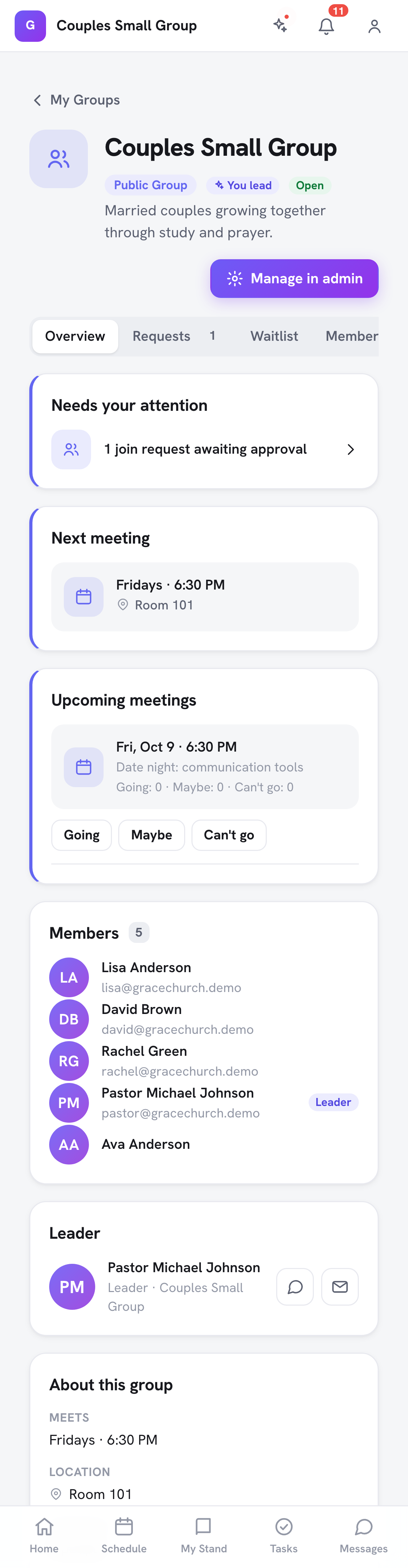
Click a group to open its page. At the top you see the group's name, its kind, Open or Closed, and, for leaders, a You lead badge. Members who don't lead the group get a Message leader button.
Every member sees three tabs:
| Tab | What's on it |
|---|---|
| Overview | The next meeting, upcoming meetings to RSVP to, the member list, the leader (with Message and, where shared, Email), how many seats are left, About this group, recent prayer requests, and Your membership |
| Tasks | The group's tasks. Members can check off tasks assigned to them, and add tasks if the group allows it (see Group Tasks) |
| Files | The group's shared files to view and download, and upload if the group allows it (see Group Resources) |
For a team, the Overview also shows My Serving: the dates the member is scheduled to serve with this team, with a link to My schedule.
Member-Level Actions
Any active member of a group can do these from the portal:
- View the group's details, members, leader, and recent prayer requests
- RSVP to upcoming meetings: when the group has Ask for RSVPs turned on, an Upcoming meetings card lists the next meetings with Going, Maybe and Can't go buttons and how many people gave each answer
- Check off tasks assigned to them, and add tasks when the group allows all members to
- View and download files, upload when the group allows all members to, and move their own uploads to trash
- Leave group: under Your membership on the Overview tab. They confirm ("You will no longer be a member of this group, and its leaders will be told. To rejoin later, ask a leader."). Classes don't offer this, and a group's only leader sees "You're the only leader of this group, so you can't leave it. Ask a church administrator to add another leader first."
Leader-Level Actions
When the signed-in person is a Leader or Co-Leader of the group, four more tabs appear: Requests, Waitlist, Members, and Prayers. The Overview also shows Needs your attention when there are join requests or people on the waitlist.
These tabs are only shown to actual group leaders, so an admin who is not a member will not see them in the portal (they should use the admin panel instead).
Requests
Pending requests lists "People waiting for your approval to join this group."
- Approve makes the person an active member and notifies them.
- Deny removes the request ("Deny this request?"). No decline email is sent.
Waitlist
The Waitlist tab lists "People waiting for a spot to open up in this group."
- Add to Group: move a waitlisted person into the group
- Remove: take someone off the waitlist
Seats are never handed out automatically: when a spot opens, leaders get an "A seat opened in [group]" notice and choose whom to add. Add to Group checks capacity. If the group is still full, it is refused.
Members
- Add a member: "Add someone from your church directly to this group." Choose the person and click Add member.
- Invite to group: invite someone by email. The link is valid for 14 days; they accept it and then show up under Requests for a leader to approve (see Managing Group Members).
- Remove a member ("Remove this member from the group?"). The person is told.
- Make member: the group's Leader can change a Co-Leader back to a regular member. Appointing leaders is done by a church admin.
Prayers
- Add a prayer request (optionally Submit anonymously), then Submit
- Mark answered on any request
- Remove any request
What Leaders Do in the Admin Panel
Some group management is only in the admin panel: editing the group's details and photo, opening or closing enrollment, sharing the group's link, recording meetings, notifying people on the waitlist, templates and scheduling settings, and deleting the group.
Leaders who also have admin access see a Manage in admin button at the top of the group page, which opens the same group in the admin panel. Leaders without admin access can ask a church administrator to make these changes.
Tip: When onboarding a new group leader, walk them through the group's page in the portal first: members, requests, the waitlist, prayers, tasks, and files are all here, and they never need an admin login.