
Schedule Grid — Visual Volunteer Scheduling
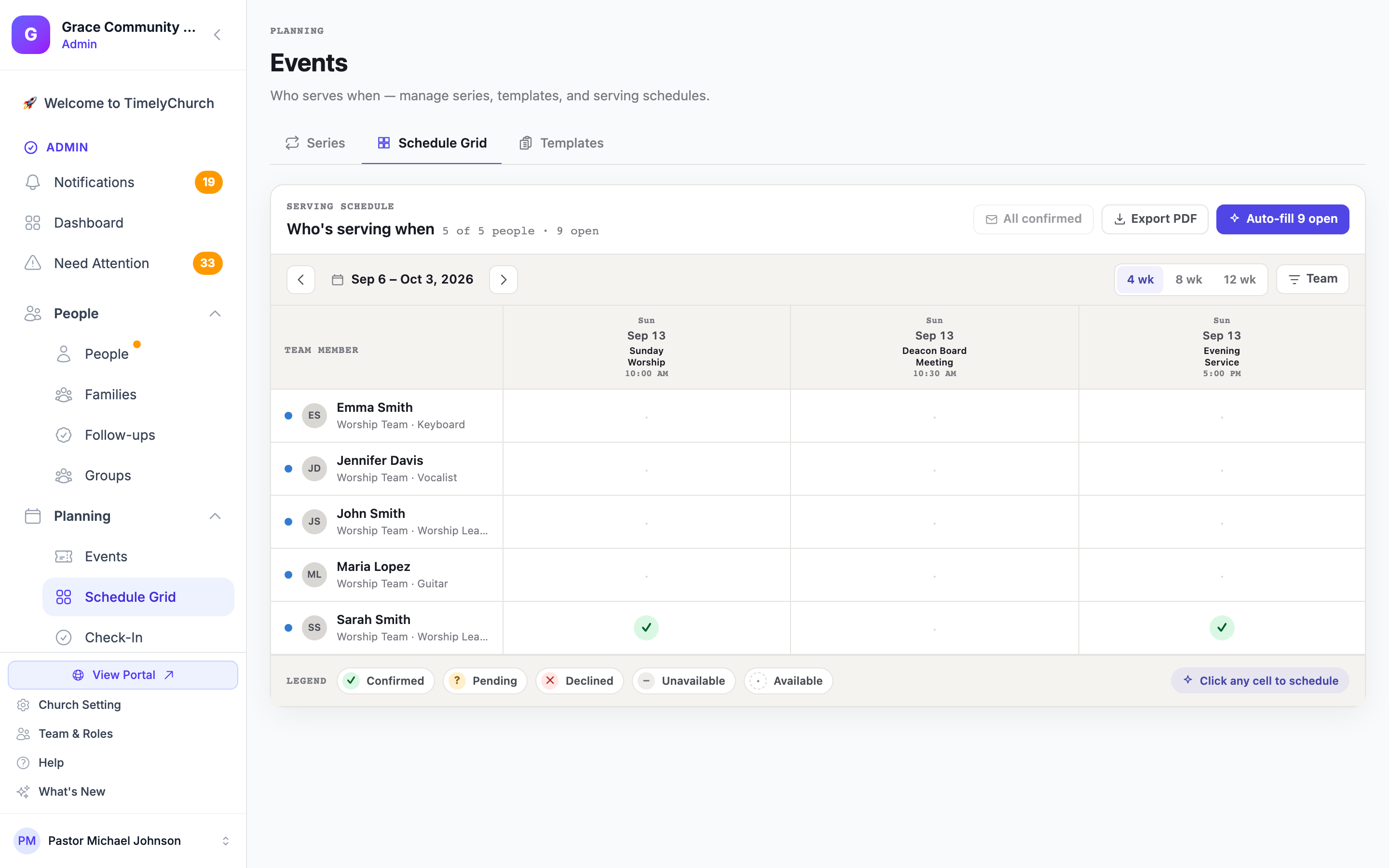
The Schedule Grid ("Who serves when") is a single screen that shows every team member down the side and your upcoming services across the top, so you can see and fill your whole serving rota at a glance. Instead of opening each event one at a time, you click any cell to invite, confirm, remind, reassign, or block a person for that service, right in place.
It's the visual companion to the per-event Serving tab covered in Event Volunteer Scheduling. Use the Serving tab to set up a single event in detail; use the Schedule Grid to plan weeks ahead across everyone at once.
Opening the Schedule Grid
- In the admin sidebar, under Planning, click Schedule Grid (just below Events).
- You can also click Schedule Grid in the toolbar at the top of the Events page (on a phone it's in the ⋮ More menu).
The grid sits on the Events planning page, whose tab strip reads Series · Schedule Grid · Templates.
If nobody has been assigned to a serving position yet, you'll see No one scheduled yet instead of the grid. Assign volunteers on an event's Serving tab first (see Event Volunteer Scheduling), and they'll appear here.
Tip: If a series was rebuilt or deleted while volunteers were booked on it, a notice at the top says how many volunteer assignments are attached to deleted dates. Click Reattach to put them back on the schedule.
Reading the Grid
- Each row is a team member. Their name, team, and position are on the left, and the column stays pinned while you scroll sideways. People are grouped by team.
- Each column is a service (an event). Every upcoming event with serving positions gets its own column, on any day of the week, not just Sunday. The column header shows the weekday, date, event title, and start time (in your church's time zone). Two services on the same day are two separate columns.
Note: Columns follow the services you actually have planned, so the number of columns varies with how busy the window is. Days with no serving needs simply don't appear.
A small round badge in a cell shows that person's status for that service. A Legend at the bottom explains the badges, and the hint Click any cell to schedule reminds you the cells are interactive.
| Badge | Status | Meaning |
|---|---|---|
| ✓ | Confirmed | The volunteer accepted, or the team confirms assignments automatically. |
| ? | Pending | Invited, waiting for their reply. An invite that ran out without an answer keeps the ?, but its tooltip reads Invite expired and its popover says Expired. |
| ✕ | Declined | The volunteer turned it down. |
| – | Unavailable | That date is blocked for them (by you or by the volunteer). |
| · | Available | Open, nobody scheduled yet. Click to schedule. |
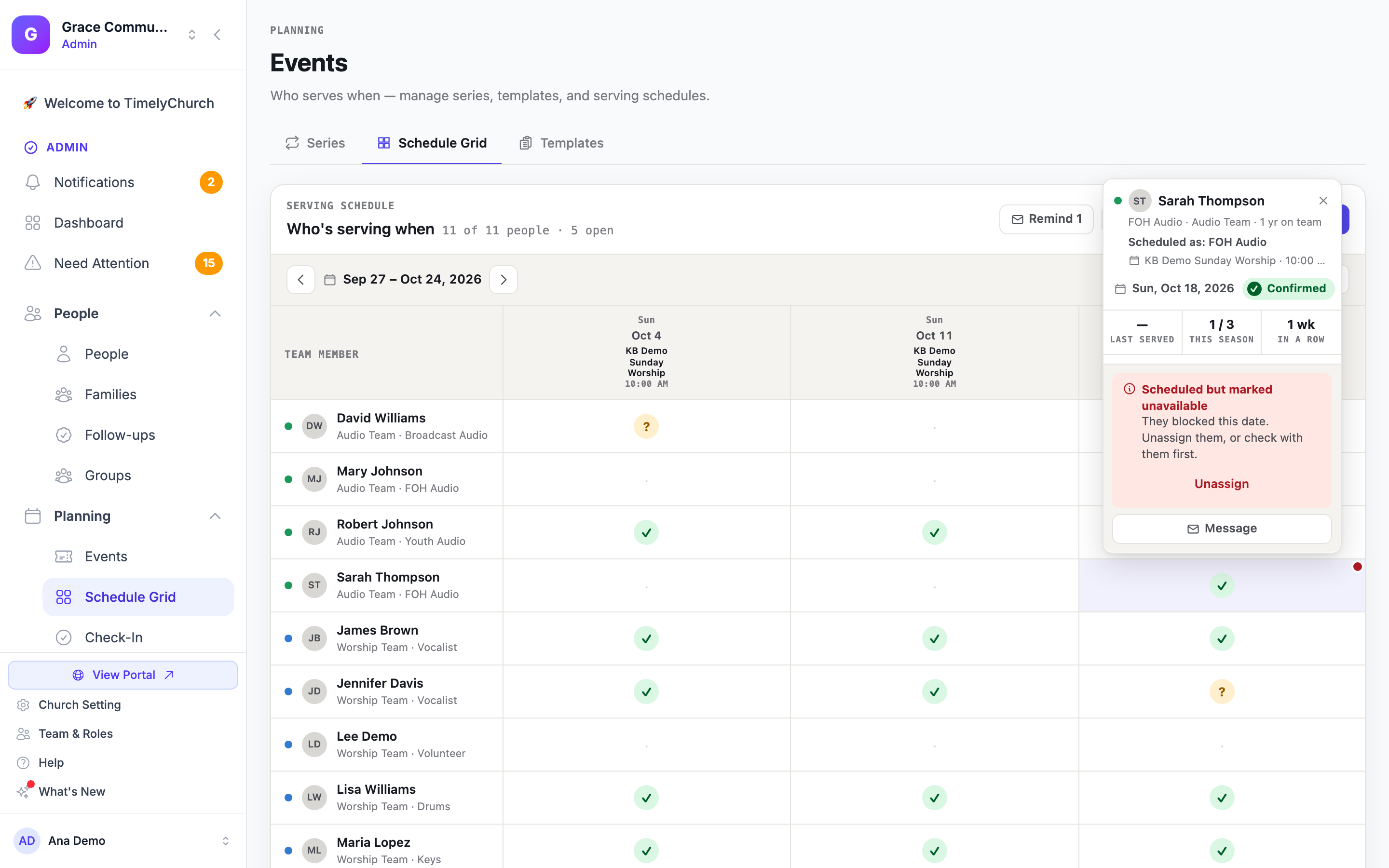
A small red dot in the corner of a ✓ or ? cell means that person is scheduled but has marked themselves unavailable for that date. See Scheduled but marked unavailable.
Hover over a scheduled cell (or reach it with the keyboard) and its label names the position the person is scheduled in, for example Confirmed · Scheduled as: FOH Audio.
The header shows a live count of people and open slots, and recalculates instantly as you make changes.
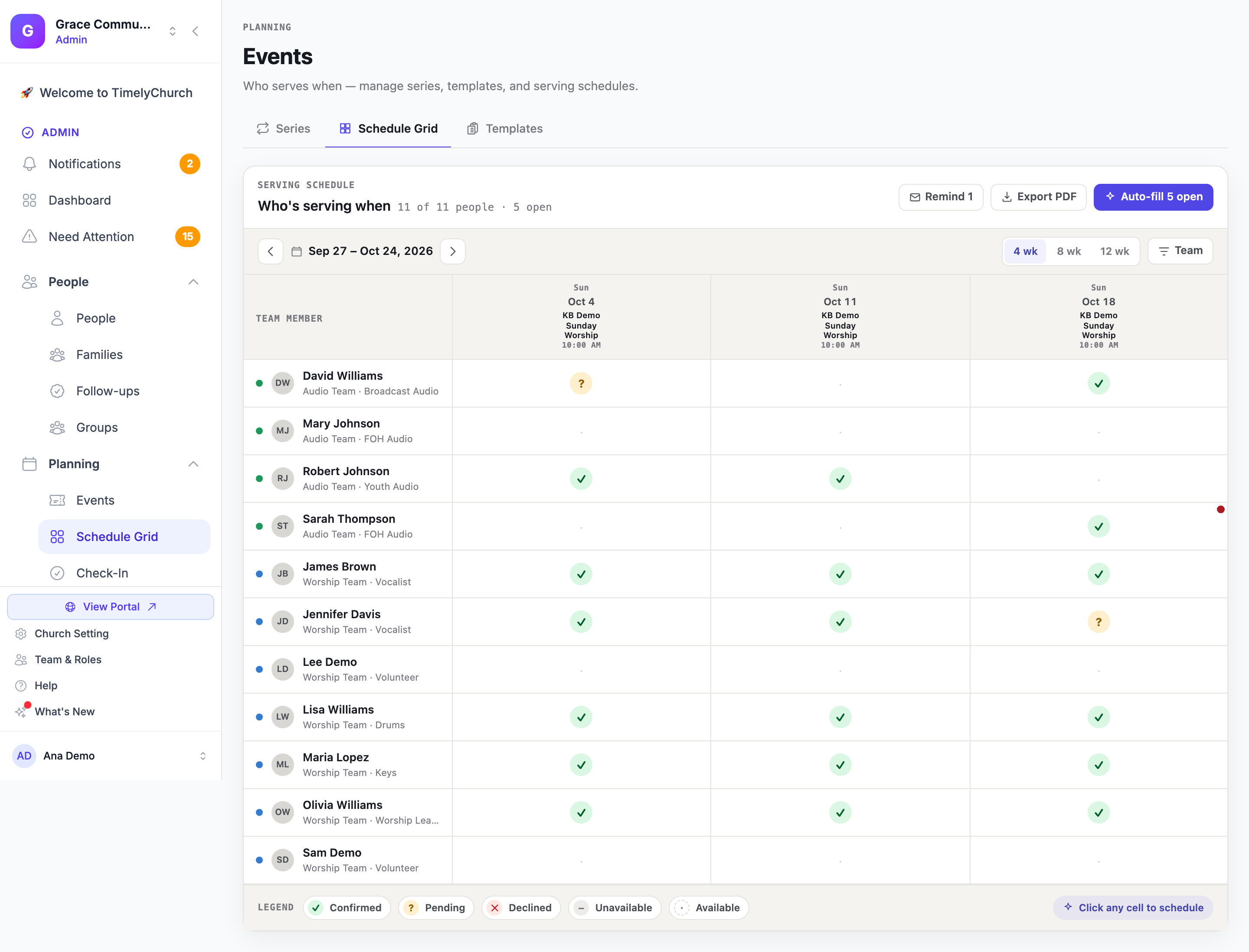
Controls
- Week pager (
‹/›) moves the window backward or forward by the number of weeks you're viewing; Today jumps back to this week. - Visible weeks: show 4 / 8 / 12 wk at a time. (This sets the time window; the columns are the services that fall inside it.)
- Team filter: narrow the grid to one serving team (Filter by team). Choose All teams to clear it.
- Ministry filter: if your teams are organized into ministries, narrow the grid to one ministry (Filter by Ministry, All ministries).
If a filter leaves nobody to show, the grid says so and offers show all teams.
Click a Cell to Schedule
Click any cell to open a small popover anchored to it. Under the person's name it shows their usual role and team and, for a scheduled cell, the position they are actually in that day: Scheduled as: FOH Audio. What the popover offers depends on that cell's current status.
An open (·) cell
- If the service already needs this person's role, click Invite to serve. If there are several open positions that day, choose one under Pick a position. The cell becomes Pending and the volunteer is notified to confirm (or, for a date far ahead, when it comes within their team's notice window; see Event Volunteer Scheduling).
- If the person is on a team that confirms automatically (the team's Auto-confirm assignments (skip pending status) setting, under Groups → the team → Details), the button reads Assign instead, and in the Pick a position list each position shows Assign · N open. The cell goes straight to Confirmed (✓) and the volunteer is told they're scheduled, with nothing to answer. This applies to every position you place someone in, including ones marked Require approval. That setting only decides whether volunteers who sign themselves up need approving.
- If the service has no open slot for this person yet, click Add to this service. This is the flexible path: it creates a serving slot for that person in their own team role (for example, James on the Nursery team is added as "Nursery Worker") on the existing service, then invites them. You do not need to set up positions first.
- If that date has more than one service, you'll choose one under Add to which service?
- If that date has no service scheduled at all, the popover says "No service scheduled for this date." Plan a service first, then come back.
- Mark unavailable is always offered as a secondary action to block the date for that person. As the button says, it blocks every service that day, not just the service you clicked from.
A Pending (?) cell
- Send reminder: nudge the volunteer to respond.
- Cancel invite: withdraw the invitation. If the volunteer accepted after you opened the grid, you are asked first: "[Name] just accepted — still remove?"
- Change position: see below.
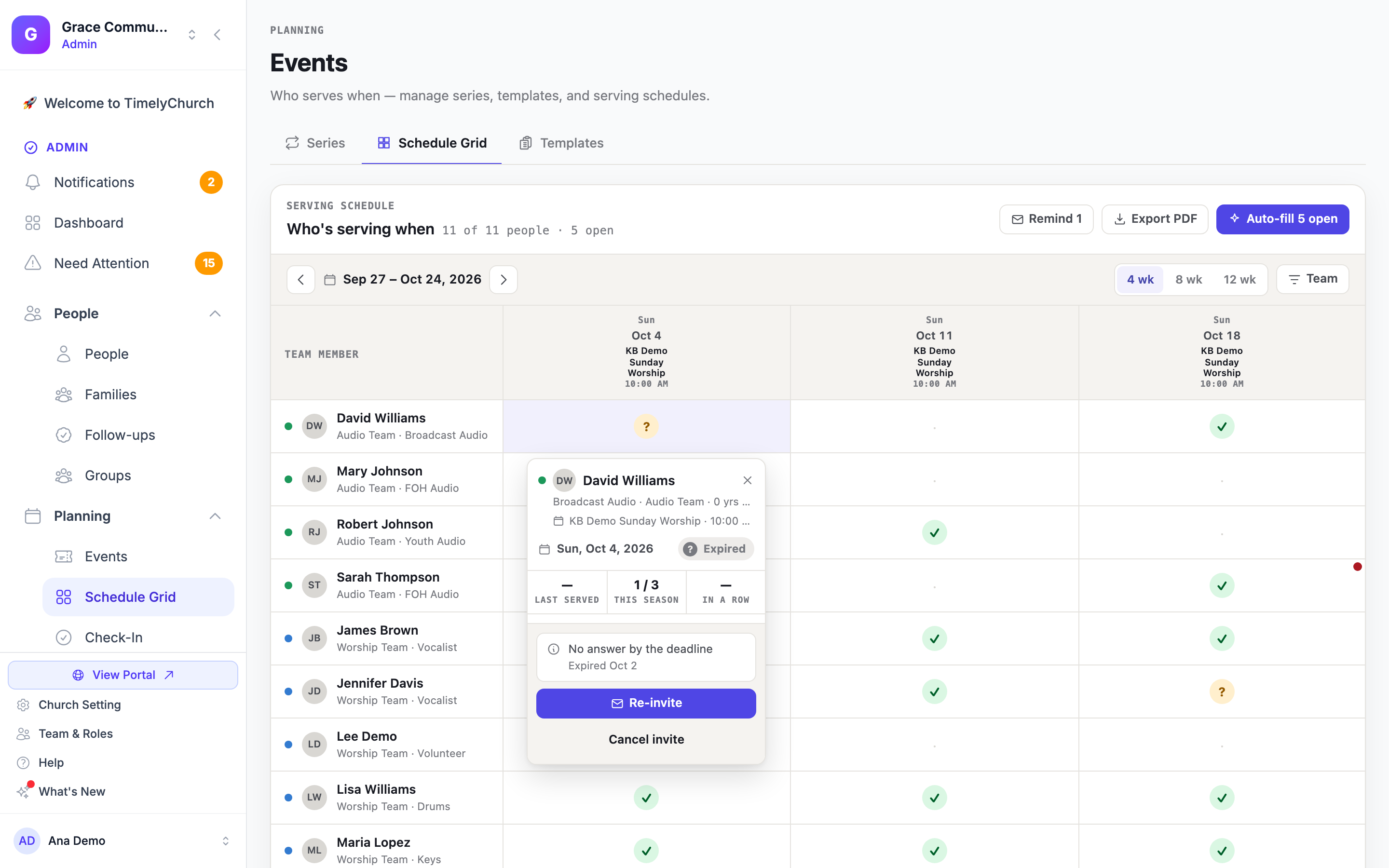
An expired invite
When an invitation runs out without an answer, the popover's status reads Expired, with No answer by the deadline and the date it expired (Expired Sep 28). There is nothing to remind any more, so it offers:
- Re-invite: send the same person a fresh invitation.
- Cancel invite: clear the slot. The volunteer is not sent a notice.
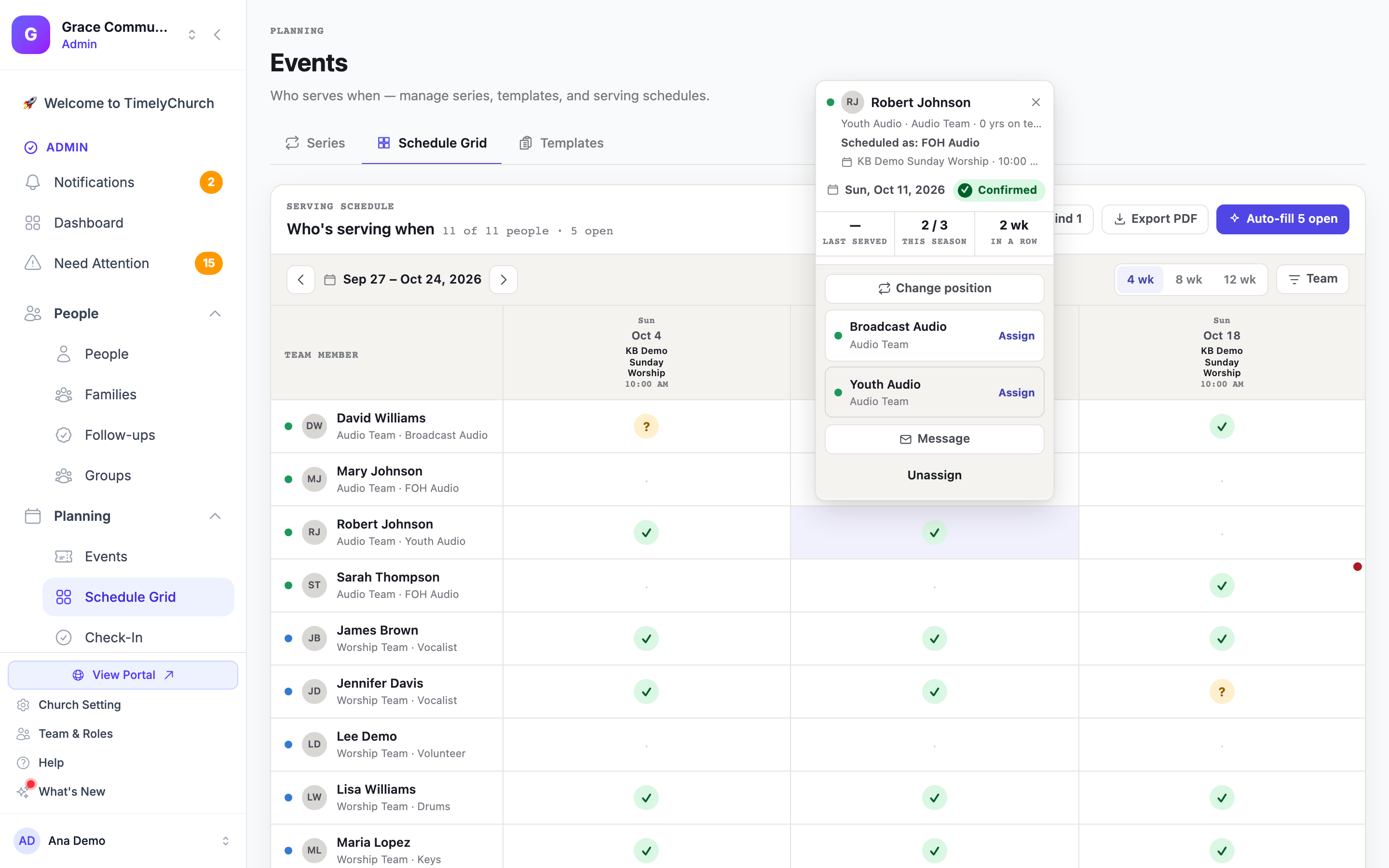
A Confirmed (✓) cell
- Unassign: take them off the schedule. They're removed right away and sent an "off the schedule" notice.
- Change position: see below.
Change position
Scheduled someone in the wrong slot? On a pending or confirmed cell for an upcoming service, click Change position. It lists the other open positions on that same service that fit the person (their own teams, their fixed position if they have one); each shows Assign or Invite, following the team's auto-confirm setting. Pick one and the person moves in one step. The page confirms Position changed. They are told once, about the new position, and receive no "off the schedule" notice for the old one.
Change position is offered when the cell holds one assignment. For a person with several roles at the same service, manage each role from the list in the popover.
Scheduled but marked unavailable
If a scheduled person has blocked that date (or you marked them unavailable from another cell that day), the cell shows a small red dot and the popover warns Scheduled but marked unavailable, with the message "They blocked this date. Unassign them, or check with them first.", and an Unassign button.
Marking someone unavailable never removes them from a service they are already scheduled for that day. When you click Mark unavailable and the person is still on the schedule that day, the popover stays open under Still on the schedule that day, listing each of those positions with its own Unassign button.
A Declined (✕) cell
- Re-invite the same person, or Clear slot. If the person is now booked for something whose time overlaps, Re-invite warns you first and asks Schedule anyway? before sending.
An Unavailable (–) cell
- Make available to lift the block.
One person, two roles at one service? If someone holds more than one role at the same service (for example, Vocals and Keys), the popover lists each under Roles for this event, so you can manage the right one without touching the other.
Tip: "Add to this service" only appears on a date that actually has a planned service. The recurring event is what makes a date schedulable; a serving template just pre-fills the positions so you can pick instead of add. Either way, you can always schedule your team.
Reading the Serving History in the Popover
For team members with a serving history, the popover doubles as a quick "should I schedule this person?" check, so you can share the load fairly.
Under the person's name you'll see their position, team, and how long they've been on the team (for example, "3 yrs on team"), plus the cell's status (or Open slot if nobody is scheduled).
Below that are three numbers:
- Last served: whole weeks since their last past service (for example, "6 wk"). Shows "—" if they haven't served yet.
- This season: how many of the services in view they're confirmed for, out of the columns shown (for example, "2 / 4").
- In a row: their current run of back-to-back confirmed services.
A summary line gives the exact date they were Last on the schedule and how many services they've served this year.
When it helps, one hint appears:
- Overload warning: when someone has served several services in a row ("4 weeks in a row. Consider giving Maria a rest.").
- Rested hint: when a capable person hasn't been on the schedule for a while ("Away 6 weeks. Good to bring David back into rotation.").
Two Services on the Same Day
If your church runs more than one service a day, a 10:00 AM and a 5:00 PM for example, the grid treats them as exactly what they are: two separate services, not a conflict. Scheduling the same volunteer at both is completely normal and never triggers a warning.
A warning only appears when someone is genuinely double-booked, scheduled for two things whose times actually overlap, like a 10:00-11:30 service and a 10:30 meeting. When that happens, assigning them shows "Schedule anyway?" with the conflicting event and time named, so you can make the call: confirm anyway, or pick someone else. The warning itself is a heads-up, not a lock. You're always in control of the final decision.
Note: Marking someone unavailable blocks their whole day, not one service. If your church has a 10:00 AM and a 5:00 PM service and you mark someone unavailable from either cell, both are blocked. There's no way to say "free for the morning service but not the evening one."
Header Actions
Three buttons sit above the grid and act on the services in view (and the active team filter):
- Remind N: send a reminder to everyone with a pending response in the visible window (only the filtered team, if you picked one). Expired invites are not counted. Volunteers linked to Telegram get a Telegram message; everyone else gets an email with Accept and Decline buttons they can tap without signing in. Anyone reminded in the last 60 minutes, by Remind, a Telegram Nudge, or the automatic reminder, is skipped, and the confirmation tells you how many were really sent and how many were skipped. The button reads All confirmed when nobody is waiting.
- Auto-fill N open: let TimelyChurch fill the open slots in view from available, qualified volunteers (they land as Pending for confirmation, or Confirmed on a team that confirms automatically). It follows the team filter, never picks archived or inactive people, and skips teams set to Manual Only or with auto-scheduling turned off (it names them). The button reads Fully assigned when there's nothing left to fill. See Auto-Fill.
- Export PDF: opens a printable Serving Schedule for the current window and team in a new tab. Click Print / Save as PDF there to print it or save it as a PDF.
What the Volunteer Sees
Inviting or adding someone sends them a notification (in-app, email, and Telegram if connected), right away, or when the date comes within their team's notice window. They confirm or decline from their own device, and the cell flips to Confirmed or Declined. You don't have to chase a reply. Unassigning a confirmed volunteer sends them a courtesy "you're off the schedule" notice.
When you Assign someone on a team that confirms automatically, they get a "you're scheduled" message instead of a question: by email (subject "Serving Assignment: …") and on Telegram, both saying "You're confirmed — no need to reply.", with no Accept or Decline buttons. For a date further out than the team's notice window, they hear about it with the usual serving reminder before they serve.
On a Phone
The Schedule Grid works on phones. The team-member column stays pinned on the left while the service columns scroll sideways, and the popover stays anchored to the cell you tapped.
Who Can Use It
- Church admins see and manage the whole grid, every team, every service.
- Team leaders see and manage only their own team's people. They can invite, add, and remind for services their team serves (or church-wide services), and they won't be offered events hosted by other teams. Auto-fill is limited to their teams' open slots too.
Use Cases
-
Plan next month in one pass. Set the window to 4 wk, click Auto-fill N open to place people in the open slots, then click through the remaining open (·) cells to hand-pick anyone auto-fill couldn't match. When everyone's invited, click Remind N to nudge the pending ones. The live counts at the top tell you when you're fully staffed.
-
Don't burn out your faithful people. Before filling the worship column a third Sunday running, click your lead vocalist's cell. The In a row number and the "…weeks in a row. Consider giving … a rest." hint show at a glance that she's been on every week. Use the rested hint on someone who's been away a few weeks to bring fresh faces back into rotation.
-
Cover one team for a stretch. A production lead sets the Team filter to Production (or uses the Ministry filter), switches the window to 8 wk, and works only their own rows. They can invite, add to a service, send reminders, and Export PDF a clean sheet for their team, all limited to the events their team serves.
Schedule Grid Updates
- Printing keeps the selected series. The print Team picker now has an Apply button. (8.205.303)
- Admins can download a private series' calendar file. (8.205.303)
- An extra position keeps its name, and the count reads "1 event" instead of "1 events". (8.205.303)
Related Articles
- Event Volunteer Scheduling: the per-event Serving tab, positions, auto-fill, reminders.
- Managing Event Series: recurring services and series-wide volunteer workflows.
- Schedule Grid, Team Roster, and Copy Week Forward: the grid from the volunteer-management side.
- Volunteer Scheduling (Member Portal): how volunteers confirm, decline, and set availability.
Last updated: 2026-10-21 (8.205.306).