
Email Automations: Enrollment, Conditions & Safe Editing
This article covers the tools for controlling exactly who gets enrolled in an automation and how safely you can change one once people are already in it — manual and bulk enrollment, narrowing enrollment to a specific answer, letting people go through more than once, pausing and resuming, and what actually happens when you edit a live automation. For the basics of building your first automation — triggers, steps, delays, send windows, and the Telegram delivery step — see Building an Email Automation.
Enrolling People Yourself
Automations don't have to wait for a trigger to fire. From any active automation's page, click Enroll people to search for one or more specific people and add them directly.
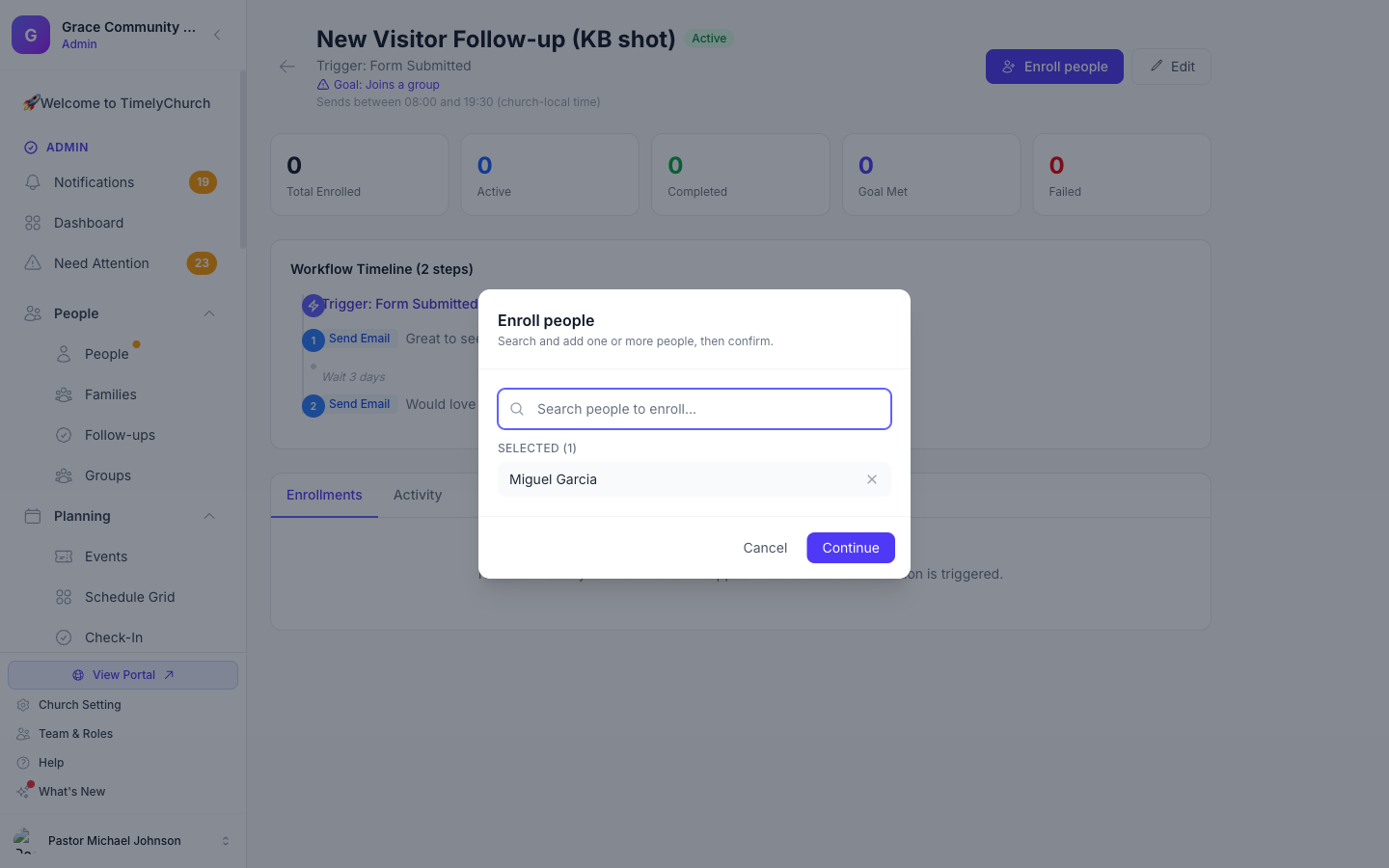
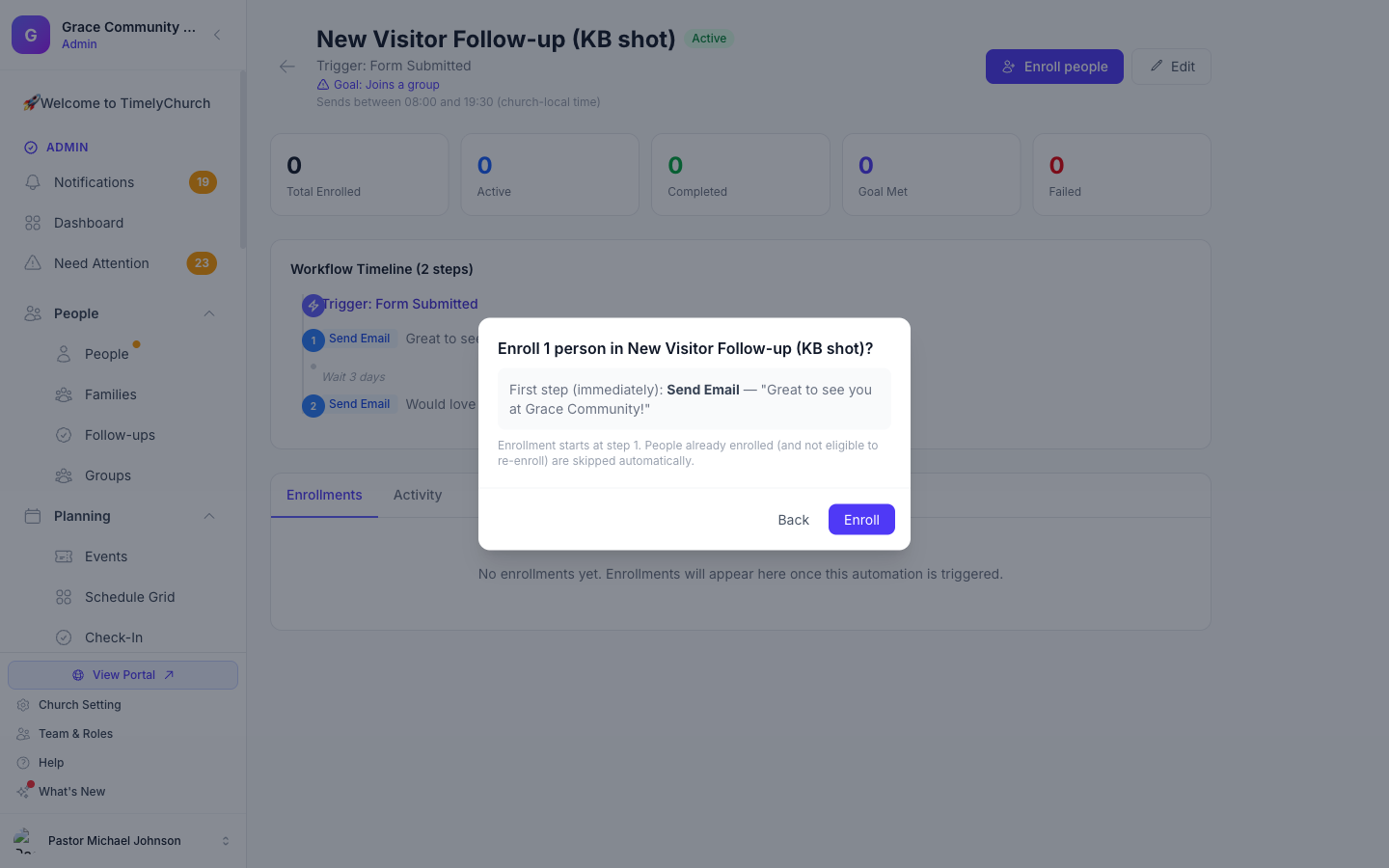
Click Continue and you'll see a confirmation showing exactly how many people you're about to enroll and a preview of the first step they'll receive, before anything is sent.
Bulk enrollment from a filtered list: if you've filtered the People list down to a specific group of people — say, everyone who visited in the last 30 days who hasn't joined a group yet — select them and use Enroll in Automation to enroll that entire filtered list into any active automation in one action.
People who are already enrolled (and aren't eligible to re-enroll — see below) are skipped automatically, so it's safe to run a bulk enrollment more than once without double-enrolling anyone.
Enrolling Only on a Specific Answer
When an automation's trigger is Form Submitted, you can narrow it further with "Only enroll if…" — a set of conditions that must all match before someone is enrolled:
- A specific form answer. Choose a field from the form (for example, "This was my…") and a value to match ("First Visit"). Only submissions where that answer matches will enroll — regular attendees updating their contact information on the same form won't trigger it.
- Membership status. Only enroll people with a specific status (visitor, member, regular attender, etc.).
- Group membership. Only enroll people who are (or are not) already in a specific group.
All conditions you turn on must match together. Leave "Only enroll if…" off and every trigger match enrolls, exactly like before.
Note: Manual and bulk enrollment (above) always bypass these conditions — when you pick someone by hand, you're telling TimelyChurch you specifically want them in, regardless of any condition.
Letting People Re-Enroll
By default, once someone enrolls in an automation, they can never enroll in that same automation again — even after they finish the whole series. This protects against someone accidentally getting the same welcome series twice.
For journeys where re-entry makes sense (a "new family" journey for someone who moves away and comes back years later, for example), turn on "Allow people to re-enroll" when creating or editing the automation. With this on, anyone who has fully finished or been removed from the automation can start over the next time they match the trigger. Someone currently mid-flow is never affected either way — they can't start a second time until their current run finishes.
Pausing and Resuming
Turning an automation off (Inactive) pauses it for everyone currently enrolled — no more steps go out while it's off, but nobody loses their place. Turning it back on picks every paused person up automatically, in order, exactly where they left off. Nobody receives a step twice, and nobody's next step is skipped because the automation happened to be paused when it came due.
When an Automation's Emails Need a Review
Automations follow the same review rules as campaigns (see Messages held for a quick review): a new account's first 50 recipients in total, content that looks like phishing, or an account whose earlier message was not approved. When that applies, nothing is sent and you see one of these messages:
- When you turn the automation on (or save it as active): "This automation was not turned on: its emails need a quick review by our team first. Nothing has been sent. Please contact support." The automation is saved, but it stays off.
- When you click Enroll people: "No one was enrolled: this automation's emails need a quick review by our team first. Nothing has been sent. Please contact support."
An automation that is already running can also switch itself off when its next email would need a review -- for example, when a new account reaches its 50-recipient allowance. Nothing more is sent and nobody loses their place: the waiting steps stay where they are. Contact support, and once our team has had a look, turn the automation back on; everyone picks up exactly where they left off, as described above.
Editing a Live Automation Safely
If you open an automation that already has people enrolled and in progress, you'll see a notice at the top of the page telling you how many people are currently mid-flow. This is just information, not a blocker — you can still make changes.
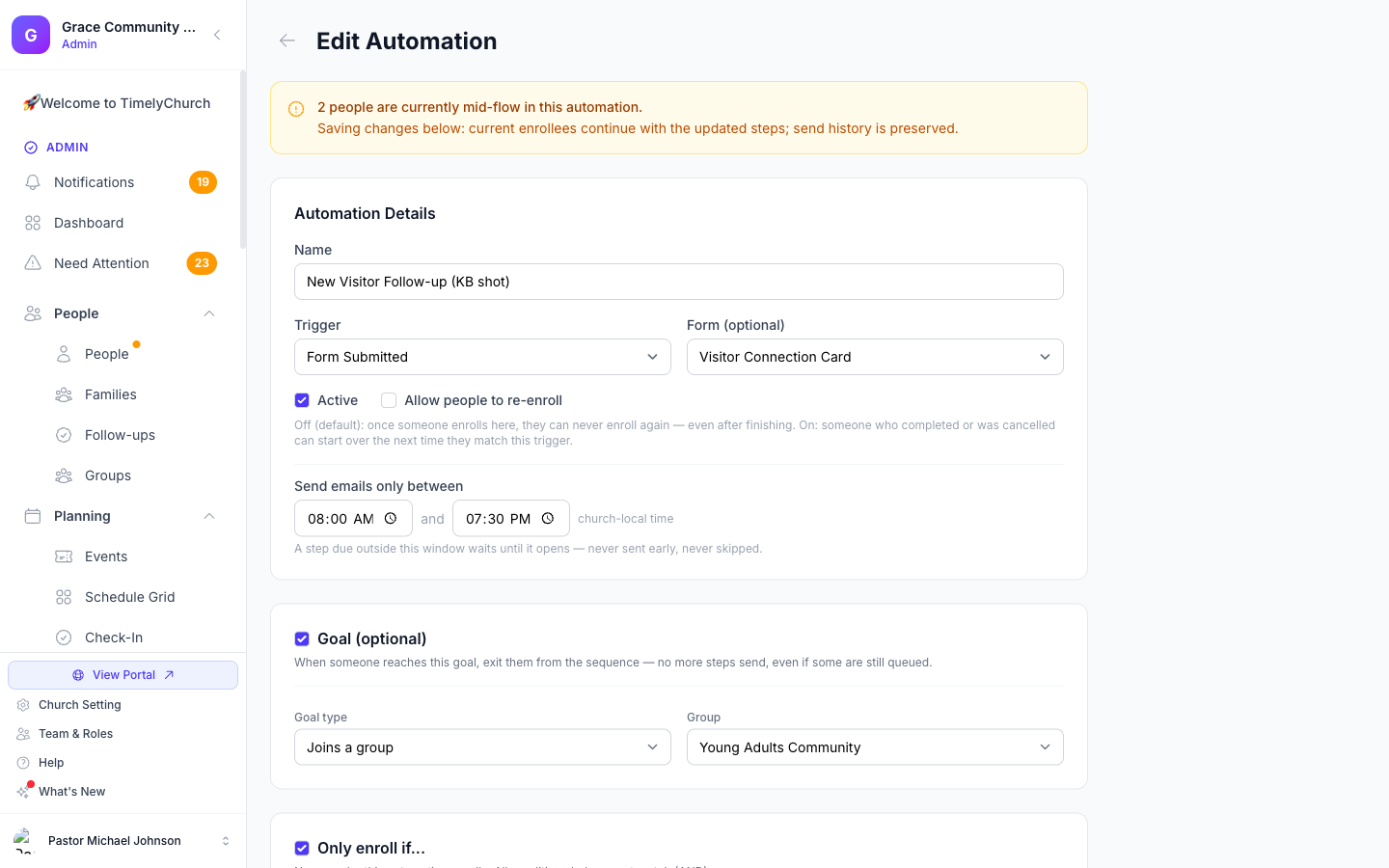
Here's exactly what happens when you save:
- Everyone currently enrolled continues with your updated steps. If you change the wording of a future step, everyone still on their way to that step gets the new version.
- Nothing that has already been sent changes. The record of what someone actually received stays accurate, even after you edit later steps.
- Nobody gets stranded. A step that was in progress when you saved keeps going; it doesn't disappear or throw an error because the automation changed underneath it.
Seeing How It's Performing
Every automation's page shows headline stats — total enrolled, currently active, completed, goal met, and failed — plus, next to each Send Email step in the workflow timeline, that step's own open and click rate, and how many people it's actually reached so far. A Telegram Message step shows a delivered-by-Telegram vs. delivered-by-email-fallback breakdown instead, since Telegram sends don't carry an open or click pixel.
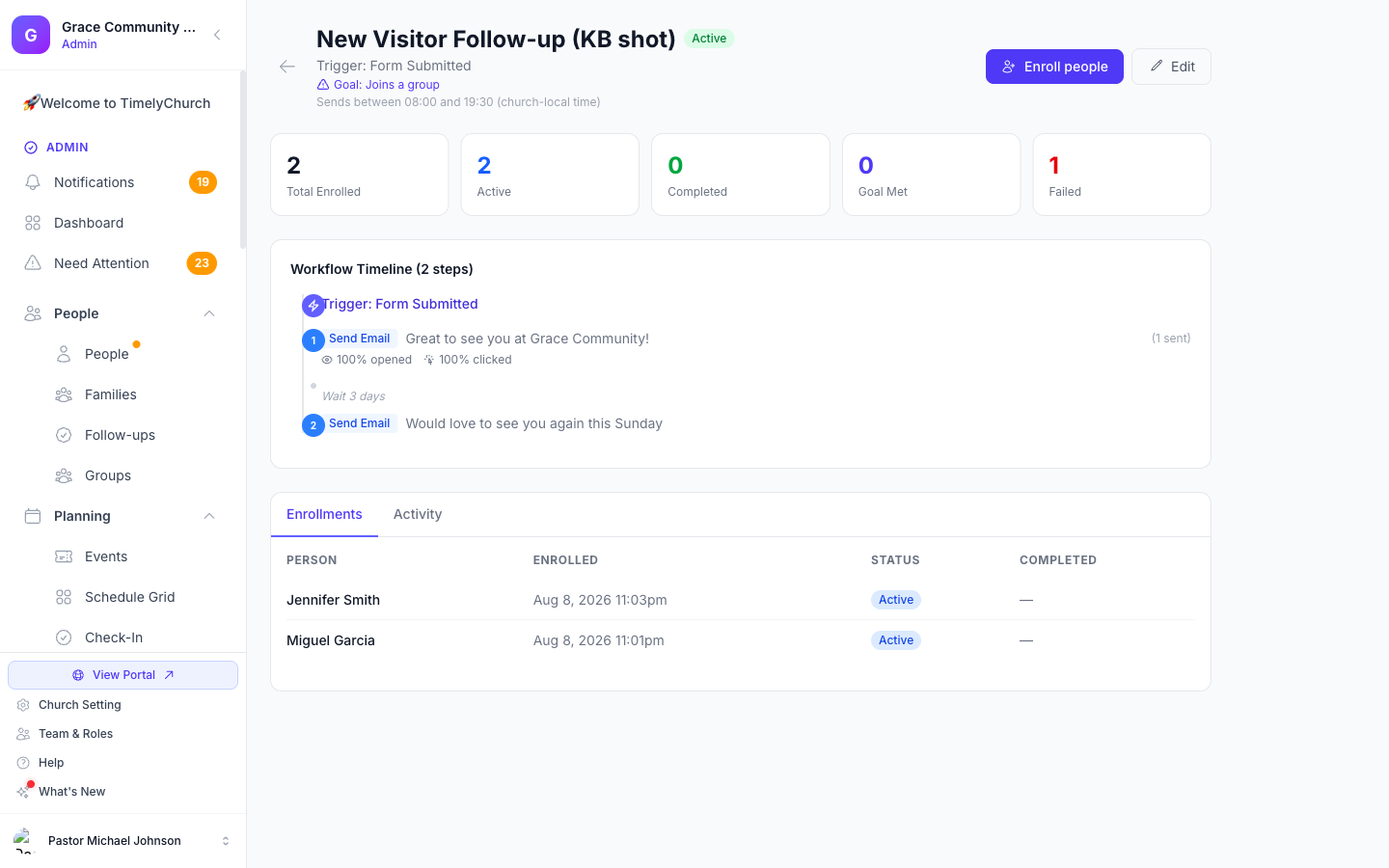
The Enrollments tab lists every person who's gone through the automation and their current status; the Activity tab shows a timestamped log of every step that has fired.
Related Articles
Last updated: September 30, 2026