
Announcements
The Announcements module lets you create, schedule, and manage news and updates for your congregation. Announcements appear on your church's public website and member portal, can be targeted to specific groups or shown to everyone, and can be emailed to your members in one step.
Accessing Announcements
- Log in to the Admin panel.
- In the sidebar, click Communications to expand it, then click Announcements.
You will see the Announcements listing page with summary statistics at the top showing your Total, Active, Pinned, and Archived announcement counts.
Plan note: Announcements is included on the Growth plan and above. Your plan also sets how many active announcements you can have at once. If you reach it, you'll see "You've reached the maximum of … active announcements on your current plan. Please upgrade to add more."
Creating an Announcement
- Click the New Announcement button in the upper-right corner.
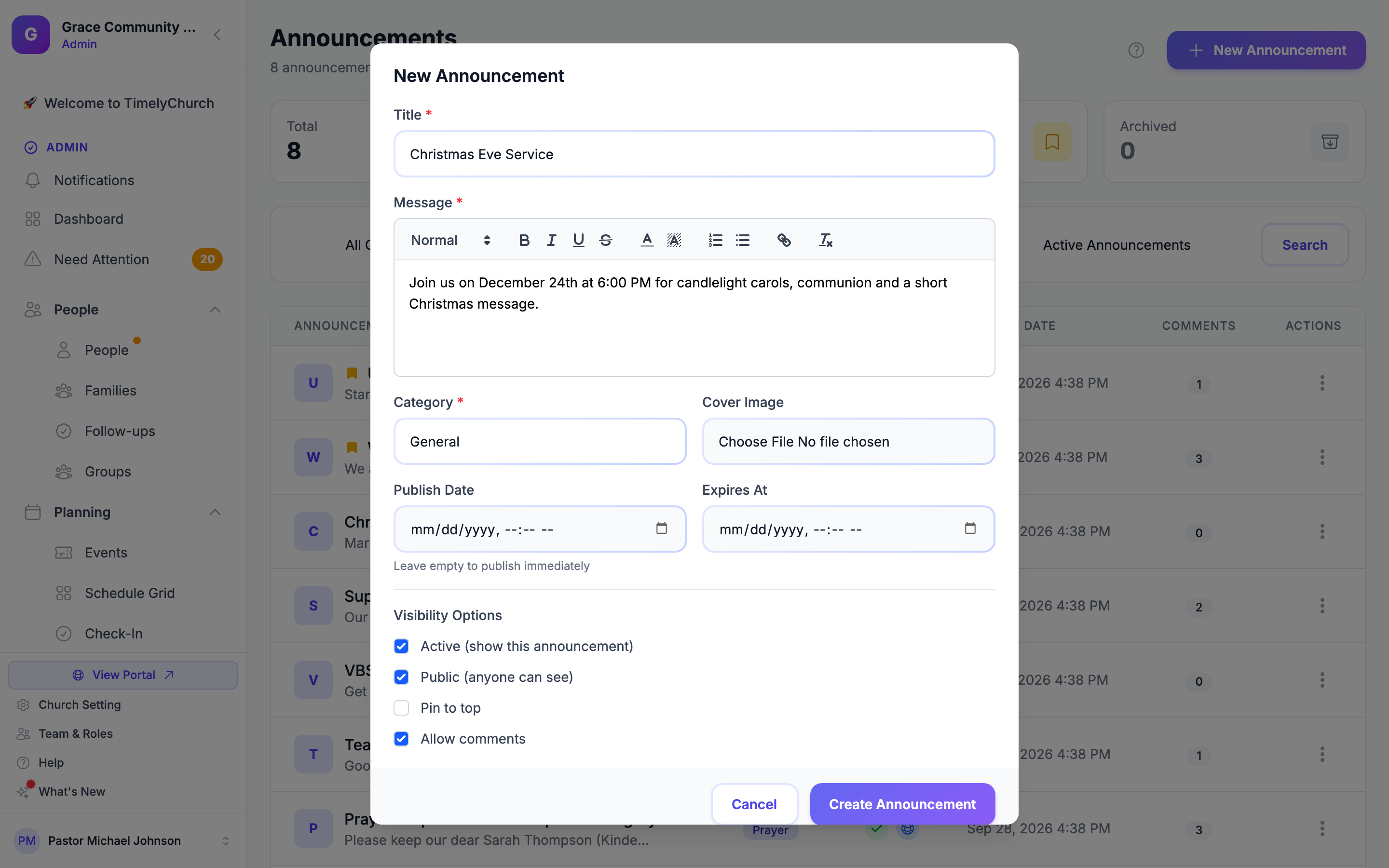
- A creation dialog will appear with the following fields:
Required Fields
- Title -- A short, descriptive title (e.g., "Christmas Eve Service").
- Message -- The full announcement content. A rich text editor is provided with formatting options including headings, bold, italic, underline, strikethrough, text color, background color, ordered and unordered lists, and links.
- Category -- Select a category for the announcement: General, Event, Ministry, Urgent, or News.
Optional Fields
- Cover Image -- Upload an image to display with the announcement (max 5 MB). The best size is 1200x675 pixels (16:9 ratio).
- Publish Date -- Set a future date and time for the announcement to become visible. Leave empty to publish immediately.
- Expires At -- Set a date and time when the announcement will automatically stop being displayed. Must be after the publish date.
Visibility Options
- Active (show this announcement) -- Controls whether the announcement goes live. Checked by default. You only see this option if your role can publish announcements (see Drafts and publishing below).
- Public (anyone can see) -- When checked, anyone visiting your church website can see the announcement. When unchecked, only logged-in members can see it. Checked by default.
- Pin to top -- When checked, the announcement will always appear at the top of the announcements list, above non-pinned announcements.
- Allow comments -- When checked, members can post comments on the announcement through the member portal. Checked by default.
- Click Create Announcement to save. The announcement's detail page opens.
Drafts and Publishing
Writing an announcement and putting it live are separate permissions:
- Creating and editing an announcement needs the Create or Edit action for Announcements.
- Publishing -- making an announcement live, taking it down, moving the publish or expiry date of a live announcement, switching a live announcement between public and members-only, and emailing it to members -- needs the Publish action for Announcements. Church administrators have it; other roles only if you grant it under Roles & Permissions.
If your role can create announcements but not publish them, the Active checkbox is replaced by the note "This will be saved as a draft. Someone with Manage access in Communication can publish it." Your announcement is saved as an inactive draft, and an administrator (or anyone whose role can publish announcements) turns it on when it is ready.
When you edit a live announcement without the Publish action, you can still change the title, message, category, cover image, pin, comments setting and target groups, but the Publish Date and Expires At fields are read-only and the Public setting is shown but locked. If you try something that needs a higher level, the app tells you -- for example, "Publishing an announcement needs Manage access in Communication. Ask your church administrator if you need it."
The Announcement Detail Page
From the Announcements listing, click any announcement title to open its detail page. The page has three tabs: Details, Comments, and Activity.
Across the top you'll find:
- Share -- Opens the Share announcement window with a short link you can copy and share. It appears once the announcement is active and currently visible.
- Edit -- Switches the page into editing mode. When you're done, click Save Changes (or Cancel to discard).
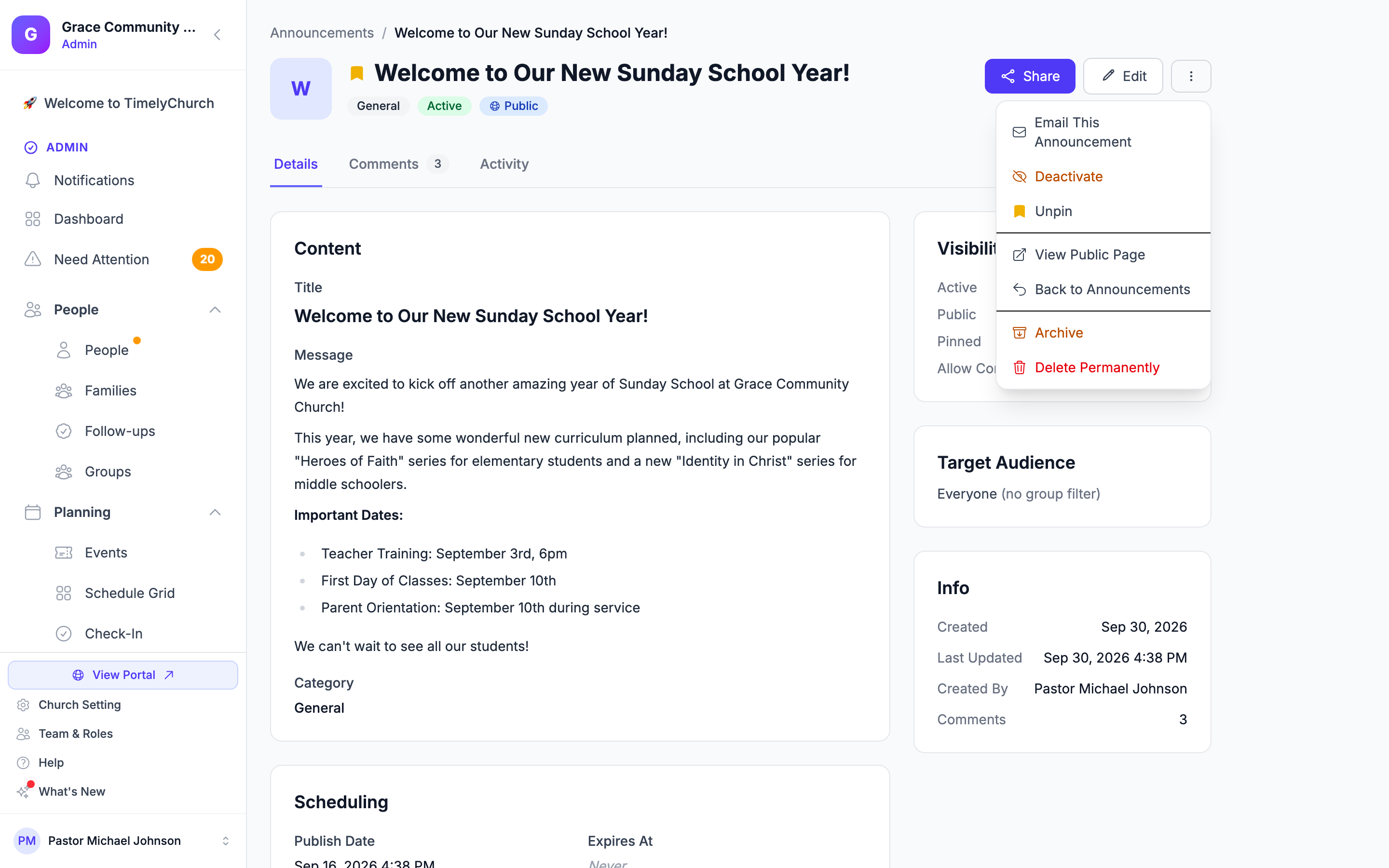
- More actions (the ⋯ menu) -- Everything else you can do with the announcement.
Details Tab
The Details tab shows the announcement as it is. Click Edit to change:
- Title and Message (with the same rich text editor)
- Category
- Cover Image -- Upload a replacement image, or remove the current image
- Scheduling -- The Publish Date and Expires At fields ("Leave empty for immediate publish", "Auto-hide after this date")
- Visibility -- The Active, Public, Pinned, and Allow Comments switches
The Info card shows when the announcement was created and last updated, who created it, and how many comments it has.
Target Audience
If your church has groups set up, a Target Audience card appears. Click Edit, then select one or more groups to restrict who sees the announcement.
- If no groups are selected, the announcement is visible to everyone ("Everyone (no group filter)").
- If one or more groups are selected, only members belonging to those groups will see the announcement in the member portal.
The currently targeted groups are listed under "Currently targeting:" for quick reference.
Comments Tab
The Comments tab shows all comments posted by members on this announcement. For each comment, you can see:
- The author's name and avatar
- The comment text
- The date and time it was posted
- Its status (Approved or Pending)
Managing Comments
- Approve -- Makes a pending comment visible to members.
- Hide -- Hides an approved comment from members (it goes back to Pending).
- Delete -- Permanently removes the comment.
Tip: Members' comments appear on the announcement as soon as they are posted. Use Hide or Delete if a comment shouldn't stay up. Members can also report a comment, which sends it to the Reported content page -- see Reviewing Reported Content.
Activity Tab
The Activity tab lists what has happened to the announcement -- edits, publishing, and email sends -- with who did it and when.
More Actions
The More actions menu on the detail page includes:
- Email This Announcement -- Emails the announcement to your members (see below).
- Activate / Deactivate -- Puts the announcement live or takes it down.
- Pin to Top / Unpin -- Toggle whether the announcement is pinned to the top.
- View Public Page -- Opens the announcement on your church website (shown while the announcement is active).
- Back to Announcements -- Returns to the listing.
- Archive -- Moves the announcement to the archive. It can be restored later.
- Delete Permanently -- Permanently removes the announcement and its cover image. This action cannot be undone.
Which items you see depends on your role: Email This Announcement and Activate / Deactivate need the Publish action, Pin to Top needs Edit, and Archive and Delete Permanently need Delete.
Emailing an Announcement
To send an announcement to your members' inboxes:
- Open the announcement and click More actions > Email This Announcement.
- The Send Announcement as Email window tells you who will receive it -- "all members", or the names of the groups the announcement targets.
- Type SEND in the box to confirm, then click Send Email.
The email uses the announcement's title as the subject and its message as the body. It goes to everyone with an email address in the audience you see in the window, except people who have unsubscribed (see Unsubscribe and Email Preferences). When it's on its way, you'll see "Announcement emailed to … recipients."
A few limits apply:
- Paid plan and daily limit -- Emailing an announcement is bulk email, so it needs an active paid plan and counts toward your plan's daily sending limit. See Who can send, and how much.
- Five per day -- Each person can email up to five announcements a day. After that you'll see "Daily announcement-email limit reached. Try again in … minute(s)."
- Review -- Like other bulk email, a send can be held for a quick review before it goes out. You'll see "Your message is being reviewed — usually within an hour. Nothing has been sent." along with the reason. See Messages held for a quick review.
Filtering and Searching Announcements
The listing page provides several ways to find specific announcements:
Search
Use the search box to find announcements by title or content.
Filters
- Category -- Filter by a specific category (All Categories by default).
- Status -- Show only Active or Inactive announcements.
- Visibility -- Show only Public Only or Members Only announcements (on a phone the option reads Public).
- Archived -- Choose between Active Announcements, Include Archived, or Archived Only (on a phone: Active Only, Include Archived, Archived Only).
Filters can be combined. Click Clear (or Clear all filters on a phone) to reset them.
Sorting
The listing defaults to showing the most recently created announcements first, with pinned announcements always appearing at the top regardless of sort order.
Categories
TimelyChurch provides five announcement categories:
| Category | Typical Use |
|---|---|
| General | Everyday church updates and news |
| Event | Upcoming services, events, and schedule changes |
| Ministry | Youth, children, missions, and ministry-specific updates |
| Urgent | Time-sensitive alerts requiring immediate attention |
| News | Stories and posts for the news or blog section of your church website |
Announcement Visibility Rules
An announcement is visible to members when all of the following conditions are met:
- The announcement is Active.
- The Publish Date is either not set or is in the past.
- The Expires At date is either not set or is in the future.
- If group targeting is configured, the member belongs to at least one of the targeted groups.
- If the announcement is not Public, the viewer must be a logged-in member.
Archiving and Restoring
- Archive -- Moves the announcement to the archive. It no longer appears in the default listing but can be found using the Archived Only filter.
- Restore -- From the archived view, click Restore to bring the announcement back to the active listing.
- Delete Permanently -- Removes the announcement and its cover image entirely. This cannot be undone.