
Taking Class Attendance
Teachers and class leaders take attendance on the class's own page, on the Attendance tab. Each tap is saved straight away, so it works well on a phone at the classroom door.
Before You Start
- The class needs students on its roster. See Class Rosters and Attendance Tracking.
- To see Take attendance, your role needs permission to edit classes. Without it, the Attendance tab shows the Attendance Report only.
- If your role can record attendance but cannot edit classes (the default Team Leader role, for example), take attendance with Manual Attendance instead. See Other Ways to Record Class Attendance.
Take Attendance for Today
- In the left sidebar, open People and click Groups.
- Click the Classes filter and open your class.
- Click the Attendance tab. The Take attendance card is at the top -- "Tap a status for each student. It saves as you go."
- For each student, tap Present, Late, Excused, or Absent. The status you tapped is highlighted.
- To change a mark, tap another status.
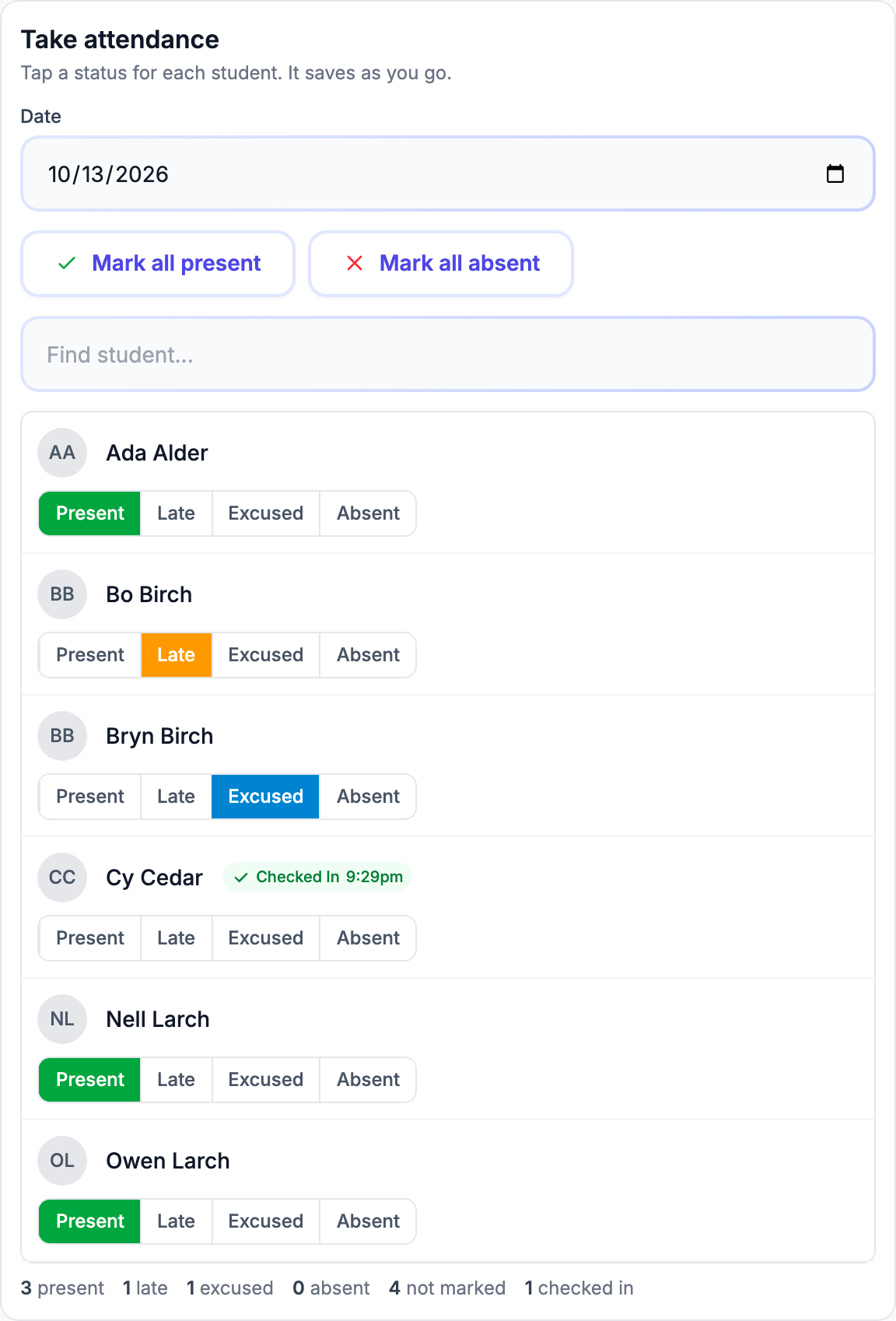
There is no Save button. If a mark cannot be saved, you will see "Could not save that mark. Please try again." and the mark goes back to what it was.
Marking Everyone at Once
- Mark all present -- Sets every student to Present. Then change the few who are late, excused, or absent.
- Mark all absent -- Sets every student to Absent. Use it only when no student has been checked in at a kiosk or by a volunteer (see below).
Finding a Student
When the class has more than 8 students, a Find student... box appears above the list. Type part of a name to narrow the list.
The Line Under the List
Under the list, a line counts the class as you go: how many students are present, late, excused, and absent, and how many are not marked.
Students Who Have Checked In
A student who has been checked in to this class that day -- at a kiosk or by a volunteer, for example -- shows a green Checked In badge with the time, such as "Checked In 9:02am".
- The badge is for your information. It is not a mark.
- Tap Present or Late for that student to record them in the class's Attendance Report.
- A checked-in student is not counted as not marked in the line under the list. The line also shows how many students are checked in.
- Do not mark a student Absent if they were checked in at a kiosk or by a volunteer. If a child was checked in by mistake, check them out at the Check-In Station instead.
- When you open the page again later, students you marked Present, Late, or Excused show the badge too, with the time of your mark.
How Absent Is Counted
A student is absent on a class day when they have no Present, Late, or Excused mark for that date.
- Tapping Absent clears the student's mark for that date.
- When you open the page again later, a student you marked absent shows no highlighted status and is counted as not marked.
- The Attendance Report counts them as absent for that day.
In the report, Present and Late count as attended. Excused and Absent do not. A date on which no student was marked Present, Late, or Excused does not appear in the report.
Correcting an Earlier Day
- On the Take attendance card, click the Date field and pick the day. You cannot pick a date in the future.
- The card reloads for that day and says "You are correcting [date]. Tap a status for each student; it saves as you go."
- Tap the statuses as usual.
To go back to today, pick today's date in the Date field.
Other Ways to Record Class Attendance
- Check-In -- When a child is checked in to their class at a kiosk, the check-in is recorded for that class and counts in your check-in and attendance reports. On this tab it appears as the Checked In badge. See Check-In System Overview.
- Manual Attendance -- On the Check-In page, the Manual Attendance button opens one page with your classes for a date. It needs a role that can record attendance. Mark the students and click Save Attendance. These marks are the same ones you see on the class's Attendance tab. See Attendance Reports and Check-In History.