
Groups Module Overview
The Groups module in TimelyChurch is your central hub for organizing people into meaningful communities. Whether you need Bible study groups, serve teams, Sunday School classes, or prayer circles, the Groups module provides the tools to create, manage, and monitor every type of gathering within your church.
What Are Groups?
Groups are collections of church members organized around a shared purpose. TimelyChurch supports four distinct group types, each designed for different ministry needs:
Private Groups
Private Groups are invite-only communities. They are ideal for:
- Bible study groups
- Counseling or support groups
- Leadership circles
- Confidential ministry teams
Private groups are never listed in the public Group Finder. Members are added by an admin or leader, or invited by email. If you want to hand out a signup link anyway, you can turn on sharing for the group -- the link works for anyone who has it, but the group still does not appear in the Finder (see QR Code and Link-Based Group Join).
Public Groups
Public Groups are open communities that can be listed in your church's public Group Finder, allowing visitors and members to discover and join on their own. They work well for:
- Fellowship groups
- New member classes
- Outreach teams
- Community interest groups
Public groups can be configured to allow guest registration (no account needed) and can optionally require leader approval before a new member is added.
Teams
Teams are designed for volunteer coordination and service scheduling. Teams include additional features that standard groups do not have:
- Positions -- Define roles such as Sound Tech, Greeter, or Worship Leader
- Schedule Templates -- Create reusable staffing templates for events
- Rotation Scheduling -- Automatically rotate volunteers using fair rotation, round robin, or manual assignment
- Skill Levels -- Track beginner, intermediate, advanced, and expert skill levels for team members
- Serving Preferences -- Record how often each member can serve and which days work best
New teams start with enrollment Closed and Require approval on, so nobody joins a ministry team without a leader saying yes. You can change both on the team's Group details tab.
Classes
Classes are built for teaching environments like Sunday School. Classes share the team features (positions, templates) and add:
- Room Assignment -- Link a class to a specific room in your facility
- Age and Grade Ranges -- Define minimum and maximum ages or grade levels for enrollment
- Auto-Enroll -- Automatically add people who match the age or grade criteria
- Check-In Integration -- Require check-in for attendance tracking
- Time Slots -- Label classes by service time (e.g., "9:00 AM Service")
- Attendance Reports -- View per-student attendance rates with color-coded status indicators
Classes have their own home under Planning > Classes. Opening a class from the Groups list takes you to its Classes page; the class page's More tools link opens the group tools a class also has (templates, tasks, files, and email). See Managing Classes.
Key Features Across All Group Types
- Group Photo -- Upload a custom image for each group
- Meeting Schedule -- Set the day, time, frequency, and location of meetings
- Member Capacity -- Optionally limit the number of members; people who try to join a full group go on a waitlist
- Tasks -- Assign to-dos with due dates and priorities; they appear on each person's My Tasks page (see Group Tasks)
- Files -- Share sheet music, handouts, and documents with just this group (see Group Resources)
- Share and Embed -- Turn on a public link, then share it as a short link, QR code, or website embed
- Email Members -- Send emails directly to all members or just leaders from the group page
Some tabs only appear for certain kinds of group:
| Tab | Private and Public groups | Teams | Classes |
|---|---|---|---|
| Group details, Members | Yes | Yes | Yes |
| Tasks, Files | Yes | Yes | Yes |
| Prayers, Meetings, Health | Yes | -- | -- |
| Chat | Yes, while chat is on | -- | -- |
| Waitlist | Yes, while someone is waiting | -- | -- |
| Templates | -- | Yes | Yes |
| Attendance | -- | -- | Yes |
| Requests | When someone is waiting for approval | Same | Same |
The Groups List
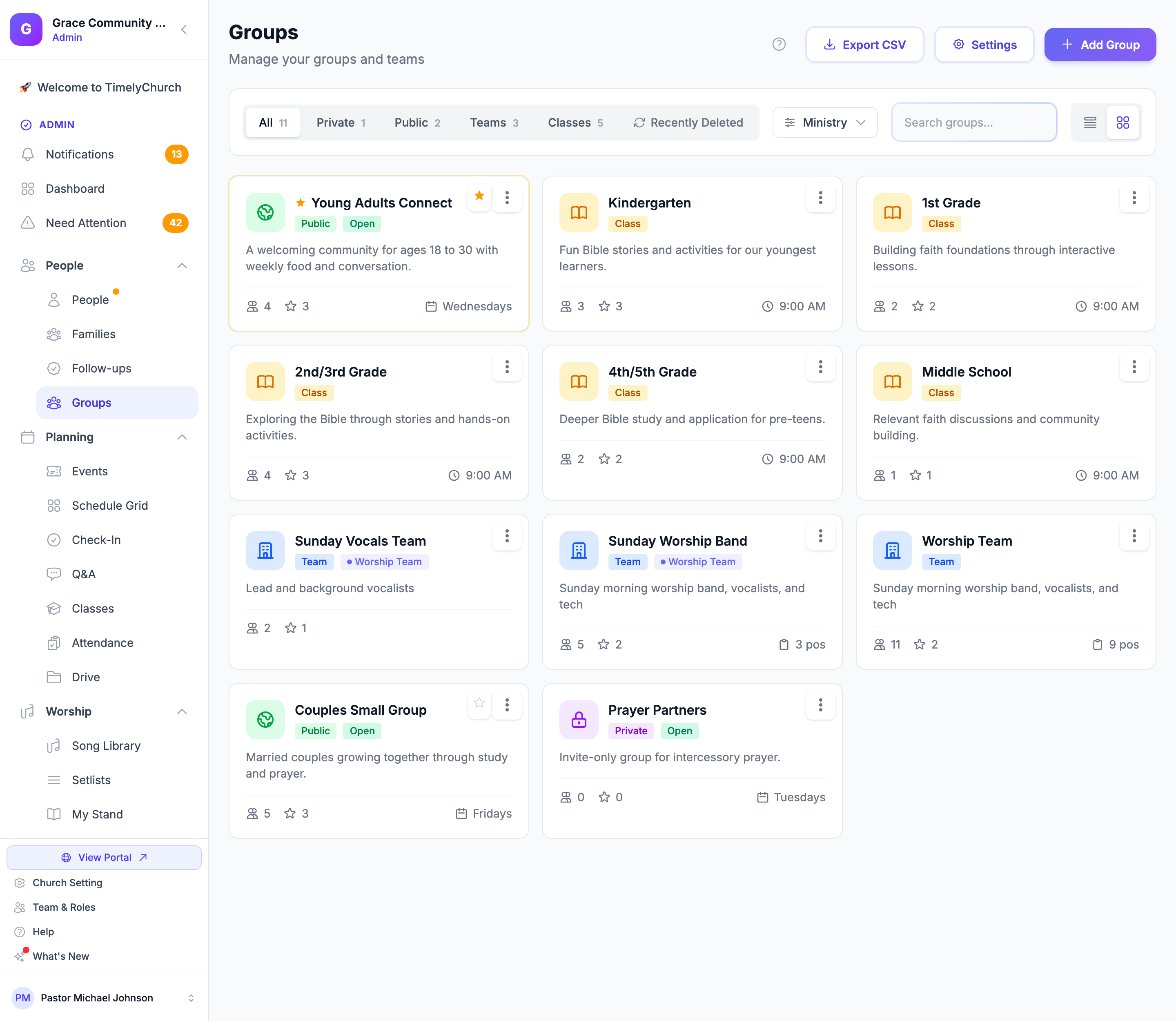
The Groups page lists every group you can open:
- Filter by type -- Tabs for All, Private, Public, Teams, and Classes, each with its count.
- Filter by ministry -- A Ministry menu narrows the list to one of your church's custom group types (All ministries clears it).
- Search -- Find a group by name.
- List view / Card view -- Switch between a table and cards. Cards show 12 groups per page, the list shows 20.
- Pin group -- Click the star on a group you belong to, and it moves to the top of your list. Pins are personal; nobody else sees them.
- Export CSV -- Download the list (with your current type and ministry filters) as a spreadsheet.
- Settings -- Opens Group Settings, where you manage custom group types (see Custom Group Types).
- Recently Deleted -- Church administrators can restore a deleted group from here (see Creating Groups).
Click How it works next to the page title for a short summary of how groups, teams, and classes differ.
Navigation
Groups are in the admin sidebar under the People section, as Groups. Clicking any group opens its page, where you can manage members, view health metrics, assign tasks, share files, and more through a tabbed interface.
Team leaders: once team reach is in effect for your church, someone whose role reaches only Their teams sees just the groups they lead on this list. See Roles & Permissions.