
Request an Event
If you belong to a group at your church — a serving team, a small group, a class — you don't have to ask an admin to get an event on the calendar. You can request an event yourself from a chat with your church's Telegram bot. Depending on how your church has that event type configured, it either lands on the calendar right away, or waits for a quick approval from your group's leader.
How to Request One
You'll need your Telegram account connected to TimelyChurch first — see Telegram — Messages and Two-Tap Actions.
- Send
/schedule_eventto your church's Telegram bot (or choose Schedule an Event from the bot's/menu). - Answer the questions one at a time:
- Event type — only the types you're eligible to request are offered.
- Hosting team — asked only if you belong to more than one group that could host it.
- Title, when (in plain language, like "thursday 7pm-9pm"), and room (or "No room").
- Check the summary and send it in.
For the full walkthrough, see Schedule an Event from Telegram.
Why Some Types Schedule Instantly and Others Wait
Every event type your church uses has its own policy, set by an admin — see Set Up Event Types & Approval Rules. Some types (most churches leave things like a general "Meeting" or "Event" this way) go straight onto the calendar the moment you submit, exactly like creating an event normally. Others are marked as requiring approval — for those, your request is held until the right person signs off.
The confirmation message after you submit tells you plainly whether your event was scheduled right away or is waiting for approval.
What "Pending Approval" Means, and Where You'll See It
While your request is waiting on someone's decision, it genuinely isn't visible anywhere yet — not on the church calendar, not on the website, and not in your group's own event list either. This is intentional: an event only shows up once it's actually confirmed, so nobody plans around something that might still get declined. The only place it exists is in the approver's own Need Attention inbox, waiting for their decision.
So how do you know it went through? Two things:
- The confirmation right after you submit — it tells you the request was received and is awaiting approval.
- A notification once it's decided — the moment your approver acts, you're told the outcome (see below). If it's approved, that's also the first moment it appears anywhere — on your group's page and the calendar.
There's nothing more for you to do in the meantime; you don't need to follow up in person.
What Notifications You'll Get
TimelyChurch tells you what happened either way, by whichever channel reaches you (a notification inside the app, email, and Telegram if you've connected it):
- Approved: "Your event request was approved — [event name] ([date/time]) is now on the calendar." From this point it behaves like any other event — you'll find it on your group's page and the church calendar.
- Declined: "Your event request was declined." If the approver added a note explaining why (a room conflict, a scheduling clash, a suggestion to pick another night), it's included right in the notification.
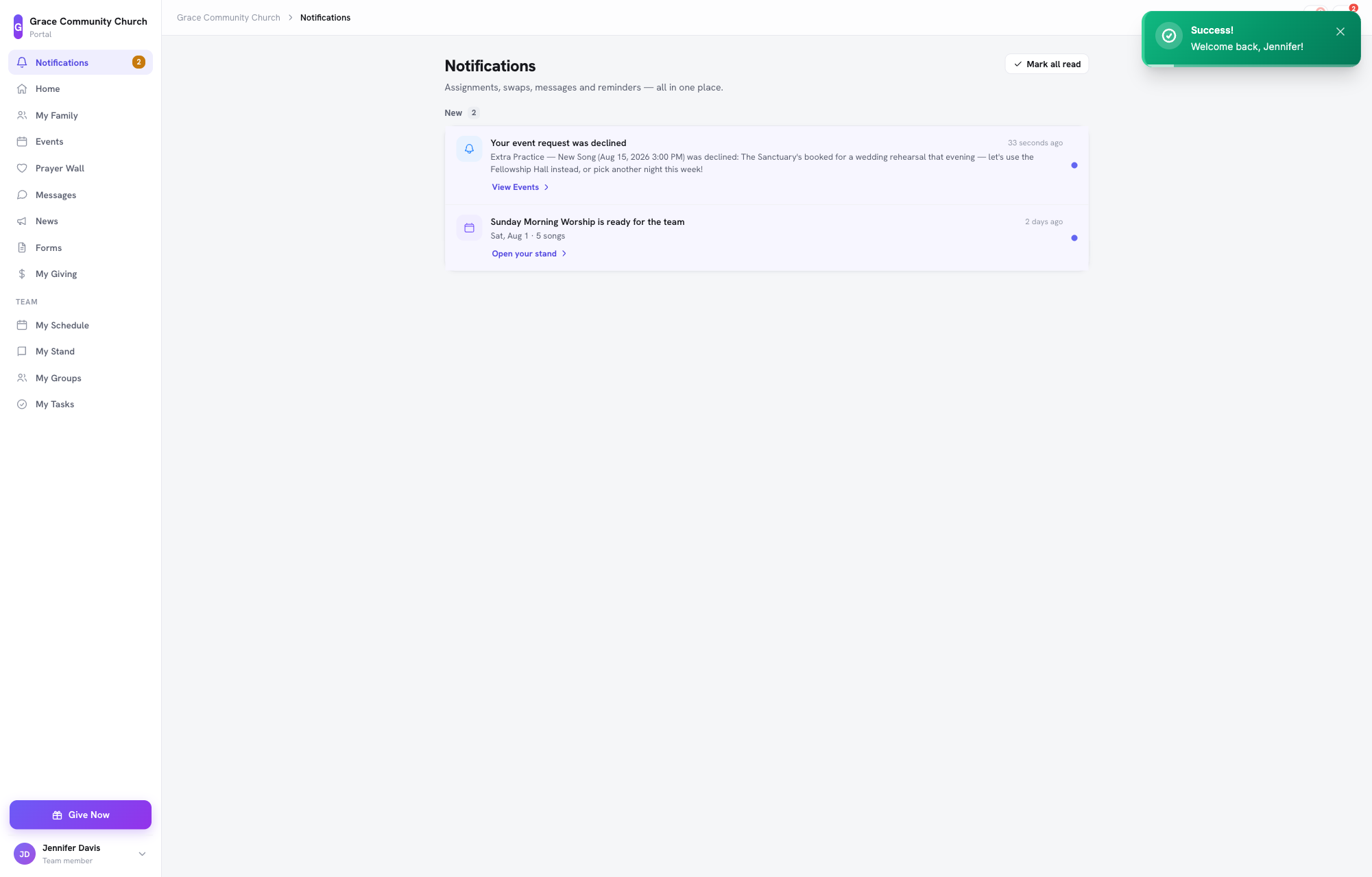
A declined request never appears on the calendar — if you'd still like the event to happen, submit a new request with a different time, room, or plan.
Related Articles
- Set Up Event Types & Approval Rules — the admin side: which types need approval and who decides.
- Approve or Decline Event Requests — what your approver sees.
- Schedule an Event from Telegram — the step-by-step Telegram request flow.
- Creating Events — the standard admin event-creation flow (separate from requesting).
Last updated: September 30, 2026