
Family Lessons in the Member Portal
The Family Lessons page is a parent-facing view in the TimelyChurch member portal that surfaces what each child is learning in Sunday School. It pulls together memory verses, home activities, and discussion questions for every class a parent's children are enrolled in -- in one place.
You'll find it on the My Family page of the member portal: click Family lessons at the top of the page, or View Family Lessons in the Family lessons card.
Who Sees This Page
The page is available to any logged-in member of the church who has at least one child (or other family member) enrolled in a class. Specifically:
- The portal identifies the visitor as the person tied to their account.
- It looks up every family the person belongs to, then collects all family members from those families.
- It then finds all active class enrollments for any of those family members.
If a parent has no enrolled children -- or if their children's classes have no recent scheduled lessons -- the page shows an empty state.
What Content Appears
For each child the parent has access to, the page shows:
Per-Class Section
- The class name (e.g., "3rd-5th Grade Sunday School").
- A list of recent and upcoming scheduled lessons for that class. Specifically, the page shows lessons from 6 weeks in the past through 2 weeks in the future, so families can review what was just taught and preview what is coming next.
- For each scheduled lesson:
- The class date.
- The lesson title.
- What We Learned: -- the lesson's Parent Summary ("what we learned today" written for parents).
- Memory Verse: -- the memory verse and its reference (e.g., John 3:16).
- Home Activity: -- a suggestion for reinforcing the lesson at home.
- Discussion Questions: -- conversation starters parents can use during dinner or bedtime.
Upcoming lessons are marked Upcoming.
Filter Rules
Only schedules that meet all of these conditions appear:
- The class session has a lesson assigned (sessions where no lesson has been picked yet are left out).
- The class itself is active.
How It Ties to Per-Child Class Enrollment
The Family Lessons page is driven entirely by active class enrollments. The chain is:
- The logged-in person belongs to one or more families.
- Family members are gathered together -- this is everyone in the parent's family unit.
- The page finds the active class enrollments for everyone in that family roster.
- For each matching class, scheduled lessons in the date window are displayed.
This means:
- If a child is moved to a new class, the new class's lessons appear on the next page load.
- If a child is removed from a class (their enrollment goes inactive), that class's lessons disappear from the parent's view.
- A parent who is not a member of the family will not see those children's lessons.
What Parents Can Do From This Page
The Family Lessons page is read-only. Parents cannot edit lesson content, mark attendance, or contact teachers from this view. It is purely a window into what each child is learning so families can:
- Talk about Sunday's lesson at home during the week.
- Help kids memorize the memory verse.
- Do the home activity together.
- Walk through the discussion questions over a meal.
For interactive features (RSVPing to events, viewing schedules, messaging), parents use other parts of the member portal.
Admin Controls
Admins control what appears on the Family Lessons page through two mechanisms:
Per-Lesson Content
Whether each of these fields appears depends on what was filled in on the lesson (in its Parent Content section):
- Parent Summary
- Memory Verse / Memory Verse Reference
- Home Activity
- Discussion Questions
If a field is blank on a lesson, it simply doesn't render for that lesson. There is no "hide" toggle per field per lesson -- the visibility is controlled by content presence.
Church-Wide Toggle
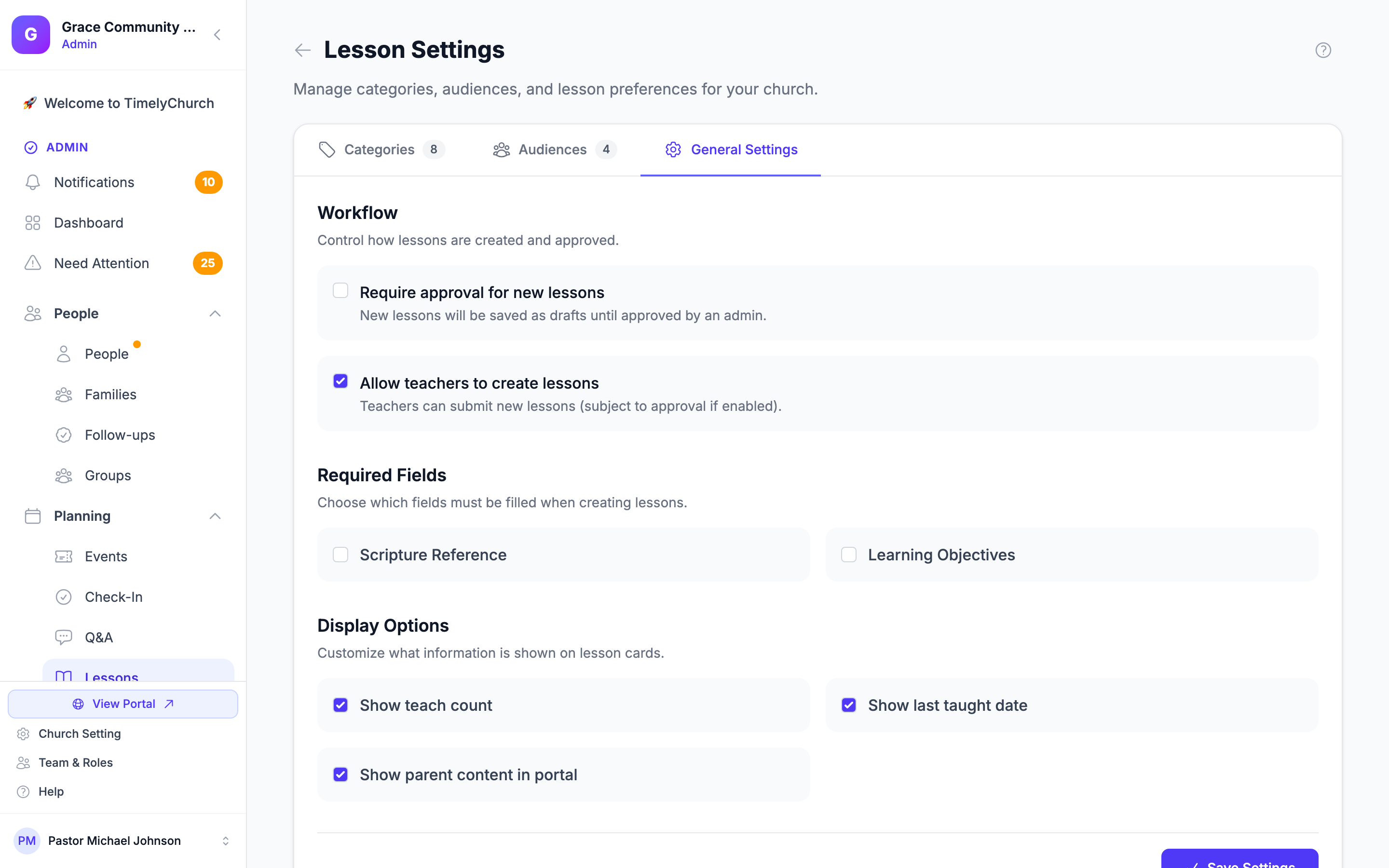
In Lesson Settings > General Settings, the Show parent content in portal option controls whether parent-facing content is visible in the member portal at all. If this is off, the Family Lessons page still lists each child's lessons, but without the summary, memory verse, home activity, and discussion questions.
Tips for a Useful Family Lessons Experience
- Fill in the parent-facing fields consistently. A family lessons page with empty memory verses and missing home activities feels broken to parents.
- Use plain language in the Parent Summary. Parents are not always Bible scholars -- write the summary the way you would tell a friend.
- Keep home activities low-effort. A 5-minute conversation prompt is more likely to happen than a 20-minute craft.
- Review the page yourself each week. Log in as a test parent to see what families see.
Related
- Creating Lessons -- how to fill in the parent-facing content fields.
- Class Rosters and Attendance -- how children get enrolled in classes.
- Teacher Portal -- the teacher-facing counterpart to this page.