
Service Orders (Service Plans)
A Service Order is a detailed run-of-show plan for a worship service. It lets you arrange every element of the service -- songs, scripture readings, prayers, the sermon, announcements, and more -- in the exact sequence they will occur, with timing estimates and team assignments.
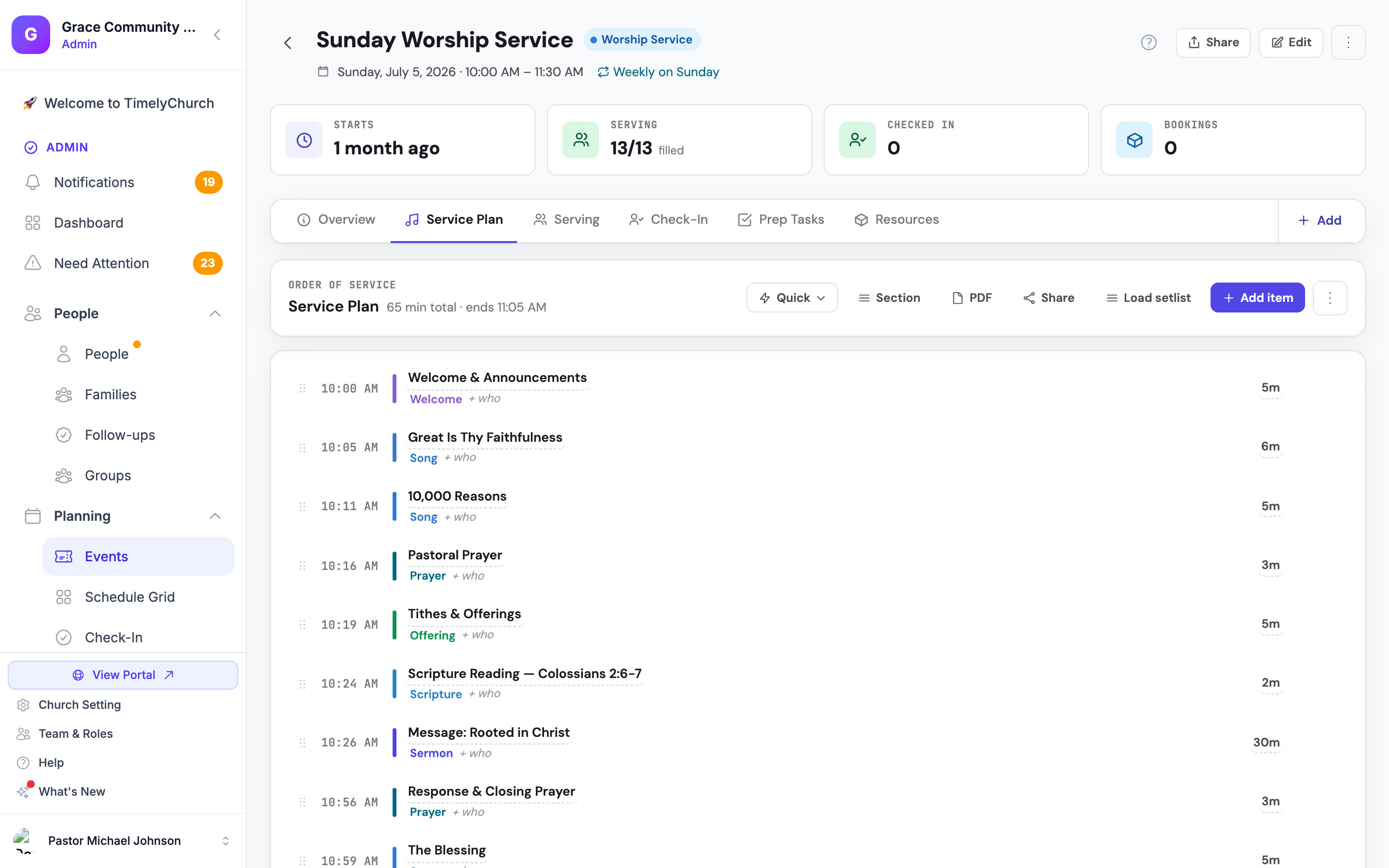
How Service Orders Work
Service Orders are connected to events in the Events Hub. Each worship event (such as a Sunday morning service) has a Service Plan tab where its plan is built. This keeps your service plan linked to the calendar and makes it easy for your team to find.
Service Plans are part of the Pro plan. In a role's settings they are the Service Plans module: viewing a plan needs view access, and adding, editing, reordering and removing items needs edit access.
Accessing Service Orders
Open a plan from the worship event — Service Plans are not a Worship sidebar item:
- Navigate to the Events Hub from the admin sidebar.
- Open any worship event.
- Select the Service Plan tab on the event.
If you don't see a Service Plan tab, the event doesn't have that capability switched on: click Add (Add capability) next to the event's tabs and switch on Service Plan. Changes save automatically.
Creating a Service Plan
On an event that has no plan yet, the tab reads No service plan yet. Click Create service plan -- the plan is created straight away, named after the event and dated with it. Then add items (see below).
If your church has saved templates, a Start from template button sits next to it. Pick a template and click Use this template: the plan is created with the template's items already in place. See "Service Plan Templates" below.
Adding Items to a Service Plan
A service plan is made up of individual items. The header of the plan shows the total length and the time the service ends.
- Quick -- Opens Quick Add Items: Section Header, Song, Scripture Reading, Prayer, Message / Sermon, Tithes & Offerings, Communion, Announcements, and Benediction. One click adds the item with a ready-made title, which you can edit afterwards.
- Section -- Adds a section header, a divider that organizes the plan (for example "Pre-Service" or "Worship Set").
- Add item -- Opens the Add item window, where you choose the Type and fill in the details.
Item Types
The Type list in the Add item window offers 12 types. Each type has a default duration (shown here in minutes) and a colour:
| Type | Default Duration | Description |
|---|---|---|
| Song | 4 minutes | A worship song from your Song Library, or a custom song. |
| Scripture Reading | 2 minutes | A Bible passage to be read aloud. |
| Prayer | 3 minutes | A prayer segment. |
| Message/Sermon | 30 minutes | The main message or teaching. |
| Announcement | 5 minutes | Church announcements. |
| Offering | 5 minutes | The offering collection. |
| Communion | 10 minutes | Communion/Lord's Supper. |
| Welcome | 3 minutes | The welcome/greeting. |
| Benediction | 1 minute | The closing blessing. |
| Reader Assignment | 0 minutes | Marks who is reading a passage. |
| Note | 0 minutes | An internal note for the team. |
| Other | 2 minutes | Any other element. |
Section headers, Reader Assignments and Notes have no duration of their own: they show up in the order but do not add to the calculated length of the service.
The Add Item Window
- Type -- One of the types above.
- Select Song (for songs) -- Pick a song from your library (each one shows when it was last played, for example "Played 3 wks ago" or "Never played"), or leave -- Custom song (not from library) -- to type any title.
- Title -- Filled in for library songs; typed for everything else.
- Scripture Reference (for scripture readings) -- For example "Matthew 11:28-30".
- Duration (min) -- How long the item takes.
- Leader/Reader -- Who leads it. Search your people directory, or type any name.
- Notes -- Additional details for the team.
Click Add. A song from the library appears with its key next to the title.
Editing Items
Click an item's title, its length, or + who to change it right in the list, or use the pencil icon to open Edit item with every field. The trash icon removes an item after you confirm.
Ordering Items
Drag an item by its handle to move it; the new order is saved automatically, and any shared link to the plan picks up the change. The plan works out:
- The start time of each item from the ones before it.
- The total length of the service and the time it ends.
Song Usage Tracking
Whenever you add a Song-type item to a service plan (one at a time or with Load setlist), TimelyChurch immediately records that song as used. This updates the song's:
- Use Count -- Incremented by one.
- Last Used Date -- Set to the current date.
- Usage History -- A new record is added linking the song to this service plan.
Tracking happens when the item is added, so the Song Library's "Not Used (30 days)" and "Never Used" filters reflect your plans even before the actual service date.
Loading a Setlist into a Plan
If you build your songs as a reusable Setlist first (from Worship → Setlists), you do not have to add them one by one. On the service plan, click Load setlist and pick a setlist in the Load a Setlist window: every song, with the key, arrangement, capo and notes you chose in the setlist, is added to the end of the plan in the set's order. The button appears once your church has at least one saved setlist. See Building Setlists.
Service Plan Templates
A template saves a plan's items and structure -- never the people -- so you can reuse your usual order of service.
- Save as template -- Open More actions (the three-dot button) on a plan and choose Save as template. Give it a Template name and an optional Description, then click Save template.
- Start from template -- On an event with no plan yet, click Start from template, pick a template (each shows how many items it has), and click Use this template.
Sharing a Service Plan
Click Share on the plan's header to open Share Service Plan. It gives you a Short link and a Full link to copy, a View button, a QR Code, and buttons to share by Facebook, WhatsApp or email. Anyone with the link can open a read-only page of the order of service, the songs and their keys -- no login needed.
Clicking Share again later gives you the same link, so a link you have already sent keeps working. Edits sync to the band automatically: any change you make to the plan -- adding, removing or reordering items, changing a song -- shows up on the shared page on its own within seconds. The page also keeps a Recent changes list so the team can see what was updated.
Your musicians who serve on the team open the set in My Stand to read charts, follow the leader when they tap Lead live, and practice. See Share a Service Plan with Your Band and the Worship Team View article for what your team sees when they open the link.
Exporting to PDF
Click PDF on the plan's header to open a printable PDF of the plan in a new tab: every item grouped under its section, with its start time, type, who leads it, the song key and its length, plus the total duration.
Related Articles
- Song Library
- Chord Charts and Key Transposition
- Building Setlists
- Share a Service Plan with Your Band
- Worship Team View
- Go Live on Sunday
- Worship & Songs Overview
Last updated: September 30, 2026