
Your Church Web Address
Audience: This article is for church administrators.
Your church web address is the short name that identifies your church on TimelyChurch. It is the part after /c/ in every link your church uses — app.timelychurch.com/c/grace-community, for example — and it appears in more places than most people realise: the member portal, the sign-in page, every public event and giving page, the QR code on your welcome card, the calendar feed your leaders subscribe to, and the sign-in links inside the emails TimelyChurch sends on your behalf.
You can see that address, copy it, and change it yourself — and when you change it, your old address keeps working and forwards people to the new one. Nothing you have already printed or shared stops working.
You don't pick an address when you sign up: TimelyChurch builds it from your church name. For your first 30 days, the Dashboard's welcome banner shows it too, with Copy and Change buttons.
Where to Find It
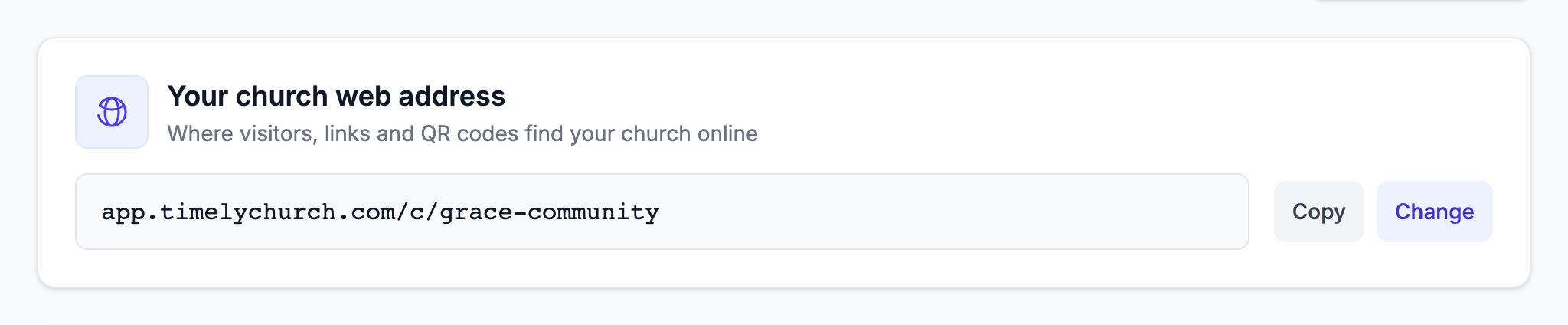
Go to Church Settings → Profile. The card is called Your church web address — "Where visitors, links and QR codes find your church online" — and it shows your address in full.
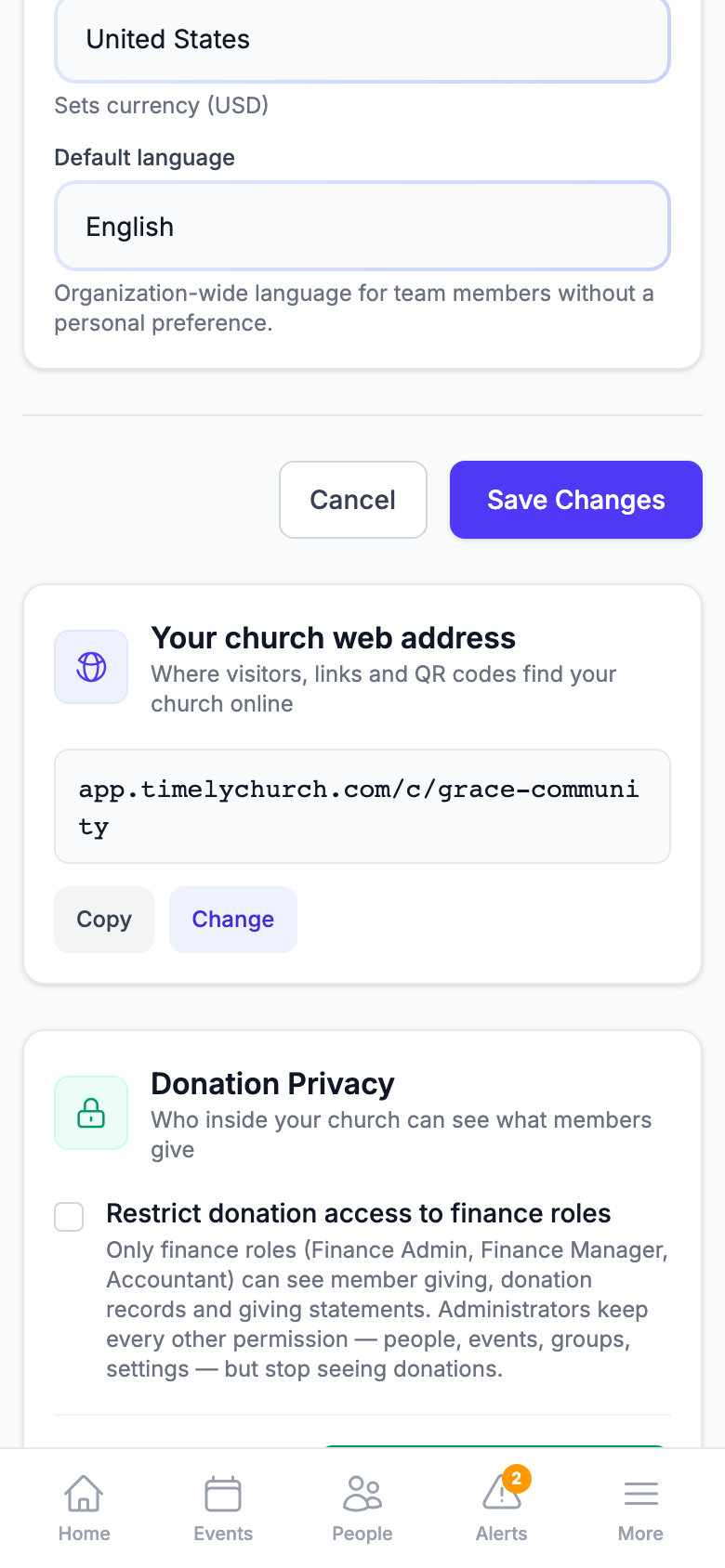
It is on a phone too, at full width.
Copying Your Address
Click Copy. The whole link goes onto your clipboard — the complete address, ready to paste into a newsletter, a message or a document — and the button says Copied for a couple of seconds so you know it worked.
Everyone who can open your church settings can see the address and copy it. Change appears only for people whose role allows them to edit settings.
Changing Your Web Address
-
Go to Church Settings → Profile and find the Your church web address card.
-
Click Change. A short form opens: the fixed part of the address (
…/c/) is shown as plain text, and there is one box for the new name.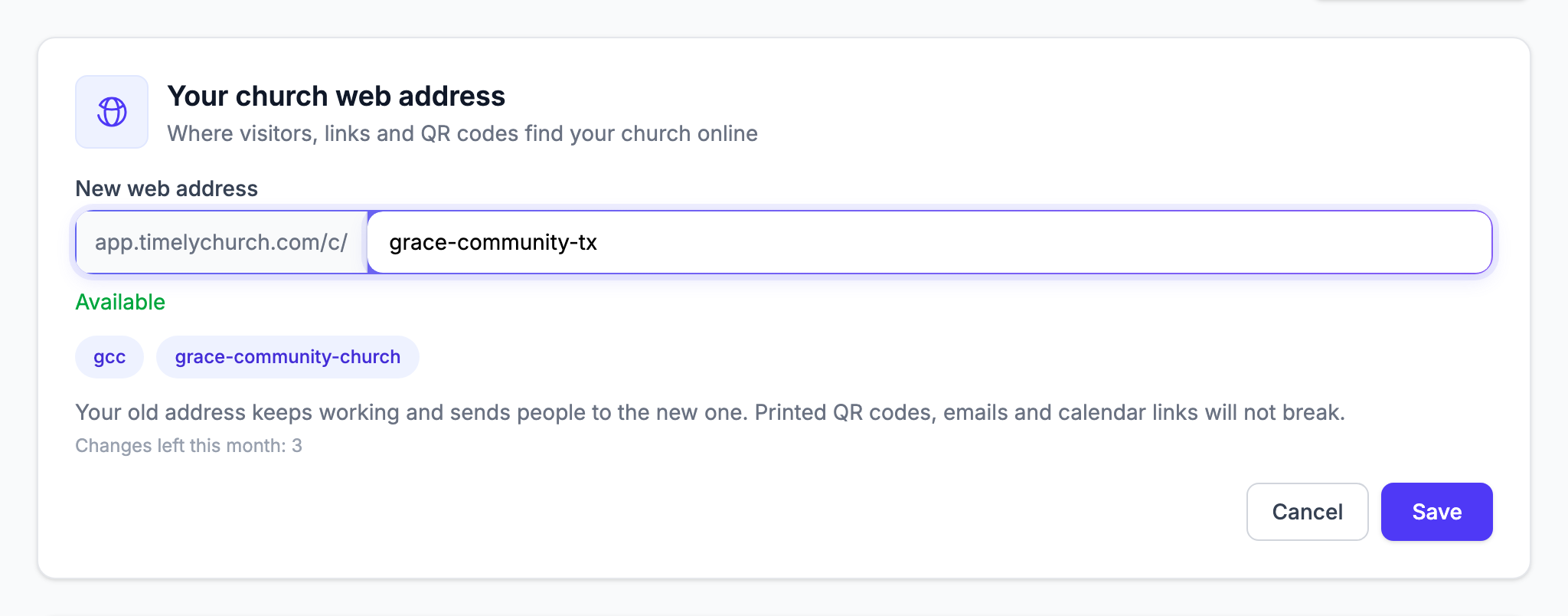
-
Type the address you want. As you type, the line underneath tells you where you stand:
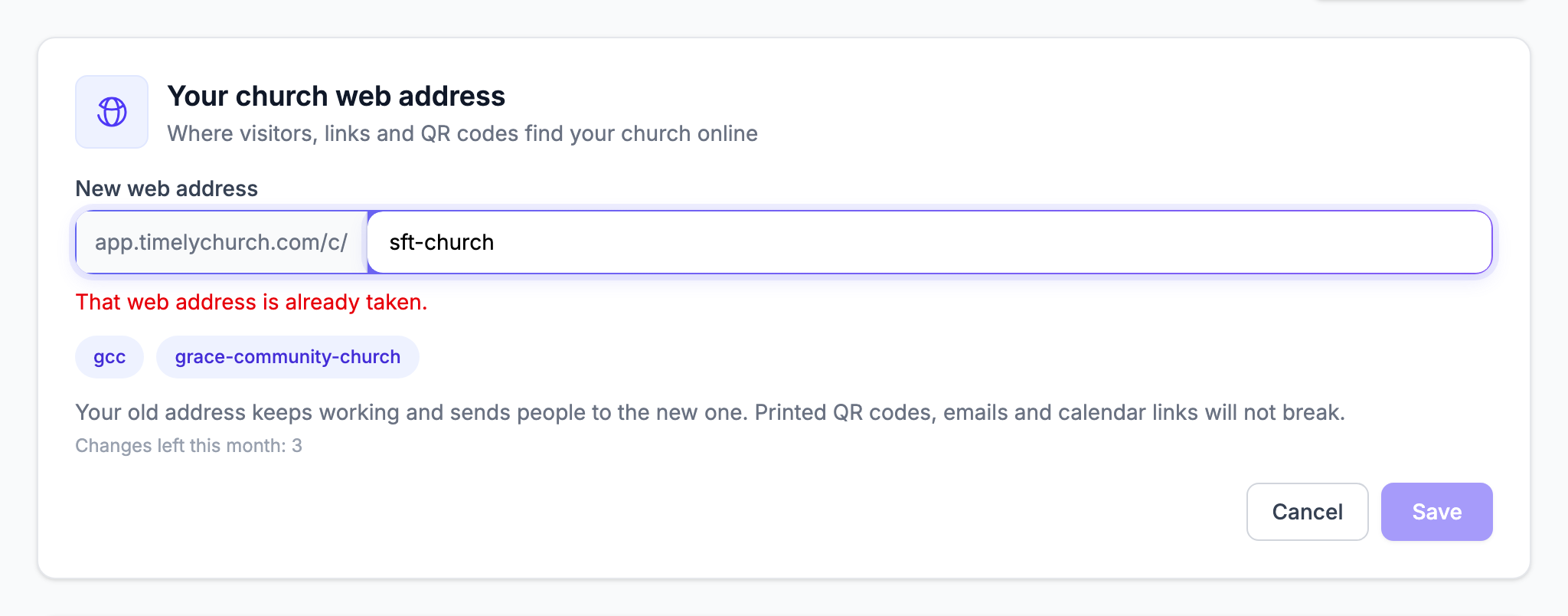
What you see What it means Available (green) Nobody has this address. It is yours if you save. That web address is already taken. Another church has it, or has had it before, or it is a word TimelyChurch keeps for itself. Try another. Web addresses use 3-50 letters, numbers and dashes. The address is too short, too long, or empty. This is already your current address. You have typed the address you already have. You do not have to press Save to find out — the check happens while you type.
-
Don't worry about formatting. Whatever you type is tidied automatically into lower-case letters, numbers and dashes. Type
Grace Church TX!and you getgrace-church-tx. -
If you would rather pick than invent, click one of the suggestions under the box. TimelyChurch offers up to three short forms built from your church's own name — the initials, the first two words, and the full name — and only ones that are actually free, so a suggestion can never be refused a moment later.
-
Check Changes left this month under the box — see How Often You Can Change It below.
-
Click Save.
You land back on the settings page at your new address, with a green confirmation repeating the promise: "Your old address keeps working and sends people to the new one. Printed QR codes, emails and calendar links will not break."
If the address you typed is not available, the Save button stays greyed out until you change it.
What Happens to Your Old Links
This is the part worth reading twice: your old address keeps working.
After you change your address, anyone who uses the old one is sent to the new one automatically. That covers:
- Printed QR codes — on welcome cards, bulletins, banners, posters.
- Links you have already shared — in emails, messages, your website, social posts.
- Calendar subscriptions — the feeds your leaders and volunteers added to Google Calendar, Outlook or Apple Calendar.
- Sign-in links sitting in people's inboxes.
You do not have to reprint anything, and you do not have to warn anybody. Your old address also stays reserved to your church — no other church can take it later.
How Often You Can Change It
A church can change its web address up to 3 times in any 30 days. The form shows how many you have left: Changes left this month: 3.
When you have used all three, the card tells you so before you type anything, and Save stays greyed out:
You can change your web address up to 3 times every 30 days. Contact support if you need another change.
Three is enough to correct a mistake, think again, and settle — without an address that people are trying to print moving every week.
Everyone Who Administers the Church Is Told
When the address changes, every church administrator receives an email. It says what the address was, what it is now, and who changed it.
If you made the change, there is nothing to do. If you receive that email and nobody on your team made the change, contact TimelyChurch support.
The Suggestion for Newly Created Churches
When your church was created, its web address was built from the church name you typed at signup. If you have edited the church name since — "we signed up as Grace Community and later wrote it out as Grace Community Church" — you may see a friendly banner on the settings page:

Your web address still says grace-community. Change it to grace-community-church?
- Update address makes the change (and, as always, your old address keeps working).
- Keep current dismisses it for good. It will not ask again.
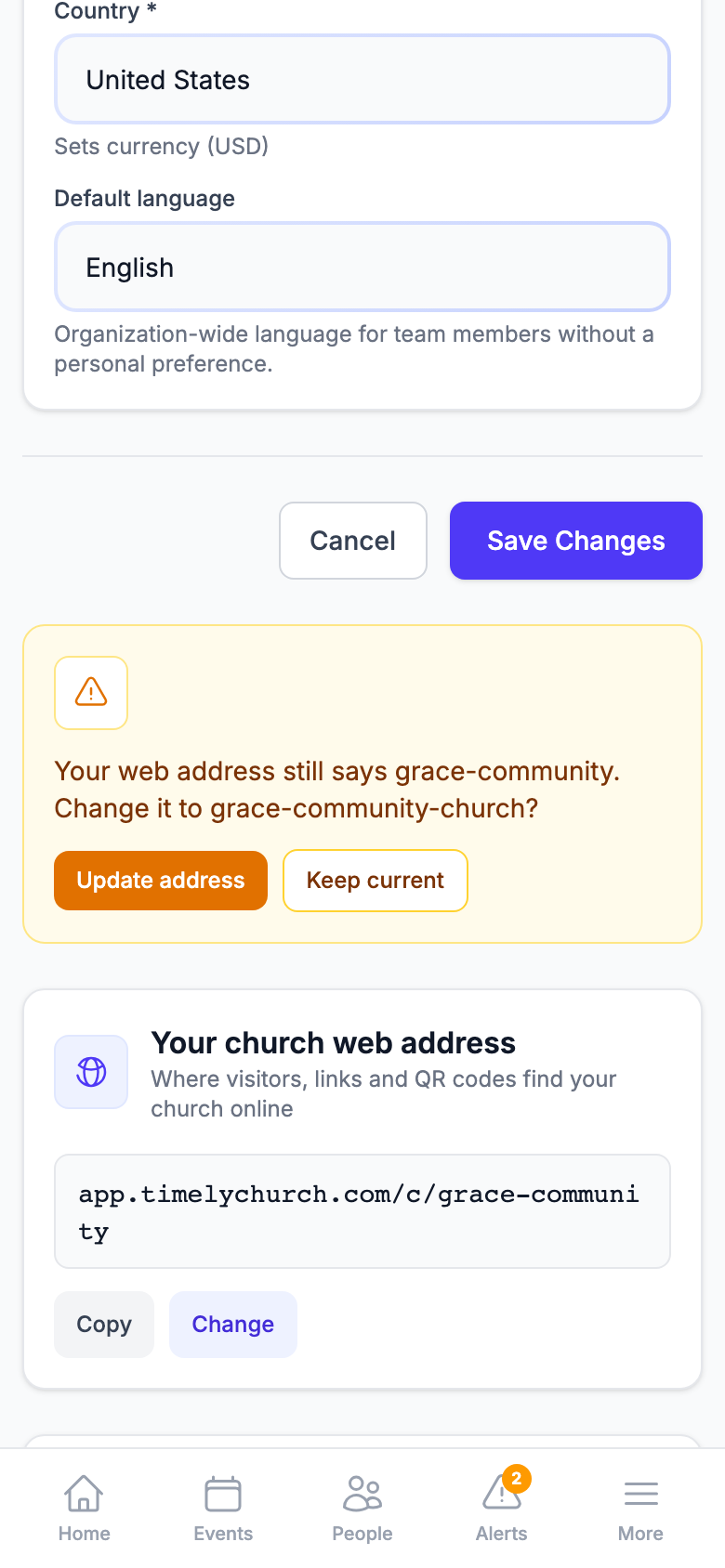
Note: The banner only appears while your web address is still the one TimelyChurch made automatically at signup. Once somebody has chosen an address (or clicked Keep current), it doesn't come back -- and nothing about your web address ever changes unless somebody changes it deliberately.
The Rules
| Rule | Detail |
|---|---|
| Length | 3 to 50 characters |
| Characters | Lower-case letters, numbers and dashes only — anything else is converted for you as you type |
| Uniqueness | It cannot be an address another church uses now, or has used in the past |
| Reserved words | Some words are kept for the platform itself (for example admin, login, app) and cannot be used |
| How often | Up to 3 changes in any 30 days |
Tips
- Short beats clever. Someone will read this address out loud in a car park, and someone else will type it on a phone.
gracechurchis easier to pass on thanthe-church-of-grace-and-peace-2024. - Pick it, then print it. Even though old addresses forward, the address on your next print run should be the one you intend to keep.
- Copy, don't retype. Use the Copy button when you put the address in a newsletter or a document — it gives you the exact link, with no typos.
- Tell the person who manages your website. Forwarding means nothing breaks, but any link you control is worth updating to the new address at your own pace.
Frequently Asked Questions
Will my printed QR codes break? No. The QR code points at your old address, and your old address forwards to the new one. Everything printed keeps working, and you do not have to reprint anything.
Can I get my old address back? Yes — change it back. Your previous address stays reserved to your church, so it is still there for you to take again. It counts as one of your three changes in 30 days.
I need a fourth change this month. Contact TimelyChurch support and we will help.
Who is allowed to change it? Anyone whose role allows them to edit your church's settings. Everyone else sees the address and can copy it, but not the Change button.
Does changing the address change our church name? No. The name and the web address are separate. Editing your church name does not change your web address, and changing your web address does not change your name.
Is this the same thing as using our own domain name? No. A custom domain is a separate feature. See Custom Domain.
Can I choose the address when we sign up? Signup doesn't ask for one. TimelyChurch builds your address from your church name, and you can change it here whenever you like — old links from the first days will forward just the same. If your church name can't be turned into a web address, TimelyChurch gives you a temporary address and the card says Choose your church web address — pick a real one as soon as you can.
Related Articles
- Setting Up Your Church Profile — the rest of the Profile tab: name, contact details, logo and timezone
- Sign Up and Create Your Church — where your church, and its first address, are created
- Custom Domain — using your own domain name instead
- Calendar Subscriptions — the calendar feeds that keep working after a change
- Magic Link Login for Members — the sign-in links that keep working too