Previewing and Exporting Congregation Slides
Every slide export in TimelyChurch goes through one preview. You see the actual slides before anything downloads, set how they look, and only then choose a file format. What you approve is what you get.
Opening the Preview
From a song:
- Go to Worship → Song Library and open a song.
- Click Export → Slides — preview & export…
From a setlist:
- Open the setlist.
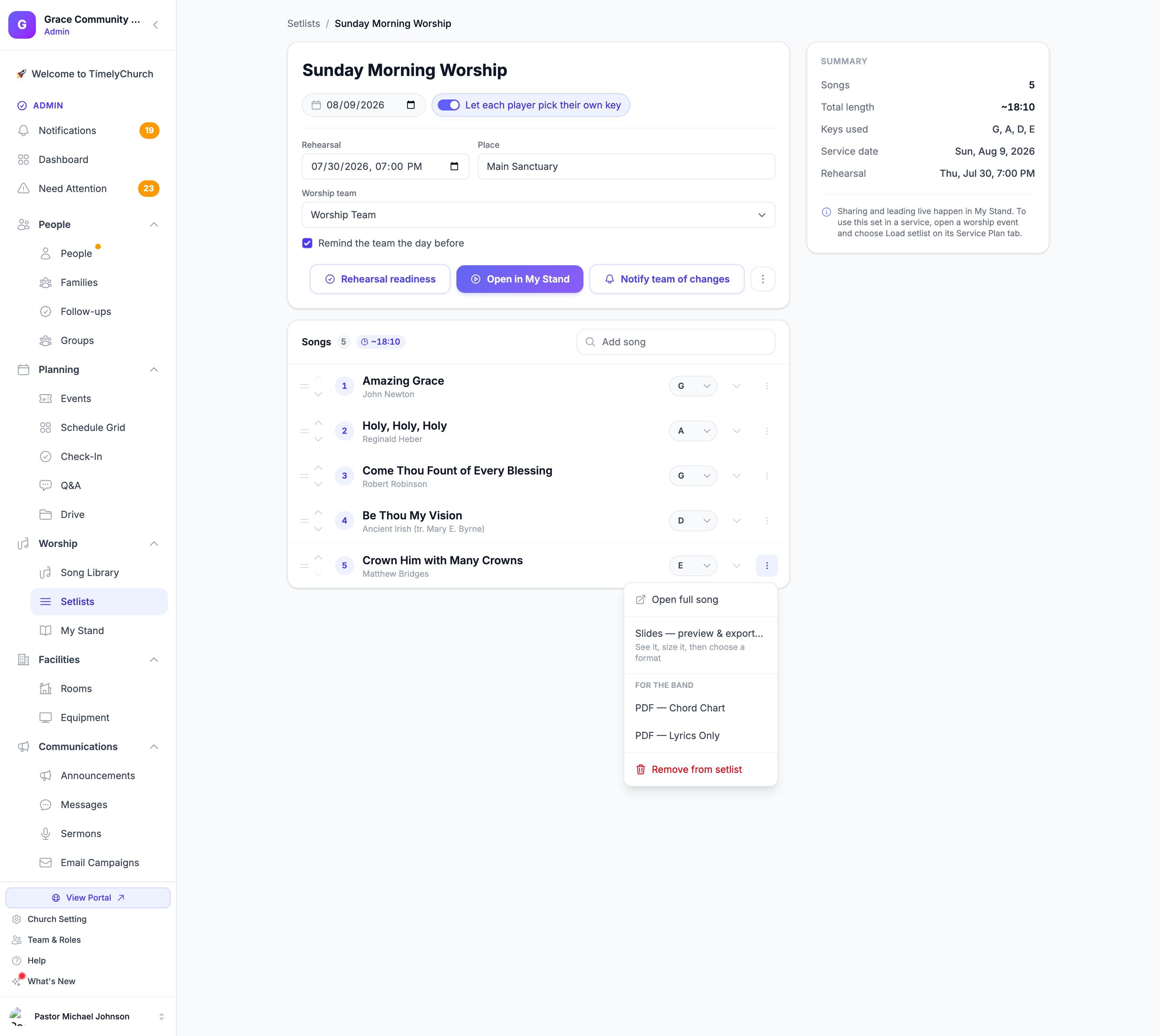
- Click the ⋯ (Actions) button on any song row.
- Choose Slides — preview & export…
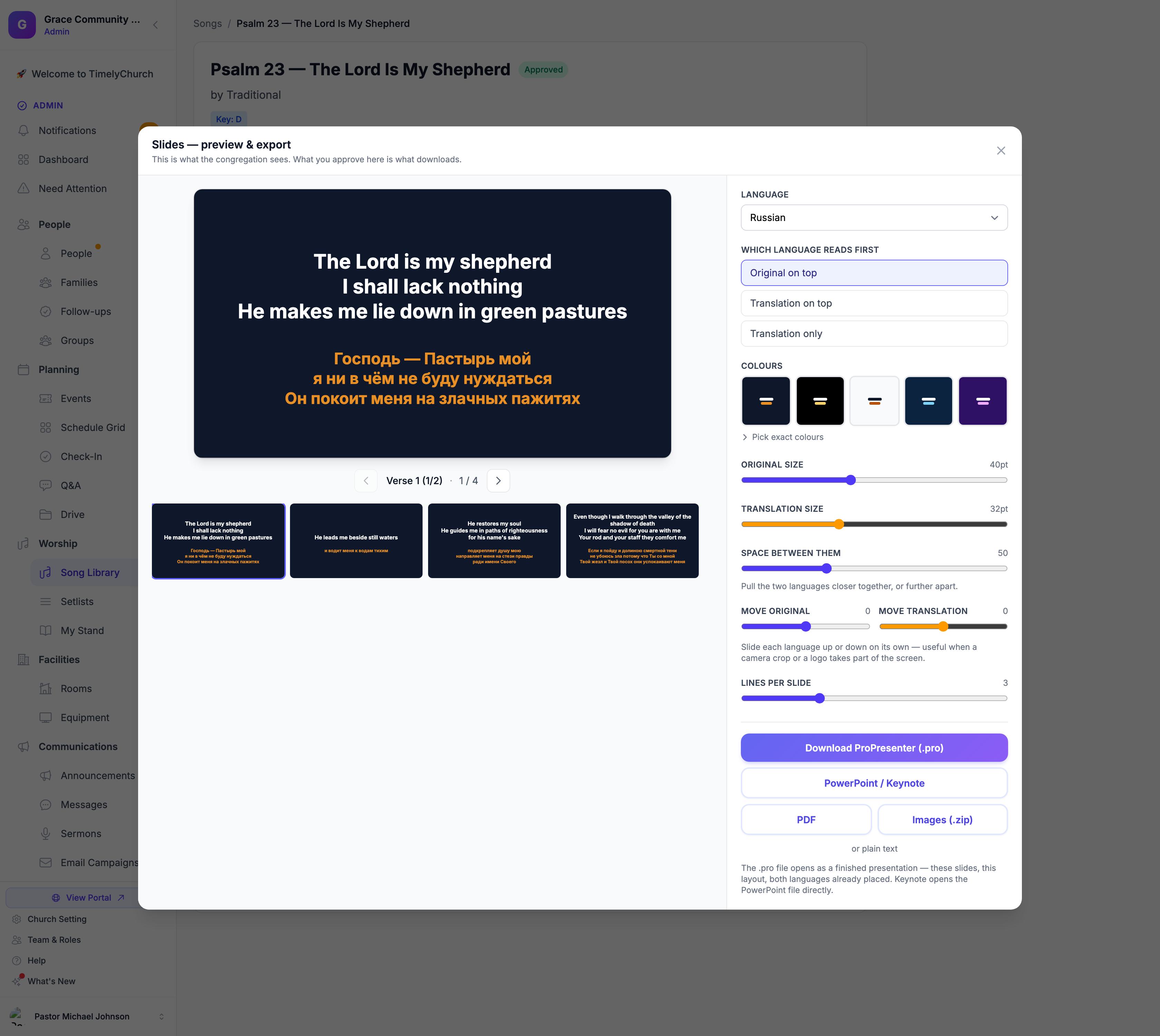
Use the arrow keys to step through slides, and Escape to close.
Under the slide, the preview names the section you are on (Verse 1, Chorus…) and the slide number. Slides from lines written before the song's first section heading show the number only.
Choosing a Language
If the song has translations, the Language dropdown lists them. Pick one and the slides become bilingual. Choose Original only for a single language.
Then decide how the two languages sit together:
- Original on top — the sung language first, translation beneath
- Translation on top — some congregations prefer the reverse
- Translation only — one language, full slide
This is chosen at export, not stored on the song, so the same song can go one way this week and the other way next week.
A section nobody has translated yet shows its original words rather than leaving half the screen blank.
Setting How the Slides Look
All of these apply to the whole song at once. Set them once; you are not adjusting slides one by one.
| Control | What it does |
|---|---|
| Original size | Font size of the sung language |
| Translation size | Font size of the second language, set separately |
| Space between them | Pulls the two languages closer together or further apart |
| Move original / Move translation | Slides each language up or down on its own |
| Lines per slide | How many lyric lines land on each slide |
| Colours | Background, original text and translation text |
Move original and Move translation are not the same as Space between them. The spacing control sets how far apart the two languages sit; the move controls shift a block up or down the slide. That is useful when a camera crop, a lower-third graphic or a logo takes part of your screen.
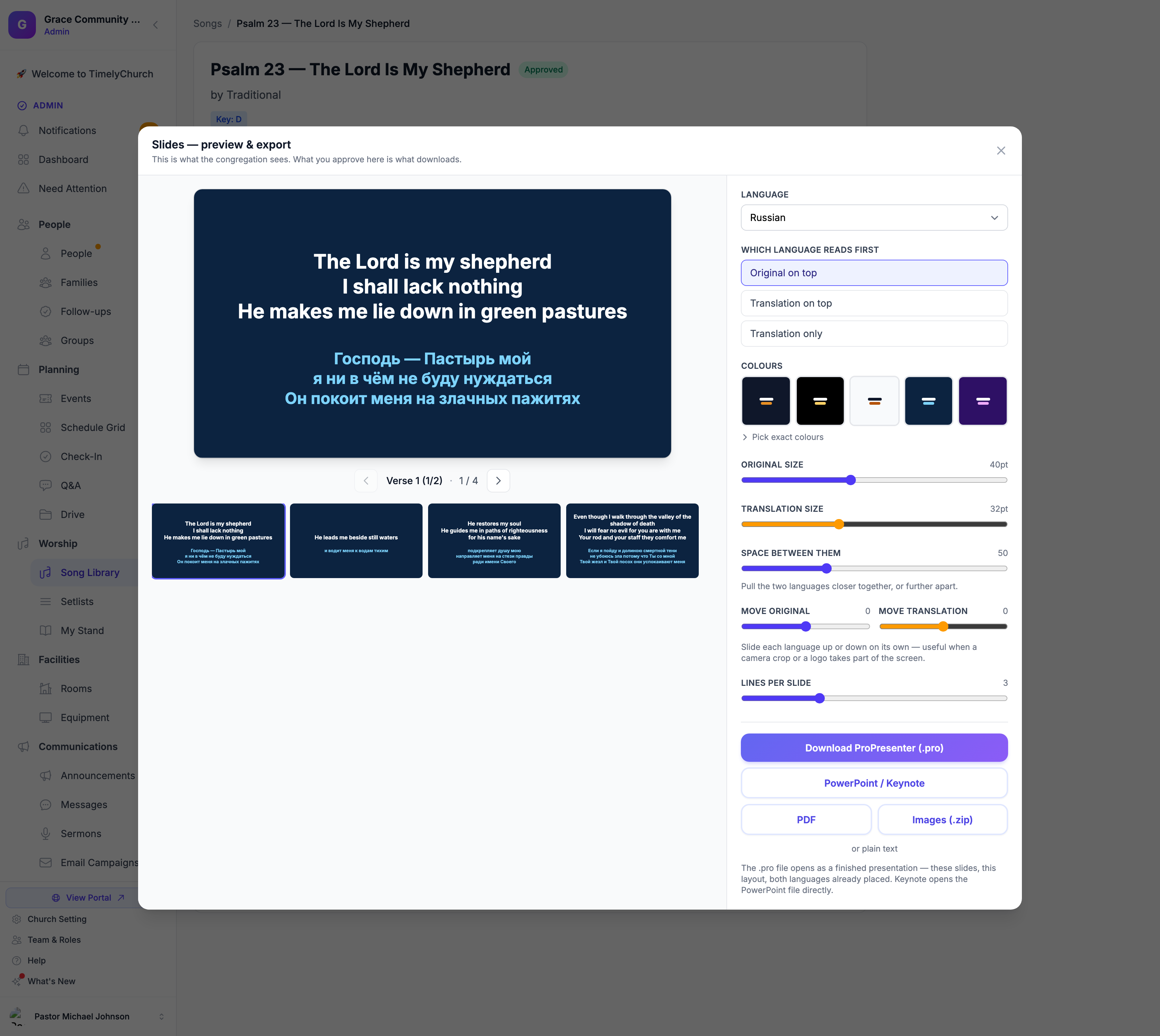
Colours
Five ready-made looks — Dark, Black, Light, Deep blue and Plum — cover most churches in one click. If yours has brand colours, open Pick exact colours and set the background, original text and translation text precisely.
Saving Your Church's Default Look
Once the slides look the way your church wants them, click Save as church default at the bottom of the controls. The button turns into Saved as church default ✓. From then on, every time anyone opens the preview it starts from that look -- sizes, spacing, colours and lines per slide -- so you only adjust what is different this week.
The saved default is also what Song Sync uses: the preview reminds you that "Sync always renders with this church's saved default." Saving a default needs edit access to songs.
The Overflow Warning
ProPresenter does not shrink text that will not fit. It cuts it off — live, mid-song, in front of the congregation.
So the preview measures every slide against the space it will actually occupy and outlines any that overflow in amber. A banner tells you how many, and Check them steps through just those slides rather than making you review all thirty.
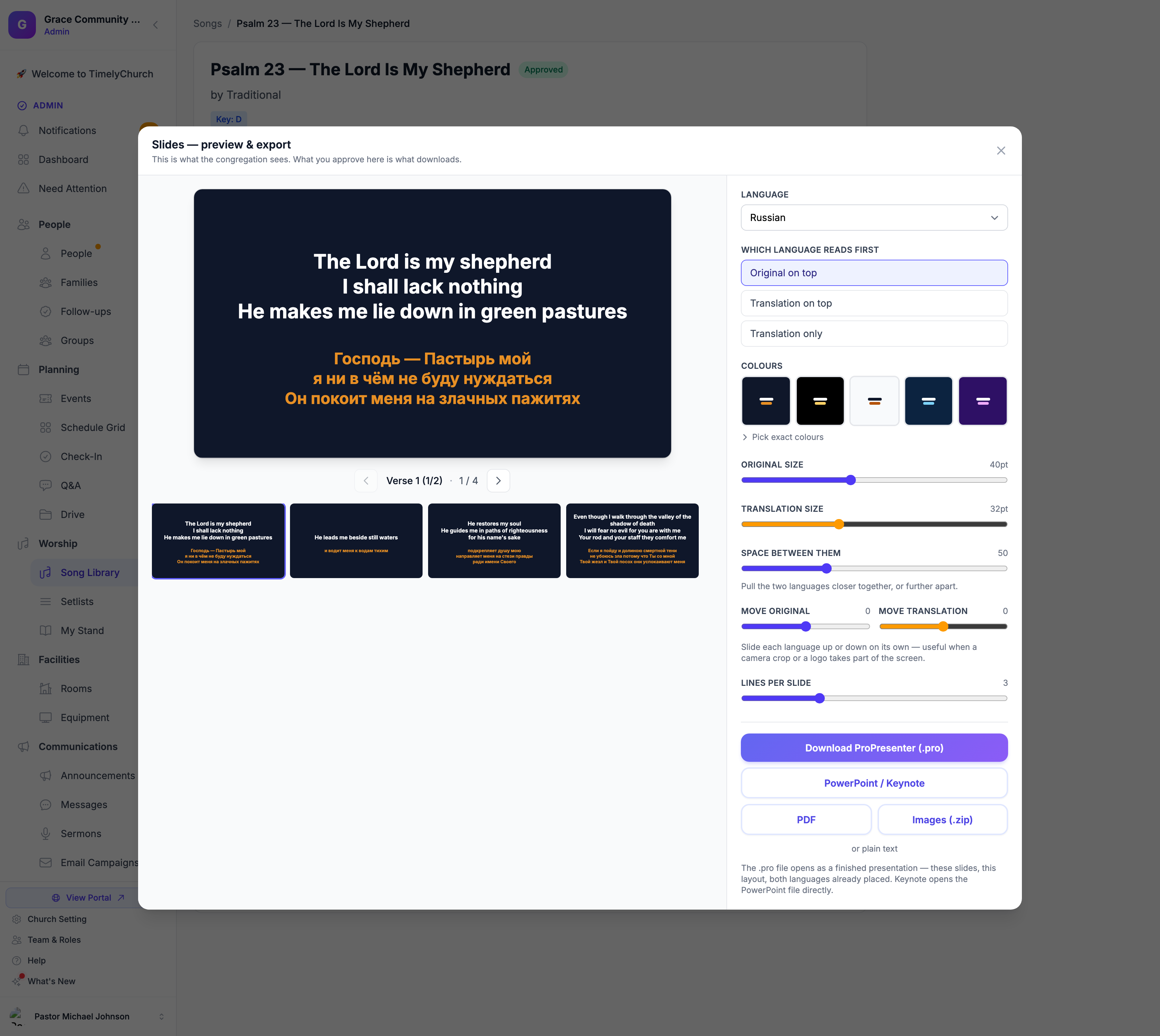
To fix an overflowing slide, lower a font size or reduce Lines per slide. If nothing is outlined, nothing will be cut off.
The Formats
| Format | Use it when |
|---|---|
| ProPresenter (.pro) | You use ProPresenter. Opens as a finished presentation with both languages already placed — no importing and restyling. Each section (Verse, Chorus, Bridge…) arrives as its own named, coloured group; lines written before the first section heading arrive as a group named Lyrics |
| PowerPoint / Keynote | You present from PowerPoint, or from Keynote, which opens PowerPoint files directly |
| You want one page per slide, or a bilingual handout people can read on a phone | |
| Images (.zip) | One PNG per slide, numbered in order, for any other software |
| Plain text | A simple text file other apps can import |
All five are built from the layout you just approved, so they agree with one another and with the preview.
A Note on Fonts
ProPresenter and PowerPoint files refer to fonts by name rather than storing them, so slides use Arial — available on both Mac and Windows with full coverage for Cyrillic and other scripts. PDF and image exports carry their font with them, so they look the same everywhere.
From the Setlist
Each song in a setlist has a ⋯ menu with everything the team needs on a Sunday:
- Open full song
- Slides — preview & export… for the media team
- PDF — Chord Chart and PDF — Lyrics Only for the band
- Remove from setlist