
Notifications & Preferences
Audience: This article is for church administrators.
TimelyChurch surfaces two related but distinct things:
- Your notifications page — the notifications sent to you inside the admin panel.
- Notification Settings — which notification emails each person wants to receive.
This guide covers both.
Your Notifications Page
Click Notifications at the top of the admin sidebar. A number badge next to it shows how many notifications you haven't read yet.
The page is "your personal notification center for schedule changes, lesson updates, substitute requests, and other important activity in your church." From here you can:
- See how many are unread of the total
- Filter by Status (All, Unread, Read) and Type
- Click a notification to go straight to the related item (schedule, lesson, etc.)
- Mark one as read, or use Mark All Read
- Delete notifications you no longer need
Some notifications have actions right on the page -- for example Claim this sub request, or approving or rejecting a lesson.
Notification Settings (Email Preferences)
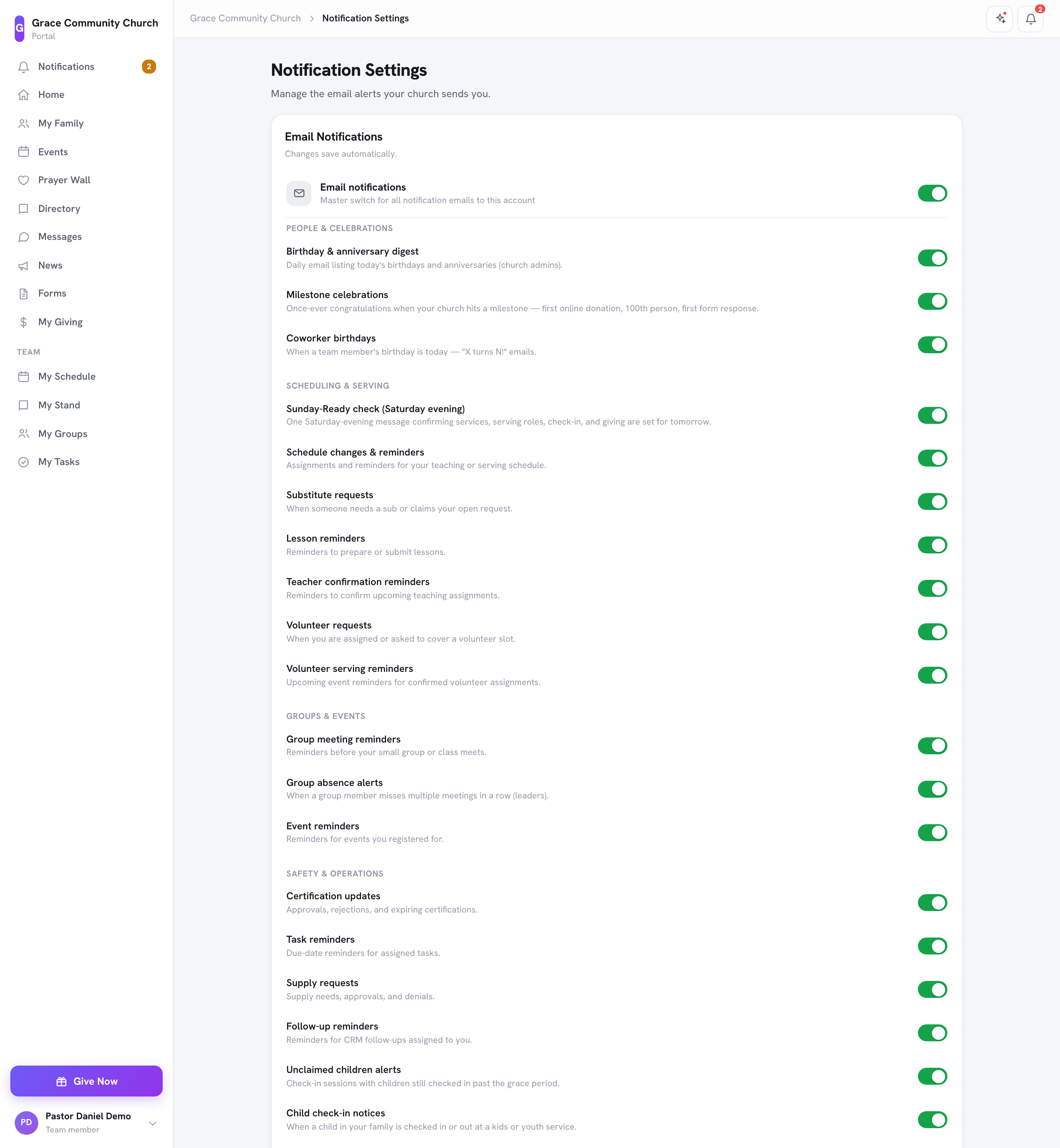
Each person chooses which notification emails they receive on their own Notification Settings page -- "Manage the email alerts your church sends you."
Getting there
- From the admin panel: open your account menu (your name at the bottom of the sidebar), choose My Profile, and in the Email Notifications section click the Notification Settings link ("Email notification preferences have moved. Manage them on the Notification Settings page.").
- From the member/team portal: open the account menu and click Notification Settings.
Notification Settings is for people with a team account. Someone without one sees "You need a team account to manage notification preferences."
What's on the page
- Email notifications -- the "Master switch for all notification emails to this account." Turn it off to stop all notification emails.
- A switch for each kind of notification, grouped into sections:
- People & Celebrations -- for example Birthday & anniversary digest, Milestone celebrations and Coworker birthdays
- Scheduling & Serving -- for example Schedule changes & reminders, Substitute requests, Lesson reminders, Volunteer requests, Volunteer serving reminders and the Sunday-Ready check (Saturday evening)
- Groups & Events -- Group meeting reminders, Group absence alerts, Event reminders
- Safety & Operations -- for example Certification updates, Task reminders, Follow-up reminders, Unclaimed children alerts, Child check-in notices and General notifications
- Finance & Giving -- Donation activity (new gifts, refunds and recurring payment failures), shown only to people who can receive giving notifications. It has a Delivery choice: Instantly, Daily digest, or Weekly digest.
- Reminder timing (team members) -- how many Days before teaching to send reminders.
Church administrators see the admin-only items (such as the birthday digest, milestones, the Sunday-Ready check and unclaimed children alerts); other team members see the rest.
Changes save automatically as you flip each switch. (A Save preferences button is also there.)
If your church has turned a notification off for everyone, its switch shows "Your church has turned this off for everyone" instead.
Walkthrough: Updating Your Own Preferences
- Open your account menu (your name at the bottom of the sidebar) > My Profile.
- In the Email Notifications section, click Notification Settings.
- Turn each kind of notification on or off.
- For Donation activity, pick Instantly, Daily digest or Weekly digest if you'd rather get fewer emails.
Changes take effect for the next notification you receive.
Disabling a Whole Notification Type Church-Wide
If you don't want anyone in your church to receive a particular notification email, the right place is the Email Templates page -- open the template and click Deactivate for this church. Personal settings only let each person opt out for themselves.
See Also
- Account, Profile & Password — the rest of the user profile page
- Email Templates
- Security Settings