
Tasks
The My Tasks page is your to-do list inside the Member Portal ("Everything assigned to you in one place — personal tasks, event prep, team tasks and follow-ups."). Use it to track reminders you write for yourself and everything others have assigned to you.
Opening Your Tasks
- Log in to the Member Portal.
- Click My Tasks in the sidebar. If you serve on a team, it is in the Team section, and on a phone it is the Tasks tab at the bottom.
Your most pressing tasks also appear on your Home page under My tasks.
What's on the List
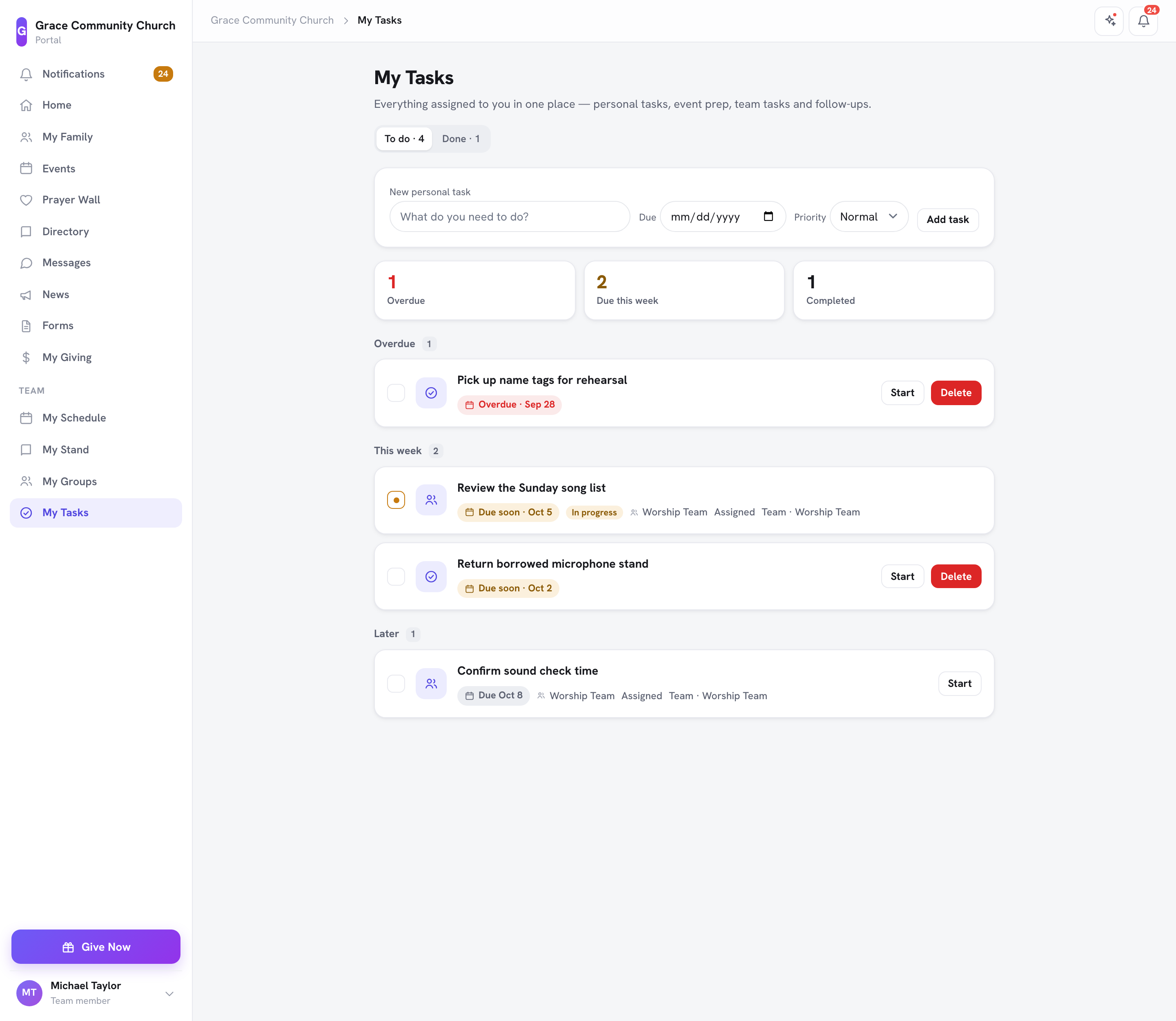
My Tasks brings together everything with your name on it:
- Personal tasks you wrote for yourself
- Event prep tasks from an event's task list
- Group and team tasks, labeled with the group they came from (see Group Tasks)
- Follow-ups assigned to you or to a team you belong to
Each card says where the task came from (for example an event, a team, or a room) and, where you have access, the label links to it. Tasks you wrote yourself carry no label. Tasks someone else assigned to you show Assigned.
At the top of the page you see how many tasks are Overdue, Due this week, and Completed. Switch between To do and Done to see open or finished tasks. Open tasks are grouped by when they're due (Overdue, Due soon, This week, and Later). Each card shows its due date (or No due date), its priority when it's High or Urgent, and In progress once you've started it.
Adding a Personal Task
- Under New personal task, type what you need to do ("What do you need to do?").
- Optionally pick a due date and a Priority: Low, Normal, High, or Urgent.
- Click Add task.
Starting and Completing a Task
- Click Start on a task you're beginning. It shows In progress, so a long list shows what you're in the middle of.
- Click the check circle (Complete) to finish a task. It moves to Done.
You can complete any task on your list right here. You don't have to go back to the event, group, or follow-up it came from.
To undo a completion, open Done and click Mark incomplete.
Deleting a Task
Click Delete on a task and confirm. You can delete tasks you created yourself; tasks from an event, a group, or a follow-up are managed where they came from.
Frequently Asked Questions
Q: Can other people see my tasks? A: Personal tasks you create are private to you. Tasks someone assigns to you are also visible to the people who manage the event, group, or follow-up they came from.
Q: Will I get reminders for tasks with due dates? A: Yes. Tasks coming due send a reminder to your portal notification bell, and by email if Task reminders is turned on in Notification Settings (see Notifications). If you've connected Telegram, the church bot can remind you too.
Q: A leader assigned me a group task. Where do I see it? A: On My Tasks, labeled with the group, and on the group's own Tasks tab in My Groups. If you've connected Telegram, you also get a message with a Done button.
Editing Your Own Tasks
Members can edit their own personal tasks (title, due date and priority) with Edit. Event prep, follow-ups, team tasks and tasks someone else assigned are changed where they came from. (8.205.304)
Last updated: 2026-10-21 (8.205.306).