
Writing a Chord Chart in the Editor
The chord chart editor is where the charts your band reads on Sunday are made. It opens as a workspace: you write on the left, and the right side shows you — as you type — exactly what the PDF will print, what the number chart says, what My Stand will look like on a tablet, and what goes to the slides.
Nothing your band sees changes until you press Publish. Everything before that is a private draft.
Where to find it: Worship → Song Library, open a song, then Chord chart. Adding a new song takes you straight there.
The Workspace
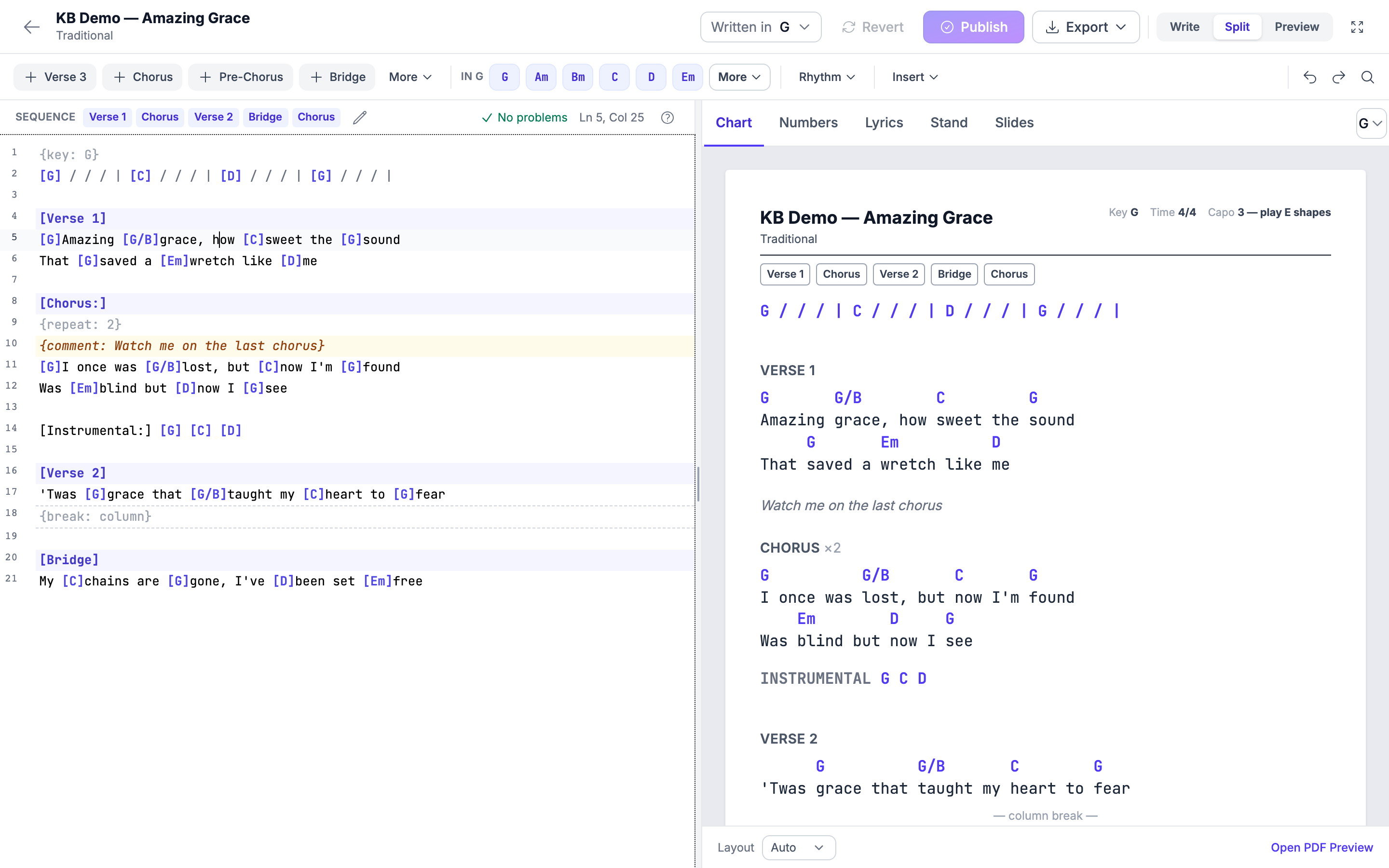
| Part of the screen | What it is |
|---|---|
| Command bar (top) | The song's title, the arrangement, Written in, the save-state pill, Revert, Publish, Export and the pane buttons |
| Ribbon (under it) | Section chips, chord chips, Rhythm, Insert, undo/redo and Find & replace |
| Write pane (left) | Where you type |
| Preview pane (right) | Five tabs showing the real output |
Write · Split · Preview decide how much room each side gets. The editor opens in Split every time, so you always see the result of what you are typing. Fullscreen hands the workspace the whole screen; press Esc to come back. Every ribbon and command-bar menu works in fullscreen too.
Menus always open on top of the page -- including over the Find bar, so you can keep Find open while you use Insert or any other menu.
Adding Sections
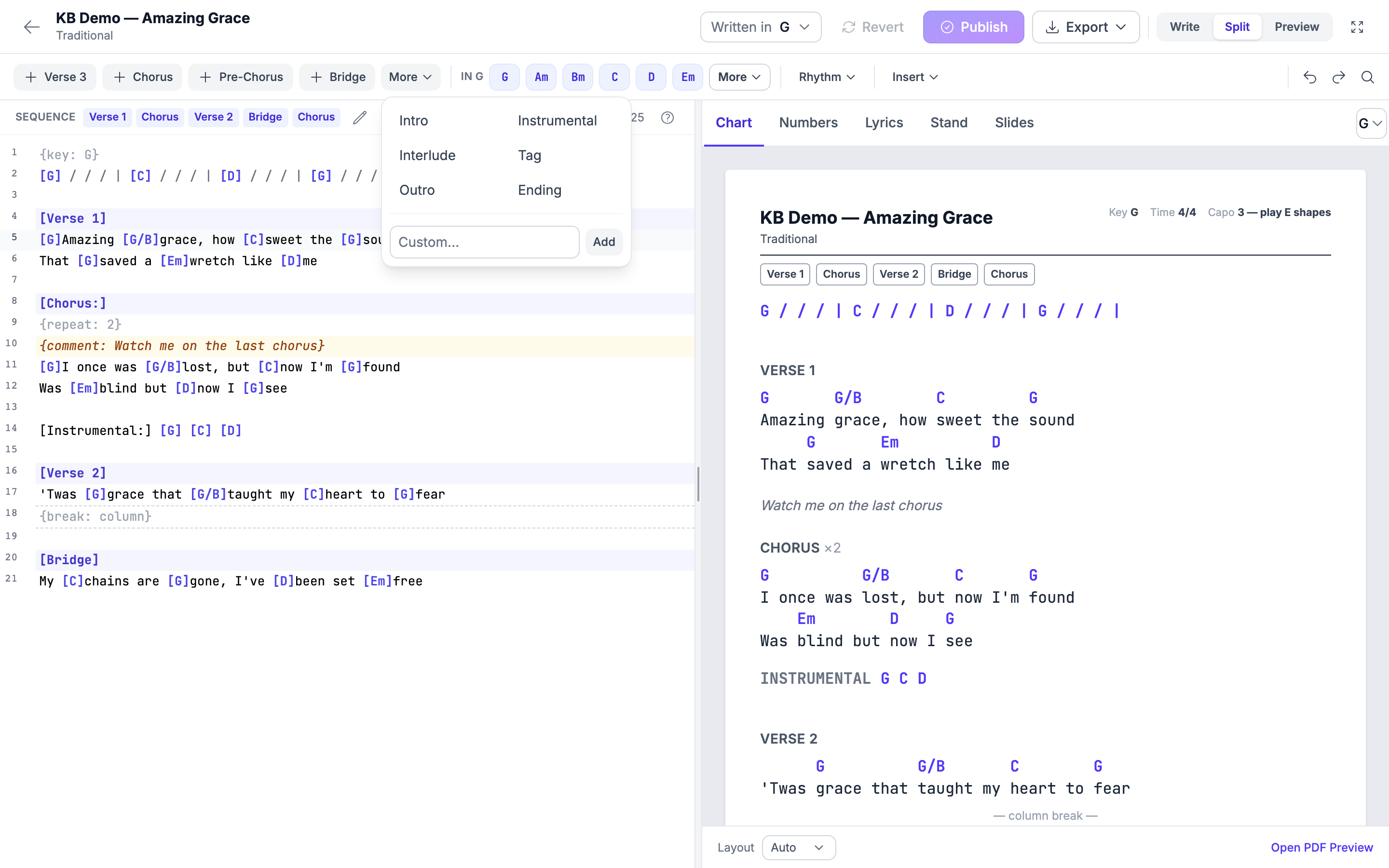
Click a section chip and the heading is inserted where your cursor is. You never have to type the brackets yourself.
- Verse numbers itself — the first click gives Verse 1, the next Verse 2, and it keeps counting.
- Chorus, Pre-Chorus and Bridge are beside it.
- More opens Intro, Instrumental, Interlude, Tag, Outro and Ending — or you can type your own label if your church calls a section something else.
A colon after a section name is fine: [Chorus:] shows as Chorus
everywhere -- in the previews, on My Stand, in every PDF and export.
Lines Before the First Heading
Whatever you write before your first section heading -- a line of chords, a few words -- shows exactly as written, with no label. The editor never adds an "Intro" you did not type.
To label those lines, put your cursor anywhere in them and choose Intro (or any other section). The heading goes above the first of those lines -- also when they are several chord lines in a row and your cursor is on the second or third -- so you get one Intro, in the right place. Further down the song, a heading goes below the line your cursor is on -- above it when the cursor is at the very start of the line, and in its place when the line is empty.
Labelling One Chord Line
To put a label on a single line of chords without starting a new section, begin the line with the label and a colon:
[Instrumental:] [F] [Cm] [F]The label prints in front of the chords, with the chords evenly spaced after it, on the Chart, Numbers and Stand previews, on My Stand and in the PDFs. It is never transposed and never read as a chord, and the lines that follow stay in the section they were already in.
![The Chart preview: a line of chords at the top with no label above it, a Chorus heading written as [Chorus:] shown without the colon, and an Instrumental label in front of the chords F, Cm, F](/images/knowledgebase/articles/worship-songs/29-writing-a-chord-chart-in-the-editor-14.png)
Adding Chords
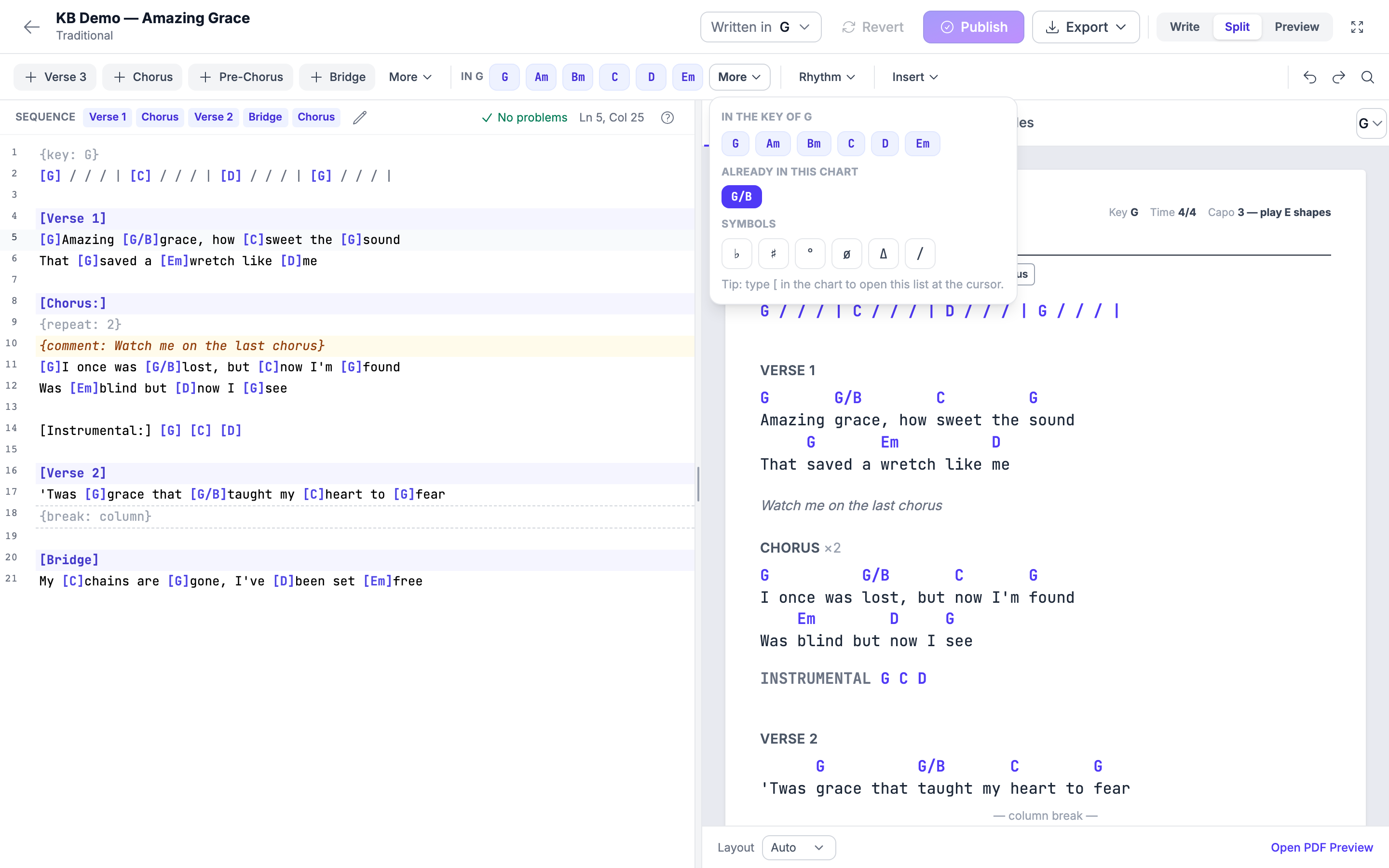
The chord chips are in the key you are writing in, so the chords you actually need are the ones in front of you.
- To put a chord on a word — select the word, then click the chord.
- To put a chord at a point in the line — put the cursor there, then click the chord.
- For anything else — click More for chord variations and the ♭ ♯ ° ø Δ / symbols.
If you prefer to keep your hands on the keyboard, type [ and the editor
offers you chords to complete.
Rhythm Marks
Rhythm inserts the bar | and the beat / marks used for intros,
turnarounds and vamps, in the right place — outside the chord brackets,
which is what keeps them transposing correctly.
Undo, Redo and Find
Undo and Redo are in the ribbon. Find & replace opens with Ctrl+F (Cmd+F on a Mac) — useful when you realise you have written the same chord two different ways all the way down a long song.
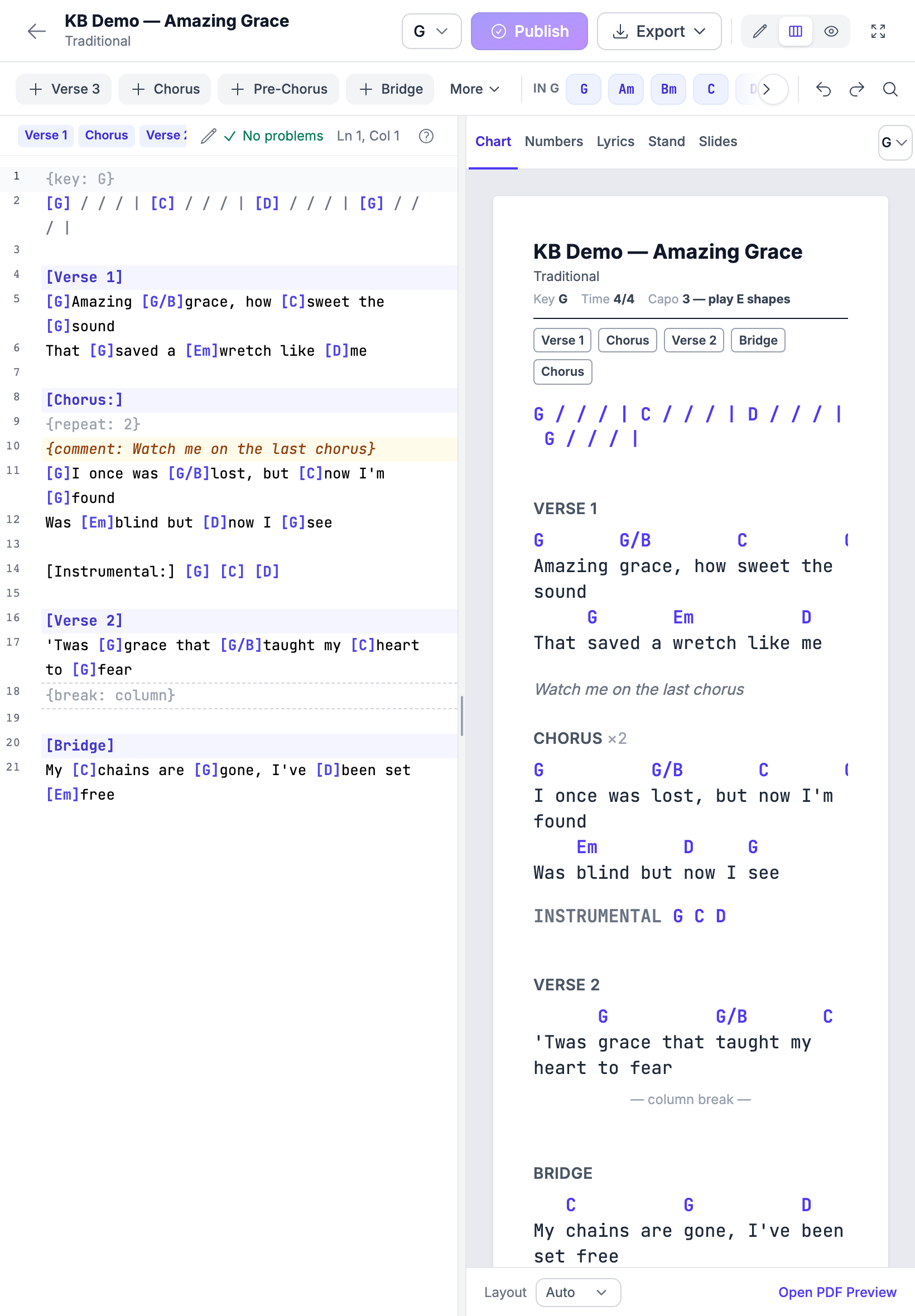
On a tablet, Undo, Redo and Find stay pinned at the right end of the ribbon. If the other tools do not all fit, they scroll sideways: use the arrow at the edge of the ribbon to see the rest.
Band Notes, Column and Page Breaks, Repeats
The Insert group in the ribbon -- next to Rhythm -- puts four things into the chart that are neither chords nor lyrics. On a phone the same four are rows under Insert in the More sheet.
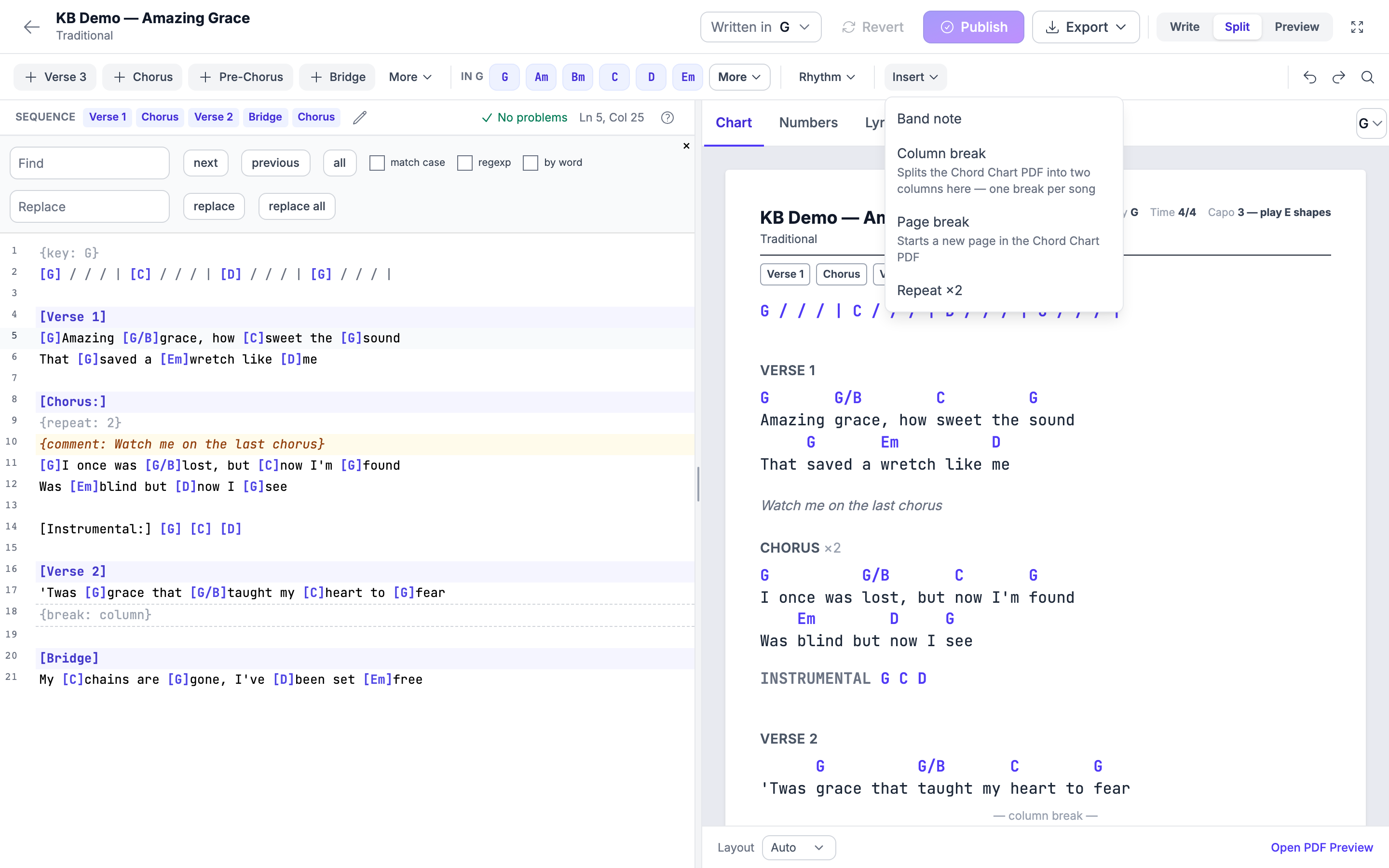
| Insert | What it does | What it writes into the chart |
|---|---|---|
| Band note | A note for the musicians, on its own line. Your cursor is left inside it, ready to type. | {comment: your note} |
| Column break | "Splits the Chord Chart PDF into two columns here — one break per song". | {break: column} |
| Page break | "Starts a new page in the Chord Chart PDF". | {break: page} |
| Repeat ×2 | Marks the section your cursor is in as played twice. | {repeat: 2}, placed directly under the section heading |
Each one is inserted where a section heading would go, so put your
cursor on the line you want it near and click. For a different repeat
count, change the number: {repeat: 3} prints ×3. The {repeat: …}
line has to be the first line under its section heading -- which is
where the button puts it.
What a Band Note Is For
Anything you would otherwise say out loud at rehearsal and hope people remember: Watch me on the last chorus, Drums out on verse three, Sarah takes this verse alone. Write it once, and every musician reads it on Sunday.
Where Each One Shows
| Band note | Column break | Page break | Repeat ×N | |
|---|---|---|---|---|
| Chart and Numbers previews | Italic grey | A "— column break —" divider | A "— page break —" divider | ×N on the heading |
| Stand preview tab | Its own line | Not shown | Not shown | ×N on the heading |
| My Stand (the reader) | Its own line between the lyrics | Not shown | Not shown | ×N on the heading |
| Chord Chart PDF | Italic grey | Splits the columns there | Starts a new page there | ×N on the heading |
| Nashville PDF | Italic grey | Not shown | Not shown | ×N on the heading |
| Slides, PowerPoint, ProPresenter, the text export, Lyrics, search | Never | Never | Never | Never |
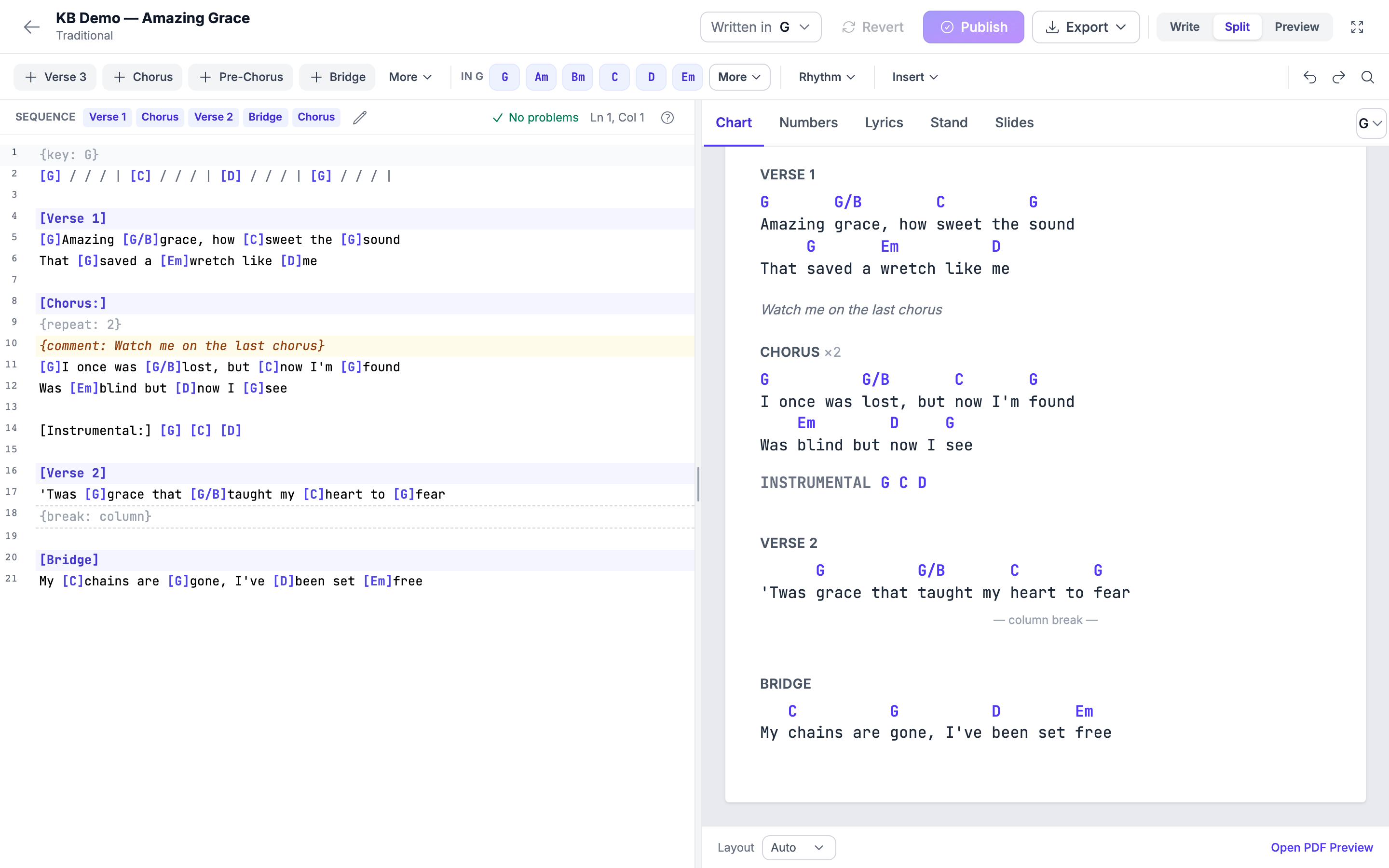
Band notes never reach the congregation. They are not on the slides, not in the PowerPoint or ProPresenter export, not in the text export, not on the lyrics sheet and not in search results -- so you can write "Sarah takes this verse alone" without it going up on the wall.
My Stand scrolls in one column, so a column break and a page break have nothing to do there and are invisible. Band notes and the ×N do show.
Adding a band note does not move your personal marks. Highlights and notes you have made in My Stand stay on the lines you made them on.
Deciding Where the PDF Breaks
Put a Column break where the song lets you breathe, and the Chord Chart PDF splits its two columns exactly there instead of wherever the measuring came out. Put a Page break where you want the page turn.
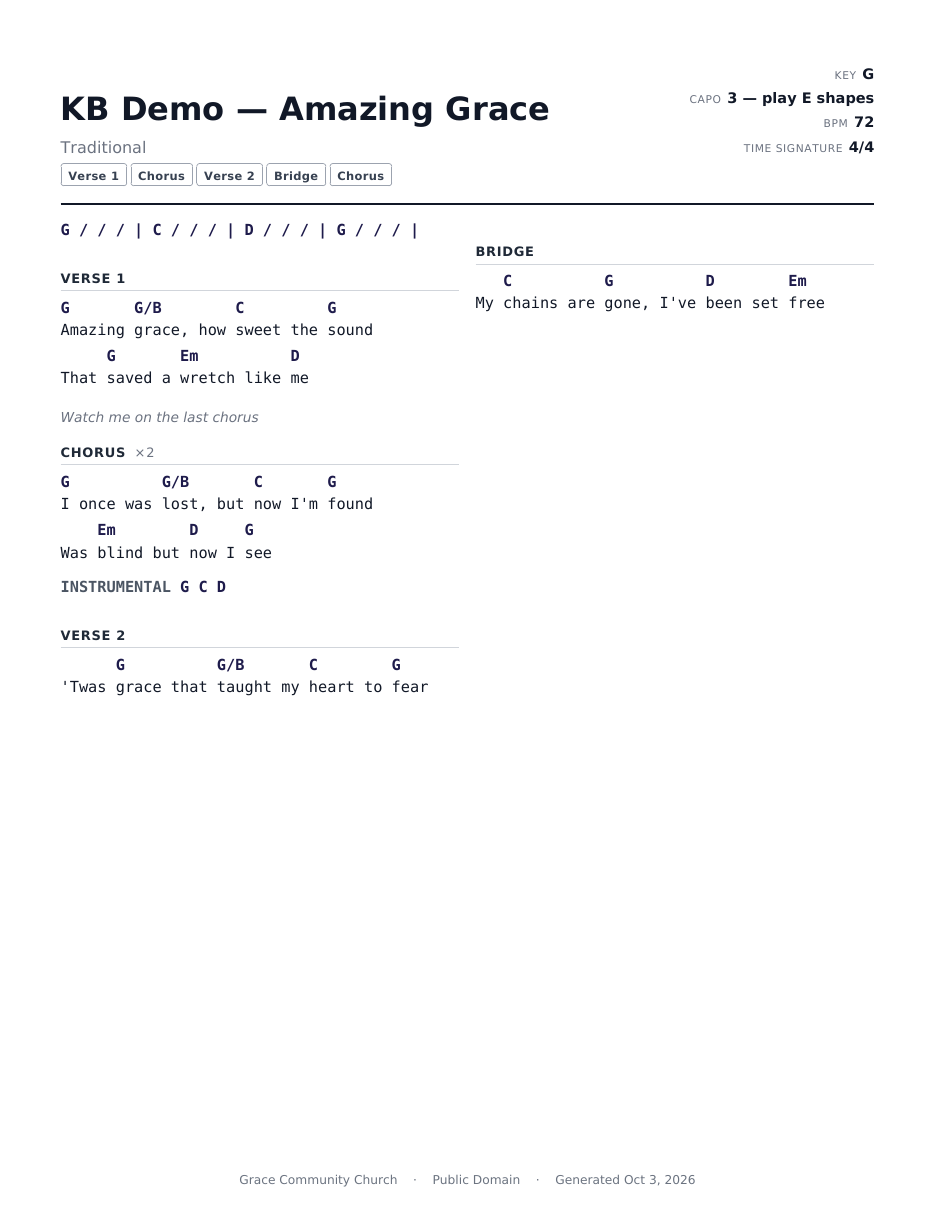
To make room for two columns, the PDF prints a chart with a column break in slightly smaller text when it has to -- never smaller than 9 point -- so that its longest line fits half a page.
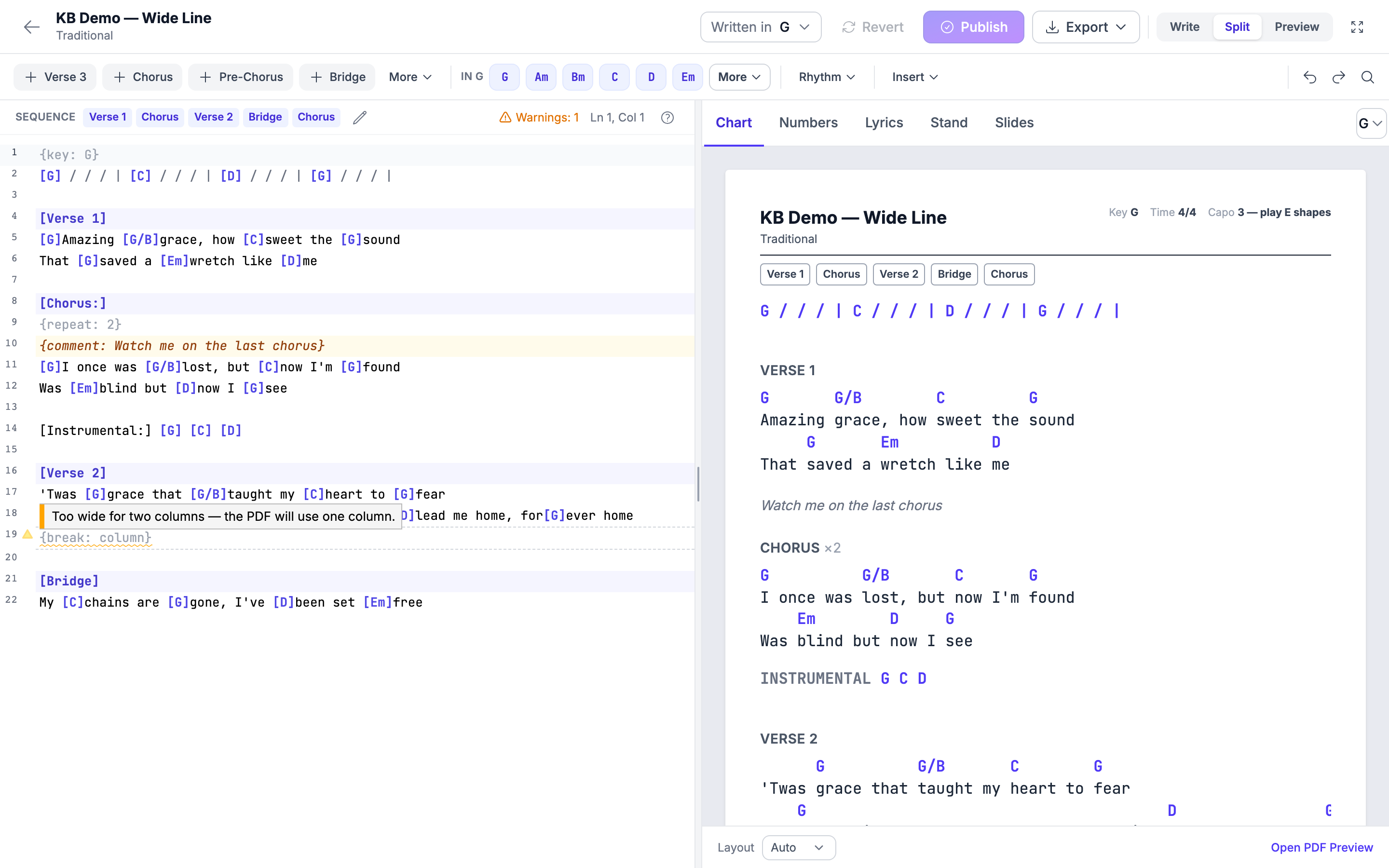
When a chart is still too wide. If a lyric or chord line is too long even at that size, the PDF keeps the whole chart in one column, at its normal size. The editor tells you so on the column break's line: "Too wide for two columns — the PDF will use one column." Shortening the longest line, or turning a long rhythm row into two, gives the break something to split. A page break in the same chart makes no difference either way: the two columns carry on across the page turn.
One column break per song. Only the first column break is used. Any later one is marked on its line -- "Only the first column break is used." -- with a Remove button that takes the line out.
With Layout set to 1 column in the preview footer, the PDF prints one column and the break is not used.
Charts Written in Plain ChordPro
If your charts come from another program that writes ChordPro,
{colb}, {column_break}, {np} and {new_page} are
understood as breaks, so they never print as words in the middle of the
lyrics.
Pasting from Planning Center
If you copied the chart from Planning Center, its PAGE_BREAK and
COLUMN_BREAK marks become real breaks, and its {{ notes }} become
band notes. The paste offer tells you how many of each it found before
you accept it.
If You Mistype a Mark
A {break: …} with a value the editor does not recognise, or a
{repeat: …} that is not a number, is marked on its line with a
plain-language message and is ignored when the chart is drawn -- it is
never printed as a stray word.
The Five Previews
Each tab is drawn by the same thing that produces the real output, so what you see is what comes out.
| Tab | What it shows |
|---|---|
| Chart | What the Chord Chart PDF prints, including the sequence strip and the capo line |
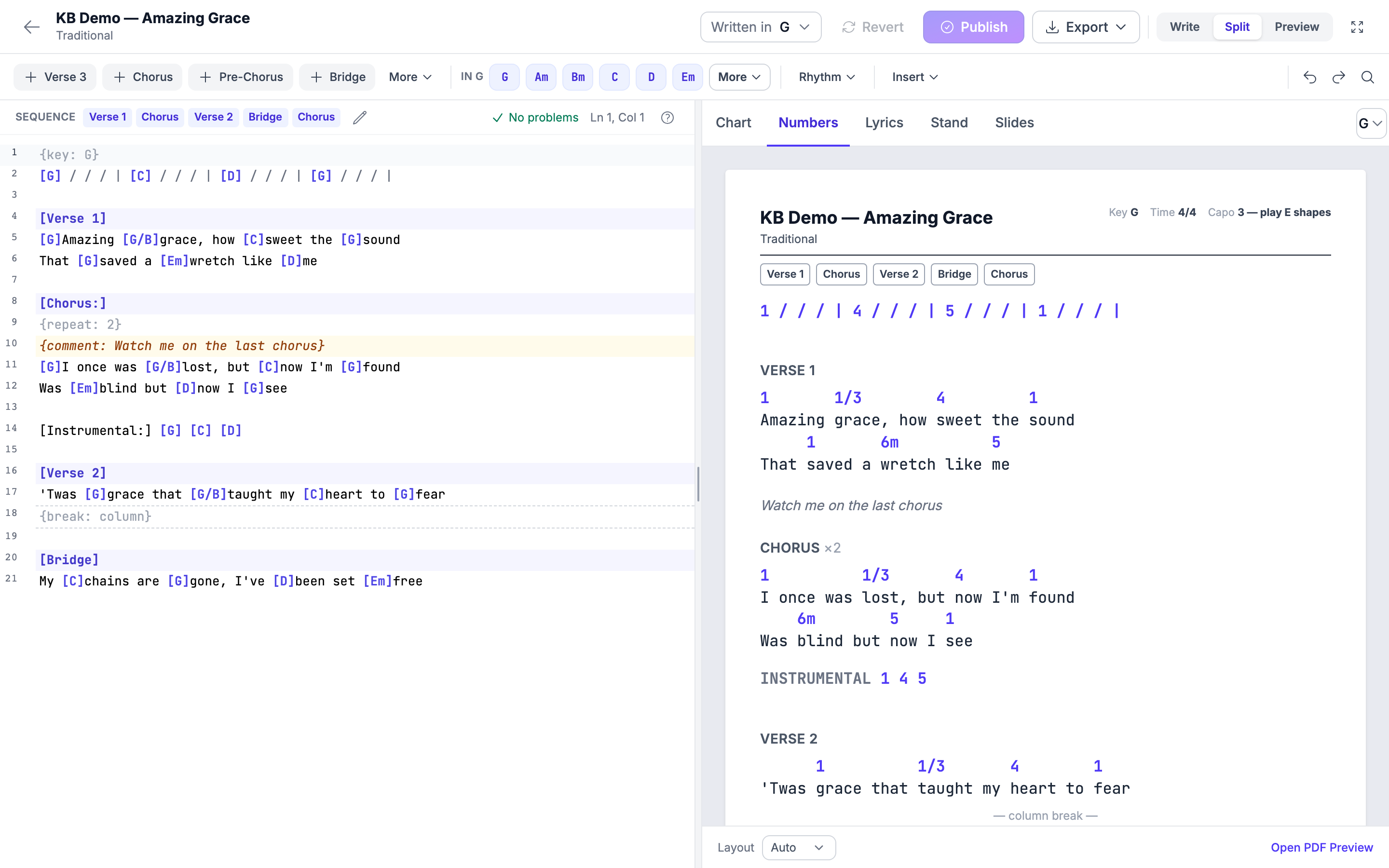
| Numbers | Nashville numbers, as they appear in the Nashville PDF |
| Lyrics | The words on their own |
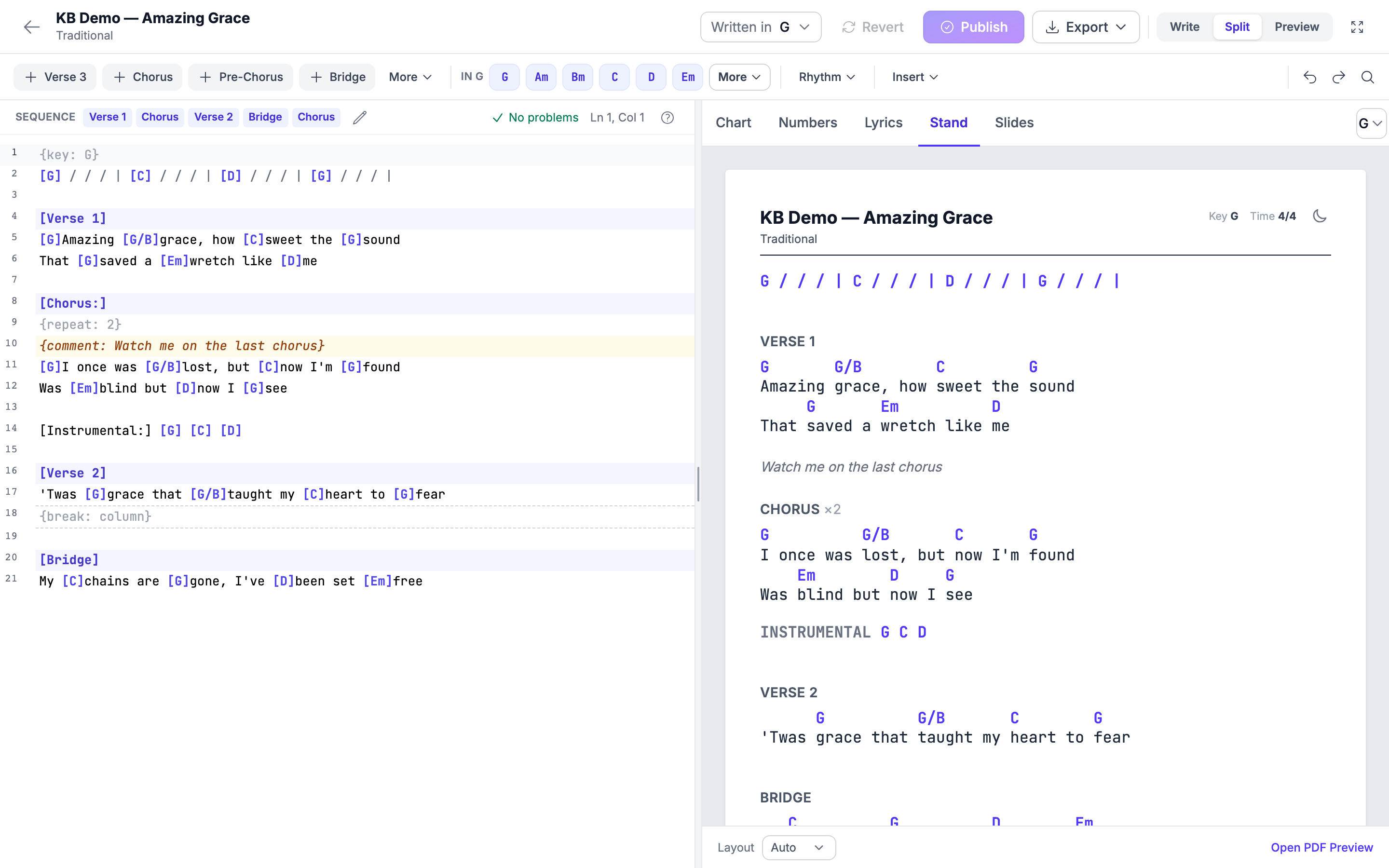
| Stand | Exactly My Stand's reader, as the band sees it on a tablet |
| Slides | What goes to slides, PowerPoint and ProPresenter |
Stand is the tab to check before Sunday — it is the reader your musicians will be holding. It opens in the light theme, and a moon toggle shows you the dark look.
Slides shows the congregation slides. Chords and band notes never reach them, and the tab says so; a note there also points out that PowerPoint adds a title slide before yours.
Lines written before the first section heading have no label on any tab. On the Slides tab they have no caption; the ProPresenter and text exports, which need a name for every group, call them Lyrics.
Drafts, Publishing and Reverting
Every edit autosaves as a private draft. Only you can see it. Your band keeps reading the published chart until you publish a new one — so nobody ever reads a half-typed chart off a music stand.
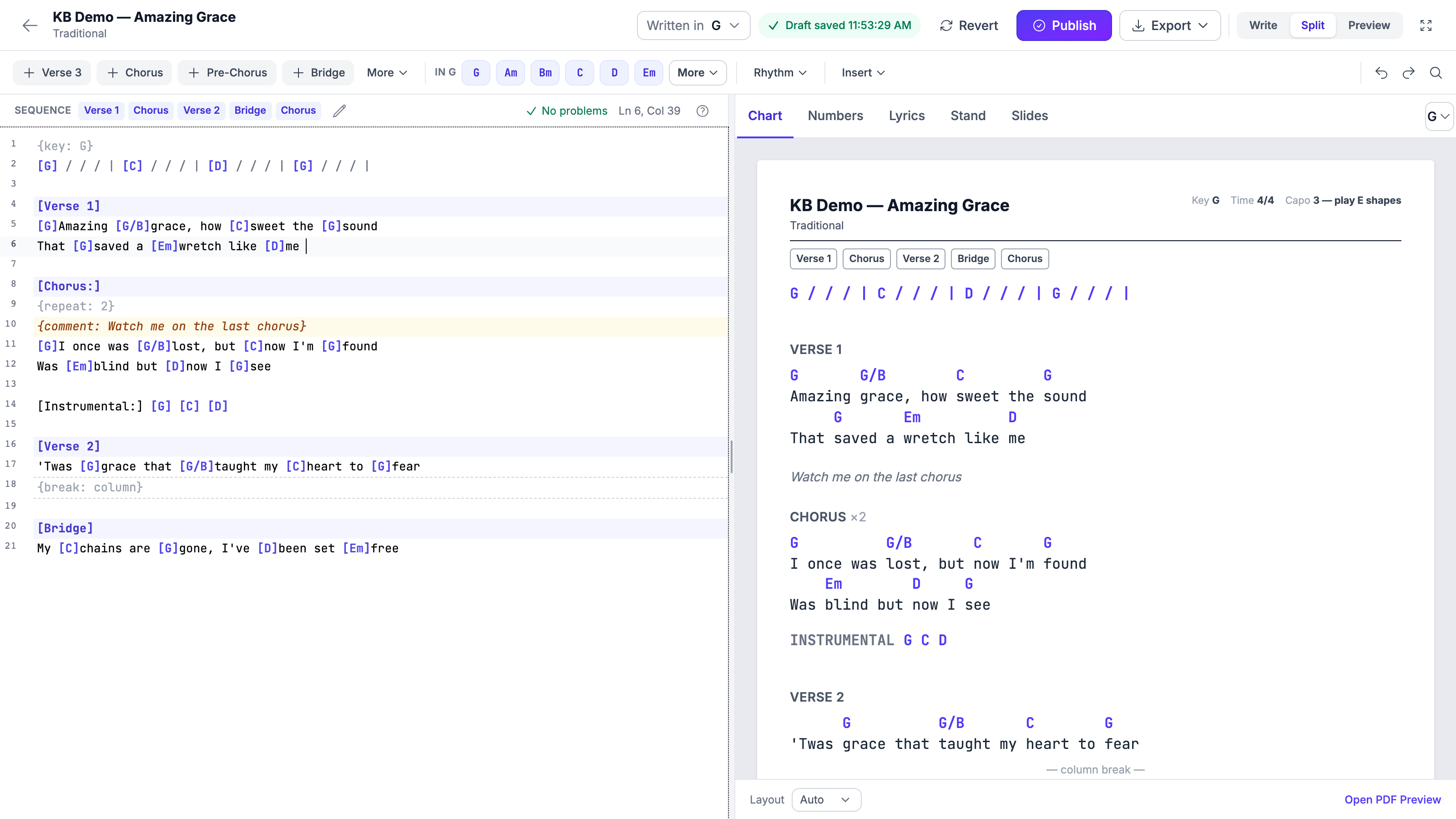
| Button | What it does |
|---|---|
| Publish | Makes your work live — for My Stand, for setlists and for every export |
| Revert | Returns you to the published chart, discarding the draft |
| Restore / Discard | Offered in a banner when edits are waiting from an earlier session. Discard asks you to confirm first |
If you close the laptop mid-verse and open the song later — on the same computer or a different one — a banner tells you there are unsaved edits and offers to restore them. It is always offered, never applied for you.
Your sequence is saved with the draft too, so the order you built does not go missing.
Exports use the published chart, not your draft. If you have edits you have not published, publish them before exporting.
The Sequence
The sequence is the playing order — Verse 1, Chorus, Verse 2, Chorus, Bridge, Chorus — shown as a strip in the Chart preview and printed on the PDF.
- Open the sequence editor from the write pane's status strip.
- Click sections in the order you play them.
- Drag a chip to move it, or nudge it with the arrows.
- Remove any chip you did not mean to add.
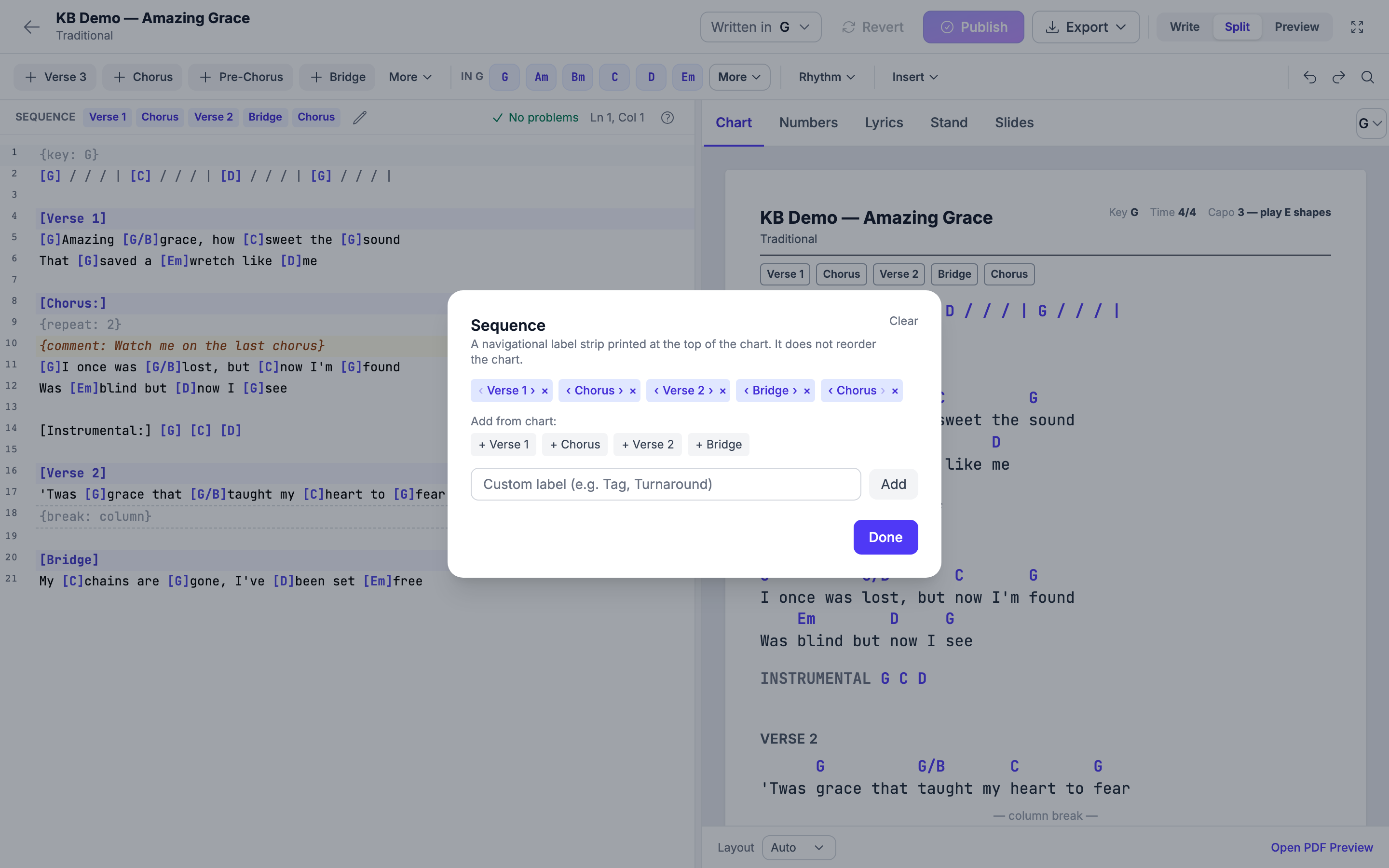
The sequence strip shows in My Stand too. It appears in the Chart preview, on the PDF, in My Stand's reader under the song header, and in the setlist's chart drawer.
Pasting a Chart from Somewhere Else
Most charts already exist somewhere — in Planning Center, in a Word document, on a website — usually with the chords sitting on a line above the words.
Paste it in. The editor recognises what it is looking at and offers:
This looks like chords written above the lyrics.
- Convert — the chords drop onto the words they belong to, as inline chords that transpose with everything else.
- Keep as is — nothing is changed.
Either way you can Undo it.
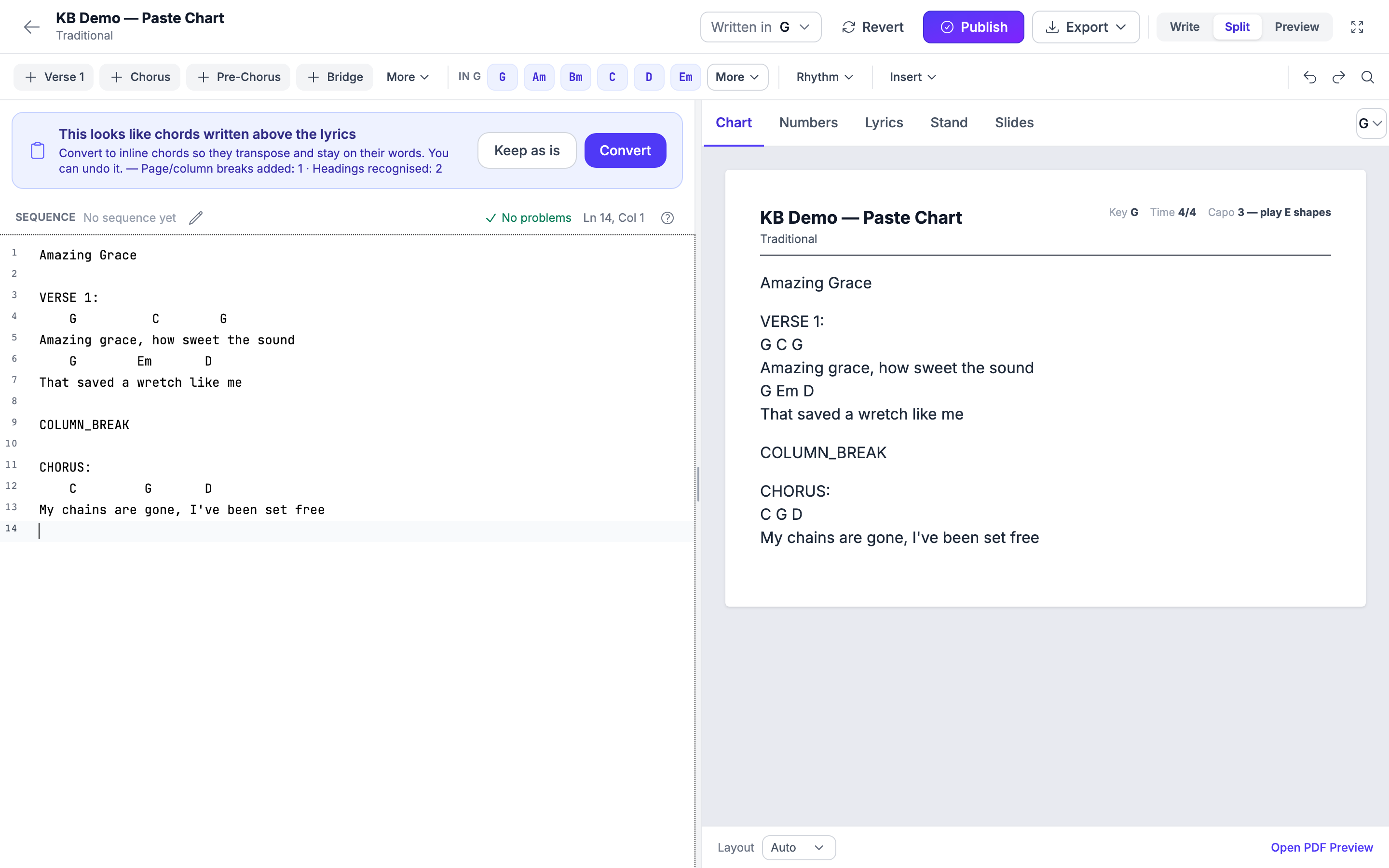
While it converts, the editor also tidies up:
- Layout codes such as
PAGE_BREAKandCOLUMN_BREAKbecome real page and column breaks. - Headings such as
VERSE 1:are recognised as sections. - Notes in the document become band notes --
{comment}lines, shown on the charts and on My Stand. See Band Notes, Column and Page Breaks, Repeats.
The offer tells you how many of each it found before you accept it.
When Something Is Wrong
An unclosed bracket or a stray chord is marked on the exact line and explained in plain words, with a one-click fix:
[E7burst on my sight → Fix it → [E7]burst on my sight
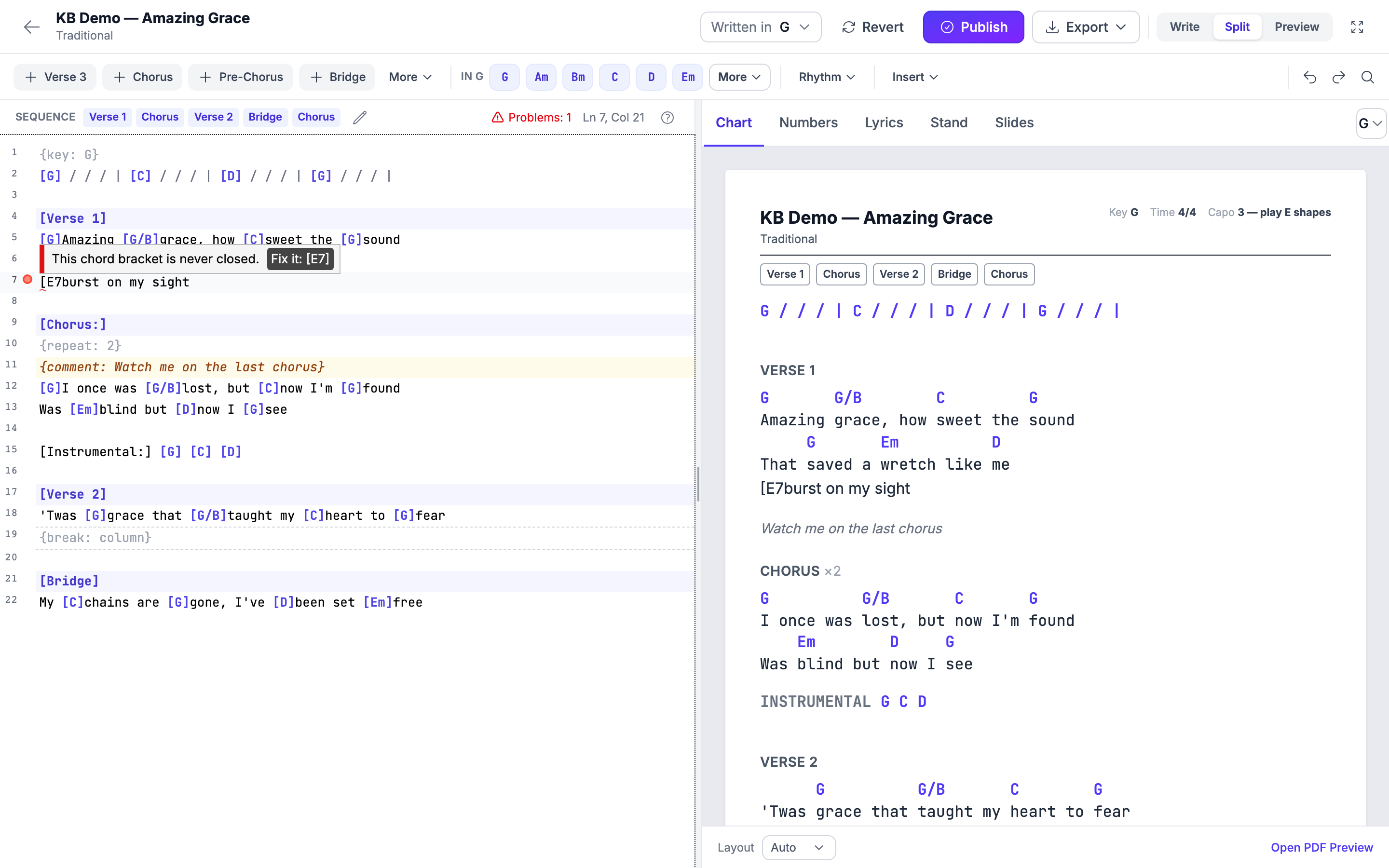
The write pane's status strip shows No problems when the chart is clean, Warnings: and a number when there are only warnings (such as a column break the PDF cannot use), or Problems: and a number when something needs fixing.
When a song has no key yet
If a song has no key anywhere — no {key:} line in the chart, no key on the arrangement, no default key on the song — the editor says so instead of guessing: an amber notice reads "This song has no key yet. Pick the key the chords are written in — nothing is labelled until you do.", the header shows Choose key where the key would be, and View in waits until you have chosen. Choose key opens the key dialog pre-selected to a guess from the chords ("Looks like G") — confirm or pick another. Until you do, Publish saves your text and labels nothing; once you have chosen, Publish pins {key: …} as usual.
Exporting
Export in the command bar carries every format:
- Chord Chart PDF — in the current key
- Lyrics PDF
- Nashville PDF
- Text — for ProPresenter and other slide tools
- PowerPoint
- ProPresenter
- Slides PDF and slide images
See Exporting Charts and Slides for what each format is good for.
On a Phone and on a Tablet
On a phone you switch between Write and Preview, and a bottom bar keeps everything within reach:
- The Section sheet — all the section labels as full-width rows.
- The More sheet — rhythm marks, find, Written in, View in, the sequence, export and revert.
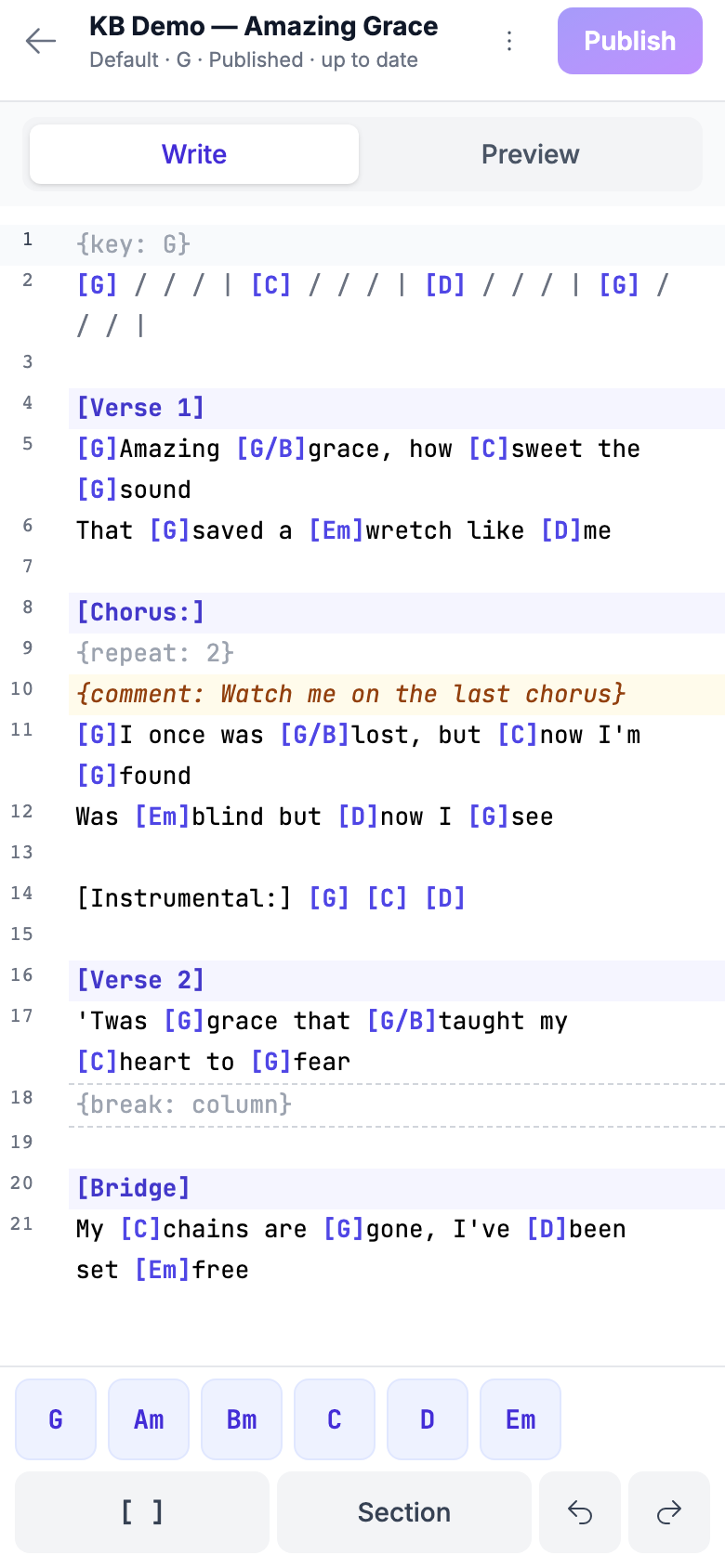
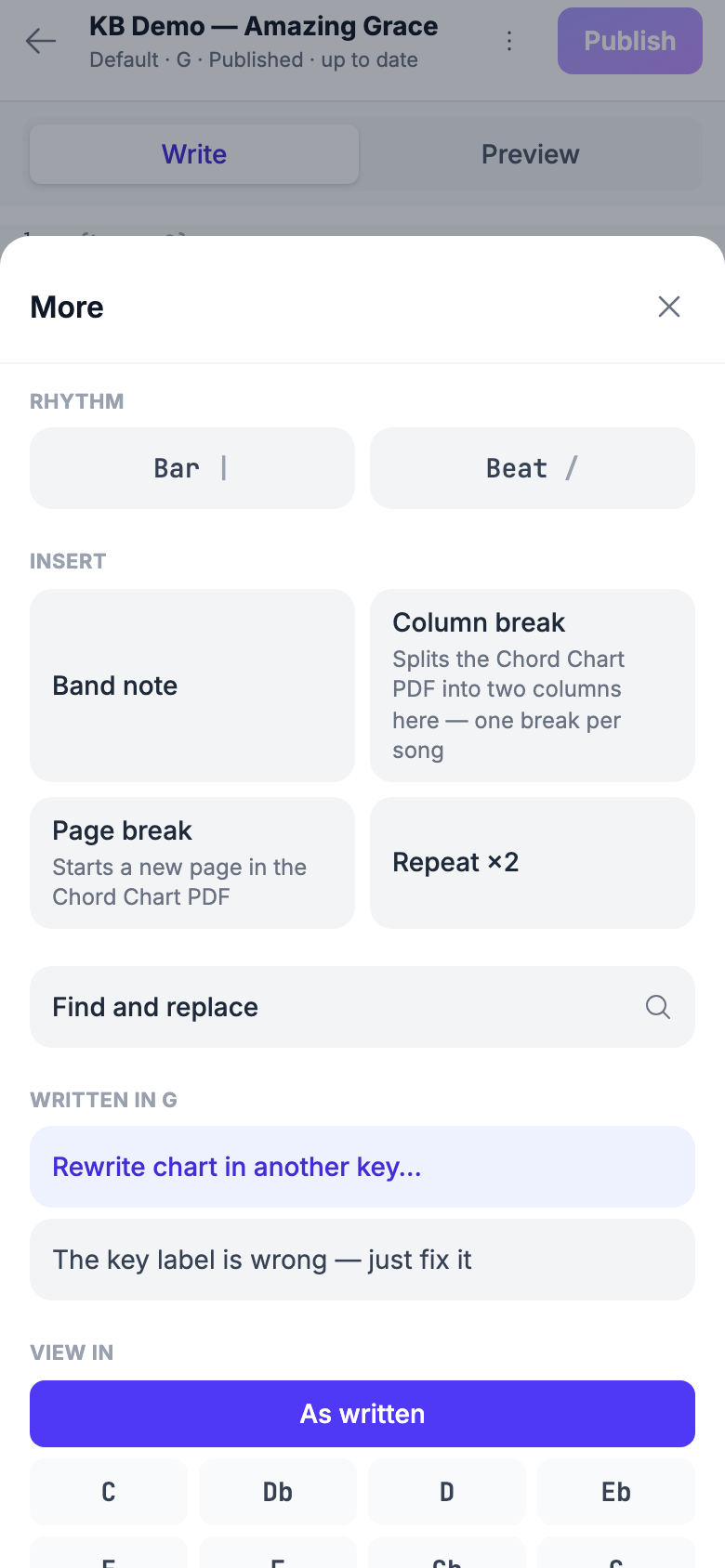
On an iPad you get the full desktop command bar and ribbon, with split view by default. Undo, Redo and Find stay at the right end of the ribbon; the arrow at the ribbon's edge scrolls to the other tools.
Starting a New Chart
When a chart is empty, the write pane asks how you want to start:
- Paste lyrics or a chart — from Word, a website or Planning Center.
- Upload a document — a PDF or Word file (Import documents also takes ChordPro and plain-text files), reviewed before it is saved. See Importing Songs from Documents.
- Start from a template — Verse, Chorus, Verse, Chorus, Bridge, Chorus, ready to fill in.
Or just start typing.
The Classic Editor
The previous chord chart editor is still available: Classic editor in the More/Export area of the workspace opens it.
Tips
- Check the Stand tab before Sunday. It is the screen your musicians will actually read.
- Publish when you are finished, not while you are thinking. The draft is private; that is the point.
- Let the section chips number your verses. They count for you, so you never end up with two Verse 2s.
- Paste first, then tidy. Converting a pasted chart is usually faster than retyping it, and you can undo the conversion.
- Fix the problems before you publish. A chart with an unclosed bracket prints exactly as badly as it looks in the preview.
Frequently Asked Questions
Will my band see my chart while I am still writing it? No. Every edit is saved as a private draft that only you can see. The band keeps reading the published chart until you press Publish.
I closed the page without publishing. Is my work gone? No. Open the song again and a banner offers to Restore the edits. They are kept for you, on whichever device you come back on.
I published something by mistake. Can I go back? Revert returns you to the published chart. If the mistake is already published, edit the chart back to what it should be and publish again.
Do the exports use my draft? No — exports use the published chart. Publish first, then export.
Does My Stand show the sequence strip? Yes. It sits under the song header in My Stand's reader and in the setlist's chart drawer, as well as in the Chart preview and on the Chord Chart PDF.
Can I still use the old editor? Yes. Classic editor, in the More/Export area.
Do the band notes I pasted show on the chart? Yes. Band notes show in italic grey on the Chart and Numbers previews, in the Chord Chart and Nashville PDFs, and on My Stand as their own line between the lyrics. They never reach the congregation's slides, the PowerPoint or ProPresenter export, the text export, the lyrics sheet or search.
Why does my column break not split the PDF?
Look at the column break's line in the write pane. If it is marked
"Too wide for two columns — the PDF will use one column.", a lyric or
chord line is too long to fit half a page even in smaller print, so the
PDF keeps the chart in one column; shortening the longest line gives the
break something to split. If it is marked "Only the first column break
is used.", an earlier break in the song is the one that counts. And
with Layout set to 1 column, the PDF never splits. A
{break: page} elsewhere in the chart makes no difference: the columns
carry on across the page turn.
Why is there no "Intro" over my first lines any more? The editor only shows the headings you write. Lines before your first heading print without a label. To label them, put the cursor in them and choose Intro -- the heading goes above them.
What happens to the colon in [Chorus:]?
It is dropped when the chart is shown: the heading reads Chorus.
[Instrumental:] at the start of a line of chords labels that one line.
Related Articles
- Keys, Transposing and What the Band Sees — Written in, View in, the capo hint and the key line
- Chord Charts and Key Transposition — the chord notation itself
- Exporting Charts and Slides — every export format
- My Stand — The Big Picture — the reader the Stand tab shows you
- Song Arrangements — a separate chart per arrangement
- Importing Songs from Documents — Word, PDF and scanned sheets
Last updated: October 3, 2026