
Conditional Logic / Show-Hide Rules
Now Available: Conditional logic is live. You can show, hide, or require a field based on the answers respondents give to earlier fields, right inside the form builder, with no developer help. This article covers how to set it up and what each option does.
What Conditional Logic Does
Conditional logic lets you show, hide, or require a field based on the answers respondents give to earlier fields. Common examples:
- "Spouse's Name" only appears if "Marital Status = Married".
- "Tell us about the food allergy" only appears if "Has food allergies = Yes".
- A "Childcare Needs" question appears only when "Bringing children = Yes".
- "Other (please specify)" text field appears only when a respondent picks "Other" from a dropdown.
- "Allergy Details" becomes required only when "Has Allergies = Yes".
This lets you build dynamic, branching forms without splitting them into multiple forms.
How to Set It Up
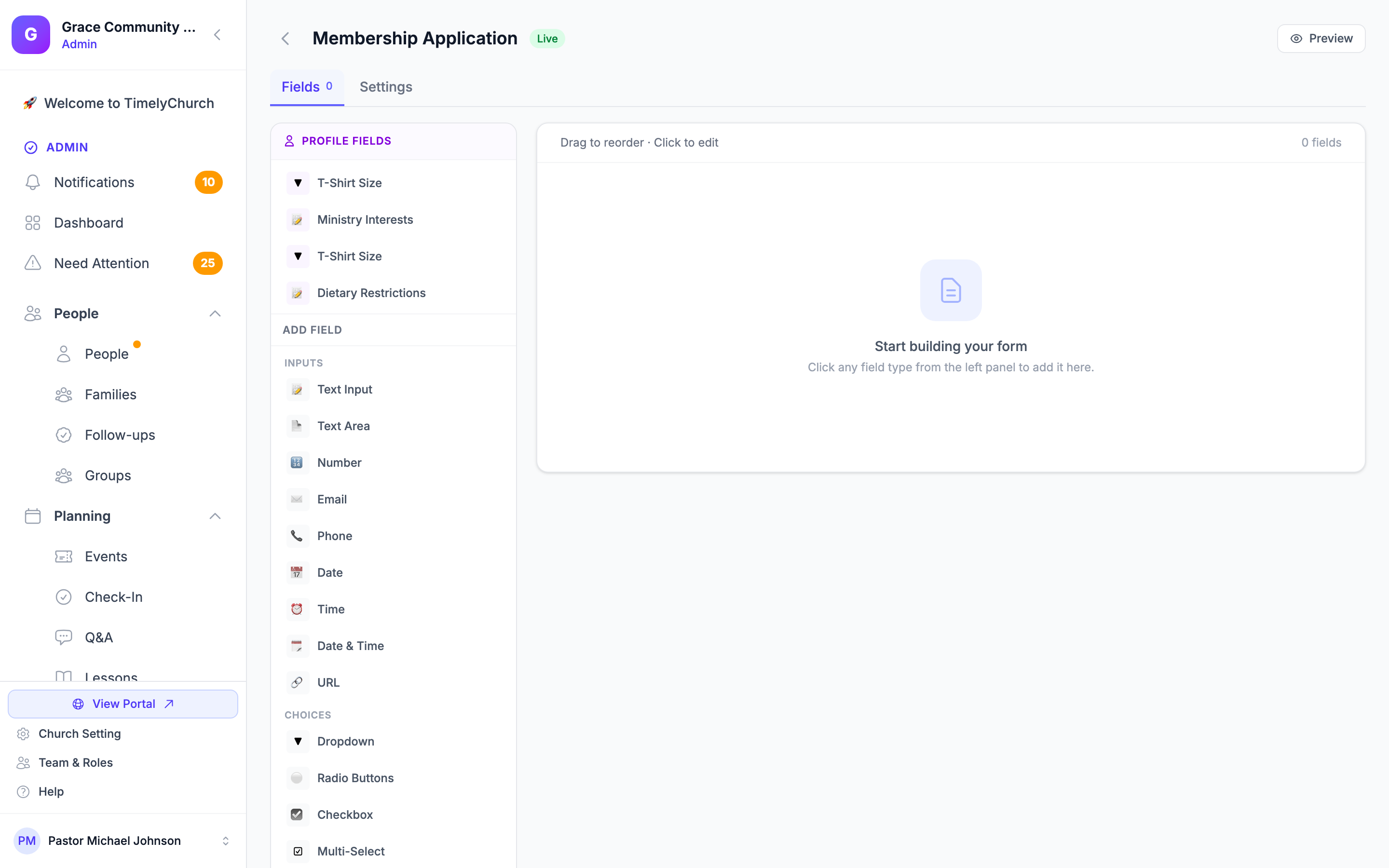
Conditional logic is configured per field, inside the field editor.
- Open your form in the builder.
- Click a field in the canvas to open the Edit Field slide-over panel.
- Scroll down to the Conditional Logic section.
- Turn on the Conditional Logic toggle.
- Choose an Action and a Match mode, then add one or more rules (see below).
- Save the form. The rules take effect immediately on the public form.
Choose the Action
The Action dropdown decides what happens when the rules match:
- Show this field: the field is hidden by default and appears only when the rules match.
- Hide this field: the field is visible by default and disappears when the rules match.
- Require this field: the field stays visible, but becomes required only when the rules match. (On top of this, a field can still be required by its own "Required" setting.)
Choose the Match Mode
When you add more than one rule, the Match dropdown decides how they combine:
- All rules below (AND): every rule must be true for the action to fire.
- Any rule below (OR): the action fires if at least one rule is true.
Add Rules
Click Add rule to add a condition. Each rule has three parts:
- Field: the earlier field whose answer this rule watches. The dropdown lists the other fields in your form.
- Operator: how to compare the answer (see the operator table below).
- Value: what to compare against. If the watched field is a Dropdown / Radio / Checkbox, this becomes a dropdown of that field's options; otherwise it's a free-text box. For "is filled" and "is empty" no value is needed.
Use the red X on a rule row to remove it. There is no fixed limit on the number of rules.
Tip: For "is one of" / "is none of", type the values separated by commas (for example
a, b, c).
Supported Operators
| Operator | Matches when the watched field... |
|---|---|
| Equals | exactly equals the value |
| Does not equal | does not equal the value |
| Contains | contains the value as text |
| Does not contain | does not contain the value as text |
| Begins with | starts with the value |
| Ends with | ends with the value |
| Greater than | is a number greater than the value |
| Less than | is a number less than the value |
| Is filled | has any answer entered |
| Is empty | has no answer |
| Before (date) | is a date earlier than the value |
| After (date) | is a date later than the value |
| Is one of (comma separated) | matches any value in your comma-separated list |
| Is none of (comma separated) | matches none of the values in your list |
Which Fields Can Use Conditional Logic
Conditional logic is available on regular input fields. It is not offered on layout-only or non-interactive fields: Section Header, Instructions, Page Break, and Hidden Field do not show the Conditional Logic section. Any other field (text, dropdown, radio, checkbox, date, number, file upload, and so on) can be driven by rules and can also act as the trigger field for another field's rules.
How It Behaves on the Public Form
Rules are evaluated in two places:
- As the respondent types or selects, the form re-checks the rules live, so fields appear, disappear, and switch between required and optional instantly.
- Again on the server when the form is submitted. This is the source of truth. A hidden field is never validated, so a conditionally hidden required field never blocks submission. A conditionally required field is enforced only when its rule actually matches.
Because hidden fields are dropped from validation, they are also excluded from the saved submission. Reports and exports only contain the answers a respondent actually saw and filled in.
Tips for Designing Branching Forms
A few patterns that pair well with conditional logic:
Combine With Sections and Page Breaks
A Section layout field adds a heading that breaks the form into readable chunks, and a Page Break splits the form across pages. While Sections and Page Breaks themselves do not carry conditional rules, you can still control the individual fields inside them with logic to create a guided, branching experience.
Handle "Other (please specify)" Cleanly
When a Dropdown / Radio has an "Other" option, add a text field right after it and give that text field a Show this field rule with the watched field set to your choice field and the value set to "Other". The text box then appears only when the respondent picks "Other".
Require Follow-Up Details Only When Needed
Leave a follow-up field optional by default, then add a Require this field rule so it is only mandatory in the situation that calls for it (for example, requiring "Allergy Details" only when "Has Allergies = Yes"). This keeps the form short for everyone else.
Split Into Multiple Forms for Radically Different Paths
When two paths through a form are completely different (e.g., "I am a member" vs "I am a visitor"), it can still be cleaner to build two separate forms and link them from a single landing page. Conditional logic handles branching within one form well, but very divergent flows are sometimes easier to maintain as separate forms.
Related Articles
- Form Field Types: the Conditional Logic section there covers the same setup from the field-types angle.
- Creating a Form: the form builder basics.
- Managing Submissions: where the answers respondents actually filled in show up.