
Consent Forms and Waivers at Check-In
Some events need a parent's signature before a child can take part -- a camp medical release, an activity waiver, a photo release. With TimelyChurch you attach a form to a check-in session, and parents read and sign it on the kiosk before their children are checked in. The signed copy is saved to each child's record.
Step 1: Build the Consent Form
The consent form is an ordinary form from the Forms module.
- Create a form for your waiver.
- Add your waiver text in an Instructions field (or a Section field). This is the text parents read on the kiosk.
- Add an "I agree" checkbox and a Signature field.
- Publish the form. Only published forms can be attached to a session.
If you have no published forms yet, the check-in screens say so: "No published forms yet. Build a consent form in Forms (your waiver text, an "I agree" checkbox, and a Signature field), publish it, then attach it here."
Step 2: Attach the Form to a Session
You can attach the form when you start a session, or later.
When starting a session: in the Start Check-In Session window, choose the form under Consent / Waiver (optional) ("Parents read and sign this form at check-in before their children are checked in.").
On a session that is already running: open the session page, find the Consent / Waiver card, and click Add (or Change). This needs the Check-In Manage permission.
Then choose:
- How often must a parent sign?
- Every check-in -- a signature every time the family checks in to this session.
- Once every [N] days (90 by default, up to 365) -- a family that has already signed this form within that many days is not asked again.
- Block check-in until signed -- "If off, the greeter is warned but can still check the child in."
The Consent / Waiver card on the session page then shows the form and its rules -- for example "sign every check-in · blocks unsigned". To stop asking, choose No consent required.
What Parents See on the Kiosk
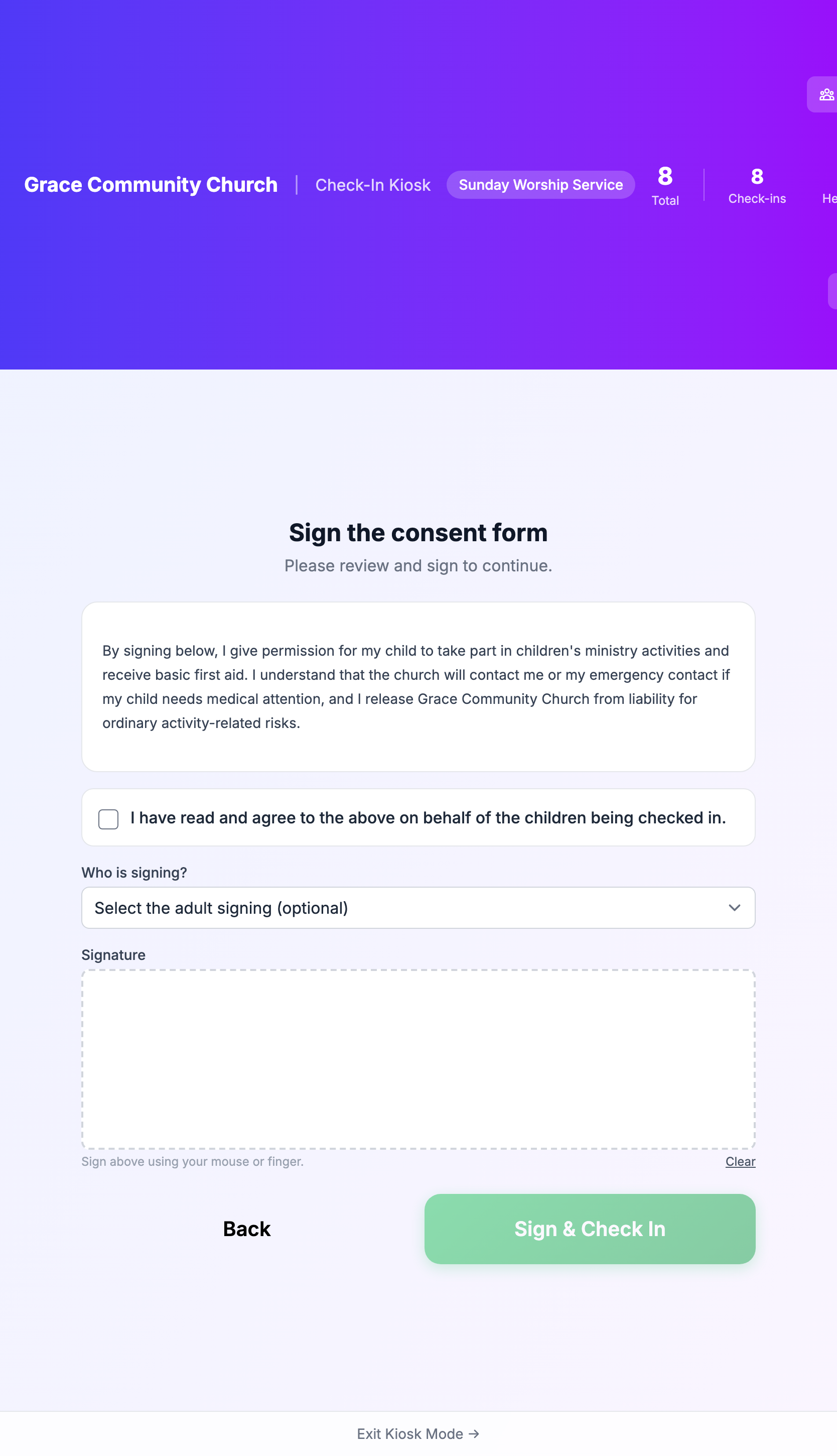
When a family selects their children and taps Check In, the kiosk shows Sign the consent form ("Please review and sign to continue.") before anyone is checked in:
- The waiver text from your form.
- A checkbox: "I have read and agree to the above on behalf of the children being checked in."
- Who is signing? -- an optional list of the adults in the family ("Select the adult signing (optional)").
- A Signature box -- "Sign above using your mouse or finger." Tap Clear to start again.
- Sign & Check In -- available once the checkbox is ticked.
Back returns to the family screen. Check in without signing appears when the session does not block unsigned check-ins, or when it uses Once every [N] days (for families who already signed recently).
What Happens When Someone Doesn't Sign
| Session setting | Family signs | Family doesn't sign |
|---|---|---|
| Block check-in until signed on | Checked in, consent saved | Refused: "A signed consent form is required before checking in." |
| Block check-in until signed off | Checked in, consent saved | Checked in, no consent recorded |
| Once every [N] days, signed within that period | Not asked again | -- |
A few things to know:
- Signatures are collected on the kiosk only. The Check-In Station on the admin page has no signature step. If a session blocks unsigned check-ins, send those families to the kiosk.
- Pre-check QR codes can't collect a signature. If a family has not signed yet, scanning is refused with "This session requires a signed consent form — please check in at the kiosk to sign." -- they check in by phone number or name at the kiosk instead.
Where Signed Consents Are Saved
Each signature is saved as a submission of your consent form for each child checked in, so you can find it:
- on the child's profile, in the Forms & Registrations tab, and
- with the form's other submissions in the Forms module.