
Building Setlists
A Setlist is a reusable, savable list of songs -- each with its own key, arrangement, and capo -- that you can build once and then reuse, open in My Stand, lead live, or load into a service plan. Setlists are the fastest way to assemble the music for a service, and they live under the dedicated Worship category in the admin sidebar.
Who can build setlists? Creating and editing setlists requires the Songs & Music permission — see Who can manage the Song Library. Setlists are part of the Growth and Pro plans.
Setlists vs. Service Plans
It helps to know how the two fit together:
- A Setlist is just the music -- a saved, reusable list of songs and keys. Build it standalone, reuse it across services, and hand it to the band.
- A Service Plan is the full run-of-show for one specific service -- songs plus scripture, prayers, the sermon, announcements, and timing -- built inside a worship event in the Events Hub.
You can build a setlist on its own and later load it into a service plan in one step. See Service Orders (Service Plans).
Opening Setlists
- In the admin sidebar, expand the Worship category.
- Click Setlists.
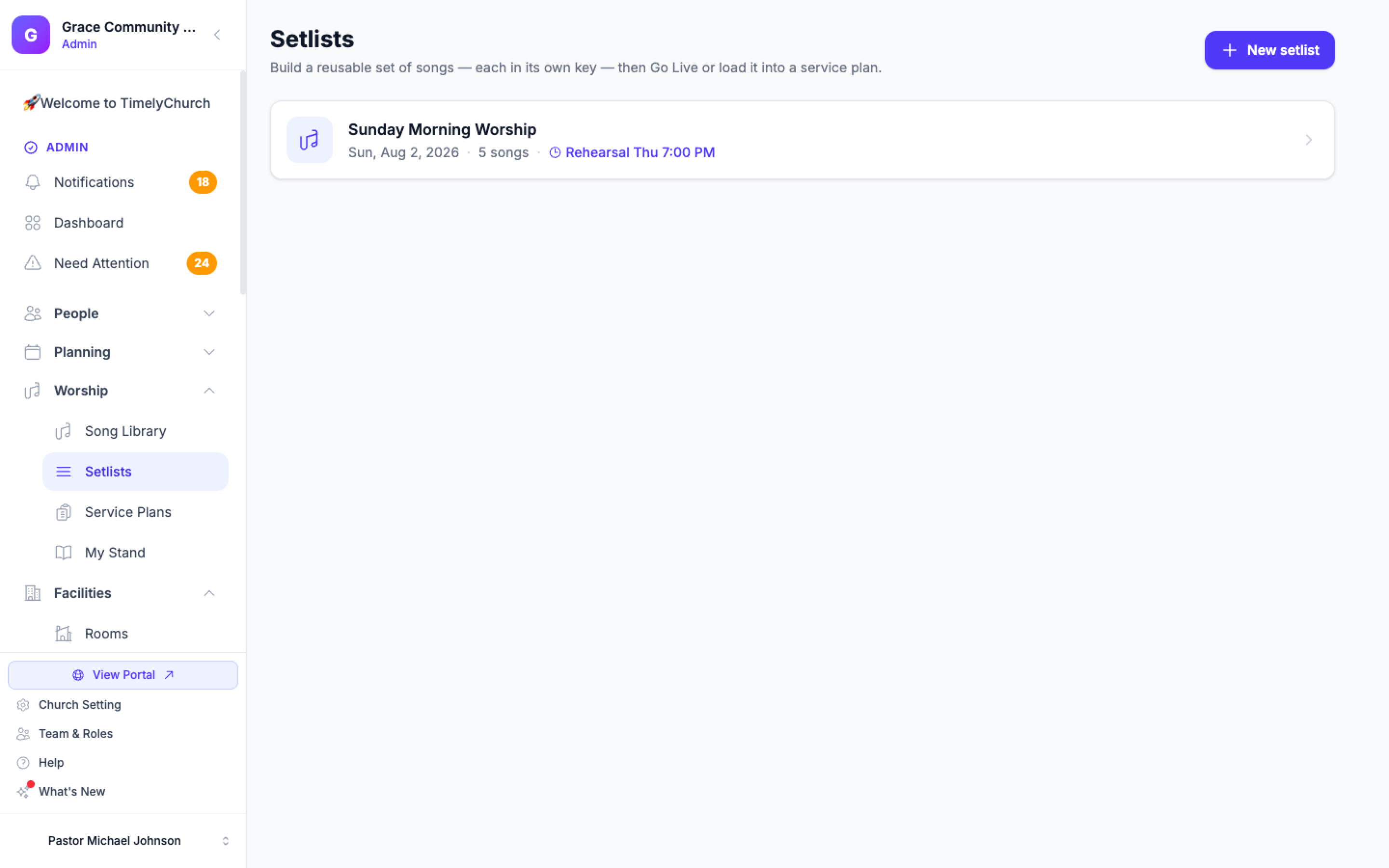
The index lists your saved setlists -- name, service date, song count, the next rehearsal, and a Live now pill if a set is currently being led. Admins see every setlist; other leaders see the setlists they created and the ones for teams they lead (setlists you are only scheduled on are in My Stand). Click Add Setlist to start one, or click an existing setlist to open the builder. The Devices button next to it sets up Stand Link tablets and the Song Sync desktop app.
Building a Set
Open a setlist to reach the builder. Changes save as you go ("Saving…" appears next to the Songs heading).
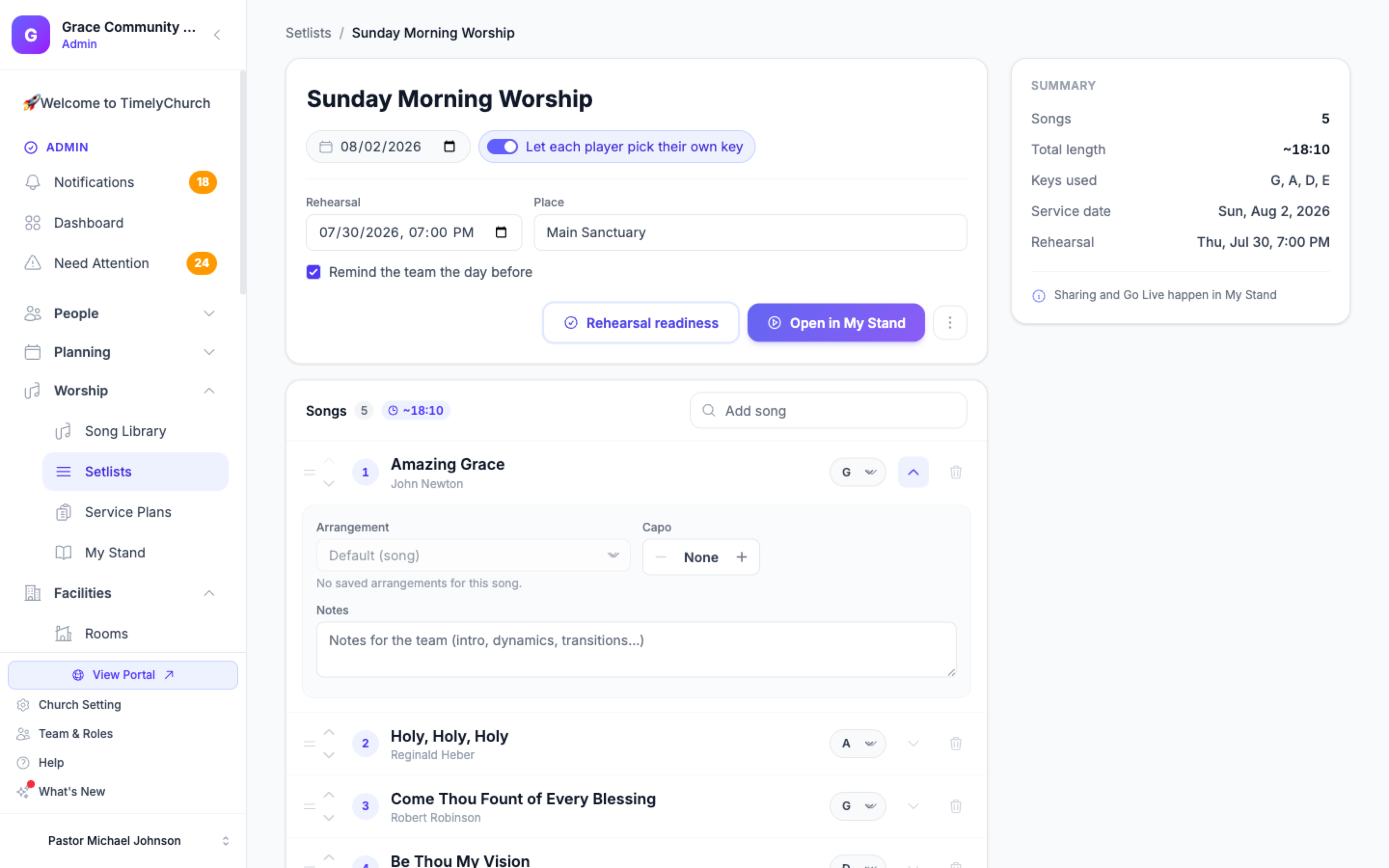
- Name the set (for example, "Sunday Morning -- Jan 12") and pick its Service date.
- Add songs from the library. Type in the Add song box to find a song by title, artist, or lyrics; each result shows its key and when it was last played. Click a result to add it. The box shows up to 25 matches -- when there are more, "Showing 25 of … · Browse all →" opens the full library with your search already filled in.
- Set each row's details. Every song row has a Key chip for the key you will play it in (it may differ from the song's default). Open Song options on the row to choose:
- Arrangement -- which stored arrangement to use, or Default (song).
- Capo -- an optional capo position for guitarists (None or a fret).
- Notes -- a short note for the team (intro, dynamics, transitions…).
- Reorder with the Move up / Move down arrows on each row. The new order saves automatically.
- Remove a song with Remove from setlist in the row's Actions menu. The same menu has Open full song, Slides — preview & export…, and the band PDFs (PDF — Chord Chart…, PDF — Lyrics Only).
A Summary card beside the songs lists the number of songs, the total length, the keys used, the service date, and the next rehearsal.
Let Each Player Pick Their Own Key
Switch on Let each player pick their own key (next to the service date) to let players transpose to their own key in My Stand. Leave it off when everyone must read the chart in the key you set.
Browsing the Library
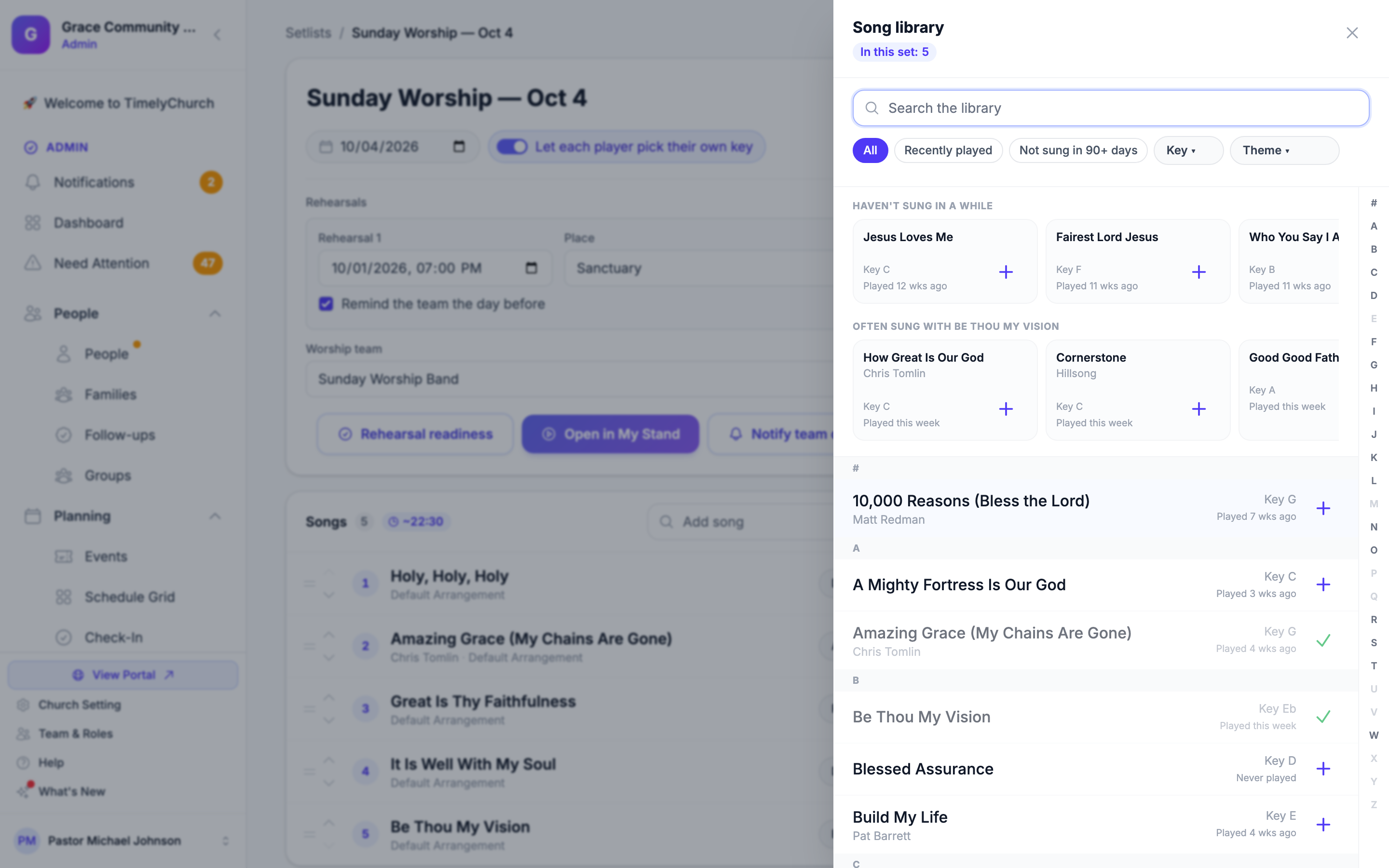
When you'd rather look through your songs than type a title, click the Browse library button (the book icon next to Add song). The Song library drawer opens:
- Search the library, or filter with All, Recently played, Not sung in 90+ days, and the Key ▾ and Theme ▾ menus.
- Jump to a letter with the A–Z row.
- In this set shows how many songs you have added so far. Each song has an Add to set button (Add again if it is already in the set), and you can add several songs without closing the drawer.
- Before you search or filter, the drawer suggests songs in three rows: Haven't sung in a while, Often sung with a song already in your set, and Same key as a song in your set -- handy for building smooth key transitions.
- Load more fetches the next page of songs.
Click a song's title in the drawer to preview its chart first; if you change the preview's key, the button offers to Add in that key.
The Chart Preview Drawer
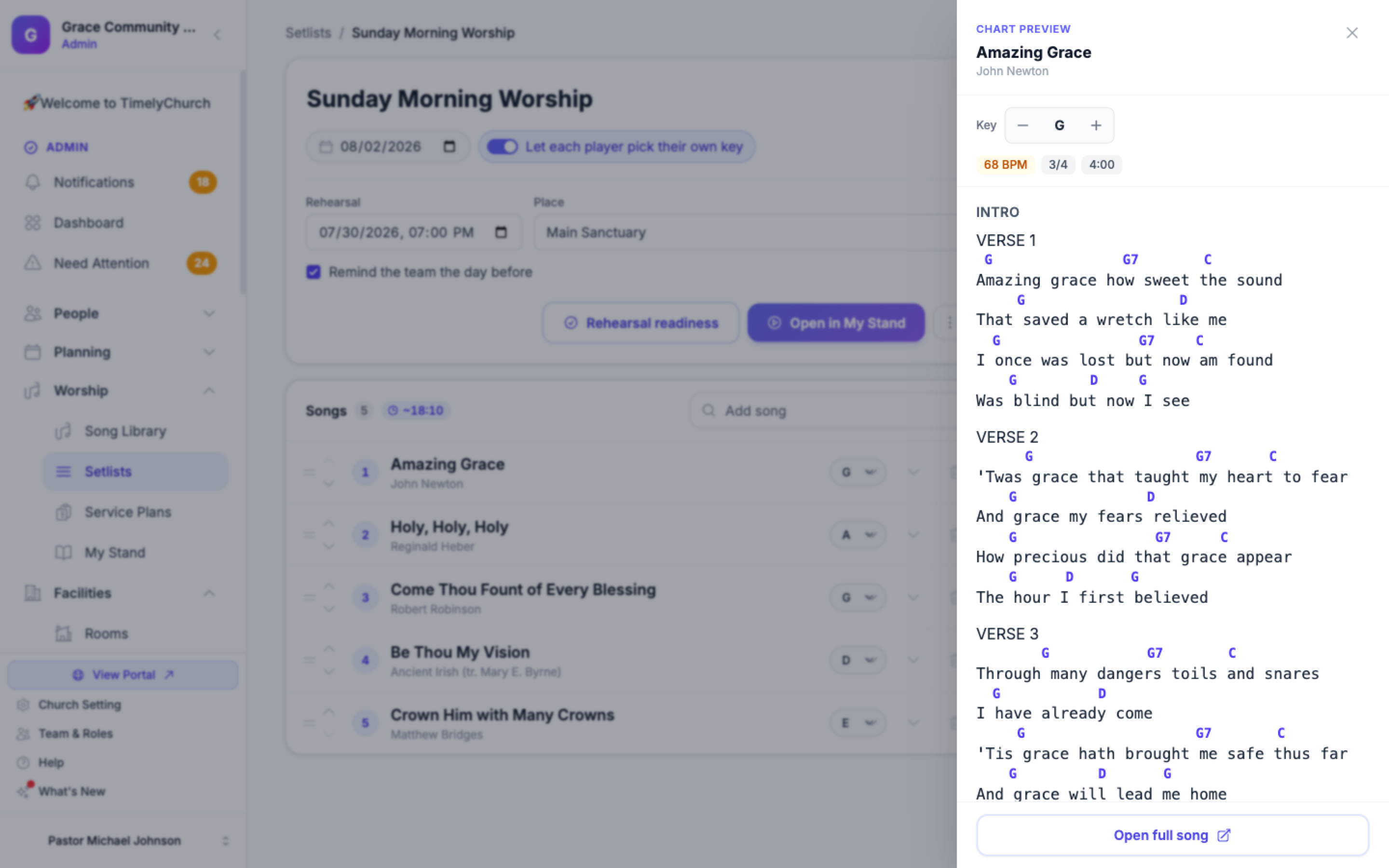
Click the eye icon (Preview chart) on a song row to open the Chart preview drawer -- a slide-over panel that shows the song's chord chart in the row's chosen key, without leaving the builder. From the drawer you can:
- Transpose the preview up or down to check a different key.
- Listen -- YouTube and Spotify buttons appear when the song has those links, so you can hear the arrangement.
- See the BPM and other details at a glance.
- Open attachments -- any files on the song (lead sheets, reference audio) are listed for download.
- Open full song in the Song Library for deeper editing.
Set Duration
The Songs card header shows a total set duration chip, summing each song's duration. Songs without a stored duration are left out, so the total is approximate.
Assigning a Worship Team
Every setlist can belong to one of your church's worship teams. Set it with the Worship team menu at the bottom of the Rehearsals block -- pick from your worship teams (or any other team your church has set up), or leave Not set — nobody is reminded. This one setting controls who can even see the setlist:
- Members of the assigned team see the setlist on their My Stand.
- Church/worship admins and the assigned team's leader or co-leader see it too, and can edit it.
- Everyone else does not see it in their list at all -- opening the link directly behaves as if the setlist does not exist.
- A setlist with no team assigned is visible only to admins, who get a gentle nudge in the builder to pick one.
Assigning the right team is also what turns on Notify team and Nudge for that set. See Your Worship Team on a Setlist for the full walkthrough of assignment, notifications, and the readiness roster.
Rehearsal Dates and Reminders
A standalone setlist isn't limited to a single rehearsal -- click Add rehearsal in the builder to add as many rows as your team needs, each with its own date and time, Place, and reminder toggle (for example, "Thursday 7pm -- Main Auditorium"). Turn on Remind the team the day before on a rehearsal (it needs a date and a worship team) and it sends a reminder the evening before that rehearsal, with a link to the set and each member's own readiness ("You've learned 2 of 4"). See Rehearsal Readiness and Reminders for the full picture, including how RSVPs work per rehearsal.
Setlist Actions
From the builder you can:
- Rehearsal readiness -- Open the readiness page to see team %, per-song and by-member progress, RSVPs, and a per-member Nudge. See Rehearsal Readiness and Reminders.
- Open in My Stand -- Jump straight to the music-stand reader for this set. Leading live happens there: the setlist's assigned team leader/co-leader, the setlist's creator, or an admin taps Lead live in My Stand. See Go Live on Sunday.
- Notify team -- Send every roster member a one-time notification (Telegram if connected, else email) that the setlist is ready, with a link straight to their stand. After the first time the button reads Notify team of changes. See Your Worship Team on a Setlist.
- More (three dots):
- Duplicate setlist -- Copies the name and songs into a new setlist. If your church has another service on the same day, you can choose where the copy goes under Copy to (a service that already has a setlist gets it replaced -- the menu warns you first), or leave it Not linked to a service.
- Delete setlist -- Deletes the setlist after you confirm. This cannot be undone.
The builder itself reminds you: "Sharing and leading live happen in My Stand. To use this set in a service, open a worship event and choose Load setlist on its Service Plan tab." See Service Orders (Service Plans).
Tips
- Reuse your rotation. Keep a couple of "template" setlists for your common service shapes and use Duplicate setlist each week.
- Set keys once. Dial in each singer-friendly key on the setlist so it carries through to the service plan, the shared link, and My Stand.
- Preview before you publish. Use the chart preview drawer to confirm the transposed chart looks right in the chosen key.
- Add your rehearsals early. Turning on reminders as soon as the set exists gives the team the most time to learn their parts.
Related Articles
- Worship & Songs Overview
- Song Library
- Chord Charts and Key Transposition
- Service Orders (Service Plans)
- Share a Service Plan with Your Band
- Rehearsal Readiness and Reminders
- My Stand — The Big Picture
- Your Worship Team on a Setlist
- Go Live on Sunday
- Stand Link — The Tablet That Lives on the Music Stand
Last updated: September 30, 2026