
Magic Link Login for Members
This guide is written for church admins to share with their congregation, or to read yourself so you can answer questions when members get confused. It explains how members sign in to the Member Portal at /c/your-slug/login.
If you're a staff member or admin, you sign in differently, at the top-level /login URL with email and password. (There's also an emailed sign-in link you can request from that page as a fallback when the security check won't load; see Staff Sign-In Link below.) This page is about the member-facing login flow.
What's a Magic Link?
A magic link is a one-tap login link delivered by email. There's no password to remember, no account to create. The member enters their email, clicks the link in their inbox, and they're signed in to your church's portal.
A magic link avoids a few problems. Members already forget passwords for other services, and this adds no new one. When a member gets locked out, they request a new link instead of emailing the office. And the link works on any device: phone, tablet, or work computer.
For members who do want a password, we also offer a password fallback (see below).
The Member Login Flow
Step 1: Member visits the portal
Members go to:
timelychurch.com/c/your-slug/login(Sign-in always happens on this TimelyChurch address. If your church has set up a Custom Domain for its public website, the sign-in links on that website bring members here.)
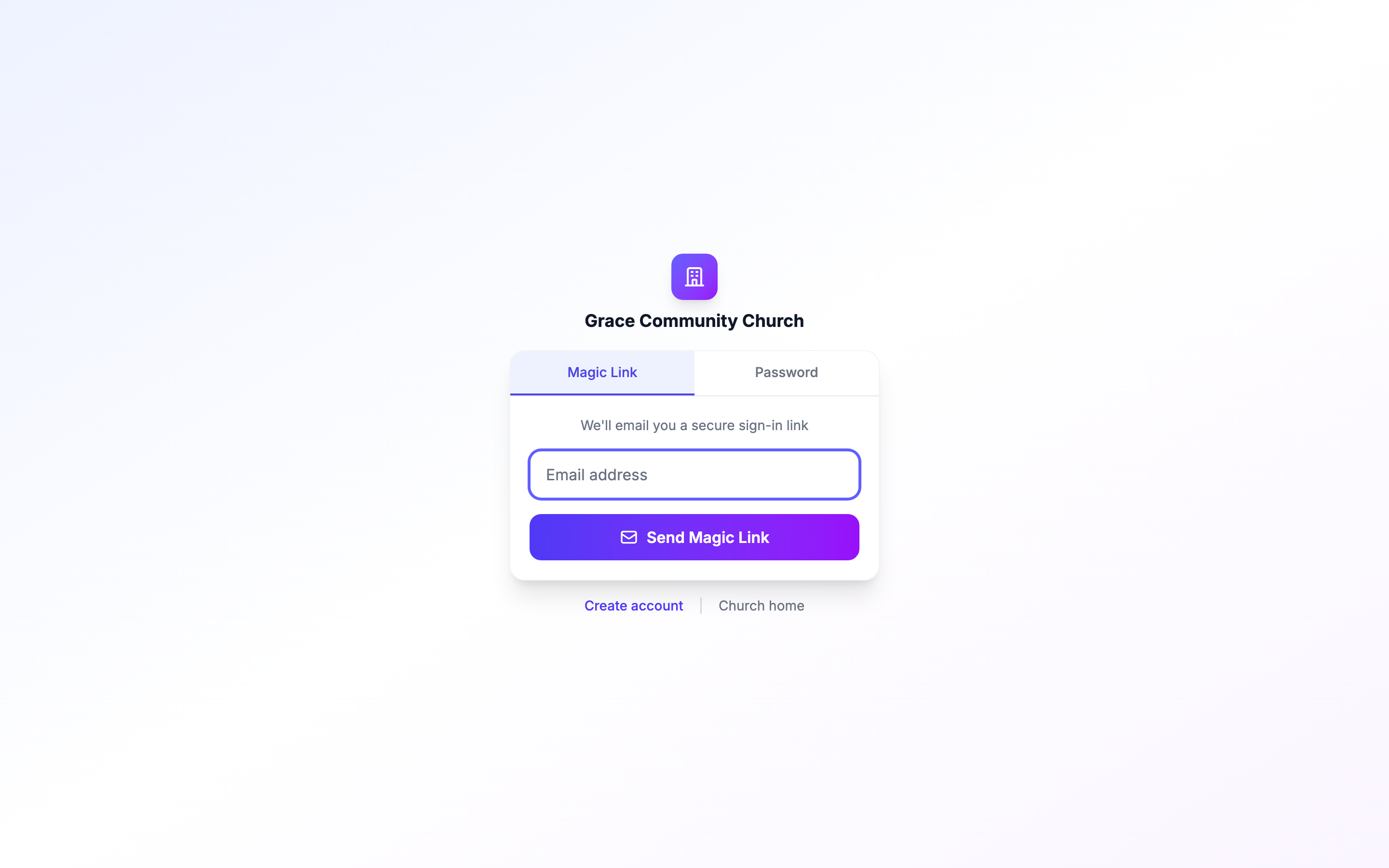
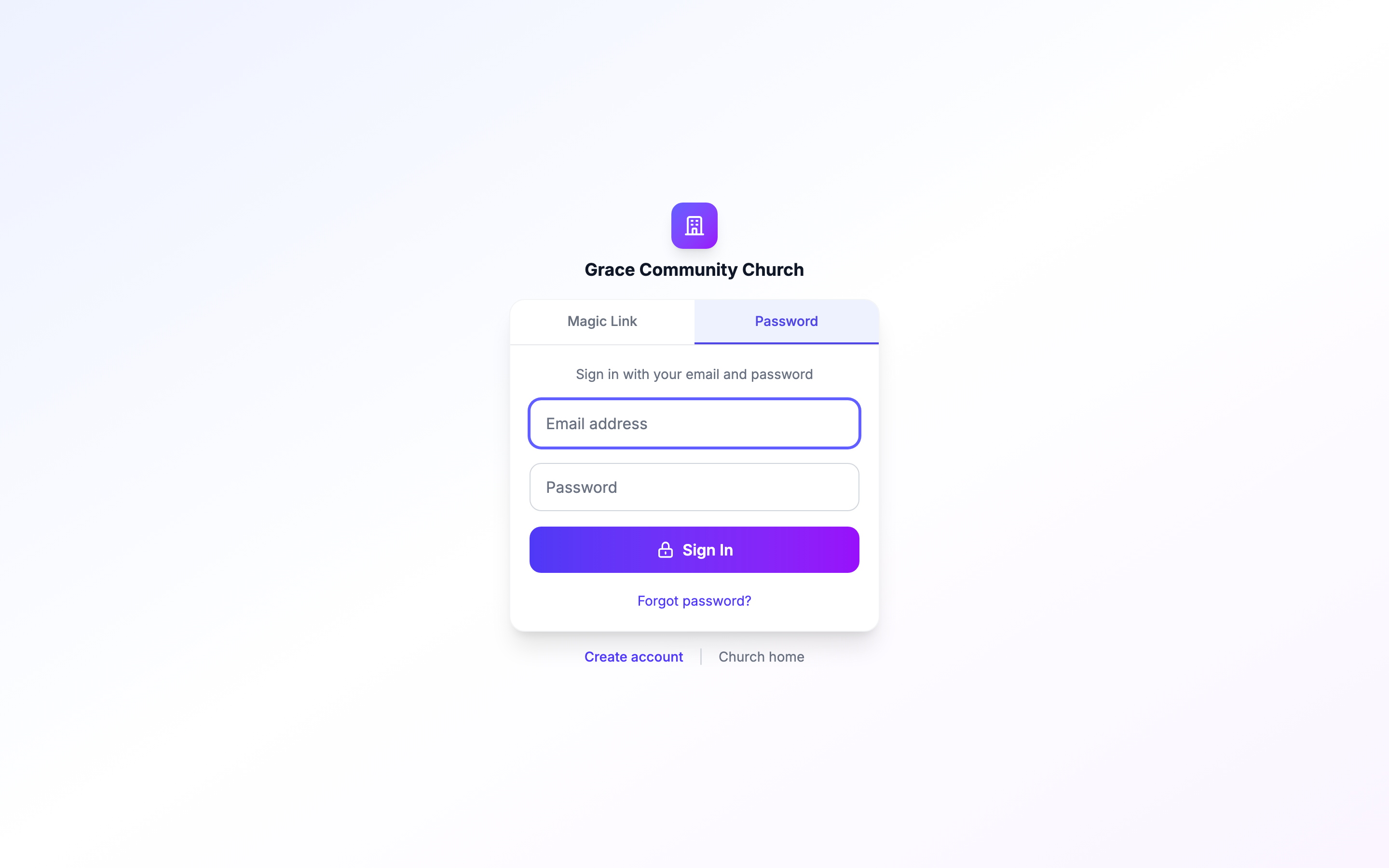
The sign-in page has two tabs: Magic Link (selected by default) and Password.
Step 2: They enter their email
On the Magic Link tab ("We'll email you a secure sign-in link"), they type the email address that's on file with your church and click Send Magic Link.
They always see the same message: "If your email is registered with [Church Name], you will receive a login link shortly. It can take a minute or two to arrive — check spam. Requesting again won't cancel it." (This is deliberate, so strangers cannot probe whether a particular person attends your church.)
Step 3: They check their email
Within a minute or two, they receive a TimelyChurch login email with a tap-to-sign-in button. The link is unique to them and to this login attempt.
The link:
- Is valid for 30 minutes, enough for a slow inbox.
- Can only be used once.
- Logs them in only to your church's portal, not to any other church's portal.
Step 4: They click the link
The link opens in their browser, signs them in, and lands them on the Member Portal Dashboard for your church. They can now:
- View their profile and update contact info.
- Give online (if your church accepts donations).
- Check their family's check-in history.
- See their volunteer schedule.
- Read announcements and respond to forms.
- Chat in their groups.
If they don't already have a User account in the system, TimelyChurch creates one automatically the first time they click a magic link. Their email is marked verified (clicking the link proves they own it). This is called Self-Claim: an imported member can go from "name in your spreadsheet" to "fully active portal user" with one click.
Password Fallback
Some members prefer to log in with a password (for example, sharing a household device, or using the portal multiple times a day). The portal sign-in page has a Password tab:
- They click the Password tab ("Sign in with your email and password").
- They enter email + password and click Sign In.
- If they don't have a password yet, they can use Forgot password? to set one. The reset link is sent to their email.
Tip: Magic link is still our recommended path. Password is provided as a convenience, not a requirement.
Self-Registration (Visitor Sign-Up)
Members who aren't already in your directory can register themselves:
- They go to
/c/your-slug/login. - They click Create account under the sign-in box.
- On Create Your Account, they enter First Name, Last Name, Email Address, and (optionally) Phone, then click Create Account & Send Login Link.
- TimelyChurch creates a new Person record in your directory marked as a visitor, then sends them a magic link.
- They click the link and land in the portal.
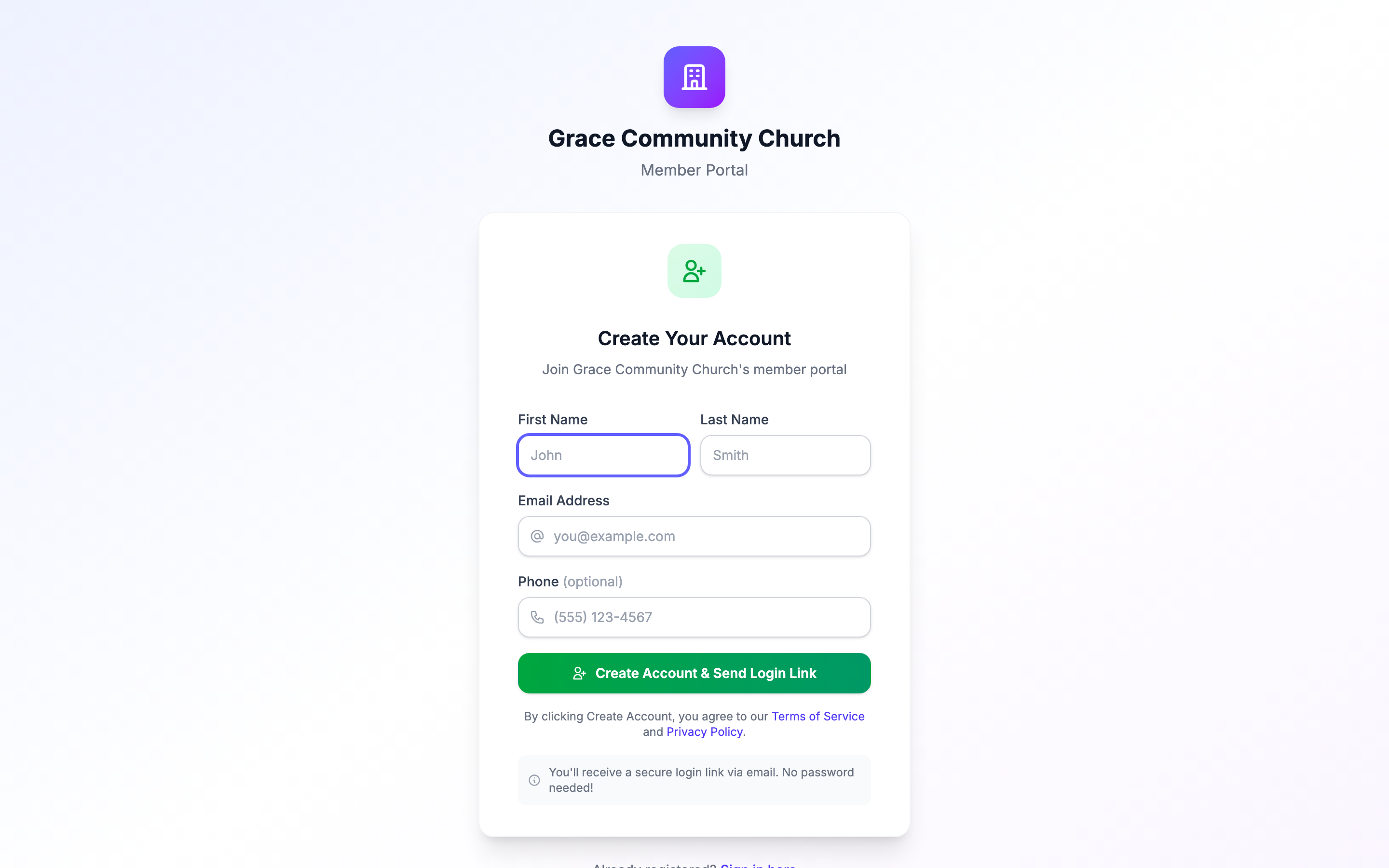
This is a low-friction way for first-time visitors to join your portal. They don't wait for staff to add them, and you get a fresh visitor record automatically.
Tip: New visitors appear under New Visitors on the People tab of the Need Attention page (top of the sidebar), so a staff member can review and follow up.
Forgot Your Church's Address?
Members don't have to remember your church's portal address. At timelychurch.com/find (Find Your Church), they enter their email address and click Send my sign-in link. TimelyChurch emails one message with a sign-in button for every church that email belongs to.
The page always shows the same confirmation, "If we found an account for that email, check your inbox for a sign-in link.", whether or not the email matched, so nobody can use it to find out who attends which church.
Members also reach this page from:
- timelychurch.com/register, choosing I'm joining my church → Find my church →.
- The staff sign-in page at timelychurch.com/login, via the Find my church → link under "Looking for your church's member portal?".
Staff who land on the Find Your Church page can use Sign in with a password instead.
What to Tell Your Congregation
When you announce the portal, the message can be as simple as this:
Hey, [Church Name] now has a member portal! Visit timelychurch.com/c/[your-slug]/login (bookmark it!), enter your email, and click the login link we send you. No password needed. Use the portal to give online, see your family's check-in records, chat with your group, and update your contact info.
Things to include in your announcement:
- The portal URL (or your custom domain).
- "No password needed; we email you a one-tap link."
- "Use the email address you've shared with the church before."
- "If you've never attended before, click 'Create account' to register yourself."
- "Forgot our address? Go to timelychurch.com/find and enter your email."
Troubleshooting (for Admins)
A member says they didn't receive the magic link email.
- Check that their email is correctly recorded on their Person record.
- Ask them to check spam/junk. The email is sent from our domain.
- Have them try once more. Each request generates a fresh link (an earlier link keeps working until it expires).
- If nothing arrives after a few minutes, contact support with the member's email address and we'll check what happened to the message.
A member says the link says "expired" or "already used." Magic links expire quickly and are single-use by design. Have them request a new one. It takes 10 seconds.
A member is in another church's portal by accident.
Each magic link is tied to a single church. If they're trying to access your church but ended up on another church's portal, double-check that they're using your church's URL (/c/your-slug/...), or send them to timelychurch.com/find to get a sign-in link for each church they belong to.
A member wants to "log out everywhere." The Sign Out link in their portal account menu clears their session. Magic links that have already been used can't be reused, so old links don't reactivate after sign-out.
A member's email changed. Update it on their Person record in your directory. Magic links sent to the old email will fail; new links go to the new address.
Two-Factor Authentication
If a member has enabled two-factor authentication (2FA) on their account, after clicking the magic link they'll be prompted for their 2FA code before being signed in. Magic link does not bypass 2FA; it is still required for the second factor. (2FA is opt-in; most members won't have it enabled unless they specifically turn it on.)
Staff Sign-In Link
Staff and admin sign-in is email + password at /login, not the magic link this article is about. But that page has one fallback worth knowing, for the day the security check itself won't cooperate (a browser extension, a corporate network, or the check simply not loading).
Below the sign-in form, a collapsed "Having trouble with the security check?" section opens into "Email me a sign-in link." Enter your email and, if it belongs to an account, TimelyChurch sends a link to that account's own address. It can't be redirected anywhere else.
- It expires in 15 minutes.
- It works once. Requesting a new link immediately voids any link still outstanding.
- It does not bypass two-factor authentication. An account with 2FA turned on still has to complete the 2FA challenge after clicking the link, exactly as it would after a password sign-in.
This is a fallback for when the security check won't load, not an alternate everyday sign-in path. Staff should still expect to sign in with email and password day to day.
Related Articles
- Welcome to TimelyChurch
- Quick Start Checklist
- Custom Domain Walkthrough
- Inviting Team Members (for staff/admin invites, which work differently)