
Linking a Q&A to a Church Event
Overview
A Q&A session can stand on its own or be linked to a specific event in your Events module. Linking ties the session to the event it serves -- the session shows up directly on the event's Q&A tab in the Events Hub, inherits a sensible default title, and gives event admins one-click access to the join code, host panel, and admin dashboard.
Standalone sessions still work for general-purpose Q&A (board meetings, ad-hoc town halls, training sessions). Linking is purely opt-in, and you choose it when you create the session.
How Linking Works
Each Q&A session can be linked to one church event, or stay standalone. An event can have several linked sessions, and all of them are listed on the event's Q&A tab. A session can only be linked to an event in your own church.
Turning On Live Q&A for an Event
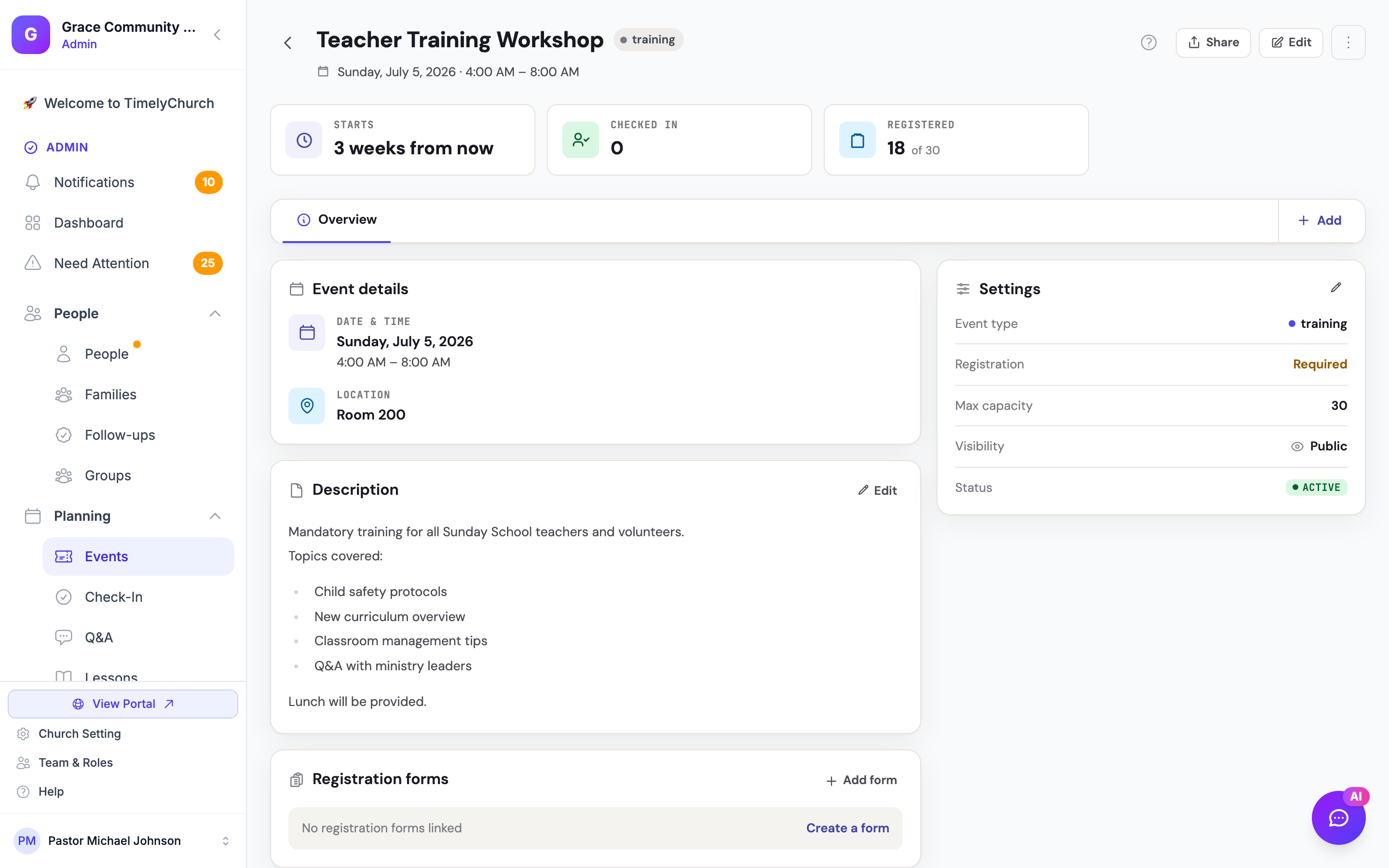
The event's Q&A tab only appears once the event has the Live Q&A capability enabled. Worship and similar event types may have it on by default; for other events you add it from the event's detail page (the Events Hub), the same way you add Check-In, Prep Tasks, or other capabilities. Once Live Q&A is enabled, the Q&A tab shows up in the event's tab bar.
Creating a Q&A Session from an Event
The fastest way to link is to start the create flow from the event itself:
- Open the event in your Events module.
- Open the Q&A tab on the event detail page.
- If no session is linked yet, you'll see a New Q&A session call-to-action.
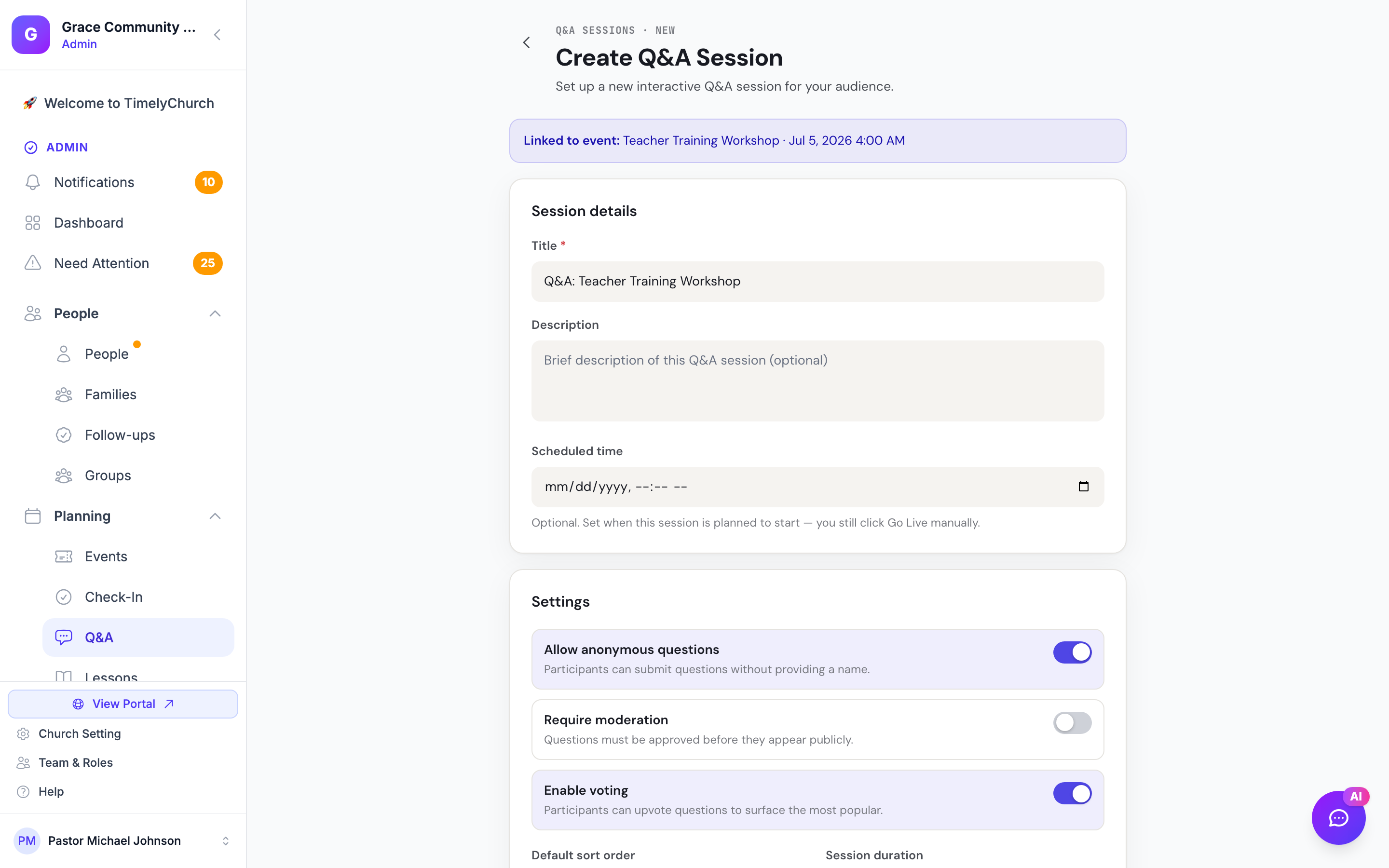
- Click it. The new-session form opens with the event already attached -- a "Linked to event:" banner appears at the top, and the title is pre-filled as "Q&A: {Event Title}" (for example, "Q&A: Easter Sunday Service").
- Adjust any settings (including the Notifications card), then click Create session.
The new session is now linked. The event's Q&A tab will list the session with its join code, status badge, and quick-action buttons.
Auto-Titling Rules
When you start the create form from the event flow, the title field is pre-filled as "Q&A: " followed by the event title. You can edit the title before saving -- nothing forces the auto-title to stick. If you create a session from the standalone Q&A list page (with no event attached), no auto-title is applied; you provide the title yourself.
Linking After the Fact
The link is set when the session is created through the event flow. The admin session Settings tab lets you edit the title, description, and Q&A options, but it does not include an event picker, so there is no in-app control to attach a standalone session to an event (or to unlink one) after creation. If you need a session tied to a particular event, create it from that event's Q&A tab.
What the Event Q&A Tab Shows
The Q&A tab on the event detail page lists every Q&A session attached to that event, newest first. For each session it shows:
- Title (links to the session's admin dashboard)
- Status badge (Draft, Collecting, Live, Paused, Closed, or Archived)
- Question count and participant count
- Join code -- ready to read out or project for promotion
- Quick actions:
- Host panel -- opens the live Host Panel in a new tab (prompts for the Host PIN if you haven't already authenticated)
- Open -- jumps to the session's admin dashboard, where you can manage settings, moderation, and the Display view
A New Q&A session button at the bottom lets you add another session to the same event (for example, you ran a Q&A in the morning and another in the evening of the same conference day).
If no session is linked, the tab shows "No Q&A sessions for this event" with the New Q&A session call-to-action described above.
What Happens When the Event is Deleted
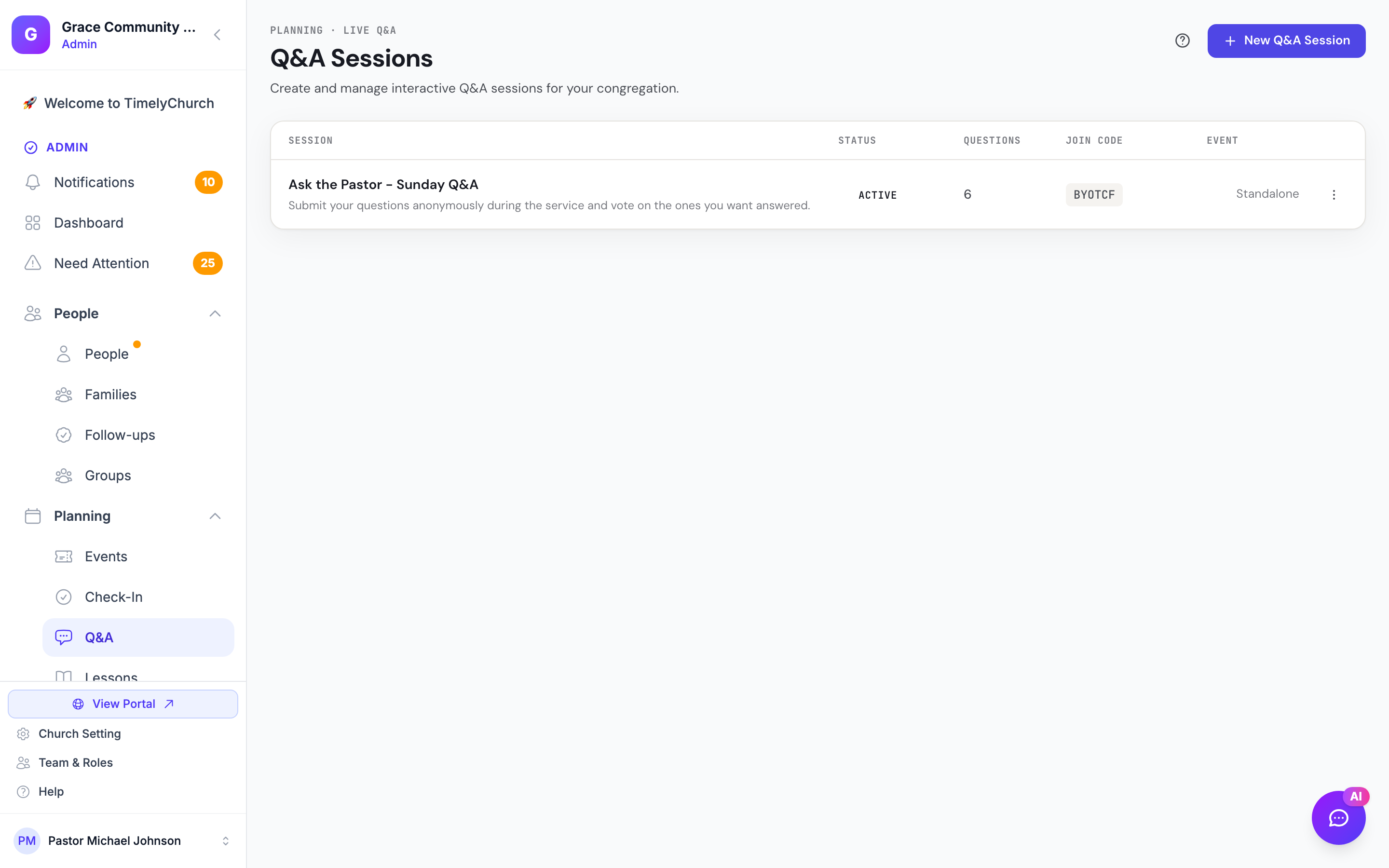
If a linked event is deleted, the Q&A session is not deleted -- it simply becomes a standalone session (its event link is cleared). Question, vote, and poll history are all preserved. This is intentional: Q&A history outlives event lifecycles, and the data is still useful for follow-up and CSV export.
Permissions
Creating, editing, or deleting a Q&A session -- whether standalone or event-linked -- is governed by the Q&A module's own permissions, not the Events module. To create or edit a linked session you need the Q&A create or edit permission for your church (administrators have these by default). See Permissions and Roles for the full matrix.
Previous: Moderation | Next: Permissions and Roles