
Notifications
The Notifications page is your in-portal inbox for alerts about things that concern you ("Assignments, swaps, messages and reminders — all in one place."). This article also covers Notification Settings, where you choose which emails you get.
Notifications are separate from Messages, which is for member-to-member conversations (see Messages).
Opening Notifications
- Log in to the Member Portal.
- Click Notifications at the top of the sidebar, or the bell icon at the top of the page.
A badge on the bell tells you how many unread notifications you have.
The Notifications page lists your notifications newest first, with unread ones under New and the rest under Earlier. Each row shows a short summary of what happened and when, and links to the related page, such as the event, the message, or the group.
Reading and Acting on a Notification
- Click a notification to open the related page. This also marks it as read.
- If the notification asks you to do something (for example, approve a join request or confirm an assignment), the link takes you straight to the screen where you can act.
To clear every unread notification at once, click Mark all read at the top of the page. The badge on the bell clears.
Types of Notifications You Might See
- Events: registration confirmations and reminders before an event
- Messages: new messages and replies (also visible in Messages)
- Groups: join requests, waitlist openings, and meeting reminders
- Family: someone has asked to join your household
- Serving and teaching: new assignments, sub requests, swap requests and answers
- Tasks: tasks assigned to you and tasks coming due
- Shared files: a Drive file or folder someone shared with you
The types you actually receive depend on which features your church uses and on your Notification Settings.
Notification Settings
Notification Settings ("Manage the email alerts your church sends you.") is where you choose which emails you get. In-portal notifications always appear; these settings control the emails.
- Open your account menu (your name at the bottom of the sidebar, or the person icon at the top on a phone).
- Click Notification Settings.
- Use the switches. "Changes save automatically."
On the page:
- Email notifications is the "Master switch for all notification emails to this account.". Turn it off to stop them all.
- Categories has one switch per kind of email, grouped under headings such as Scheduling & Serving (for example Schedule changes & reminders, Substitute requests, Volunteer requests, Volunteer serving reminders, Lesson reminders), Groups & Events (Group meeting reminders, Event reminders), and more. You only see the categories that can apply to you.
- Delivery lets you choose Instantly, Daily digest, or Weekly digest for some categories.
- Reminder timing lets you choose how many Days before teaching you want to be reminded, if you teach.
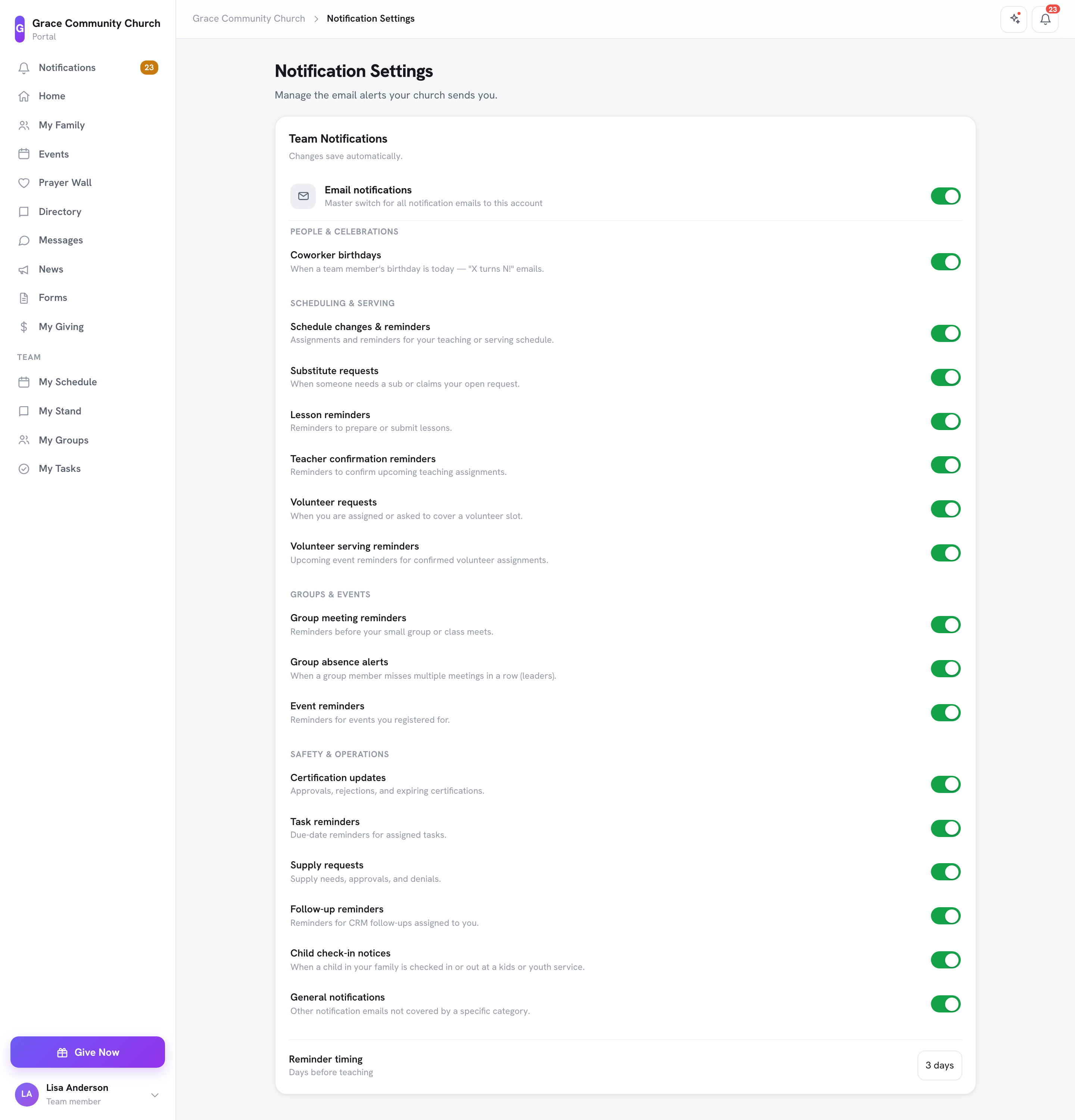
Note: The switches on Notification Settings are available to people who serve on a team, teach, or help run the church. Other members see "You need a team account to manage notification preferences.". They can stop church emails with the unsubscribe link at the bottom of any email (see Unsubscribe and Email Preferences).
If you've connected Telegram, choose what the church bot may message you about in the Connected accounts section of your profile (see Managing Your Profile).
Frequently Asked Questions
Q: I get too many emails. How do I cut down on them? A: Open Notification Settings and turn off the categories you do not need, or switch a category to a daily or weekly digest where offered. To clear in-portal noise, click Mark all read.
Q: I am missing notifications I expected. Why? A: Either the feature is not in use at your church, or the matching switch is off in Notification Settings. Check both.
Q: Why don't I see any switches on Notification Settings? A: They appear for people who serve on a team, teach, or help run the church. If you think you should see them, ask your church office.
Notification Links and Filters
- Notification links open the right page in the church portal, including older notifications. (8.205.304)
- Empty filters say "No notifications match these filters" with a Clear filters button. (8.205.304)
Last updated: 2026-10-21 (8.205.306).