
Cascade Auto-Fill, Sub Invites, and Out-of-Office Badges
When you fill a Sunday roster on Tuesday and someone declines on Saturday night, a few features step in so you do not have to manually scramble for a replacement. This article covers the related tools that live on or near the team and event pages:
- Cascade Auto-Fill on Decline: when a volunteer declines (or never answers), the system invites the next-best replacement automatically.
- Fill Requests: ask several people at once to take an open serving spot; the first to claim it wins.
- Substitute Teacher Invitations: for classes, Need Attention → Invite Teachers sends a sub request to a chosen list of available teachers.
- On Leave Badges on the Members Tab: a glance-able badge on each team member showing upcoming blocked dates.
Together these handle most of the week-to-week churn.
Cascade Auto-Fill on Decline
By default, when a volunteer declines an assignment, their slot simply opens up again. It shows as open on the event's Serving tab and on the Schedule Grid, and the team's leaders are alerted. With cascade auto-fill enabled on a team, the system instead immediately picks the best available replacement for that one slot and invites them, without any admin clicks.
Turning It On (Per Team)
- In the admin sidebar, click Groups.
- Open the team you want to enable cascade auto-fill for.
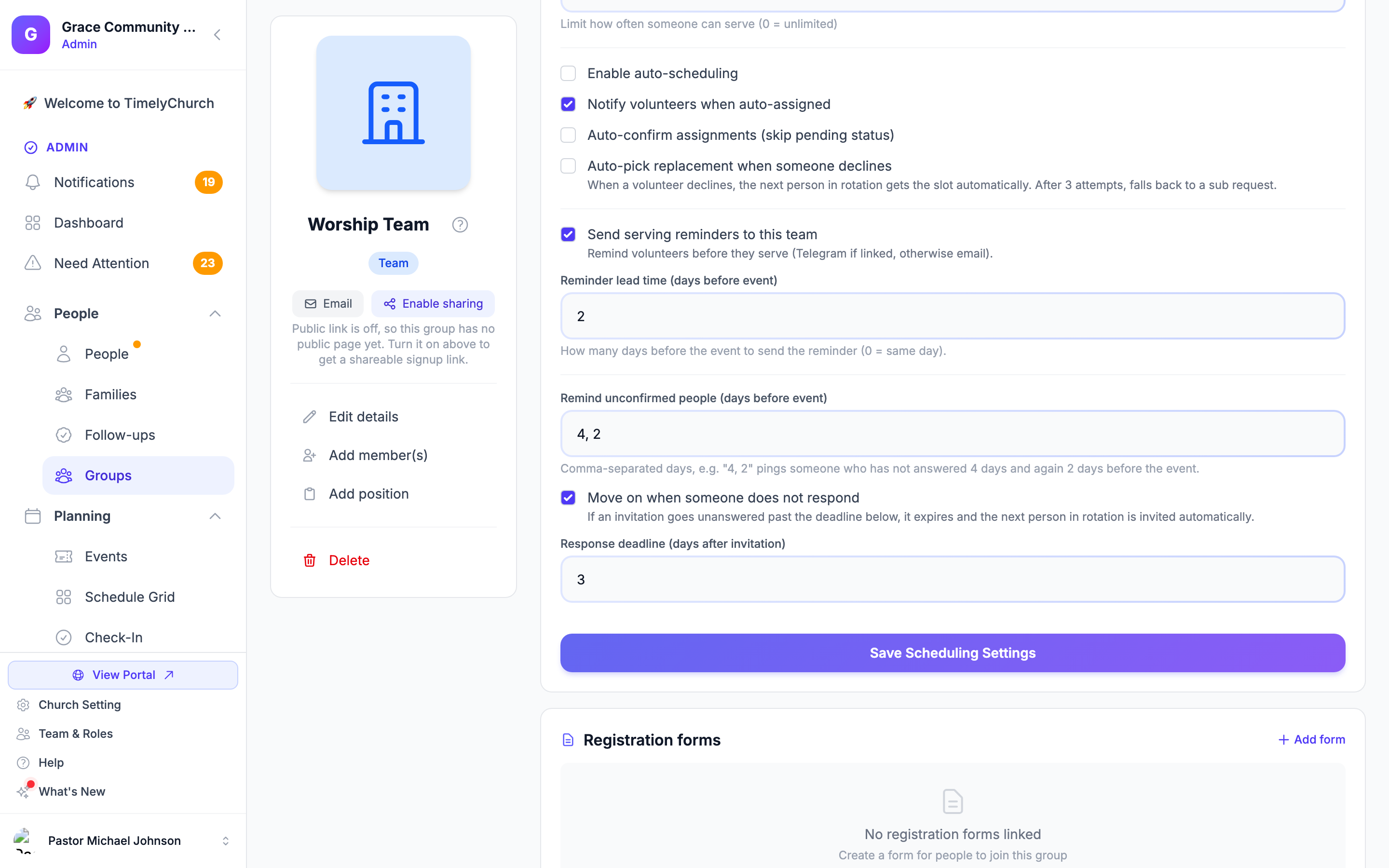
- On the Details tab, find the Scheduling Settings card.
- Tick Auto-pick replacement when someone declines.
- Make sure Enable auto-scheduling is ticked and the Rotation Strategy is not Manual Only. The cascade never runs for a team that has automatic scheduling turned off. Choose:
- Fair Rotation: picks whoever has gone the longest since they last served (recommended for most teams).
- Round Robin: follows a fixed order.
- Click Save Scheduling Settings.
What Happens When Someone Declines
- The volunteer taps Not this time on Telegram, clicks Decline in their email, or declines in the portal.
- The system marks their assignment Declined and immediately scores all available, qualified team members for that position.
- The top candidate is assigned as Pending.
- They're invited the same way any new assignee would be (by Telegram or email).
- If they decline too, the cascade tries again: up to 3 attempts in total.
- After the attempts run out, the cascade stops and the spot is left open for the team's leaders, who have been alerted to each decline.
When Nobody Answers
With Move on when someone does not respond turned on in the team's Scheduling Settings, an invitation that sits unanswered past the team's Response deadline (days after invitation) is marked Expired and runs this same cascade. Declines and expiries share the same attempts budget. On the Schedule Grid, an expired invite's popover says Expired, with the date, and offers Re-invite and Cancel invite (see Schedule Grid — Visual Volunteer Scheduling). Before that, unconfirmed people are re-pinged on the days set in Remind unconfirmed people (days before event) (default 4 and 2 days before the event).
Who the Cascade Skips
The cascade respects every normal scheduling rule, so it will not pick someone who:
- Has marked themselves unavailable on that date (or has a recurring pattern that blocks it).
- Is already assigned to another position at that event or an overlapping one.
- Has hit their personal max-per-month limit, or violates the team's min-days-between rule.
- Has opted out of auto-scheduling.
- Is archived or inactive.
This is why the cascade is safe to leave on: it can never re-assign someone who said they were unavailable.
Tip: Cascade auto-fill is safest on teams with at least 6-8 active members. For very small teams (like a 2-person Sound Tech roster), the cascade often runs out of candidates anyway, so leaving it off and sending a fill request yourself is cleaner.
Fill Requests -- Ask Several People, First to Claim Wins
When you'd rather ask a specific set of people than auto-assign, open the event's Serving tab, open the position's Edit position menu, and choose Send fill request. Pick any number of active team members, add an optional message and expiry, and send. Everyone gets a personal claim link (Telegram if linked, email otherwise); the first people to claim take the open spots. When the last spot fills, the request closes itself, everyone else gets a "it's filled — thank you," and the leaders get the roster. Full walkthrough: Fill Requests: Offer Open Spots, First to Claim Wins.
When to Use Which
| Use Cascade | Use a Fill Request |
|---|---|
| You want zero clicks for a normal decline. | You want to choose specifically who is asked. |
| Your team is large enough that the rotation is meaningful. | The slot is short-notice or specialized (e.g., "needs the new soundboard training"). |
| The team's culture is "first qualified person fills it." | The team's culture is "ask the people most likely to say yes." |
Both can be used on the same team. The cascade runs first, and a fill request is your fallback for what falls through.
Substitute Teacher Invitations (Classes)
For class teachers (Sunday School and other teaching schedules), open requests for a substitute appear in Need Attention on the Scheduling tab under Open Sub Requests. Instead of emailing teachers one at a time:
- In the admin sidebar, click Need Attention and open the Scheduling tab.
- Find the open sub request and click Invite Teachers.
- The Invite Substitute Teachers window lists teachers who are available on that date. Tick the people you want to ask (or Select All).
- Click Send Invitations.
Each invited teacher sees the request in the portal (on the dashboard and in My Schedule) with Accept and Decline buttons. On the card you can also Send Reminder to re-ping invited teachers or Cancel Request. See Substitute Teacher Requests.
Note: Invite Teachers is for class teaching schedules only. For serving positions (worship, hospitality, tech, and so on), use the cascade or a fill request.
On Leave Badges on the Team Members Tab
Open any team page and click the Members tab. Every member row shows:
- Their role/position on the team and serving frequency.
- Any upcoming unavailability as an amber On Leave badge.
The badge reads "On Leave N days · next May 15". The number is the count of upcoming blocked dates, plus the soonest one.
Why It Matters
Before you spend time hand-picking volunteers for next month, glance down the Members tab. Members with amber badges have already told you they will not be available, so:
- Skip them in your mental model.
- Reach out beforehand if you need their slot covered (for example, the youth pastor's vacation is in two weeks, so start lining up cover now).
- Check in if the count looks unusual (a quick text resolves it).
How the Badge Is Computed
The badge counts the volunteer's blocked dates in the next 60 days, including:
- One-off unavailable dates the volunteer added in their portal.
- Dates blocked by an active recurring unavailability pattern (e.g., "1st Sunday of Month").
- Dates inside any date range they blocked.
How These Features Work Together
A typical week on a well-configured team:
- Auto-fill places people, skipping anyone with blocked dates (the same availability data behind the On Leave badges).
- A volunteer accepts, all good. Or they decline.
- If they decline, Cascade Auto-Fill invites a replacement automatically (up to 3 tries).
- If the cascade runs out, a leader sends a fill request to a handful of likely people.
- First responder claims the slot. Done.
Related Articles
- Team Schedule Templates (Auto-Apply Pattern): pre-load the right positions before the cascade ever has to run.
- How Volunteer Scheduling Is Organized: the bigger picture this fits into.
- Substitute Requests: every way to cover a serving spot when someone can't make it.
- Managing Volunteer Availability: where the data behind the On Leave badges comes from.