
Set Up Event Types & Approval Rules
Not every event on your calendar should work the same way. A Sunday service is different from a small group's Tuesday-night rehearsal — and the rehearsal might need a quick "yes" from the worship leader before it lands on the calendar at all. Event Types are how you teach TimelyChurch the difference: each type carries its own color, its own default tools, and — if you turn it on — its own approval policy: who is allowed to request that kind of event, and who has to say yes before it's official.
This article covers creating a custom event type, what each approval field means, and a complete walkthrough for a common example: a "Worship Rehearsal" type that any team member can request, but only the team's leader can approve.
Where to Find It
Open Events in your admin sidebar, click the ⋮ More menu at the top right, and choose Event Types. The Event Types page shows a table of every event type your church has (Type, Default features, Requires approval, Events using it, Status), starting with four built-in types every church gets automatically: Worship Service, Class/Study, Meeting, and Event.
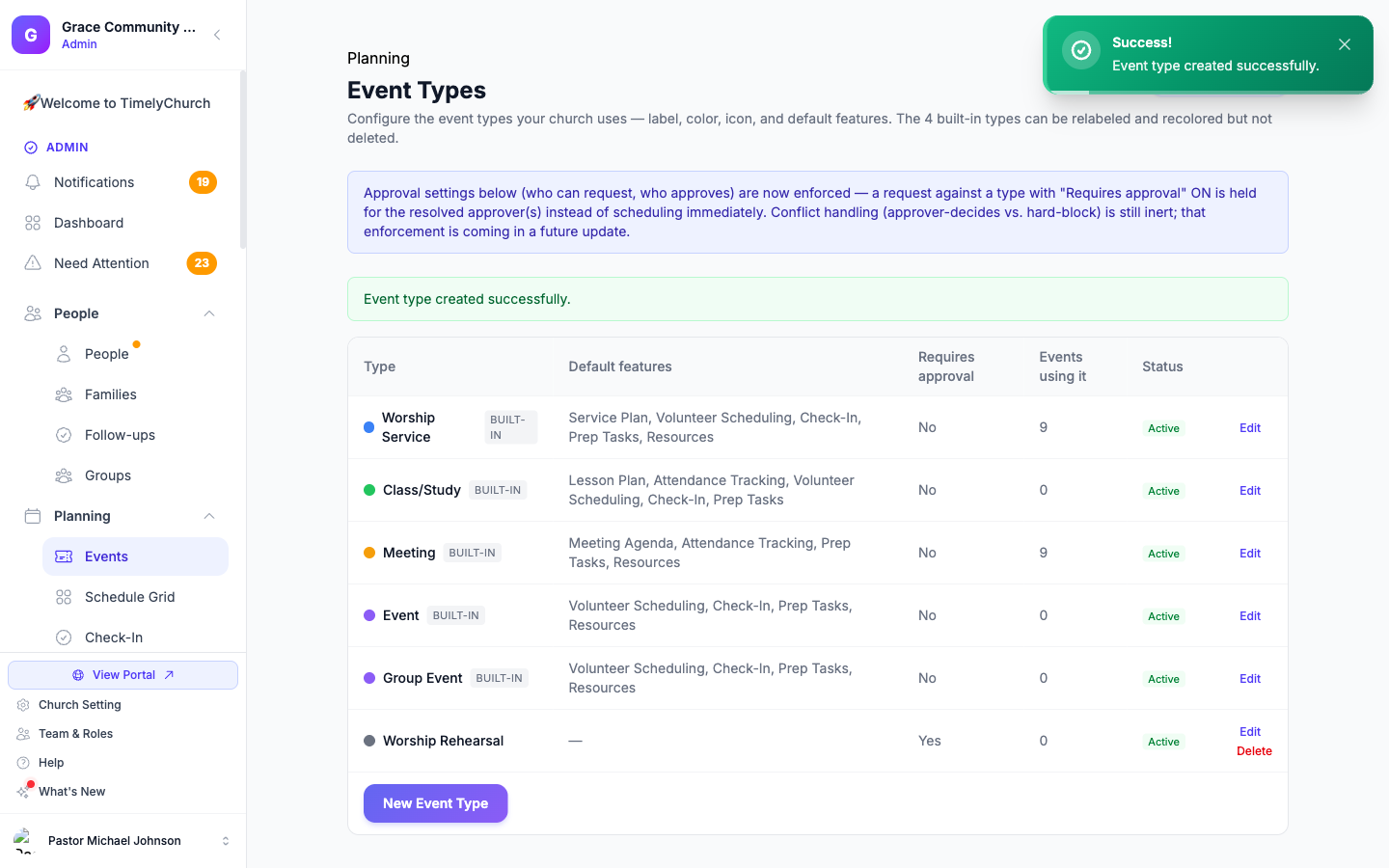
- The four built-in types (marked Built-in) can be relabeled, recolored, and have their approval policy configured — but they can't be deleted. If you no longer use one, turn it Inactive instead.
- Any type you add yourself is a custom type — fully editable, and deletable once no events are using it.
- The Events using it column tells you how many events and series currently use a type, which is why TimelyChurch won't let you delete one that's still in use — reassign or remove those events first.
Creating a Custom Event Type
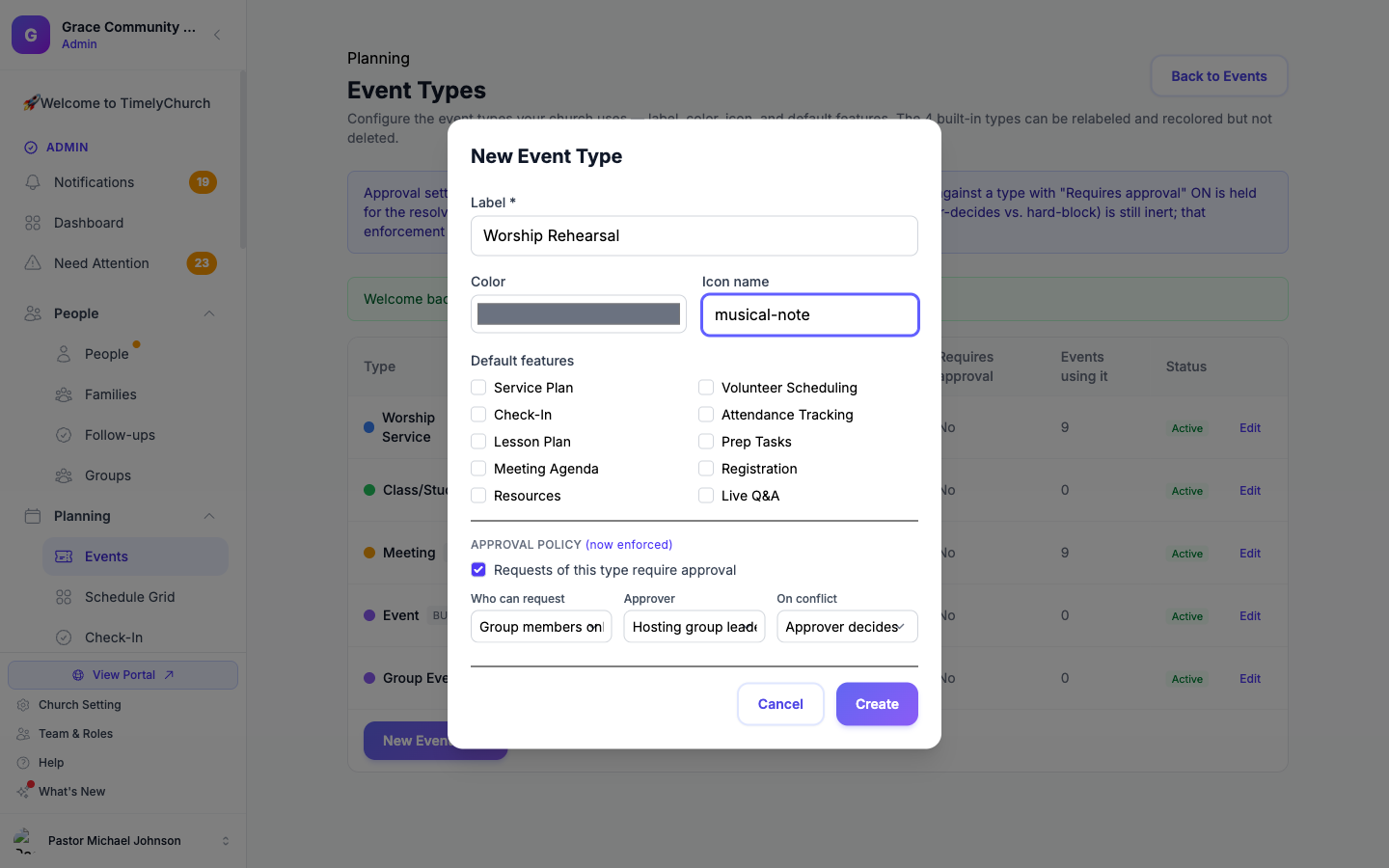
Click New Event Type and fill in:
- Label — the name people will see, e.g. "Worship Rehearsal," "Room Booking," or "Outreach Event."
- Color and Icon — how it's distinguished on the calendar and in pickers. Click an icon in the picker to choose it.
- Default features — which tools automatically turn on for events of this type (Service Plan, Check-In, Volunteer Scheduling, Registration, and so on). Leave these unchecked if the type doesn't need any of them by default; you can always turn a feature on for an individual event later.
- Active — whether the type is offered when creating or requesting events.
Click Create. Your custom type now appears as its own card (marked Custom type) in the Create event drawer.
The Approval Policy Fields
Below the basics is an Approval policy section — this is what turns a plain event type into a request-and-approve workflow. Leave "Requests of this type require approval" unchecked and nothing changes: events of that type are created immediately, exactly like today. Check it, and every new event of that type goes through the fields below instead.
| Field | Options | What It Controls |
|---|---|---|
| Requires approval | On / Off | Whether requesting this type creates the event right away, or holds it pending approval. |
| Who can request | Anyone · Group members only · Leaders only | Who is even offered this type when requesting an event. "Group members only" means any active member of the group hosting the event; "Leaders only" restricts it to that group's leader or co-leader. |
| Approver | Hosting group leader · Admin · Resource owner + leader · Specific person… | Who has to approve a request before it goes live. See the breakdown below. |
| On conflict | Approver decides · Hard block | What happens when a request's room is already booked at that time. Hard block refuses the request on the spot. Approver decides lets the request through with the conflict — the approver makes the call. Direct scheduling (not a request) is always refused on a conflict. Cancelling or deleting an event frees its room right away. |
Approver Modes, Explained
- Hosting group leader — the leader (or co-leader) of whichever group is hosting the event decides. This is the everyday case: a worship team's leader approves a worship team's rehearsal request, a youth leader approves a youth event, and so on — no separate configuration needed per group.
- Admin — any church administrator can approve. Good for event types that don't belong to a specific team, like a churchwide outreach event.
- Resource owner + leader — used when a room or piece of equipment needs its own sign-off in addition to the hosting leader's. Both people have to approve; if either one owns nothing on the request, TimelyChurch falls back to an administrator for that leg so a request never gets stuck with no one able to act on it. See below for how to give a room an owner.
- Specific person… — one named person approves every request of this type, no matter which group hosts it. Pick them in the Approver person list that appears (only people with a login account are listed — they need to be able to sign in to act). They don't need any admin permissions: being named here is the permission. If that person is ever deactivated or removed, requests fall back to an administrator instead of getting stuck.
A leader who requests an event of a type they'd approve anyway skips the wait — TimelyChurch schedules it immediately rather than asking someone to approve their own request. The same applies to a "Specific person" approver requesting their own event.
Giving a Room an Owner (for the "Resource Owner + Leader" Mode)
If your church wants a facilities person to sign off whenever a specific room is booked — even by a completely different ministry — give that room an owner:
- Go to Rooms under Facilities.
- Edit the room (for example, the Sanctuary or a shared multi-purpose space).
- Set Owner (person) or Owner (group) to whoever should approve bookings of that room.
- Save.
Now create (or edit) an event type with Approver set to Resource owner + leader. Requesting an event of that type in a room with an owner needs sign-off from both the hosting group's leadership and the room's owner (or the owner group's leader) before it's scheduled. A room with no owner set simply falls back to an admin for that leg.
Quick Start: A "Worship Rehearsal" Type
Here's the exact setup for a common request — letting any worship team member request an extra rehearsal, with the team leader deciding:
- Events → More → Event Types → New Event Type.
- Label:
Worship Rehearsal. - Requires approval: On.
- Who can request:
Group members only— any active member of the hosting group may request one, not just the leader. - Approver:
Hosting group leader— the leader (or co-leader) of whichever group hosts the rehearsal decides. - Create.
That's it. The policy is live immediately for every future event of this type, for every group — there's nothing to configure per group or per team.
Who Can Manage Event Types
Managing event types uses the same Events permission as the rest of your Events module — your church administrator can grant it under a team member's role settings.
Related Articles
- Request an Event — what a member sees when requesting an event of a type like this.
- Approve or Decline Event Requests — how an approver reviews and decides.
- Room and Equipment Booking
- Roles & Permissions
Last updated: September 30, 2026