
Cancel or Delete an Event
Plans change. A service is called off for bad weather, a class moves to another term, or an event was created by mistake. TimelyChurch gives you two ways to take an event off the schedule: cancel it, which keeps the event and can be undone, or delete it, which removes it. This article explains both, including how to delete just one date of a recurring event.
Cancel or Delete: Which One?
| Cancel event | Delete | |
|---|---|---|
| What happens to the event | It is marked Cancelled and drops off the calendar. It stays in the Events List with a Cancelled badge. | It is removed from every list. |
| Can you undo it? | Yes. Open the event and choose Reactivate. | No. There is no restore button for events. If you delete one by mistake, contact support. |
| Room booking | Released. | Released. |
| Good for | A real event that will not happen ("no service this Sunday"). | An event that should never have been on the schedule, or a date you want gone from a recurring event. |
Tell people yourself. Cancelling an event does not email or message anyone, and deleting one date of a recurring event does not either. Whatever you remove, let your registrants and volunteers know.
Cancelling an Event
- Open the event's page.
- Click the ⋮ menu at the top right and choose Cancel event.
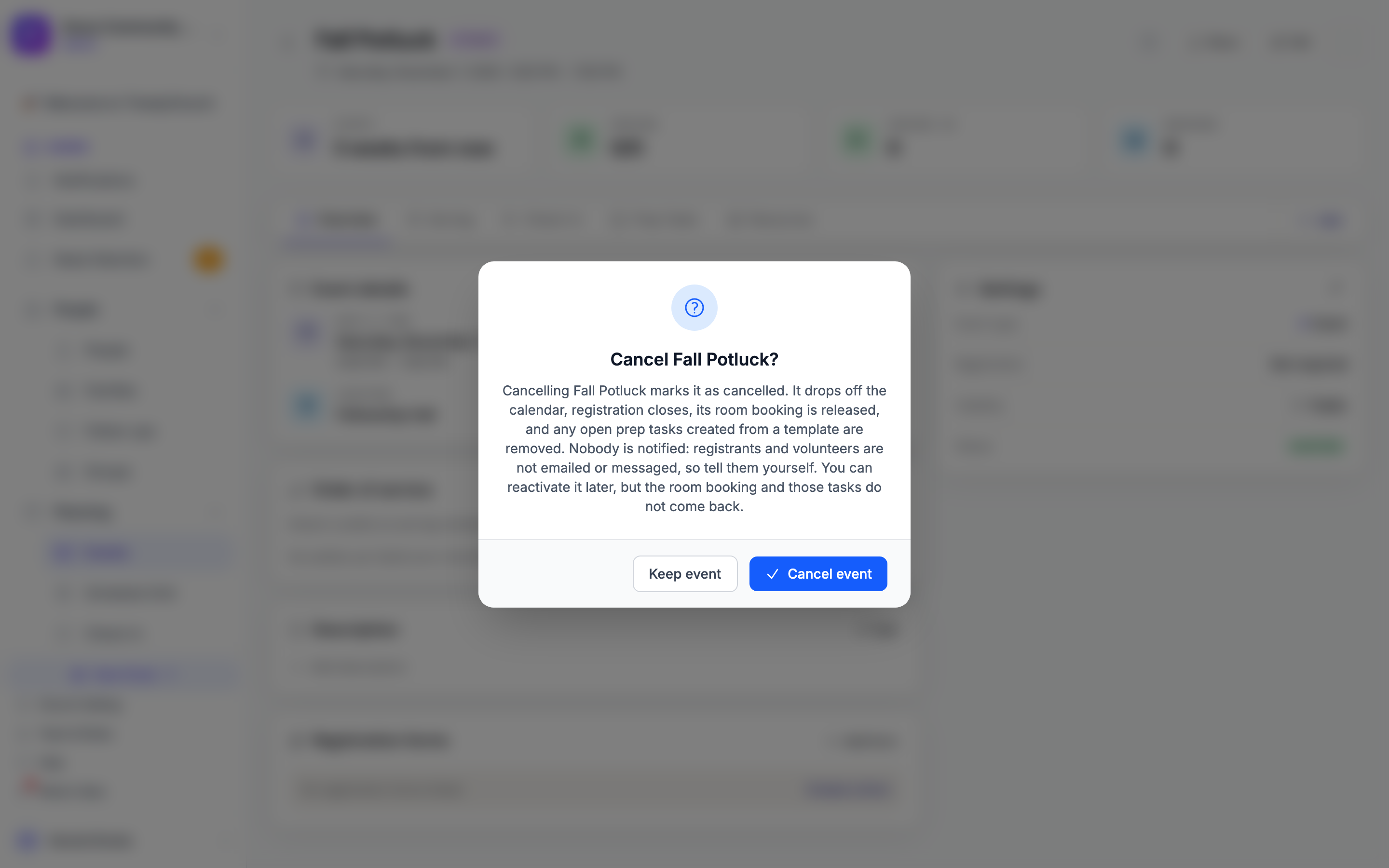
- A window titled Cancel [event name]? explains what cancelling does. Click Cancel event to go ahead, or Keep event to back out.
When you cancel an event:
- It drops off the calendar.
- Registration closes.
- Its room booking is released.
- Open prep tasks that were created from a template are removed.
- Nobody is notified. Registrants and volunteers are not emailed or messaged.
Cancelling works on one event at a time. On a recurring event it cancels only the date you opened.
Finding and Reactivating a Cancelled Event
- On the Events page, switch to List and set the status filter to Cancelled.
- Open the event.
- Click the ⋮ menu and choose Reactivate.
The event is active again. The room booking and the removed prep tasks do not come back, so book the room again if you still need it.
Deleting a One-Time Event
You can delete an event from its own page or straight from the Events page.
From the event's page:
- Open the event.
- Click the ⋮ menu at the top right and choose Delete.
- The Delete Event window asks "Are you sure you want to delete [event name]?" Click Delete.
From the calendar or the list:
- On the Events page, click the event in the calendar or the list. The quick-look detail peek opens.
- Click the trash icon (Delete) at the bottom of the peek.
- Click Delete in the window.
You return to the Events page with the message "Event deleted successfully." The event's room booking is released.
Warning: The delete window says: "You cannot restore it yourself: there is no Recently Deleted list for this." Check the event name and date before you confirm. If you delete an event by mistake, contact support.
Deleting a Date of a Recurring Event
A recurring event is a series of dates. You can remove one date, remove a date and everything after it, or remove the whole series.
From the Calendar or the List
- On the Events page, click the date you want to remove in the calendar or the list. The quick-look detail peek opens.
- Click the trash icon (Delete).
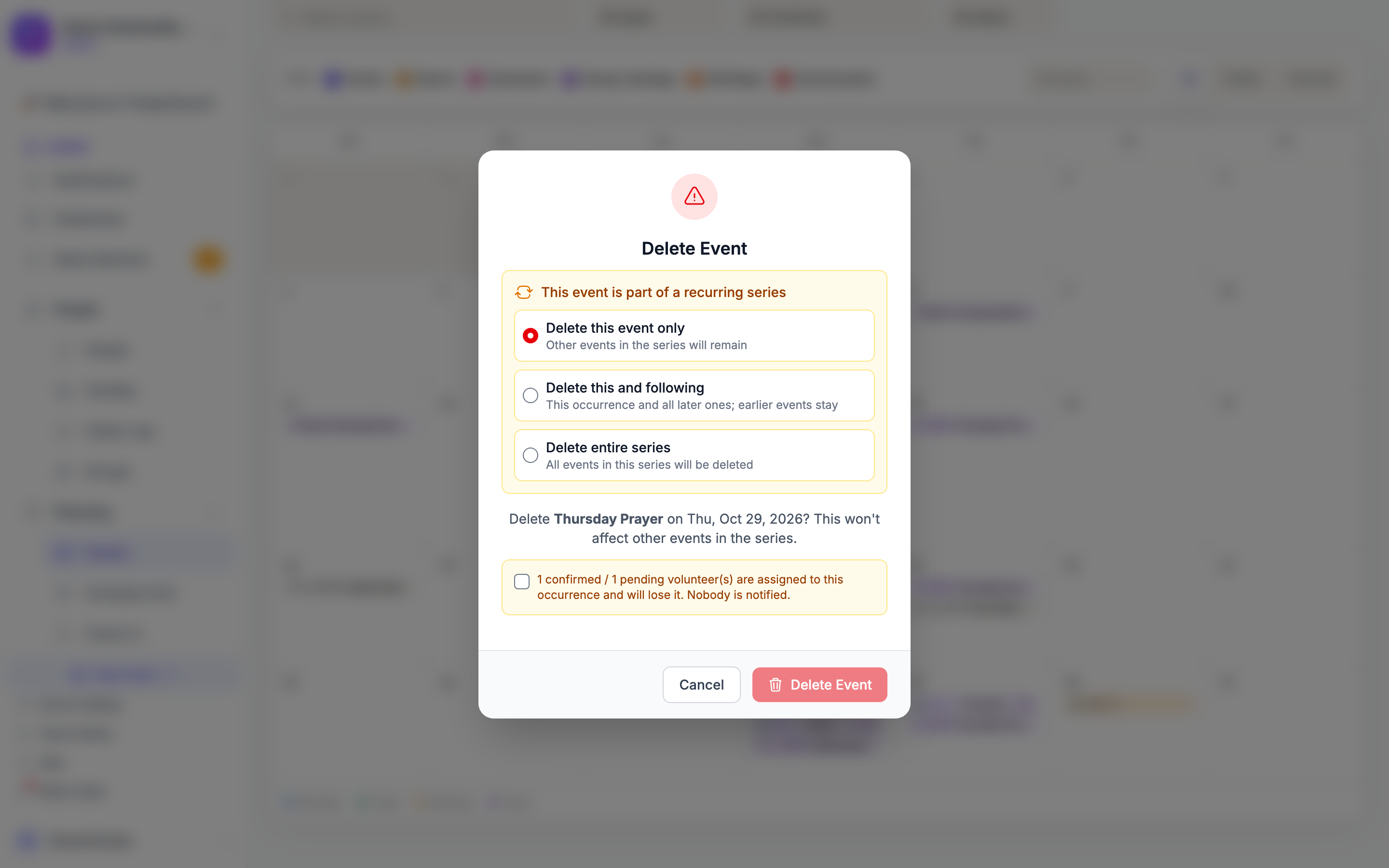
- The window says This event is part of a recurring series and offers three choices. Delete this event only is selected for you.
- Pick a choice, then click the red button. Its label follows your choice: Delete Event, Delete This & Following, or Delete Entire Series.
| Choice | What the window says | What it does |
|---|---|---|
| Delete this event only | "Other events in the series will remain" | Removes this one date. The rest of the series is untouched, and this date is not created again. On the series page it shows as Cancelled under Upcoming Occurrences. |
| Delete this and following | "This occurrence and all later ones; earlier events stay" | Removes this date and every later date, and ends the series on the day before. Past dates are kept. |
| Delete entire series | "All events in this series will be deleted" | Removes every date of the series, past dates included, with their registrations and data, and removes the series itself. |
From the Date's Own Page
When you open one date of a recurring event and choose ⋮ → Delete, the window does not offer the three choices. It deletes that one date only, exactly like Delete this event only. To delete a date and everything after it, or the whole series, use the trash icon on the calendar or list as described above.
When Volunteers Are Scheduled
If people are scheduled to serve on what you are about to delete, the window adds a tick box. You cannot delete until you tick it.
- For Delete this event only, the box reads "N confirmed / N pending volunteer(s) are assigned to this occurrence and will lose it. Nobody is notified."
- For Delete this and following, the box counts the confirmed and pending volunteers on this date and the later dates.
The tick box appears only when someone would lose a place. With nobody scheduled, the window has no tick box.
Delete entire series shows no volunteer tick box in this window. If you want to see how many volunteers are on a series before removing all of it, delete it from the series page instead: see Deleting a Series.
If the Delete Is Refused
If volunteers are still scheduled and the box was not ticked, nothing is deleted. A red message says "Nothing was deleted" and tells you how many confirmed and pending volunteers are still assigned. The room booking is kept. Either remove those people on the event's Serving tab first, or open the delete window again and tick the box.
Who Can Cancel or Delete
- Cancel event and Reactivate show for people whose role can edit events.
- Delete shows for people whose role can delete events.
- A team leader who is limited to their own teams can only change events hosted by their team. Church-wide events can only be changed by someone who reaches the whole church.
If you do not see Cancel event or Delete, ask a church administrator.
Rooms and Equipment When an Event Goes Away
Cancelling or deleting an event releases its equipment reservations, so they no longer stay Approved. Reactivating a cancelled event does not book the equipment (or the room) again. When a whole series is deactivated, its rooms and equipment are released the same way. (8.205.304, 8.205.305)
Related Articles
- Managing Event Series: cancelling, modifying, or rescheduling one date from the series page, and deleting a whole series.
- Event Calendar Views: the calendar, the list, and the detail peek.
- Room and Equipment Booking: how room bookings follow an event.
- Event Volunteer Scheduling: the Serving tab, where you remove volunteers from an event.
Last updated: 2026-10-21 (8.205.306).