
Unsubscribe and Email Preferences
TimelyChurch respects member email preferences across both automated system emails and Email Campaigns. This article explains how the opt-out setting works, what happens when a member unsubscribes, and how church admins manage these preferences.
How Email Opt-Out Works
Every member in TimelyChurch has an opt-out setting. When a member is opted out:
- The member is excluded from Email Campaigns automatically. Campaign recipient selection filters out opted-out people regardless of whether they were included by group, filter, or individual selection. The setting is checked again at send time, so opting out after a campaign is queued still takes effect.
- The member is excluded from automated mailing-list-style notifications (e.g., bulk announcement emails, group notifications, giving receipts, event-registration confirmations). Transactional and security-critical emails (magic-link login) are still delivered.
- Their record stays in the directory and they can still be selected as a message recipient. Opting out does not remove them from the church.
New members are not opted out by default.
How Members Opt Out
In the current app, the opt-out setting is changed in one place: the unsubscribe link that TimelyChurch adds to the footer of bulk emails.
From an Unsubscribe Link in an Email
Every Email Campaign, bulk announcement email, and templated bulk email includes a footer that says "You received this email because you are part of …" (your church's name) with an Unsubscribe link. The link is a secure, signed URL unique to each recipient, so it works without the member logging in.
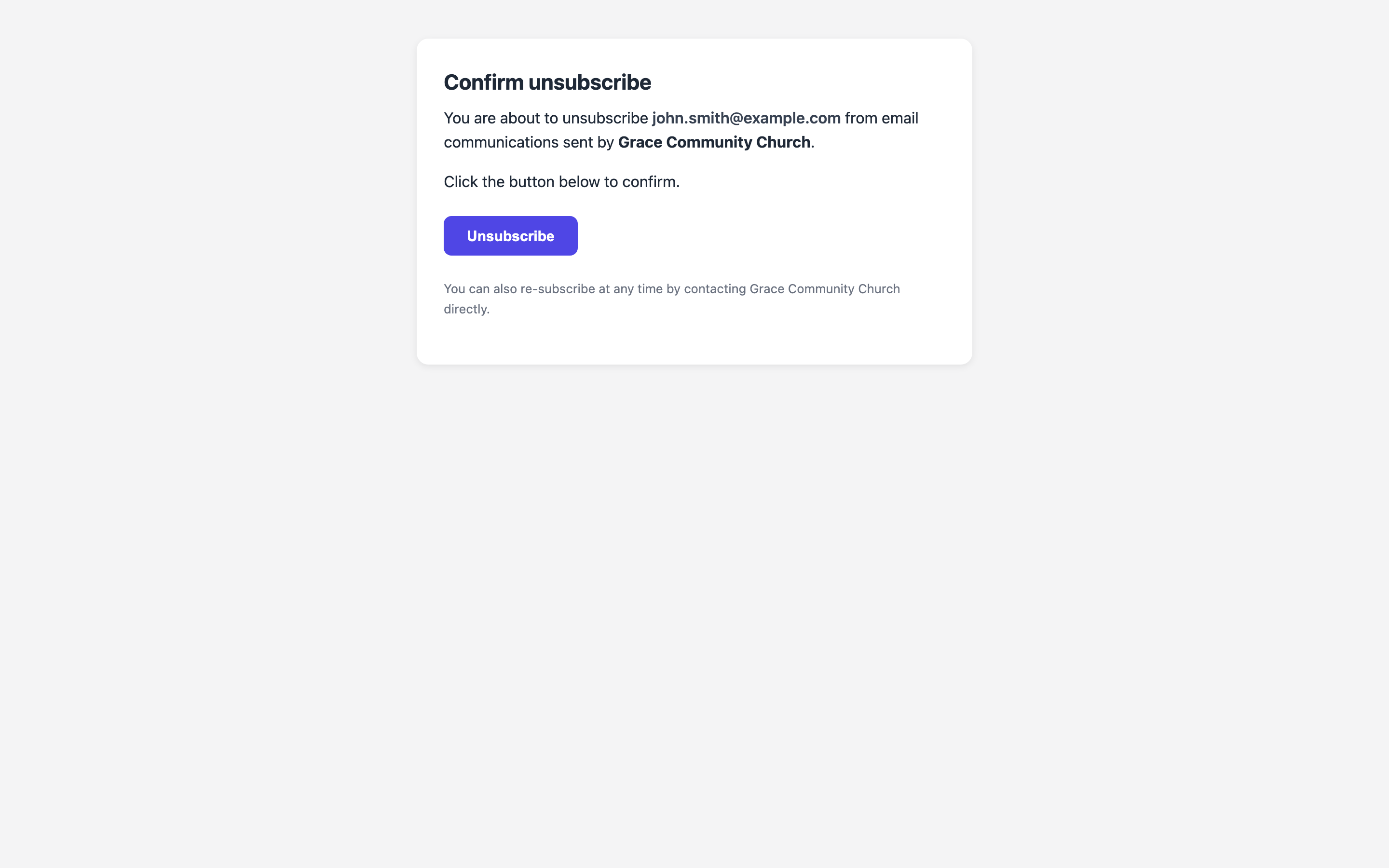
- Clicking the link opens a Confirm unsubscribe page that names the email address and your church. The member clicks Unsubscribe to confirm.
- TimelyChurch also publishes the one-click unsubscribe header that Gmail and Yahoo read, so a member can unsubscribe straight from their mail client's header without opening the message.
When the unsubscribe is processed, the member is marked as opted out and their address is added to the church's manual suppression list.
Note: There is currently no in-app toggle for this setting. It is not exposed as an editable field on the Member Portal profile page or on the admin People profile. Opt-out and re-subscribe both happen through the email unsubscribe/re-subscribe links described here. If a member contacts the church to be removed, the most reliable path is to have them use the unsubscribe link in any recent email.
What Stays vs What Stops
Emails That Still Send to Opted-Out Members
Even when a member is opted out, transactional and security-related mail still goes through because it is not marketing. The clearest example is:
- Magic-link login emails (members sign in to the Member Portal with a magic link, not a password)
These are required for a member to access their account and are not gated by the opt-out setting.
Emails That Stop
- Email Campaigns (bulk blasts)
- Bulk announcement emails
- Group notification emails (added to a group, group updates)
- Giving / donation receipt emails
- Event-registration and form-submission confirmation emails
- Check-in notification emails
- Automation-triggered emails
- Membership-status-change notifications
If you're unsure whether a specific email type is treated as transactional or marketing, the rule of thumb is: anything sent in bulk or as an automated notification respects the opt-out setting, while the login magic link does not.
Re-Subscribing
A member who previously opted out can re-subscribe through the email-preference links:
- If a member who is already opted out opens the unsubscribe link again, the page says "You are already unsubscribed" and offers a Resubscribe me button.
- Right after unsubscribing, the confirmation page also offers Resubscribe in case it was a mistake.
- Re-subscribing opts the member back in and removes their address from the church's manual suppression list.
There is no waiting period or re-confirmation flow. Once the member is opted back in, they are immediately eligible for the next campaign or digest.
Important: Re-subscribing only reverses a manual unsubscribe. It does not clear hard bounces or spam complaints. Those suppression entries are kept permanently for deliverability and legal reasons, so an address that previously bounced or filed a complaint stays suppressed even after a re-subscribe.
Managing Opt-Outs as an Admin
Because the opt-out setting is driven by the recipient-facing unsubscribe links, day-to-day management for admins is mostly about respecting it rather than toggling it:
- Always send bulk email through Email Campaigns and bulk Announcements, which add the compliant unsubscribe footer automatically and honor opted-out members for you.
- When a member asks to stop receiving email, point them to the unsubscribe link in any recent email (or to your church's most recent campaign).
Important: Re-subscribing someone without their explicit consent is a deliverability risk. Some providers (Gmail, Outlook) treat continued sending after an unsubscribe as a strong spam signal, which can hurt your church's overall delivery reputation. Only restore email for a member who has explicitly asked to start receiving emails again.
Per-Type Preferences
Currently, the opt-out setting is a single global one. It's all-or-nothing for marketing-style email. There is no per-category opt-out (e.g., "I want event reminders but not campaigns").
For now, if a member wants to receive only certain kinds of emails, the practical workaround is:
- Leave them opted in
- Be selective about which campaigns or announcements target their group/segment
User-level notification preferences (different from the opt-out setting) do exist for team members with a User account. See the Notifications article. These cover which notification emails they receive.
Compliance Considerations
Good email practice matters for every church. The app handles several parts of it for you:
- Every bulk email includes an unsubscribe link. The campaign, announcement, and templated email footers add it automatically, along with the one-click unsubscribe headers Gmail and Yahoo expect.
- Honor unsubscribes promptly: the setting takes effect immediately, including for already-queued campaigns.
- Don't share the opted-out or suppression list externally: it stays internal to your church.
- Be transparent in your communications about what people will receive when they sign up.
Related Articles
- Communication Overview
- Email Campaigns
- Sending Emails
- Notifications: For team-member notification preferences (different from the email opt-out setting)