
Calendar Subscriptions (External iCal Feeds)
Audience: This article is for church administrators.
Linked calendars let you pull events from an external calendar (Google Calendar, Outlook, Apple iCloud, or any iCal feed URL) into TimelyChurch so they appear alongside your church events -- "Pull events in from Google Calendar, Outlook, or any iCal feed — synced automatically." This is one-way: external events are copied into TimelyChurch, but events created in TimelyChurch are not pushed back out. (To share your TimelyChurch calendar out to other calendar apps, see Sharing your calendar out below.)
Accessing Linked Calendars
- From the sidebar, expand Planning and click Events.
- At the top of the Events page, open the More menu and click Linked calendars. (When calendars are linked, the menu item shows how many are syncing.)
The Linked calendars page lists each linked calendar as a card. You need permission to view the Calendar to see this menu item.
What You Can Do
From the Linked calendars page you can:
- See every linked calendar with its status -- Syncing, Paused, Error, or Not synced yet -- plus Last synced … and when the next sync is due
- Link a new calendar
- Use each card's More actions menu to Sync now, Pause / Resume, Edit, or Remove it
Linking a Calendar
- Click Link a calendar (top-right of the page).
- In the Link a calendar window -- "Import events from an external calendar feed" -- fill in:
- Calendar URL (required) — The public
.icsURL of the calendar. See "Where to find the iCal URL" below. As you type, TimelyChurch checks the URL ("Validating URL...") and shows Valid iCalendar feed or an error -- there is no separate "Validate" button to click. - Display Name (required) — A label for the source calendar (e.g. "Denominational Events," "Youth Ministry Google Cal").
- Description (optional) — A short note about the calendar.
- Category — External Calendar, Denominational, Community, or Partner Church.
- Color — How events from this calendar appear on your TimelyChurch calendar.
- Sync Frequency — How often TimelyChurch re-pulls events: Every hour, Every 3 hours, Every 6 hours (the default), Every 12 hours, or Daily.
- Default Event Type — The event type applied to imported events (Event, Worship, Class, or Meeting).
- Who can see imported events? — Staff only (already selected) or Public on your website. See Who can see imported events below.
- Convert to church timezone (on by default) — Whether event times are converted into your church's timezone.
- Calendar URL (required) — The public
- Click Link calendar. You'll see "Subscription saved. Initial sync started in background — check back in a minute."
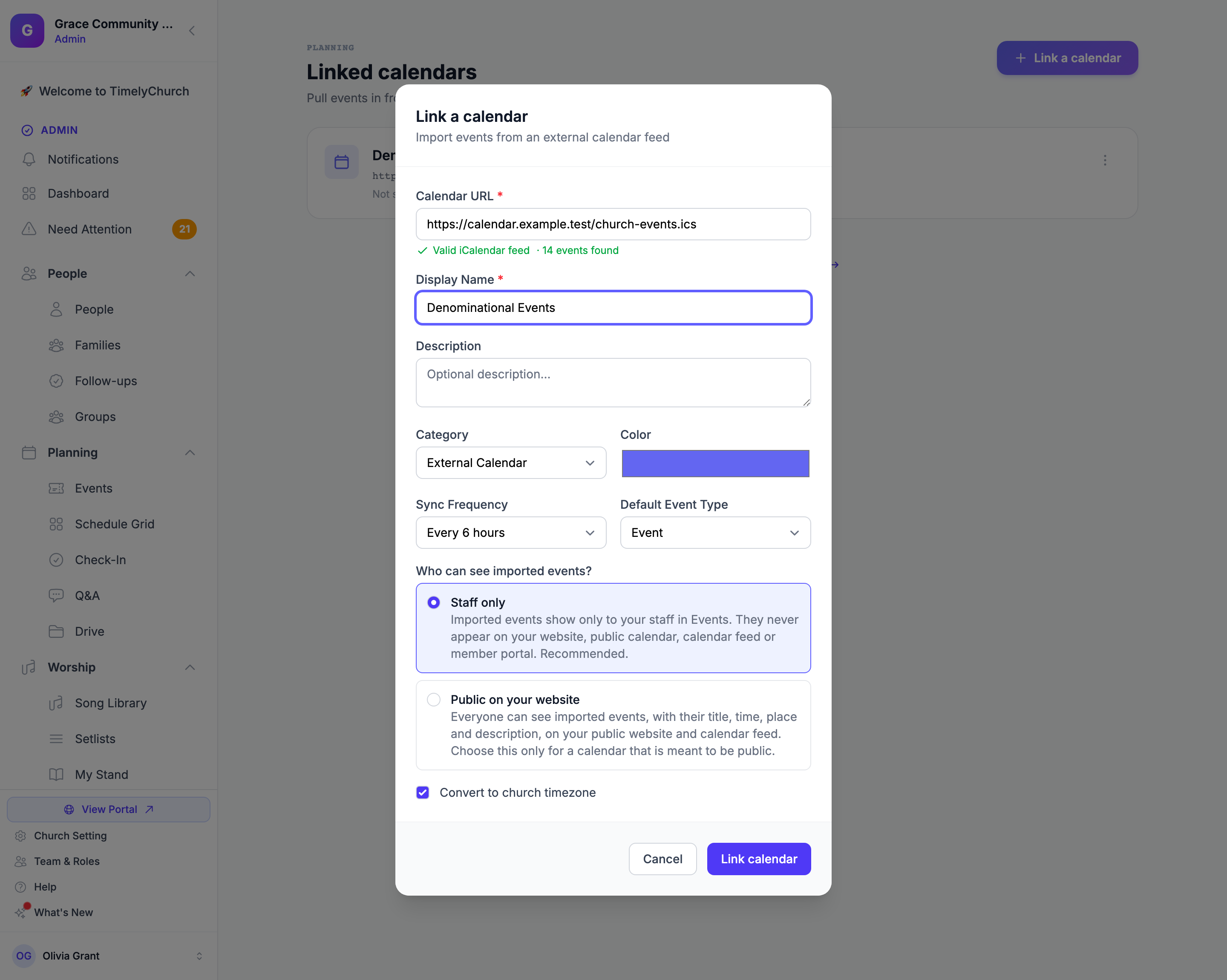
Who Can See Imported Events
Every linked calendar has its own answer to Who can see imported events? You choose it when you link the calendar, and you can change it later.
| Choice | What it means |
|---|---|
| Staff only | "Imported events show only to your staff in Events. They never appear on your website, public calendar, calendar feed or member portal. Recommended." This choice is already selected when you link a new calendar. |
| Public on your website | "Everyone can see imported events, with their title, time, place and description, on your public website and calendar feed. Choose this only for a calendar that is meant to be public." |
A Staff only event stays inside the admin Events pages. Nobody can open it from your public event pages or from the member portal, even with a direct link to the event.
Before you choose Public: a personal or staff calendar often holds private appointments, names and addresses. Link it as Staff only. Choose Public on your website only for a calendar you would be happy to print in the bulletin, such as a denominational events calendar.
Changing the choice later
Saving a new choice affects events imported from then on.
- On the calendar's card, open More actions and click Edit.
- Under Who can see imported events?, pick Staff only or Public on your website.
- Click Save Changes. From the next sync, newly imported events follow the new choice. Events that were already imported keep the visibility they had; to change one of them, open the event, click Edit event and use the Public / Private switch.
Where to Find the iCal URL
Google Calendar
- Open Google Calendar settings (gear icon > Settings).
- Pick the calendar in the left sidebar.
- Scroll to Integrate calendar.
- Copy the Secret address in iCal format (or the public address if the calendar is public).
The "secret" iCal URL exposes the calendar to everyone who has the link. Treat it as a password.
Outlook / Microsoft 365
- Open the calendar in Outlook on the web.
- Right-click the calendar > Sharing and permissions > Publish a calendar.
- Choose access level (e.g. "Can view all details") and copy the ICS link.
Apple iCloud Calendar
- In iCloud calendar, click the broadcast icon next to the calendar.
- Enable Public Calendar and copy the URL.
- Change
webcal://tohttps://if needed.
Any other source
Anything that publishes a .ics feed will work -- many event and booking tools offer an iCal link.
Syncing
- Automatic sync runs on the Sync Frequency you chose for each linked calendar. Each card shows when it last synced and when the next sync is due.
- Sync now (in the card's More actions menu) queues an immediate pull: "Sync queued. Check back in a moment for updated results." Use this after linking or editing a calendar.
- Pause stops a calendar syncing without removing it; Resume starts it again.
Synced events appear on the church calendar in the calendar's color so they're easy to spot. Who sees them depends on the calendar's Who can see imported events? choice: with Staff only, they show only to your staff in Events; with Public on your website, they also appear on your public website and calendar feed.
Editing or Removing a Linked Calendar
-
Edit — Opens Edit Subscription, where you can change the display name, description, category, color, sync frequency, default event type, Who can see imported events?, Active (sync enabled) and Convert to church timezone. Click Save Changes. A new choice under Who can see imported events? applies to events imported from then on -- see Changing the choice later. (To use a different calendar URL, remove the linked calendar and link the new URL.)
-
Remove — If the calendar has imported events, TimelyChurch asks what to do with them:
- Keep events — the events stay on your calendar as ordinary TimelyChurch events, no longer linked to the calendar.
- Delete all imported events — permanently removes all events that came from this calendar.
Click Delete Subscription to confirm. Events you created directly in TimelyChurch are never affected.
Sharing Your Calendar Out
At the bottom of the Linked calendars page, Sharing your calendar out? Subscribe & share → takes you to the Events page's Subscribe options, where you can give people a link to add your church calendar to Google Calendar, Outlook or Apple Calendar.
Troubleshooting
When a sync fails, the calendar's card shows Error and the last error message underneath.
| Message or symptom | Likely Cause |
|---|---|
| "HTTP …: Could not fetch URL" | The iCal URL is wrong, requires a sign-in, or the source server is down. |
| "URL does not return valid iCalendar data" | The URL responded but isn't a valid .ics file. Confirm you copied the iCal/ICS link, not the web page of the calendar. |
| "Remote feed exceeds 5MB size limit." | The calendar feed is too large. Link a smaller calendar, or ask the calendar owner to publish fewer past events. |
| Events appear with wrong times | Check the timezone of the source calendar, and whether Convert to church timezone is on. |
| Events disappear after sync | The source calendar removed them. |
| Imported events do not show on your website or in the member portal | The calendar is set to Staff only. If the calendar is meant to be public, change it to Public on your website. The new choice applies to events imported from the next sync on, and events already imported keep their visibility -- see Changing the choice later. |
See Also
- Events & Calendar
- Your Church Web Address — your calendar links keep working if your address changes