
Pledge Campaigns
Pledge campaigns let your church raise funds for specific projects and goals. Members commit to giving a certain amount over time, and you track their progress toward fulfilling those commitments. Campaigns can also accept direct donations from anyone, with an optional public-facing campaign page.
Accessing Pledges and Campaigns
- From the admin sidebar, go to Finances > Pledges.
- The Pledges & Campaigns page is one scrollable view with two stacked sections: a Campaigns section at the top and a Pledges section below it, each with its own stats, filters, and list.
Plan note: Pledges & Campaigns is a Pro feature. On the Starter or Growth plan the Pledges item appears in the Finances sidebar as a locked / upgrade entry, and the page itself shows an "upgrade required" prompt instead of the management view. Upgrade to Pro to unlock it.
Who sees pledgers: Campaign progress and pledge totals are visible to everyone with access to Pledges. Who pledged what -- the pledge list, each pledge's page, and the pledgers and recent donations on a campaign -- needs the Bookkeeper Giving level or higher; below that, names read "Donor" and the pledge list is replaced by a Donor details are private panel. See Who Can See Giving and Donations.
To add anything new, use the single + New button in the top-right corner of the page. It opens a small menu with two choices -- New Campaign ("A fundraising goal with a deadline") and New Pledge -- and each one opens a pop-up form without leaving the page. Next to it, Recently Deleted opens the list of deleted pledges and campaigns (see Deleting and Restoring).
Creating a Campaign
- On the Pledges page, click + New, then choose New Campaign. A campaign form opens in a pop-up window.
- Fill in the campaign details:
Basic Information
| Field | Required | Description |
|---|---|---|
| Campaign Name | Yes | The campaign name (up to 255 characters). |
| Description | No | A description of the campaign's purpose (up to 2,000 characters). |
| Category | No | Mission Trip, Building/Facilities, Benevolence, Education, Ministry, or Other. |
| Fund | No | Link the campaign to a specific giving fund. Pledges and donations to this campaign will be allocated to this fund. |
Goals & Timeline
| Field | Required | Description |
|---|---|---|
| Goal Amount | No | The fundraising goal. Used for progress tracking. |
| Minimum Donation | No | The smallest amount a donor can give to this campaign. |
| Start Date | Yes | When the campaign begins accepting pledges and donations. |
| End Date | No | When the campaign ends. Leave blank for open-ended campaigns. |
| Status | No | Draft - Not visible yet, Active - Accepting donations, Completed, or Cancelled. |
Public Campaign
The Public Campaign toggle ("Enable public access to allow anyone to donate via a shareable link.") turns on a public donor page for the campaign. When it's on, these additional settings appear:
| Field | Description |
|---|---|
| Cover Image | Upload a cover image (recommended 1200x630px, max 5MB). Displayed on the public campaign page. |
| Video URL (YouTube) | A YouTube link to embed on the public page. |
| Donor wall | Choose how recent donors appear on the public page: Off (no donor wall) (default), Show anonymous avatars, or Show donor names (only donors who opted in). |
| Show donor names publicly | Display donor names on the public page. |
| Show donation amounts publicly | Display individual donation amounts on the public page. |
| Allow anonymous donations | Allow donors to give anonymously. |
| Allow donor messages | Allow donors to include a message with their donation. |
Appearance
Pick a Campaign Color (10 options) for visual identification.
- Click Create Campaign (or Update Campaign when editing). The campaign is created with its own web address based on the campaign name.
Campaign Statuses
| Status | Description |
|---|---|
| Draft | Campaign is being set up. Its public page works in preview only. |
| Active | Campaign is live and accepting pledges and donations. |
| Completed | Campaign has reached its end. TimelyChurch checks every day and marks an Active campaign Completed once its end date has passed. |
| Cancelled | Campaign was cancelled. Preserved for record-keeping. |
The Campaign Page
Click a campaign's name (or View in its row menu) to open its page. The page has four tabs, and an Edit Campaign button at the top opens the same form you used to create it.
- Dashboard -- Progress toward goal (with the percent raised and pledged), the Given, Pledged, and Goal amounts, and counts of Pledgers, Direct donors (last 20 shown), Behind schedule, and Days remaining. Below are Top pledgers and Recent direct donations.
- Details -- The campaign's name, fund, goal, date range, description, category, and minimum donation.
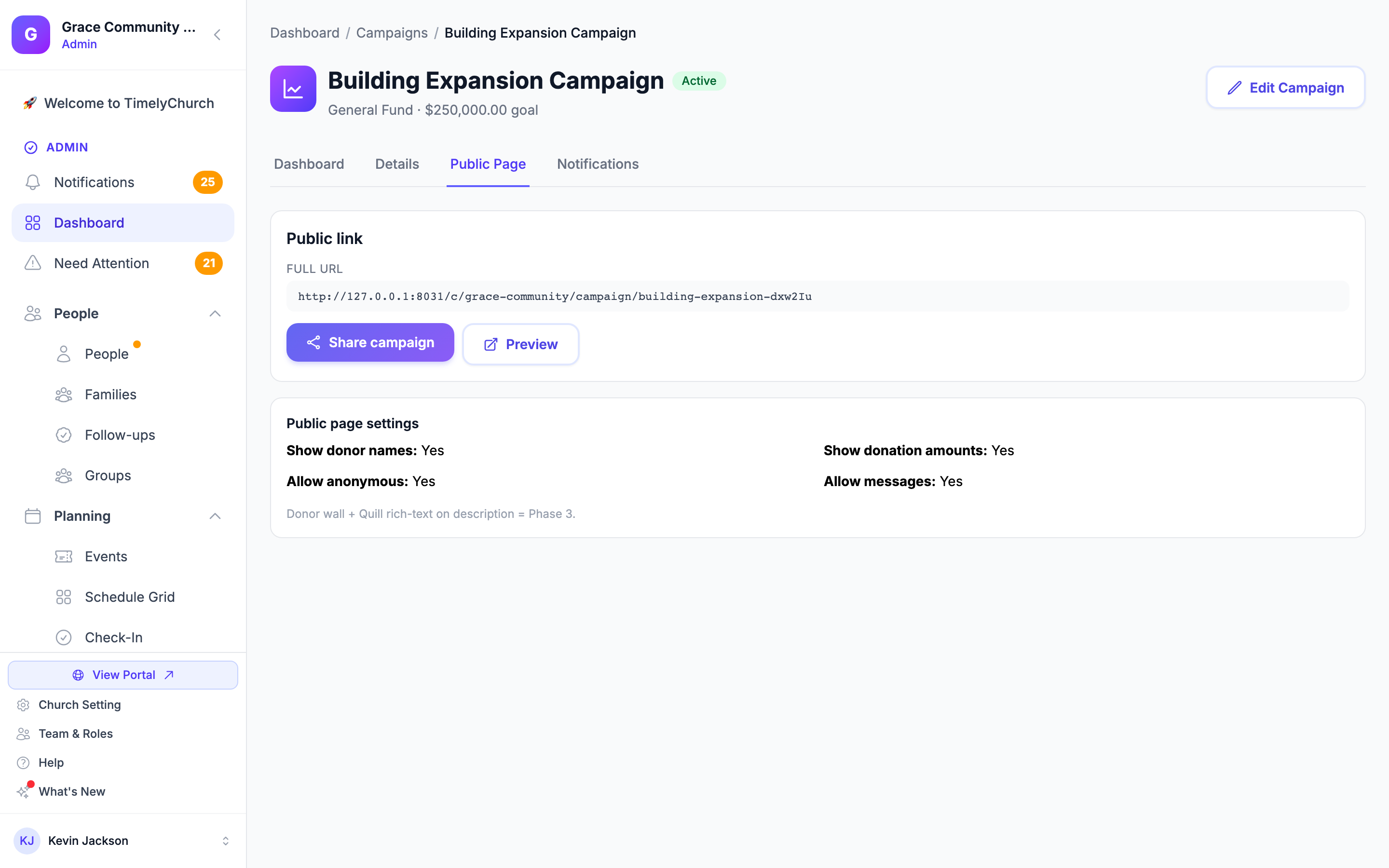
- Public Page -- The public link and sharing tools (see below).
- Notifications -- Post updates to donors (see Campaign Updates).
Sharing a Campaign: Links and QR Code
Public campaigns get a shareable web address. You can share it in two places:
- Public Page tab -- Shows the Full URL, a Share campaign button (short link, QR code, and social sharing), and a Preview button that opens the public page in a new tab. A Public page settings box summarizes your donor-name, amount, anonymous, and message choices.
- Edit Campaign window -- When you edit a public campaign, a green box at the top shows the Short link ("best for SMS, social") and the Full link, with Copy short, Copy full, Preview, and QR Code buttons. QR Code shows the code with a Download button, ready for bulletins and slides.
If the campaign is not public, the Public Page tab says "This campaign is private. To enable sharing (QR code, embed, donor page), edit the campaign and toggle "Public" on."
Draft campaigns can be shared early. A public campaign still in Draft shows "This campaign is a Draft — pre-launch URL ready" on its Public Page tab: share the link in bulletins, emails, or social posts before launch so donors are primed. The page works in preview-only mode until you change the status to Active.
Public Campaign Page
The public page displays:
- Campaign name, description, and cover image.
- Progress bar showing amount raised vs. goal.
- Days remaining (if an end date is set).
- Recent public donations and the donor wall (if enabled).
- Donor messages (if enabled).
- A button to donate directly to the campaign.
Campaign pages track view counts automatically.
Creating Pledges
Pledges are individual commitments from members to give a specific amount to a campaign or fund.
- On the Pledges page, click + New, then choose New Pledge. A pledge form opens in a pop-up window.
- Fill in the pledge details:
| Field | Required | Description |
|---|---|---|
| Donor | Yes | The person making the pledge. Start typing a name or email in the search box and select the person. |
| Campaign (optional) | No | Link this pledge to a specific campaign, or leave it on No Campaign (standalone pledge). "Selecting a campaign will automatically set the fund." |
| Fund | No | The fund the pledge is directed to (defaults to General Fund). |
| Pledge Description (optional) | No | A label for the pledge, e.g. "Annual commitment" (up to 255 characters). |
| Total Amount | Yes | The total amount the donor is committing to give (minimum $1). |
| Frequency | Yes | How often the donor plans to give: One Time, Weekly, Monthly, Quarterly, or Annually. |
| Installment Amount (optional) | No | The amount per installment. |
| Start Date | Yes | When the pledge period begins. |
| End Date | No | When the pledge period ends. Leave blank for open-ended pledges. |
| Status | No | Active, Completed, Cancelled, Paused, or Defaulted. New pledges default to Active. |
| Notes | No | Internal notes about the pledge (up to 1,000 characters). |
| Send payment reminders | No | Tick to include this pledge when you send reminders (see Pledge Reminders). When ticked, a Reminder cadence (Weekly, Monthly, Quarterly) appears. |
- Click Create Pledge (or Update Pledge when editing).
Pledge Statuses
| Status | Color | Description |
|---|---|---|
| Active | Green | Pledge is in progress. Donations are being collected. |
| Completed | Blue | Pledge has been fully paid. A pledge is marked Completed automatically when payments reach the pledged total. |
| Paused | Yellow | Pledge is temporarily on hold. |
| Cancelled | Red | Pledge has been cancelled by the donor or administrator. |
| Defaulted | Orange | The pledge's end date has passed and less than 90% of it was paid. TimelyChurch checks active pledges every night and marks these automatically. |
Only Active pledges are marked Defaulted -- a pledge you set to Paused or Cancelled keeps that status. If a defaulted donor catches up, edit the pledge and set its status back to Active or Completed.
Recording Payments Against a Pledge
There are two ways to record a payment toward a pledge:
Method 1: Quick Payment from the Pledges Page
- Find the pledge in the Pledges list (the Record Payment action is available on Active pledges, for people with the Create permission on Pledges).
- Click the Record Payment action. A payment window opens.
- Enter:
- Payment Amount (minimum $0.01)
- Date
- Payment Method (Cash, Check, Card, Online, Direct Deposit, or Other)
- Notes (optional) -- for example a check number or reference
- Click Record Payment.
This creates a donation record linked to the pledge. If the pledge has a fund, the donation is automatically allocated to that fund. The pledge's fulfilled amount updates automatically. If the total fulfilled reaches the pledge total, the pledge status changes to "Completed."
Method 2: Link a Donation to a Pledge
When recording any donation from the Giving page:
- Switch on Link to Pledge and select the active pledge.
- Complete the rest of the donation form as usual.
- The donation is linked to the pledge, and the fulfilled amount updates.
Tracking Pledge Fulfillment
Each pledge tracks:
- Pledged -- The committed amount.
- Received -- How much has been paid so far.
- Remaining -- The difference.
- Progress -- A visual progress bar with the percent complete.
- Expected progress -- Based on the time elapsed between the start and end dates.
- Behind schedule -- A flag shown when actual progress is more than 10% behind expected progress.
Viewing Pledge Details
Click a pledge in the list to open the pledge page. It shows:
- Fulfillment progress with Pledged, Received, and Remaining.
- Pledge info: frequency, per-payment amount, start and end dates, reminder setting, and notes.
- Payment history: every donation linked to the pledge with its date and amount (refunded payments are marked Refunded).
- Edit, Record Payment, and (for pledges behind schedule) Send Reminder buttons.
Pledge Reminders
TimelyChurch can email a friendly reminder to donors who are behind on their pledge. Reminders are sent when you choose to send them -- there is no automatic, scheduled delivery; nothing is emailed unless you click a button. Sending reminders needs the Edit permission on Pledges.
There are two ways to send a reminder:
- One pledge: Open a pledge's page and click Send Reminder, then confirm. This emails that single donor. The button appears only when the pledge is behind schedule and the person has an email address on file.
- A whole campaign: Open the campaign's Dashboard tab. If any donors are behind schedule, a Send reminders → link appears under the Behind schedule count. Clicking it (and confirming) emails every behind-schedule donor on that campaign whose pledge has Send payment reminders ticked. Donors without an email on file are skipped automatically.
After sending, you'll see a confirmation showing how many reminders went out (and how many were skipped for a missing email).
About Reminder cadence: The cadence you pick on a pledge (Weekly, Monthly, Quarterly) is saved with the pledge, but TimelyChurch does not send reminders on that schedule by itself. Use Send reminders → on the campaign, or Send Reminder on the pledge, whenever you want a reminder to go out.
Pledge Statistics
The Pledges section shows summary cards:
| Card | Description |
|---|---|
| Total Pledged | Sum of all active pledge amounts. |
| Fulfilled | Sum of all amounts paid toward active pledges. |
| Active | Count of pledges with "Active" status. |
| Done | Count of fully fulfilled pledges. |
The Campaigns section above it shows Total, Active, Raised, and Pledged.
Campaign Updates
Keep donors and pledgers informed with campaign updates:
- Open a campaign and go to its Notifications tab.
- In the Post a campaign update form, enter:
- Title (required, up to 255 characters)
- Update content (required, up to 2,000 characters)
- Notify donors via email + Telegram (per their preferences) -- Tick this to send the update to the campaign's donors.
- Click Post update.
Updates are listed under Past updates, newest first, showing the title, content, date, author, and whether donors were notified. You can delete an update; donors who were already notified do not receive a follow-up.
Campaign Totals
Campaigns track two sources of income:
- Pledge Fulfillments -- Money received through pledge payments.
- Direct Donations -- Donations linked to the campaign but not tied to a specific pledge.
The amount raised is the sum of both. The campaign progress percentage compares this total against the goal amount. Campaign totals -- amount pledged, amount raised, and the number of pledges and donations -- are recalculated automatically whenever pledges or donations change.
Filtering Pledges and Campaigns
Campaigns: use Search campaigns…, the fund filter (All funds), and the status buttons All, Draft, Active, Completed, Cancelled.
Pledges:
| Filter | Description |
|---|---|
| Search pledges... | Search by pledge description, donor name, family name, or campaign name. |
| All Status | Active, Completed, Cancelled, Paused, or Defaulted. |
| All Funds | Show pledges directed to a specific fund. |
| All Campaigns | Show pledges for a specific campaign. |
Click Filter to apply, or Clear to reset.
Duplicating a Campaign
To reuse a campaign's setup for a new year or a similar effort, open the campaign's row action menu (the ⋮ button) in the Campaigns list and choose Duplicate. This creates a new Draft copy with the goal and settings carried over and the dates reset, so you can adjust the dates and details before making it active.
Deleting and Restoring Campaigns and Pledges
Deleting a Campaign
- Choose Delete in the campaign's row menu, or Delete campaign in the Edit Campaign window.
- A campaign can only be deleted if it has no existing pledges. If it has pledges, consider completing or cancelling it instead.
Deleting a Pledge
- Choose Delete on the pledge's row.
- A pledge can only be deleted if it has no linked donations. If donations have been recorded against it, consider cancelling the pledge instead.
- When a pledge is deleted, the associated campaign totals are automatically recalculated.
Recently Deleted
Deleted campaigns and pledges are not gone for good. Click Recently Deleted at the top of the Pledges & Campaigns page to open Recently Deleted Pledges & Campaigns, which lists deleted Campaigns and Pledges separately with when each was deleted:
- Restore brings the item back, along with its totals and progress.
- Delete Permanently removes it for good. This cannot be undone.