
Tutorial: Church Admin "First Sunday" Walkthrough
Audience: Brand-new church administrator setting up volunteer scheduling for the first time Time needed: About 30 minutes You'll need: A list of your worship team members with their email addresses
What You'll Learn
By the end of this walkthrough, you will have:
- A real Worship Team with positions and members in TimelyChurch
- Smart scheduling settings configured so the system suggests good fits and auto-fills replacements when someone declines
- A Standard Worship Setup schedule template that automatically populates positions on every new worship event
- A Sunday Worship recurring event series with the next several months of occurrences ready to fill
- Confidence inviting your first volunteer and watching the auto-fill happen
This is the same setup we recommend for every church on opening Sunday. Once it's done, you maintain it rather than rebuild it.
Step 1: Create Your Worship Team
Time: 4 minutes
- Log in to your admin panel.
- In the sidebar, expand People and click Groups.
- Click Add Group (top right). The Add Group panel slides in from the side.
- Under What type of group is this?, choose Team — "For volunteers and serving. Create positions for scheduling events."
- Fill in:
- Name:
Worship Team - Description: "Sunday morning worship band, vocalists, and tech"
- Name:
- Click Create.
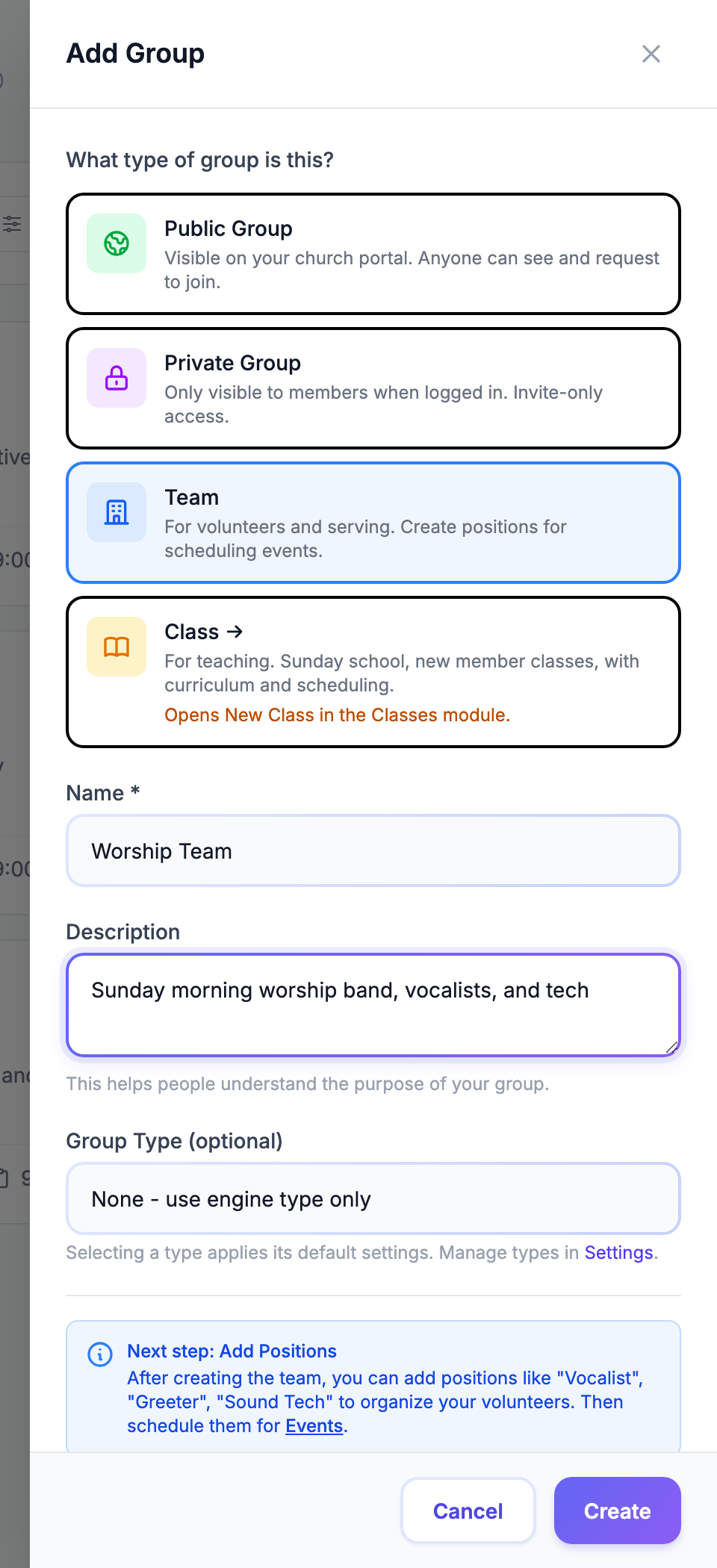
You'll land on the new team's page with tabs across the top: Group details, Members, Templates (plus a few more depending on the group type). The Group details tab is where you manage positions and scheduling.
Tip: If your church has set up its own group types, the panel also offers Group Type (optional). You can leave it on None - use engine type only for this tutorial.
Step 2: Add Positions to the Team
Time: 5 minutes
Positions are the roles you fill each Sunday — Worship Leader, Sound Tech, Vocalist, etc.
- On the Worship Team page, open the Group details tab.
- Scroll to the Positions card.
- Click + Add (top right of the card). In the Add Position dialog, type the Position Name, then click Add position. Repeat for each role:
Worship LeaderVocalistAcoustic GuitarElectric GuitarBassDrumsKeysSound TechProjection
- Verify all nine positions show in the list.
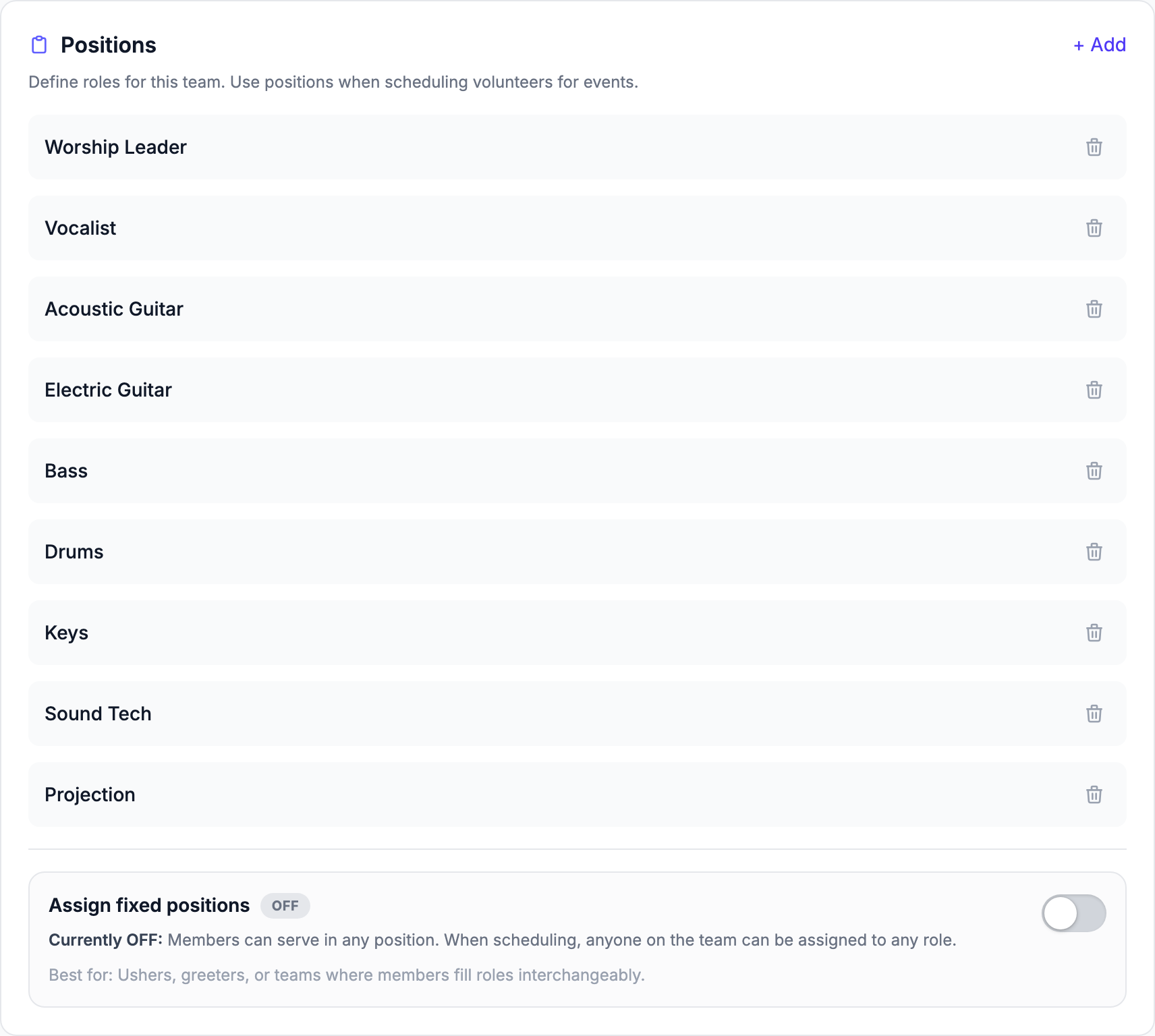
Tip: Don't worry about getting positions perfect right now. You can delete any position or add more later — nothing breaks.
Step 3: Add Team Members
Time: 5 minutes
- Click the Members tab.
- Click Add new at the top of the members list. (You can also use Add member(s) in the menu at the top of the team page.)
- In the Add Member dialog, start typing a name in the Search person box and pick the person from the results list.
- Click Add member.
- Repeat for each team member. Aim for at least 5–8 people on opening Sunday.
Someone who isn't in your church directory yet? In the same dialog, use Invite by email: enter their email (and, optionally, their name) and click Send group invitation. They join once they accept the invitation and a leader approves the request.
Tip: If you want the scheduler to use people only for the roles they actually play, turn on Assign fixed positions at the bottom of the Positions card (Group details tab) — the switch appears once the team has at least one position. When it's On, each member is tied to specific positions, and when scheduling, members can only be assigned to their fixed positions. The Members tab then shows each member's positions; click Assign on a member's row to pick theirs. When it's Off, anyone on the team can be assigned to any position.
Step 4: Configure Smart Scheduling Settings
Time: 3 minutes
- On the Worship Team page, open the Group details tab and scroll to the Scheduling Settings card.
- Set:
- Rotation Strategy:
Fair Rotation (based on who served least recently)— everyone serves about equally - Max Times Per Month:
2(no one gets burned out) - Keep Enable auto-scheduling checked (it is on by default)
- Check Auto-pick replacement when someone declines
- Rotation Strategy:
- Click Save Scheduling Settings.
Tip: The other rotation options are
Round Robin (fixed order)andManual Only (disable auto-fill). Fair Rotation is the right default for most teams. When a volunteer declines, the auto-pick feature gives the slot to the next person in rotation. After three attempts it stops, and the slot waits for a leader to fill it — the team's leaders are notified of every decline.
See Scheduling Volunteers for Events for the full breakdown of each option.
Step 5: Create a Standard Worship Setup Template
Time: 4 minutes
This schedule template tells TimelyChurch which positions every new worship event should automatically include.
- Still on the Worship Team page, click the Templates tab.
- Click New Template.
- In the Create Schedule Template dialog, fill in:
- Template Name:
Standard Worship Setup - Description (optional): "Default position list for Sunday worship"
- Check Set as default template for this team
- Under Auto-apply to event types (optional), check
Worship Service
- Template Name:
- Click Create Template.
- The template now appears in the list, already expanded because it has no positions yet (the chevron expands and collapses it later). Click Add Position to add each position with how many you need — in the Add Position to Template dialog, pick the Position, set Number Needed, and click Add Position:
- Worship Leader — Number Needed
1 - Vocalist — Number Needed
2 - Acoustic Guitar —
1 - Drums —
1 - Keys —
1 - Sound Tech —
1 - Projection —
1
- Worship Leader — Number Needed
The template is now flagged as default and set to auto-apply. Any worship event you create from this point forward will pull these positions in automatically.
Step 6: Create the Sunday Worship Event Series
Time: 5 minutes
In TimelyChurch, single events and recurring series are created from the same place — you just flip on Repeats.
- In the sidebar, expand Planning and click Events.
- In the top-right of the Events page, click New event. The Create event panel slides in.
- Under What are you planning?, pick Worship Service, then fill in the basics:
- Event title:
Sunday Worship - Date: next Sunday
- Start time / End: e.g. 10:00 AM to 11:30 AM
- Location: Main Sanctuary (or wherever you meet) — and pick a Room if you use rooms
- Event title:
- In the Repeats section, turn the switch on. Choose Weekly, then select Sunday under On these days. Under Ends, leave it on Never (or pick an end date).
- Click Create series.
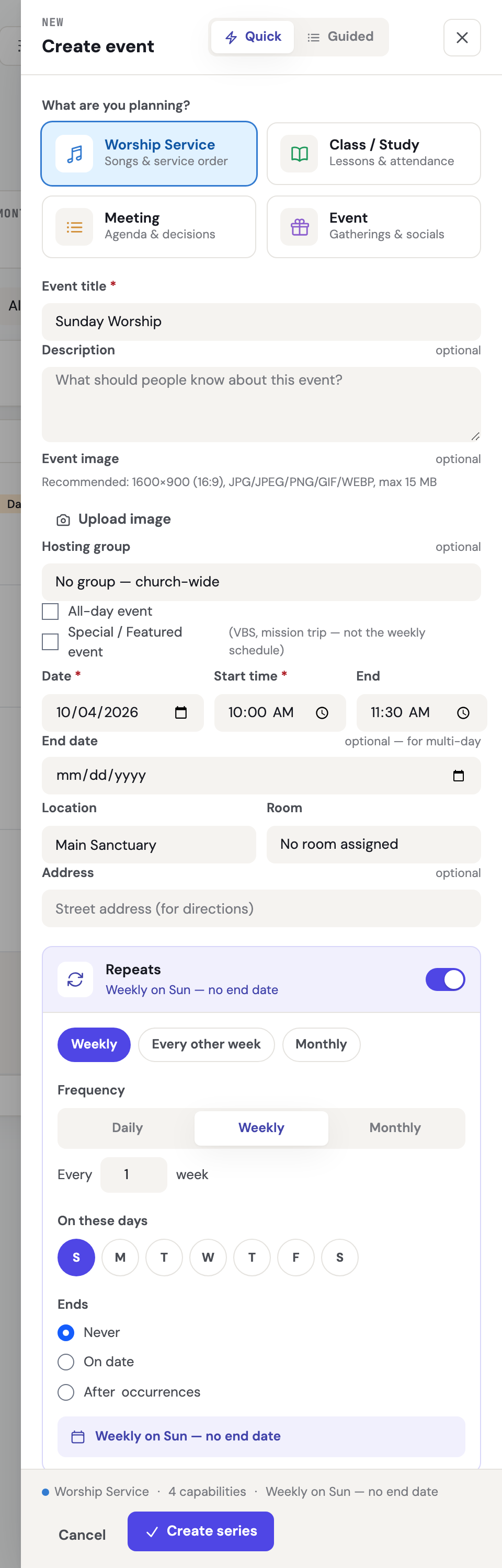
TimelyChurch generates the occurrences as actual event records you can open and edit. The button reads "Create event" when Repeats is off and "Create series" when it's on.
Tip: To manage all your recurring series later, open the More (⋮) menu in the top-right of the Events page and choose Event Series.
Step 7: Verify Positions Populated on Each Event
- Open one of the upcoming Sunday events (from the Events calendar/list, or from the Event Series page).
- Click the Serving tab.
- Verify the positions from your Standard Worship Setup template are listed, grouped by team, each showing how many are filled out of how many are needed (for example,
0/2on Vocalist). - Spot-check a second event to confirm the auto-apply worked across the series.
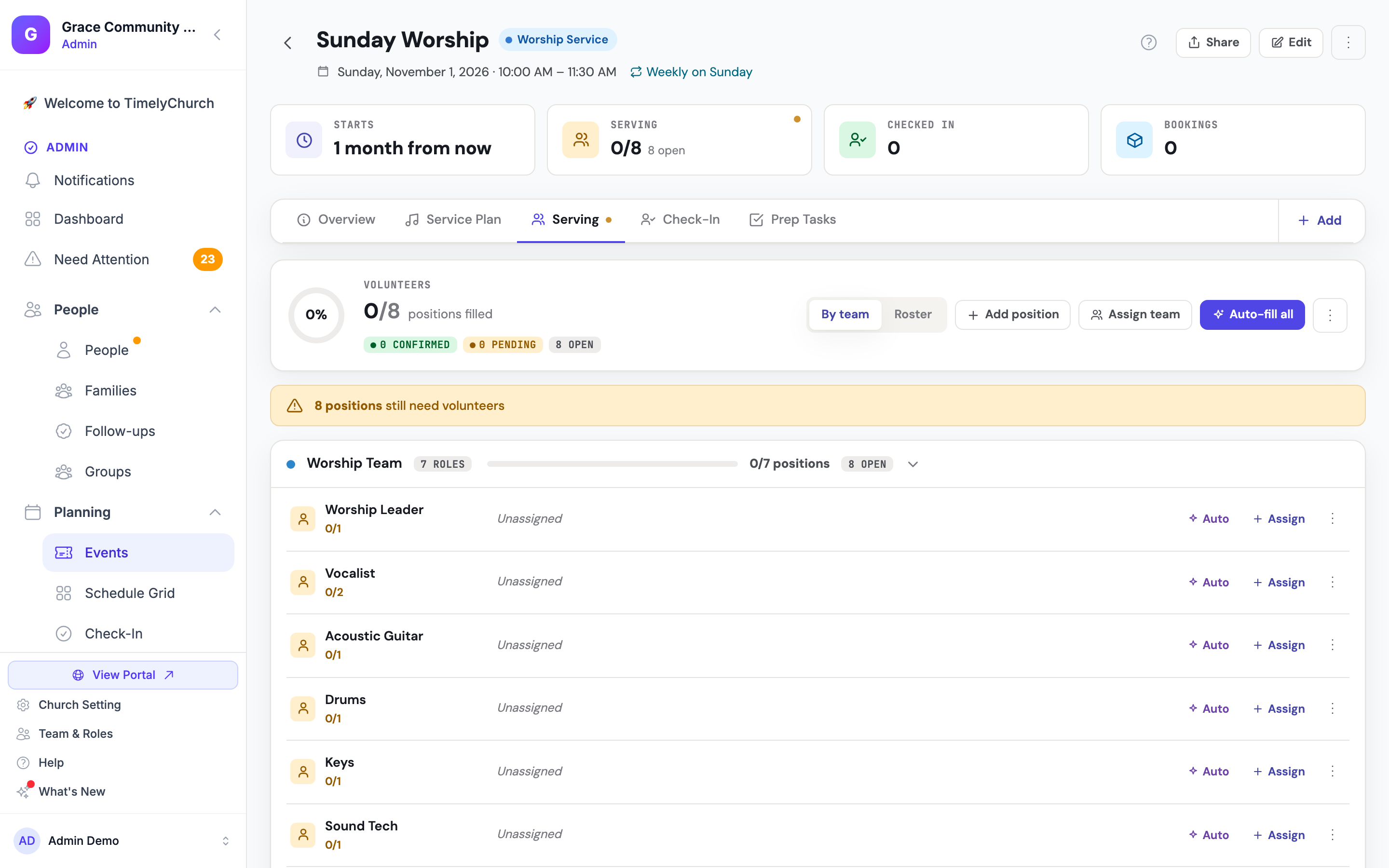
If an event is missing positions, use Add position on the Serving tab to add them by hand, or Assign team to add a whole team's positions at once (nobody is assigned or notified until you fill them).
Tip: If you use Assign team for a team that has no positions yet (a hospitality team, say), TimelyChurch adds one position named Volunteer to that team and puts it on the event. You can rename it later under Groups → the team → Positions.
Step 8: Invite Your First Volunteer (and Test Auto-Fill)
- On any upcoming Sunday event's Serving tab, find the
Worship Leaderposition and click Assign. - In the Find Volunteers panel, click Assign next to a teammate. They get a notification asking them to confirm.
- To watch auto-fill in action, click Auto on an open position (or Auto-fill all at the top of the tab) — the system picks the best available teammate automatically.
- When a volunteer declines, the auto-pick replacement feature you turned on in Step 4 hands the slot to the next person in rotation, so open slots keep filling themselves.
What to Do Next
- Walk your team leaders through Tutorial 02: Manage Your Team so they own their roster.
- Send your volunteers Tutorial 03: Set Your Availability before they get their first invite.
- Bookmark Tutorial 04 for the inevitable Saturday-night "I can't make it" — it shows how to fill an open slot with a fill request.
- Read Volunteer Management Overview to see everything else this module can do.
You're set. Opening Sunday is going to feel calm.