
AI Lesson Assist
TimelyChurch's AI features (powered by xAI Grok) include two purpose-built generators that help admins and teachers prepare lesson content faster: Discussion Questions and Lesson Plans. This article explains where to find them, what context they use, and how to get the best results.
Prerequisite: AI Lesson Assist requires the Content Generation feature to be enabled in your church's AI Settings. See AI Features Overview and AI Settings for how to turn it on.
Where AI Assist Appears
Discussion Questions Generator
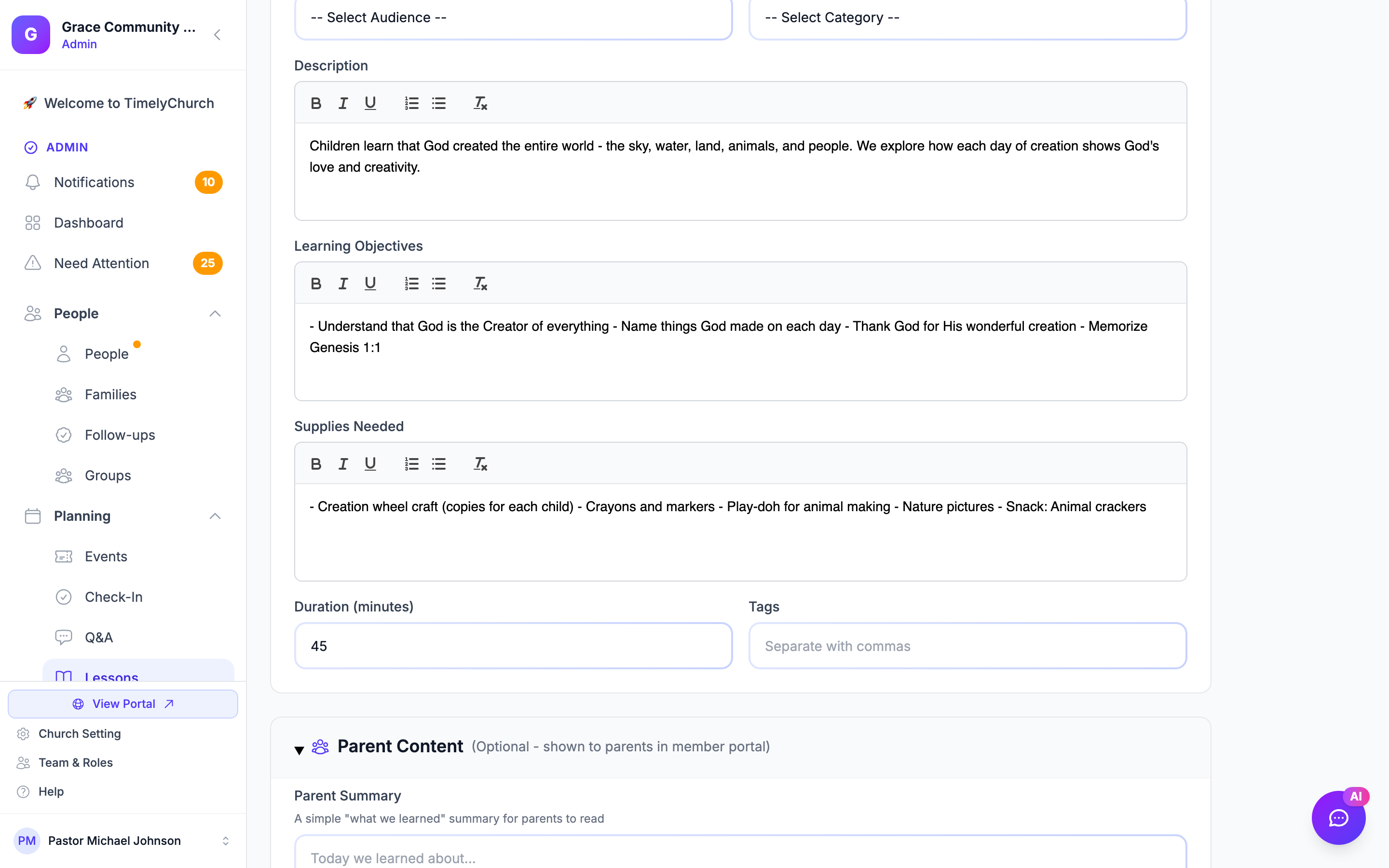
On the lesson edit form (admin sidebar → Lessons → open any lesson → Edit), an AI Assistant panel appears directly under the Discussion Questions field. The panel is the small purple-bordered box with a sparkle icon.
Lesson Plan Generator
The lesson plan generator uses the same AI assistance and is available wherever a class-type event has the lesson plan feature enabled. It produces a fully structured plan with objectives, activities, discussion points, and application sections, suitable for pasting into the Description or Learning Objectives fields.
Note: As of this writing, the Discussion Questions panel is the most polished surface for AI lesson generation in the admin interface. The Lesson Plan generator can be opened from an event's detail page when the lesson plan tab is active.
How the AI Generates Content
Both generators send your lesson details to xAI Grok along with built-in instructions tailored to the task.
What the AI Is Asked to Do
- Discussion Questions: the AI is asked to create thought-provoking discussion questions for Bible study or Sunday School that encourage reflection, application, and group discussion.
- Lesson Plans: the AI is asked to create a structured lesson plan with objectives, activities, discussion points, and application that is practical and age-appropriate.
Context Sent to the AI
For both generators, the following context is collected from the lesson form:
- Lesson title -- the primary topic anchor.
- Scripture reference -- helps the AI focus on the right passage.
- Suggested age group -- so questions or activities are age-appropriate.
- Church name -- for occasional natural-language reference.
- Existing content in the target field (if any) -- the AI uses this to refine or extend rather than overwrite from scratch.
- User prompt -- your free-text instruction (e.g., "Make these shorter" or "Focus on application").
The AI does not receive: member names, attendance data, donations, donor information, or any data outside the open lesson form.
Recommended Workflow
- Fill in the basics first. Enter at minimum a title and scripture reference before clicking Generate -- this gives the AI enough context to do good work.
- Set the age group if the lesson is targeted (e.g., "3rd-5th Grade") -- output quality improves dramatically when the AI knows the audience.
- Use the prompt to steer. Examples:
- "Generate 4 questions for early elementary ages"
- "Add a follow-up application question to the existing list"
- "Make these less abstract and more about real-life situations"
- Iterate. Existing content is included as context, so a second click of Generate with a refining prompt builds on the first result rather than discarding it.
- Always review and edit. Treat AI output as a first draft. Check theology, age-appropriateness, and tone before saving. The text is editable in the textarea before you click Save Changes.
- Save when ready. Nothing is saved until you click Save Changes on the lesson form.
Tips by Use Case
Writing for Young Kids (ages 3-7)
- Specify "preschool" or "early elementary" in the prompt.
- Ask for "yes/no" or "what would you do if..." style questions.
- Keep to 3 questions or fewer per session.
Writing for Pre-Teens and Teens
- Ask for application-focused questions ("How would this look in middle school?").
- Encourage open-ended reflection.
- Output 4-6 questions for a richer discussion.
Writing for Adult Bible Study
- Ask for cross-reference questions and theological depth.
- Request both observation and application questions.
- Output 5-8 questions for a 60-minute group.
Privacy and Audit
- Every AI generation request is logged for audit (see What AI Knows).
- The lesson content you generate stays in your church's tenant -- it is not used to train models, and other churches cannot see it.
- If your church disables the Content Generation feature in AI Settings, the AI Assistant panel disappears from lesson forms entirely.
Related
- Creating Lessons -- where the Discussion Questions panel lives.
- AI Features Overview -- system-wide AI overview.
- AI Settings -- how to enable/disable AI features per church.
- What AI Knows -- data scope, audit logging, and privacy.